
1. Product Overview
The VSDISPLAY 8 Inch Mini LCD Monitor (Model VS080ZJ-001) is a compact, portable display designed for various applications, including DIY secondary displays and internal PC case screens. It features an IPS panel with a 1280x800 resolution, offering wide viewing angles and clear image quality.
- Compact Design: Outline Size 189.3×118×14(H×V×D)mm; Display Area 172.24×107.64 (H×V)mm.
- High-Quality Display: IPS panel with 1280x800 full resolution and 16:10 aspect ratio for vivid images.
- Brightness and Contrast: Screen Brightness: 350cd/m2; Screen Contrast: 800:1.
- Versatile Connectivity: Supports video input via Mini HD and power via USB-C.
- Easy Installation: Equipped with mounting holes for desk or wall stands, compatible with various PC case fan replacements (e.g., O11 Vision O11DEXL-X).
2. Package Contents
Verify that all items are present in the package:
- VSDISPLAY 8 Inch Mini LCD Monitor
- Mini HD to HD Cable
- USB-A to USB-C Power Cable
- Mounting Screws

Figure 2.1: Monitor and included cables (Mini HD to HD cable and USB-A to USB-C power cable).
3. Setup Instructions
3.1 Connecting the Monitor
- Power Connection: Connect the USB-C end of the power cable to the USB-C port on the monitor. Connect the USB-A end to a compatible USB power source (e.g., computer USB port, USB wall adapter).
- Video Connection: Connect the Mini HD end of the video cable to the Mini HD port on the monitor. Connect the other end (standard HD) to your computer's HD output port.
- The monitor is designed for plug-and-play operation and should automatically detect the video signal.

Figure 3.1: Mini HD port for signal transmission and USB-C port for power only.

Figure 3.2: Example of the monitor used as an extended display with a laptop.
3.2 Mounting Options
The monitor includes mounting holes for flexible installation. It can be mounted on a desk stand, wall mount, or integrated into a PC case as a secondary display. The mounting holes are designed to align with standard 120mm fan locations in compatible PC cases.

Figure 3.3: Rear of the monitor with screw holes. Screw size: 4M.
Video 3.1: Demonstration of installing the VSDISPLAY mini monitor inside various PC cases, including NZXT H9, HYTE Y60, and JONSBO D31, showcasing its use as an internal secondary display.
4. Operating Instructions
Once connected, the VSDISPLAY monitor functions as a standard secondary display. You can extend your desktop, duplicate your main display, or use it as a dedicated screen for specific applications.
4.1 Using as a Secondary Display
- Ensure the monitor is powered on and connected to your computer via the HD cable.
- Your operating system should automatically detect the new display.
- Access your display settings (e.g., Windows: Right-click desktop > Display settings; macOS: System Settings > Displays) to configure display arrangement, resolution, and orientation.
- For optimal clarity, set the resolution to 1280x800.
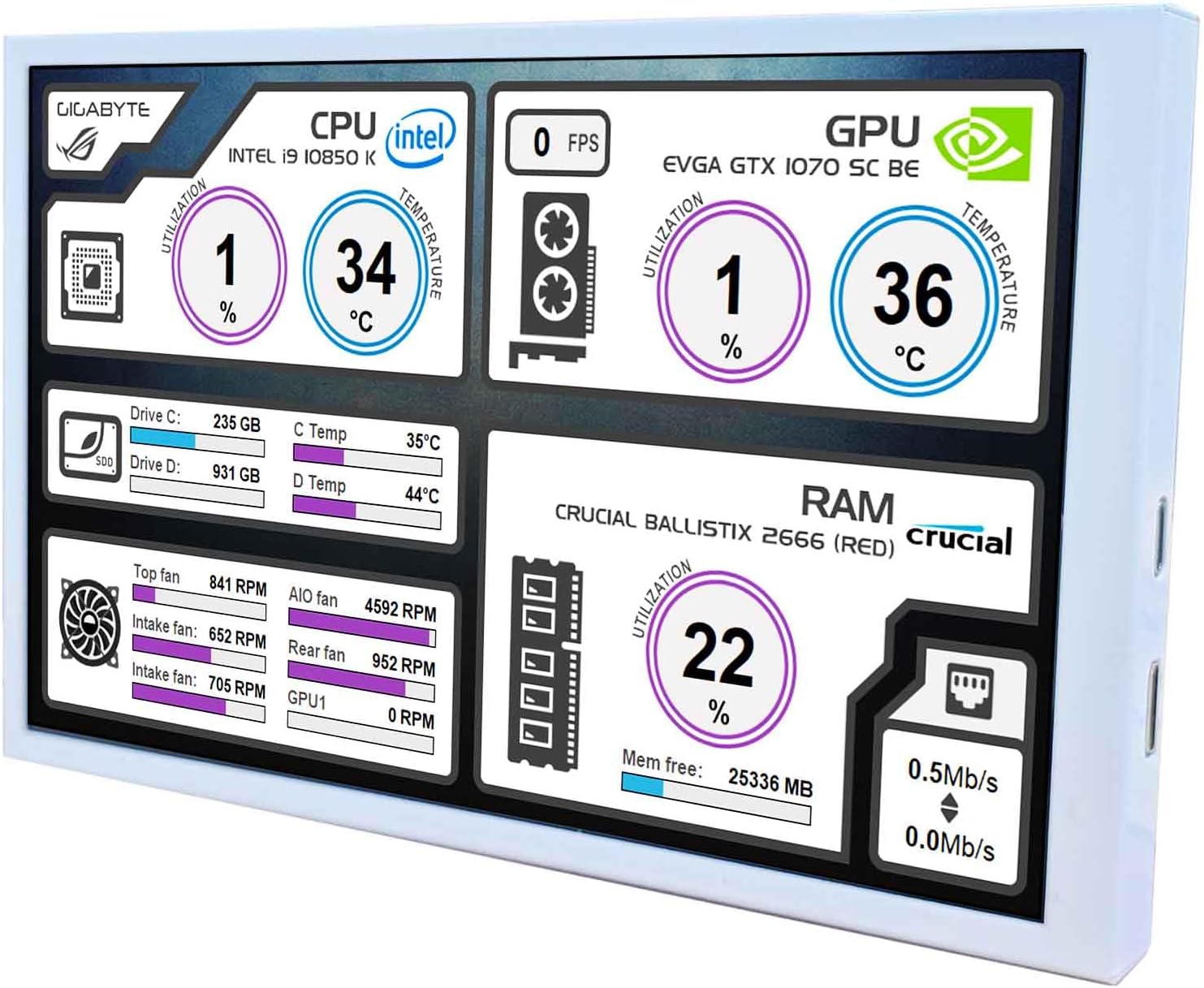
Figure 4.1: Monitor displaying system performance data, often achieved with third-party software.
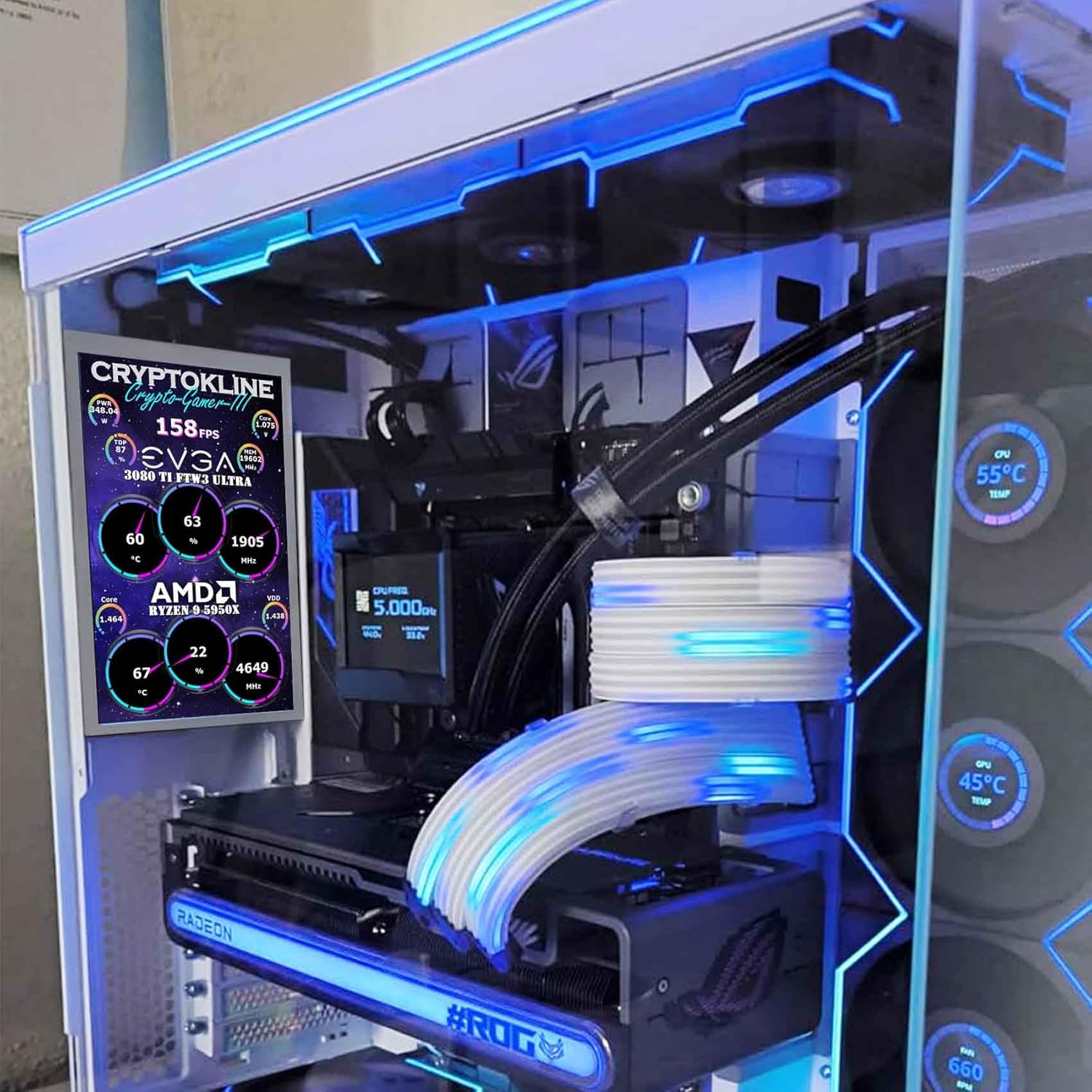
Figure 4.2: Monitor installed inside a PC case, showing system statistics.
4.2 Data Monitoring (Optional)
To display system monitoring data (e.g., CPU temperature, GPU usage, fan speeds), you will need to install third-party software on your computer. Popular options include AIDA64 Extreme or Rainmeter. These applications allow for customizable displays of system metrics on the secondary monitor.
- AIDA64 Extreme: A comprehensive system diagnostic and benchmarking tool that can display detailed hardware information. A license may be required for full functionality.
- Rainmeter: A free, open-source desktop customization tool that allows users to display various information, including system stats, through customizable skins.
Refer to the documentation of your chosen software for specific setup and customization instructions.
5. Maintenance
To ensure the longevity and optimal performance of your VSDISPLAY monitor, follow these maintenance guidelines:
- Cleaning the Screen: Gently wipe the screen with a soft, lint-free cloth. For stubborn smudges, slightly dampen the cloth with water or a screen-cleaning solution specifically designed for LCD displays. Avoid using harsh chemicals, abrasive cleaners, or alcohol-based solutions, as these can damage the screen surface.
- Cleaning the Casing: Use a soft, dry cloth to clean the monitor's casing.
- Storage: When not in use for extended periods, store the monitor in a cool, dry place, away from direct sunlight and extreme temperatures.
- Avoid Impact: Protect the monitor from physical shocks and impacts, which can damage internal components or the screen.
6. Troubleshooting
If you encounter issues with your VSDISPLAY monitor, refer to the following common troubleshooting steps:
- No Display/Black Screen:
- Ensure the USB-C power cable is securely connected to both the monitor and a working power source.
- Verify the Mini HD video cable is firmly connected to both the monitor and your computer's HD output.
- Try connecting the monitor to a different HD port on your computer or a different computer to rule out port issues.
- Check your computer's display settings to ensure the monitor is detected and configured correctly (e.g., extended display, duplicate display).
- Flickering Screen or Unstable Image:
- Ensure all cables are securely connected.
- Try a different HD cable if available.
- Reduce the display resolution in your computer's settings to see if the issue persists.
- Incorrect Colors or Image Quality:
- Check your computer's display settings for color calibration options.
- Ensure the display resolution is set to the native 1280x800.
- Monitor Not Detected by Computer:
- Restart your computer with the monitor connected.
- Update your graphics card drivers to the latest version.
- Ensure the monitor is receiving power.
- System Monitoring Software Not Working:
- Ensure the monitoring software (e.g., AIDA64, Rainmeter) is correctly installed and configured.
- Verify that the software is set to output to the correct display.
- Check for software updates or compatibility issues with your operating system.
If these steps do not resolve the issue, please contact customer support for further assistance.
7. Specifications
| Model Number | VS080ZJ-001 |
| Screen Size | 8 Inches |
| Resolution | 1280 x 800 |
| Aspect Ratio | 16:10 |
| Panel Type | IPS |
| Image Brightness | 350 cd/m2 |
| Screen Contrast | 800:1 |
| Product Dimensions | 0.55 x 7.45 x 4.64 inches (14 x 189.3 x 118 mm) |
| Item Weight | 1.37 pounds |
| Connectivity | Mini HD (Signal), USB-C (Power) |
| Manufacturer | VSDISPLAY |

Figure 7.1: Detailed product dimensions for the VSDISPLAY 8 Inch Mini LCD Monitor.
8. Warranty and Support
For warranty information or technical support, please refer to the documentation provided with your purchase or contact VSDISPLAY customer service directly. Keep your purchase receipt as proof of purchase for warranty claims.
Manufacturer: VSDISPLAY
Website: www.vsled.com (as per product image label)
