
Leopold FC630MBT
Leopold FC630MBT Bluetooth Mechanical Keyboard User Manual
Model: FC630MBT | Brand: Leopold
Introduction
This manual provides comprehensive instructions for the setup, operation, and maintenance of your Leopold FC630MBT Blue/Grey 60% Bluetooth Mechanical Keyboard with Cherry MX2A Brown switches. Please read this manual thoroughly before using the product to ensure proper functionality and longevity.
The Leopold FC630MBT is a compact 60% mechanical keyboard designed for both wired (USB-C) and wireless (Bluetooth 5.1) connectivity. It features double shot PBT keycaps, Cherry MX2A switches, and incorporates sound absorbing pads and foam for enhanced acoustics, providing a quiet and comfortable typing experience.
Product Overview

Figure 1: Leopold FC630MBT keyboard with an individual Cherry MX2A Brown switch for reference.
Key Features:
- Dual Connectivity: Wired via USB-C or Wireless via Bluetooth 5.1.
- Premium Keycaps: Durable Double Shot PBT keycaps for long-lasting legends.
- Advanced Switches: Equipped with the new Cherry MX2A line of switches for improved performance.
- Enhanced Acoustics: Features a sound absorbing pad and foam to minimize typing noise.
- Robust Design: FR4 dual-layer PCB design ensures durability.
- Power Source: Operates on three (3) AAA batteries (included) for Bluetooth mode.
- Compatibility: Fully compatible with Windows operating systems.

Figure 2: The keyboard's compact design, featuring a "Windows Key Less" layout and symmetrical aesthetics.

Figure 3: Exploded view illustrating the internal sound absorbing pad and space bar sound absorbing pad for enhanced acoustics.
Setup
1. Powering the Keyboard:
- Wired Mode: Connect the keyboard to your computer using the provided USB-C cable. The keyboard will be powered directly by your computer.
- Wireless (Bluetooth) Mode: Insert three (3) AAA batteries into the battery compartment located on the underside of the keyboard. Ensure correct polarity.

Figure 4: USB-C port for wired connection and power, and indication of Bluetooth power source.
2. Connecting to Your Device:
- Wired Connection: Plug the USB-C cable into the keyboard and the other end into an available USB port on your computer. The keyboard should be recognized automatically.
- Bluetooth Connection:
- Ensure the keyboard has batteries installed and is powered on.
- Activate Bluetooth on your computer or device.
- On the keyboard, press and hold Fn + Z, Fn + X, Fn + C, or Fn + V for a few seconds to enter pairing mode for one of the four available Bluetooth channels. The indicator light will flash.
- On your device, search for "Leopold FC630MBT" or a similar name in the Bluetooth settings and select it to pair.
- If prompted, enter the PIN displayed on your screen using the keyboard and press Enter.
- Once paired, the indicator light will stop flashing and remain solid.
- Switching between Wired and Bluetooth:
- To switch to wired mode, press Fn + B.
- To switch to a Bluetooth channel, press Fn + Z/X/C/V (short press after initial pairing).
3. DIP Switch Configuration:
The Leopold FC630MBT features DIP switches on the underside of the keyboard, allowing for hardware-level remapping of certain keys. Refer to the table below for available configurations.
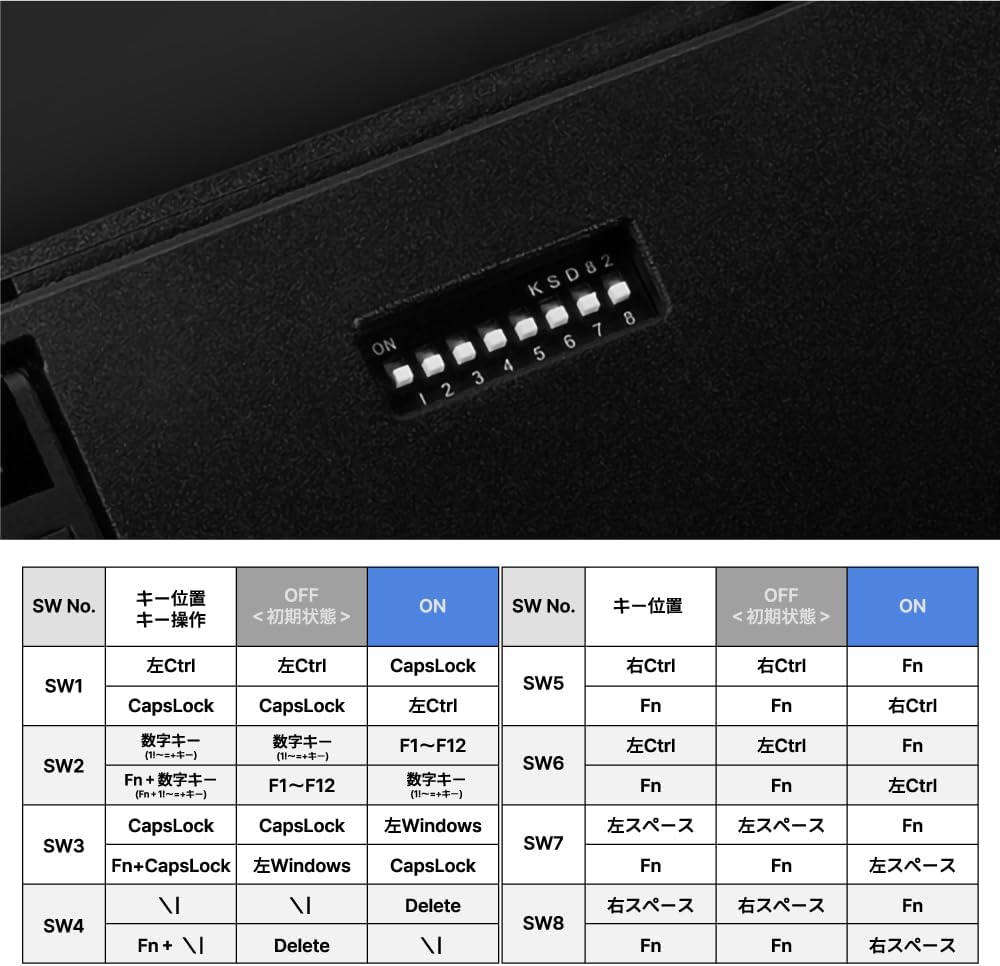
Figure 5: DIP switch settings. Ensure the keyboard is disconnected before changing DIP switch settings.
| SW No. | Key Position | OFF (Initial State) | ON |
|---|---|---|---|
| SW1 | Left Ctrl / CapsLock | Left Ctrl / CapsLock | CapsLock / Left Ctrl |
| SW2 | Fn + Number Key (F1-F12) | F1-F12 | Number Key |
| SW3 | Fn + CapsLock / Windows | Windows | Left Windows |
| SW4 | \ / | / Delete | \ / | | Delete |
| SW5 | Fn / Right Ctrl | Fn | Right Ctrl |
| SW6 | Fn / Left Ctrl | Fn | Left Ctrl |
| SW7 | Left Space / Fn | Left Space | Fn |
| SW8 | Right Space / Fn | Right Space | Fn |
Operating Instructions
Basic Typing:
The Leopold FC630MBT functions as a standard 60% US layout keyboard. Simply type as you normally would.
Function Key Combinations:
Due to its compact 60% layout, many standard keys (like F-keys, arrow keys, Home, End, etc.) are accessed via the Fn (Function) key. The legends for these secondary functions are typically printed on the front side of the keycaps.
- Arrow Keys: Press Fn + A (Left), Fn + S (Down), Fn + D (Right), Fn + W (Up).
- F1-F12 Keys: Press Fn + 1 (F1), Fn + 2 (F2), and so on, up to Fn + = (F12).
- Home/End/Page Up/Page Down: These are typically mapped to Fn + ; (Home), Fn + ' (End), Fn + [ (Page Up), Fn + ] (Page Down).
- Insert/Delete: Fn + P (Insert), Fn + Backspace (Delete). Note that the Backspace key itself is a full-size key.
- Windows Key: The keyboard is designed with a "Windows Key Less" physical layout, but the Windows key functionality can be accessed via Fn + CapsLock or remapped using DIP switches (refer to Setup section).
- Media Controls: Specific combinations for volume control, play/pause, etc., may be available and indicated on the keycaps.
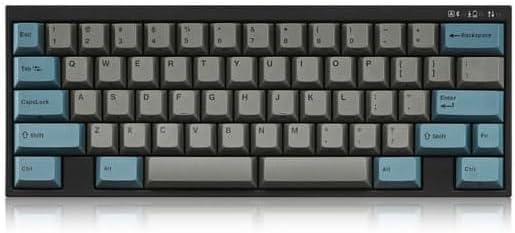
Figure 6: Top-down view of the keyboard layout, showing primary and secondary key legends.
Maintenance
Cleaning the Keyboard:
- Disconnect the keyboard from your computer before cleaning.
- Use a can of compressed air to remove dust and debris from between the keycaps.
- Wipe the keycaps and keyboard surface with a soft, slightly damp, lint-free cloth. Avoid using harsh chemicals or abrasive materials.
- For deeper cleaning, keycaps can be carefully removed using a keycap puller (not included) and washed with mild soap and water. Ensure they are completely dry before reattaching.
Battery Replacement:
- When the keyboard's Bluetooth connection becomes unstable or unresponsive, it may be time to replace the batteries.
- Locate the battery compartment on the underside of the keyboard.
- Open the compartment cover and remove the old AAA batteries.
- Insert three new AAA batteries, ensuring correct polarity (+/-).
- Close the battery compartment cover securely.
Troubleshooting
Keyboard Not Responding (Wired Mode):
- Ensure the USB-C cable is securely connected to both the keyboard and the computer.
- Try connecting the keyboard to a different USB port on your computer.
- Test with a different USB-C cable if available.
- Restart your computer.
Bluetooth Connectivity Issues:
- No Connection:
- Verify that the keyboard has fresh batteries installed.
- Ensure Bluetooth is enabled on your device.
- Put the keyboard into pairing mode (Fn + Z/X/C/V long press) and re-attempt pairing.
- If you previously attempted pairing and entered an incorrect PIN, remove the keyboard from your device's Bluetooth list and try pairing again.
- Intermittent Connection:
- Replace the AAA batteries with new ones.
- Ensure the keyboard is within the effective range of your Bluetooth device.
- Minimize interference from other wireless devices.
Keys Not Registering or Double Typing:
- Ensure the keyboard is clean and free of debris under the keycaps.
- If using Bluetooth, check battery level.
- Try switching to wired mode to see if the issue persists.
- For the first key press after the keyboard enters sleep mode, it might not register immediately. Allow a moment for the keyboard to wake up.
Incorrect Key Output (e.g., @ instead of "):
- This often indicates a mismatch between the keyboard's physical layout (US layout) and your operating system's keyboard language settings.
- Go to your computer's keyboard settings (e.g., Windows: Settings > Time & Language > Language & Region > Options for your language > Add a keyboard > US QWERTY).
- Ensure your OS keyboard layout is set to "US" or "English (United States)".
Specifications
| Feature | Detail |
|---|---|
| Model | FC630MBT |
| Brand | Leopold |
| Keyboard Type | 60% Mechanical Keyboard |
| Switch Type | Cherry MX2A Brown |
| Keycaps | Double Shot PBT |
| Connectivity | Bluetooth 5.1, USB-C |
| Compatible Devices | Laptop, PC |
| Power Source | 3x AAA Batteries (for Bluetooth) |
| Dimensions | 12.76 x 4.8 x 2.83 inches |
| Item Weight | 2.42 pounds |
| Color | Blue/Grey |
Warranty and Support
For warranty information and technical support, please refer to the documentation provided with your purchase or visit the official Leopold website. You may also contact the seller directly for assistance.
Visit the Leopold Store on Amazon for more product information.
Related documentsFC630MBT


Ask a question about this manual
Ask about setup, troubleshooting, compatibility, parts, safety, or missing instructions. Manuals+ will review the question and use this page’s manual context to help answer it.