
1. Introduction
Thank you for purchasing the Leopold FC630MBT 60% Bluetooth Mechanical Keyboard. This manual provides detailed instructions for setting up, operating, and maintaining your keyboard. Please read this manual thoroughly before use to ensure proper functionality and longevity of your device.

Image: The Leopold FC630MBT keyboard, showcasing its compact 60% layout and the Cherry MX2A Red switch type.
2. Package Contents
Ensure all items are present in the package:
- Leopold FC630MBT 60% Bluetooth Mechanical Keyboard
- USB-C Cable
- AAA Batteries (x3)
- User Manual (this document)
3. Setup
3.1. Battery Installation
The keyboard requires three (3) AAA batteries for Bluetooth operation. Locate the battery compartment on the underside of the keyboard, open it, and insert the batteries according to the polarity indicators. Close the compartment securely.
3.2. Wired Connection (USB-C)
To use the keyboard in wired mode:
- Connect the provided USB-C cable to the USB-C port on the keyboard.
- Connect the other end of the USB-C cable to an available USB port on your computer.
- The keyboard will be automatically detected and ready for use.

Image: Close-up of the USB-C port on the keyboard, illustrating how to connect the USB-C cable for wired use or power.
3.3. Bluetooth Connection
The keyboard supports Bluetooth 5.1 and can connect to up to four devices. To pair with a device:
- Ensure the keyboard has batteries installed and is powered on.
- On your computer or device, enable Bluetooth and search for new devices.
- Press Fn + Z, Fn + X, Fn + C, or Fn + V to select a Bluetooth profile (1-4). Hold the selected key combination for a few seconds until the indicator light flashes, indicating pairing mode.
- Select "Leopold FC630MBT" from the list of available Bluetooth devices on your computer.
- Follow any on-screen prompts to complete the pairing process.
3.4. DIP Switch Settings
The keyboard features DIP switches on the underside for advanced key remapping and functionality adjustments. Refer to the table below for available settings.
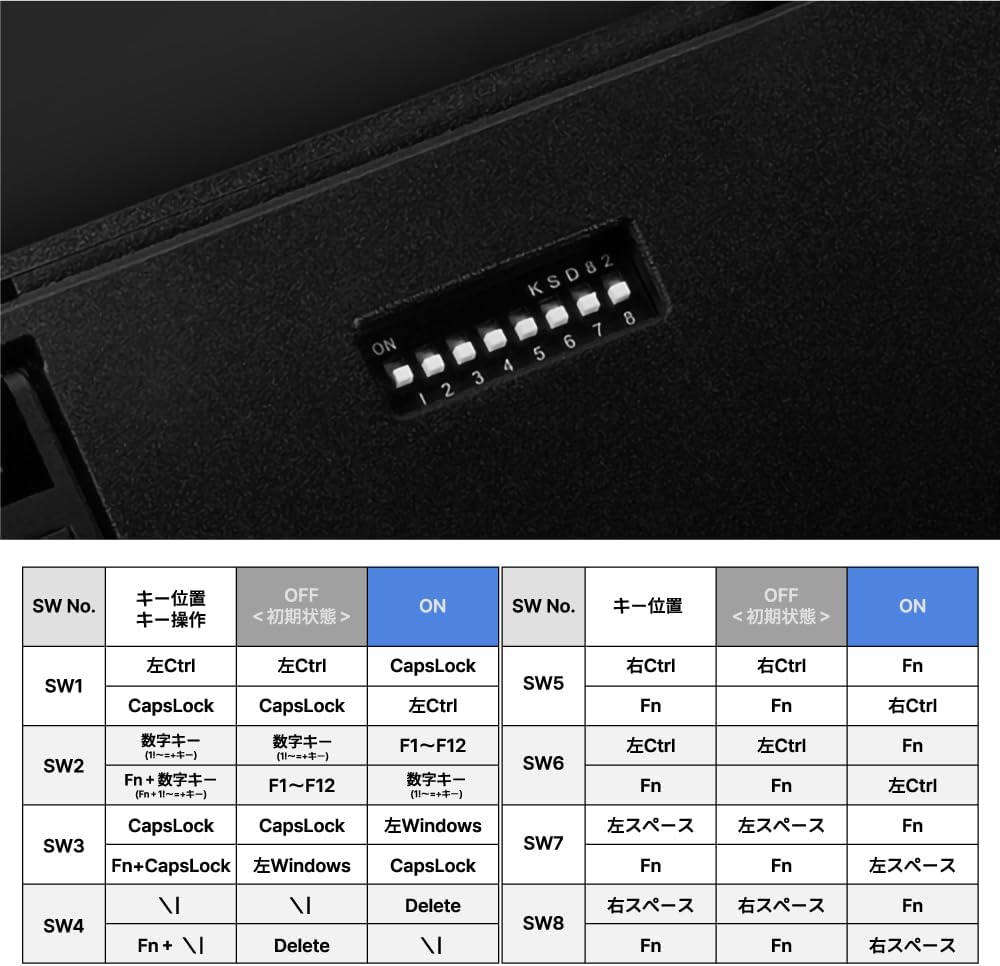
Image: The DIP switches on the back of the keyboard, allowing for customization of key functions.
| SW No. | Key Position | OFF (Initial State) | ON |
|---|---|---|---|
| SW1 | Left Ctrl | Left Ctrl | CapsLock |
| SW1 | CapsLock | CapsLock | Left Ctrl |
| SW2 | Fn + Number Key | F1~F12 | Number Key |
| SW3 | Fn + CapsLock | Windows | Left Windows |
| SW4 | Fn + \ | | Delete | \ | |
| SW5 | Fn | Fn | Right Ctrl |
| SW6 | Fn | Left Ctrl | Left Ctrl |
| SW7 | Left Space | Fn | Left Space |
| SW8 | Fn | Fn | Fn |
4. Operation
4.1. Basic Typing
The Leopold FC630MBT functions as a standard 60% keyboard. Simply type as you would on any other keyboard.
4.2. Function Key Combinations
Due to its compact 60% layout, many standard keys (e.g., F1-F12, arrow keys, Home, End, Delete) are accessed via the Fn key in combination with other keys. The front-printed legends on the keycaps indicate these secondary functions.
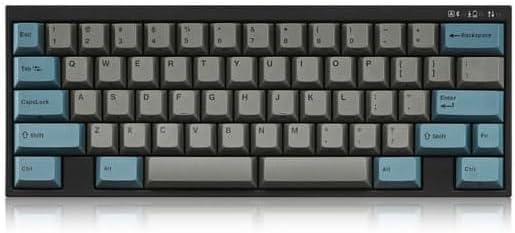
Image: The keyboard's layout, highlighting the front-printed legends that indicate secondary functions accessible with the Fn key.
- Fn + Number Row (1-0, -, =): Accesses F1-F12 functions.
- Fn + A/S/D/W: May function as arrow keys depending on DIP switch settings or specific firmware.
- Fn + P: Print Screen.
- Fn + [: Home.
- Fn + ]: End.
- Fn + \: Delete.
- Fn + Right Shift: Up Arrow.
- Fn + Right Ctrl: Right Arrow.
- Fn + Right Alt: Down Arrow.
- Fn + Menu Key: Left Arrow.
Refer to the keycap legends for a complete list of Fn key combinations.
4.3. Switching Connection Modes
- Wired Mode: Connect the USB-C cable to the keyboard and your computer. The keyboard will automatically switch to wired mode.
- Bluetooth Mode: Disconnect the USB-C cable. The keyboard will automatically attempt to connect to the last paired Bluetooth device. To switch between paired Bluetooth devices, press Fn + Z/X/C/V (short press).
5. Features
- Dual Connectivity: Connect via wired USB-C cable or wirelessly with Bluetooth 5.1.
- Durable Keycaps: Equipped with Double Shot PBT keycaps for enhanced durability and legend longevity.
- Cherry MX2A Switches: Features the new Cherry MX2A line of switches (Red variant) for a smooth and responsive typing experience.
- Enhanced Acoustics: Includes a sound absorbing pad and foam for improved typing acoustics.
- Robust PCB: Utilizes an FR4 dual-layer PCB design for reliability.
- Windows Compatible: Fully compatible with Windows operating systems.
- Battery Powered Bluetooth: Bluetooth functionality is powered by three (3) AAA batteries (included).

Image: An exploded diagram illustrating the internal components, including the PCB steel plate and sound-absorbing pads, designed for enhanced acoustics.

Image: A detailed view of the Cherry MX2A switch, emphasizing its new design and contribution to the keyboard's performance.
6. Maintenance
6.1. Cleaning
To maintain the keyboard's appearance and functionality:
- Use a soft, lint-free cloth to wipe the keycaps and casing.
- For deeper cleaning, use compressed air to remove dust and debris from between the keycaps.
- Avoid using harsh chemicals or abrasive materials, as these can damage the keyboard's finish.
6.2. Storage
When not in use for extended periods, store the keyboard in a dry, cool place away from direct sunlight and extreme temperatures. Consider removing the AAA batteries if storing for several months to prevent leakage.
7. Troubleshooting
7.1. Keyboard Not Responding (Wired)
- Ensure the USB-C cable is securely connected to both the keyboard and the computer.
- Try connecting the keyboard to a different USB port on your computer.
- Test with a different USB-C cable if available.
- Restart your computer.
7.2. Keyboard Not Connecting (Bluetooth)
- Ensure the AAA batteries are correctly installed and have sufficient charge.
- Verify that Bluetooth is enabled on your computer/device.
- Ensure the keyboard is in pairing mode (indicator light flashing after pressing Fn + Z/X/C/V).
- Remove the keyboard from your device's Bluetooth list and attempt to re-pair.
- Try pairing with a different Bluetooth-enabled device to rule out device-specific issues.
7.3. Incorrect Key Output
- Check the DIP switch settings on the underside of the keyboard. Incorrect settings can alter key functions.
- Ensure your operating system's keyboard layout is set to US English (or the appropriate layout for your keycaps).
8. Specifications
- Model: FC630MBT
- Brand: Leopold
- Switch Type: Cherry MX2A Mechanical (Red)
- Connectivity: Bluetooth 5.1, USB-C
- Keycaps: Double Shot PBT
- Layout: 60%
- Compatible Devices: Laptop, PC
- Power Source: 3x AAA Batteries (for Bluetooth), USB Power (for wired)
- Package Dimensions: 12.76 x 4.8 x 2.83 inches
- Item Weight: 2.42 pounds
9. Warranty & Support
For warranty information and technical support, please refer to the official Leopold website or contact your retailer. Keep your proof of purchase for any warranty claims.
Leopold Official Website: Visit the Leopold Store on Amazon


