Introduction
The LICORNE 32-Inch Portable Smart Screen (Model YTJ-001) is a versatile touch screen TV monitor designed for flexible viewing and entertainment. It features a 1080p resolution, Android OS, a built-in battery, and a portable design with full swivel rotation. This manual provides essential information for setting up, operating, maintaining, and troubleshooting your device.
Product Features
- 32-Inch In-Cell Touch Screen: Enjoy a crystal-clear 1920x1080 pixel resolution for high-definition content.
- External 4K HD Camera: Included for video calls (supports vertical mode only).
- Voice-Activated Remote Control: Navigate and control your device with ease (compatibility may vary with some apps).
- Adjustable Screen Positions: Effortlessly switch between portrait and landscape modes, and rotate the screen at various angles for optimal viewing comfort.
- Wireless and Wired Projection: Supports Wi-Fi, HDMI input, and HDMI output for seamless sharing from iOS, Android, and Windows devices. Connect gaming consoles for a larger display.
- Portable Design with Built-in Battery: Features a detachable charging dock and a 108Wh battery, providing up to 6 hours of uninterrupted usage. Equipped with quiet wheels for easy movement throughout your home or outdoors.
- Android 13 OS: Access a wide range of applications from the Google Play Store, including streaming services and social media apps.
- Powerful Performance: Equipped with an 8-core CPU, 6GB RAM, and 128GB internal storage for smooth operation.
Setup Guide
1. Unboxing and Component Check
Carefully unpack all components from the box. Ensure you have the 32-inch smart screen, the mobile stand with wheels, the detachable charging dock, the voice remote control, the external 4K HD camera, and the power adapter.
2. Stand Assembly
Assemble the mobile stand according to the included quick start guide. Ensure all connections are secure before mounting the screen.
3. Screen Mounting
Attach the 32-inch smart screen to the assembled stand. Follow the instructions to ensure it is securely fastened and can rotate freely.
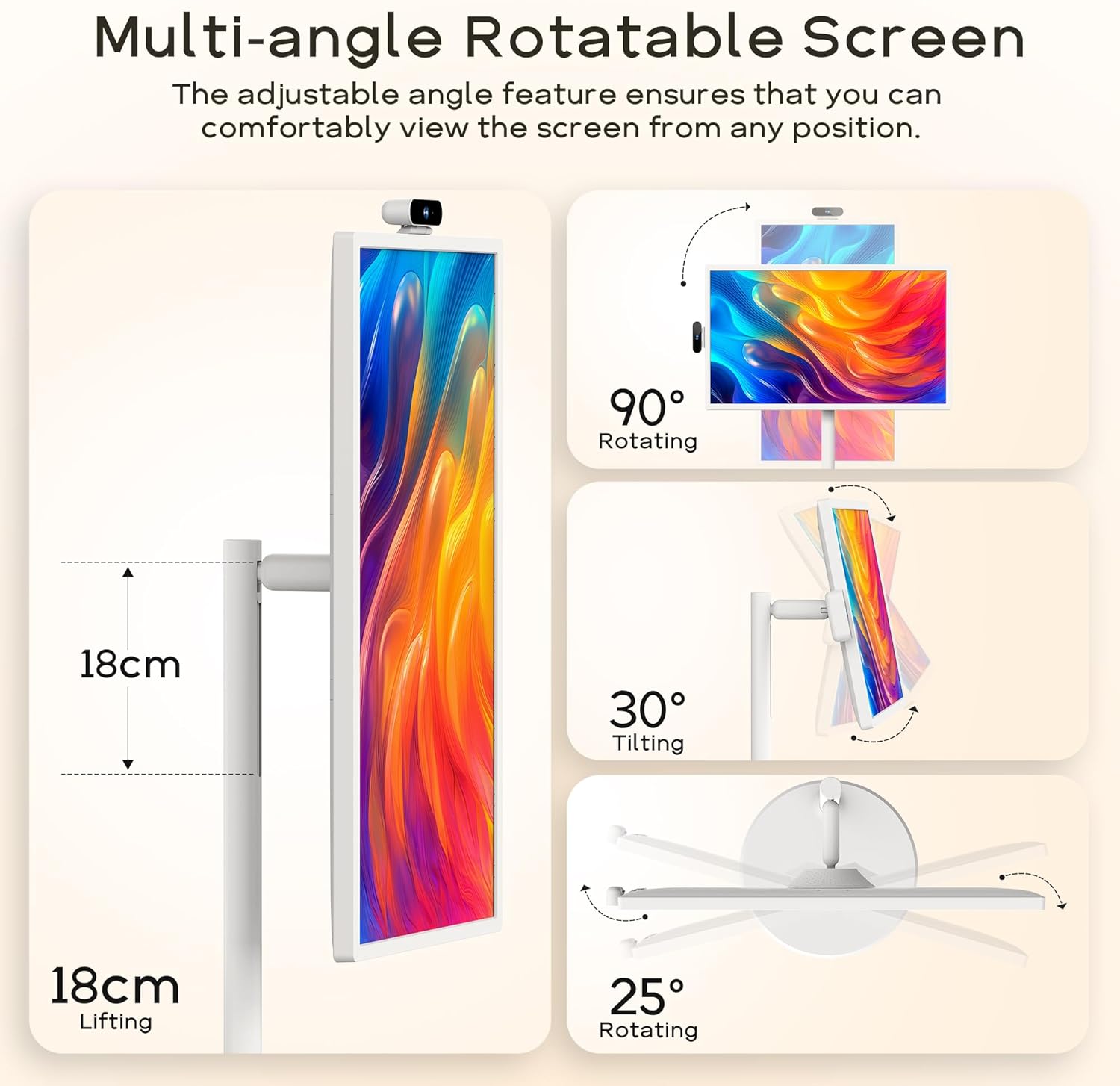
The screen can be rotated 90 degrees, tilted 30 degrees, and rotated 25 degrees on its base, with 18cm of lifting adjustment.
4. Initial Power On and Charging
Connect the power adapter to the charging dock and plug it into a power outlet. Place the smart screen onto the charging dock. The screen will begin charging. Press the power button located on the device to turn it on.

The portable screen features a rollable base with quiet wheels and a built-in battery for up to 6 hours of use.
5. Wi-Fi and Android OS Setup
Upon first power-on, follow the on-screen prompts to connect to your Wi-Fi network. You will then be guided through the Android 13 OS setup, including signing in with your Google account to access the Google Play Store.

The smart screen runs on Android OS, supporting app downloads and voice control.
6. Camera Installation
If using the external 4K HD camera, attach it to the designated port on the top of the screen. Note that the camera functionality is optimized for vertical screen orientation.

The external webcam supports installation only at the top of the screen in vertical view for 4K HD video calls.
Operating Instructions
1. Power On/Off
Press the power button once to turn the screen on. Press and hold the power button for a few seconds to access power options (Power Off, Restart).
2. Touch Screen Operation
Navigate the Android interface by tapping, swiping, and pinching on the screen, similar to a tablet or smartphone.
3. Voice Remote Control
Use the voice remote control to issue commands, search for content, and navigate menus. Ensure the remote is paired with the device. Refer to the remote control's specific instructions for pairing if needed.
4. Adjusting Screen Orientation
Manually rotate the screen on its stand to switch between portrait and landscape modes. The system will automatically adjust the display orientation. You can also tilt and rotate the screen on its axis for optimal viewing angles.
5. Connecting External Devices (HDMI)
Use an HDMI cable to connect external devices such as gaming consoles, laptops, or media players to the HDMI input port on the smart screen. Select the HDMI input source from the screen's input menu.
6. Wireless Screen Projection
The smart screen supports various wireless projection protocols including Apple AirPlay, Miracast, Android DLNA, and Chromecast. Activate the screen mirroring function on your mobile device or computer and select the LICORNE Smart Screen from the available devices.

The smart screen supports cross-platform wireless screen casting for various devices.
7. App Management
Access the Google Play Store to download and install applications. Manage installed apps through the 'Settings' menu, where you can clear cache, manage permissions, or uninstall apps.
8. Battery Management
To maximize battery life, reduce screen brightness and close unused applications. Recharge the device by placing it on the charging dock or connecting the power adapter directly.
Maintenance
1. Cleaning the Screen
Use a soft, lint-free cloth specifically designed for electronics. Lightly dampen the cloth with water or a screen cleaning solution. Avoid harsh chemicals, abrasive materials, or spraying liquid directly onto the screen.
2. Battery Care
For optimal battery longevity, avoid fully discharging the battery frequently. Store the device in a cool, dry place when not in use for extended periods. If storing for a long time, ensure the battery is charged to approximately 50%.
3. Software Updates
Periodically check for system updates in the 'Settings' menu to ensure your device has the latest features and security patches. Keep your apps updated through the Google Play Store.
4. Storage
When moving or storing the device, ensure the screen is in a secure position and the stand is locked to prevent accidental damage. Avoid exposing the device to extreme temperatures or humidity.
Troubleshooting
| Problem | Possible Cause | Solution |
|---|---|---|
| Device does not turn on. | Low battery or power adapter not connected. | Connect the power adapter and allow the device to charge for at least 30 minutes before attempting to power on again. |
| Wi-Fi connection issues. | Incorrect password, out of range, or router issue. | Verify Wi-Fi password. Move closer to the router. Restart your Wi-Fi router and the smart screen. |
| Apps are buffering or running slowly. | Slow internet connection, too many apps running, or insufficient storage. | Check your internet speed. Close unnecessary background applications. Clear app caches or uninstall unused apps to free up storage. |
| Voice remote control not responding. | Low remote battery or remote not paired. | Replace remote batteries. Refer to the remote's instructions for re-pairing with the smart screen. |
| Screen projection is not working. | Device compatibility, network issues, or incorrect settings. | Ensure your source device and the smart screen are on the same Wi-Fi network. Check screen mirroring settings on both devices. Some apps may restrict casting. |
| External camera not functioning. | Improper connection or screen orientation. | Ensure the camera is securely connected to the correct port. Verify the screen is in vertical mode, as the camera is optimized for this orientation. |
Specifications
- Model Number: YTJ-001
- Brand: LICORNE
- Screen Size: 32 Inches
- Resolution: FHD 1080p (1920 x 1080 Pixels)
- Aspect Ratio: 16:9
- Screen Surface: Glossy
- Response Time: 5 Milliseconds
- Display Type: LED
- Special Features: Portable, Touch Screen, Swivel Rotation
- Connectivity Technology: HDMI, Wi-Fi
- Operating System: Android 13 OS
- Processor: 8-core CPU
- RAM: 6GB
- Internal Storage: 128GB
- Battery: 108Wh (up to 6 hours usage)
- Product Dimensions: 122.78 x 25.88 x 51.28 cm
- Product Weight: 24.47 kg
Warranty and Support
For warranty information and technical support, please refer to the warranty card included with your product or contact LICORNE customer service directly. Keep your purchase receipt as proof of purchase for any warranty claims.
For further assistance, please visit the official LICORNE support website or contact their customer service hotline.


