
Introduction
This manual provides instructions for the MoKo AZERTY Foldable Bluetooth Keyboard, a portable wireless input device designed for use with various operating systems. It features a 2-in-1 design combining a touchpad and a numeric keypad, multi-device connectivity, and a rechargeable battery, offering convenience for mobile computing.

Image: The MoKo AZERTY Foldable Bluetooth Keyboard unfolded, shown with a smartphone on a stand, illustrating its compact and portable design.
Package Contents
Please verify that all items are present in the package:
- 1 x Wireless Foldable Keyboard
- 1 x Stand (for phones or tablets up to 12.9 inches)
- 1 x USB Type-C Charging Cable
- 1 x User Manual
Setup
Charging the Keyboard
The keyboard features a built-in 140mAh rechargeable lithium battery. To charge, connect the included USB Type-C cable to the keyboard's charging port and a standard USB power source (e.g., computer USB port, wall adapter). A full charge takes approximately 1.5 to 2 hours and provides up to 60 hours of working time.

Image: Close-up of the MoKo Foldable Bluetooth Keyboard showing the USB-C charging port and a charging cable connected, indicating the charging process.
Bluetooth Pairing
- Ensure the keyboard is charged and powered on. The power switch is typically located on the side or back of the keyboard.
- Activate Bluetooth on your device (smartphone, tablet, PC).
- Search for available Bluetooth devices. The keyboard should appear as 'MoKo Keyboard' or a similar identifier.
- Select the keyboard from the list to initiate pairing. Follow any on-screen prompts to complete the connection.
Multi-Device Connection
This keyboard supports simultaneous connection with up to three devices, allowing for seamless switching:
- Pair your first device using the Bluetooth pairing steps above, then press Fn + BT1.
- Pair your second device, then press Fn + BT2.
- Pair your third device, then press Fn + BT3.
- To switch between paired devices, simply press Fn + BT1, Fn + BT2, or Fn + BT3. The wireless range is approximately 15 meters (49 feet).

Image: The MoKo Foldable Bluetooth Keyboard wirelessly connected to a laptop, a tablet, and a smartphone, demonstrating its multi-device pairing capability.
Operating Instructions
Touchpad and Numpad Functionality
The keyboard integrates a 2-in-1 design that combines a touchpad and a numeric keypad. In touchpad mode, it supports standard left and right mouse button functions, along with various gesture controls for navigation. To switch between touchpad mode, numeric keypad mode, and arrow key mode, press the Fn key simultaneously with the dedicated toggle key (indicated by a numpad icon on the keyboard).

Image: The MoKo Foldable Bluetooth Keyboard highlighting the touchpad area and illustrating how to switch between touchpad mode and numeric keypad mode using the Fn key combination.
Keyboard Layout and Keys
This keyboard features an AZERTY FR layout. The scissor-switch key mechanism provides a quiet, smooth, and stable typing experience, similar to a laptop keyboard, enhancing typing comfort and precision.

Image: A close-up view of the MoKo keyboard keys, demonstrating the scissor-switch mechanism beneath the keycaps, which contributes to quiet and fluid typing.
Auto-Sleep Mode
To conserve battery power, the keyboard automatically enters an auto-sleep mode after 10 minutes of inactivity. To wake the keyboard, simply press any key.
Compatibility
The MoKo Foldable Bluetooth Keyboard is compatible with a wide range of operating systems, including Windows, Mac OS, iOS, HarmonyOS, and Android devices. This allows for versatile use with PCs, tablets, smartphones, and laptops.

Image: The MoKo Foldable Bluetooth Keyboard displayed alongside a desktop computer, a tablet, and a smartphone, illustrating its broad compatibility with macOS, Windows, iOS, and Android operating systems.
Maintenance
To ensure the longevity and optimal performance of your keyboard, follow these maintenance guidelines:
- Cleaning: Use a soft, dry, lint-free cloth to clean the keyboard surface. For stubborn dirt, slightly dampen the cloth with water or a mild, non-abrasive cleaner. Avoid spraying liquids directly onto the keyboard or using harsh chemicals.
- Storage: When not in use, fold the keyboard to protect the keys and store it in a dry environment, away from direct sunlight, extreme temperatures, and excessive humidity.
- Handling: Avoid dropping the keyboard or subjecting it to strong impacts, as this can damage internal components or the folding mechanism.
Troubleshooting
If you encounter issues with your MoKo Foldable Bluetooth Keyboard, refer to the following common solutions:
- Keyboard not connecting via Bluetooth:
- Ensure the keyboard is powered on and fully charged.
- Verify that Bluetooth is enabled on your device and it is discoverable.
- Try unpairing and re-pairing the keyboard from your device's Bluetooth settings.
- Restart both the keyboard and your device.
- Ensure the keyboard is within the 15-meter (49 feet) wireless range.
- Keys not responding or typing incorrectly:
- Check the battery level and recharge if necessary.
- Ensure the correct operating system mode is selected (if applicable, though this model auto-detects).
- Clean around the unresponsive keys to remove any debris.
- Touchpad or Numpad not working:
- Verify that you are in the correct mode (touchpad, numpad, or arrow keys) by pressing Fn + [Numpad/Touchpad Toggle Key].
- Ensure the touchpad is not accidentally disabled in your device's settings.
- Keyboard frequently disconnects:
- Reduce the distance between the keyboard and your device.
- Minimize interference from other wireless devices.
- Ensure the keyboard is fully charged.
Specifications
| Feature | Detail |
|---|---|
| Brand | MoKo |
| Model Number | P840401438404 |
| Color | Grey |
| Connectivity Technology | Bluetooth |
| Special Features | Rechargeable, Foldable, Integrated Touchpad & Numpad |
| Compatible Devices | PC, Tablet, Smartphone, Laptop (Windows, Mac OS, iOS, HarmonyOS, Android) |
| Battery Capacity | 140 mAh |
| Working Time | Up to 60 hours |
| Charging Time | 1.5 to 2 hours |
| Operating Voltage | 3.7 V |
| Material | Plastic (ABS) |
| Folded Dimensions | 15.2 x 9.81 x 1.98 cm (5.98 x 3.86 x 0.78 inches) |
| Unfolded Dimensions | 30.43 x 9.81 x 0.99 cm (11.98 x 3.86 x 0.39 inches) |
| Weight | 203 g (7.16 oz) |
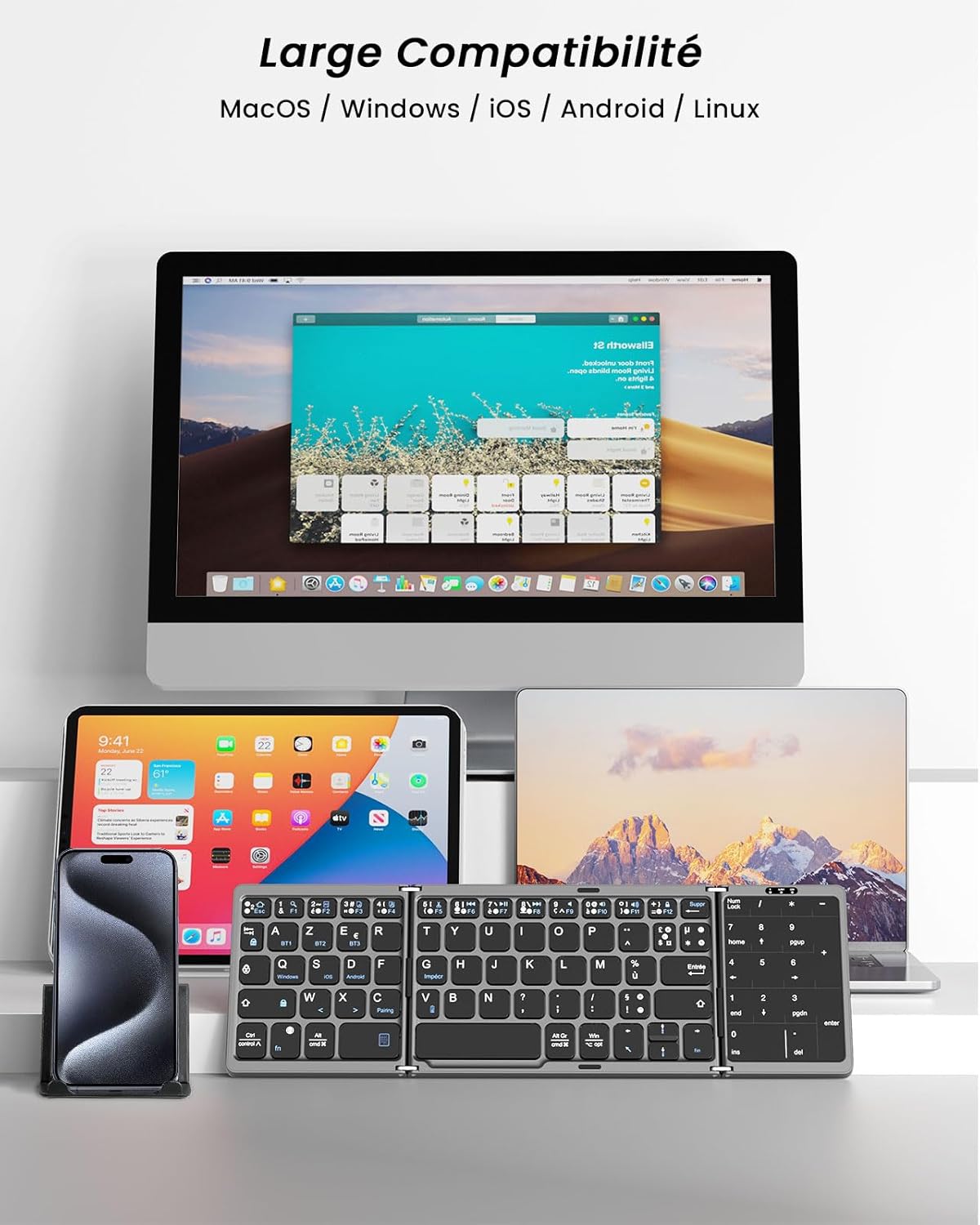
Image: The MoKo Foldable Bluetooth Keyboard shown with its folded and unfolded dimensions in both centimeters and inches, providing a clear visual reference for its compact size.
Warranty and Support
MoKo is committed to providing high-quality products and customer service. While specific warranty periods may vary by region, MoKo offers professional after-sales support for this product. If you encounter any issues or have questions regarding your MoKo AZERTY Foldable Bluetooth Keyboard, please do not hesitate to contact MoKo customer support. They aim to respond to inquiries within 24 hours and provide a satisfactory solution.


