
Introduction
This manual provides detailed instructions for the setup, operation, maintenance, and troubleshooting of your RedThunder K10 Wired Gaming Keyboard and Mouse Combo. Please read this manual thoroughly before using the product to ensure optimal performance and longevity.
The RedThunder K10 combo includes a 104-key full-size wired gaming keyboard, a 7-button wired gaming mouse, and a soft leather wrist rest, all designed to enhance your gaming and computing experience with ergonomic comfort and customizable RGB lighting.
Setup
Follow these steps to connect your RedThunder K10 Gaming Keyboard and Mouse Combo to your computer.
- Unpack the Components: Carefully remove the keyboard, mouse, and wrist rest from their packaging.
- Connect the Keyboard: Locate an available USB port on your computer. Plug the USB connector of the keyboard into the USB port.
- Connect the Mouse: Locate another available USB port on your computer. Plug the USB connector of the mouse into the USB port.
- Attach the Wrist Rest: Position the soft leather wrist rest in front of the keyboard for ergonomic support.
- System Recognition: Your operating system (Windows 11, 10, 8, 7, Vista, XP, or limited macOS) should automatically detect and install the necessary drivers. This process may take a few moments.
Once connected, the RGB lighting on both the keyboard and mouse should illuminate, indicating they are powered on and ready for use.

Image: The RedThunder K10 keyboard and mouse combo demonstrating wide compatibility with various operating systems, including Windows and macOS, via USB connection.
Operating Instructions
Keyboard Functions
The K10 keyboard features a 104-key full-size layout with dedicated F-keys and a numeric keypad. It supports 26-key anti-ghosting for precise input during intense gaming sessions.
RGB Lighting Control
The keyboard's RGB backlighting can be customized using the Function (Fn) key in combination with other keys:
- Fn + Ins: Cycle through various lighting modes.
- Fn + Del: Activate streamer lighting mode.
- Fn + Home: Switch between different static color options.
- Fn + End: Toggle breathing lighting mode.
- Fn + PgUp / PgDn: Adjust backlight brightness (PgUp for brighter, PgDn for dimmer).
- Fn + '+' / '-': Adjust the speed of dynamic lighting effects.
Multimedia and System Functions
Access multimedia controls and system functions using the Fn key:
- Fn + F1-F12: Access various multimedia and system shortcuts (e.g., volume control, media playback, email, browser).
- Fn + Win: Lock or unlock the Windows key to prevent accidental presses during gaming.

Image: Visual guide to the RedThunder K10 keyboard's RGB lighting modes and function key combinations for customization.
Mouse Functions
The K10 gaming mouse features a high-precision optical sensor and 7 programmable buttons, designed for responsive and accurate tracking.
- DPI Adjustment: The mouse offers adjustable sensitivity up to 7200 DPI, with a 12000fps scan rate and 1000Hz polling rate. DPI settings can typically be cycled through using a dedicated button on the mouse (often located behind the scroll wheel).
- 7 Buttons: Includes standard left/right click, scroll wheel, DPI button, and two side buttons for forward/backward navigation or custom assignments.
- RGB Lighting: The mouse features dynamic RGB lighting effects that complement the keyboard.
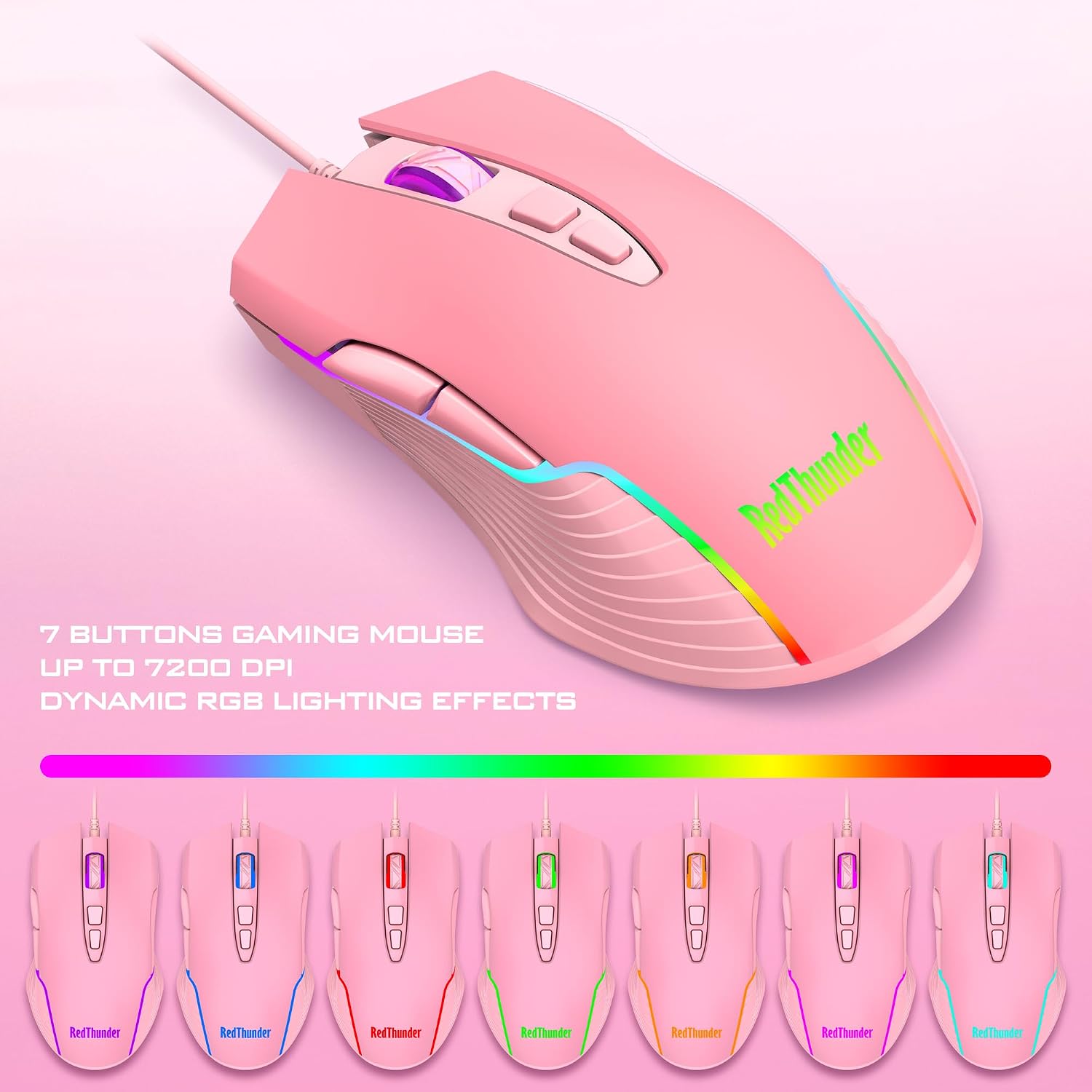
Image: The RedThunder K10 gaming mouse highlighting its 7-button design, 7200 DPI capability, and dynamic RGB lighting effects.

Image: An illustration demonstrating the ergonomic design of the RedThunder K10 mouse and keyboard, including the wrist rest, for comfortable use.
Maintenance
Proper maintenance ensures the longevity and performance of your RedThunder K10 combo.
- Cleaning: Use a soft, dry cloth to wipe down the keyboard and mouse surfaces regularly. For deeper cleaning, a slightly damp cloth (water only) can be used, ensuring no liquid enters the device. Avoid harsh chemicals or abrasive materials.
- Dust Removal: Use compressed air to remove dust and debris from between the keycaps of the keyboard and from the mouse sensor area.
- Storage: When not in use for extended periods, store the devices in a clean, dry environment away from direct sunlight and extreme temperatures.
Troubleshooting
If you encounter issues with your RedThunder K10 combo, refer to the following common solutions:
| Problem | Possible Solution |
|---|---|
| Keyboard/Mouse not responding |
|
| RGB lighting not working |
|
| Mouse tracking issues |
|
If problems persist after trying these steps, please contact RedThunder customer support.
Specifications
- Brand: RedThunder
- Model: K10
- Connectivity: Wired USB
- Keyboard Type: 104-key Full-size Gaming Keyboard
- Keyboard Features: RGB Backlit, Mechanical Feel, 26-Key Anti-Ghosting, Adjustable Tripod
- Mouse Type: 7-Button Gaming Mouse
- Mouse Features: High-precision Optical Sensor, Up to 7200 DPI, 12000fps Scan Rate, 1000Hz Polling Rate, Dynamic RGB Lighting
- Wrist Rest: Soft Leather, Memory Foam
- Product Dimensions: 17.52 x 9.53 x 1.77 inches (Keyboard and Wrist Rest)
- Item Weight: 2.64 pounds
- Compatibility: Windows 11, Windows 10, Windows 8, Windows 7, Windows Vista, Windows XP; Limited macOS support. Requires USB Port.
Warranty and Support
RedThunder products are designed for quality and performance. This product is covered by a manufacturer's warranty against defects in materials and workmanship. For specific warranty terms and conditions, please refer to the documentation included with your purchase or visit the official RedThunder website.
For technical support, troubleshooting assistance, or warranty claims, please contact RedThunder customer service. You can find more information and contact details on the RedThunder Store on Amazon.

