1. Introduction
This manual provides essential information for the proper setup, operation, and maintenance of your HEIGAOLAPC F10 N5095 Mini PC. Please read this manual thoroughly before using the device to ensure optimal performance and longevity. This Mini PC is designed for various applications, including business, home entertainment, and industrial production, offering a compact and versatile computing solution.
2. Safety Information
Observe the following safety precautions to prevent damage to the device or injury to yourself:
- Use only the power adapter provided with the device.
- Do not expose the device to water, moisture, or extreme temperatures.
- Avoid placing the device near heat sources or in direct sunlight.
- Do not attempt to open or repair the device yourself. Refer all servicing to qualified personnel.
- Ensure proper ventilation around the device to prevent overheating.
3. Package Contents
Verify that all items are present in your package:
- 1 x HEIGAOLAPC F10 N5095 Mini PC
- 1 x Power Adapter
- 1 x User Manual (this document)
4. Product Overview
4.1 Device Layout
The HEIGAOLAPC F10 N5095 Mini PC features a compact design with a 10.1-inch touchscreen and a comprehensive set of ports for connectivity.

Image: Top and rear view of the HEIGAOLAPC F10 N5095 Mini PC, highlighting its integrated touchscreen and port layout.
4.2 Port Configuration
The device is equipped with a variety of input/output ports to support diverse peripherals and display options.

Image: Detailed port diagram of the Mini PC, showing the location and type of each connector.
- Security Lock: For physical security.
- SD Card Slot: For expandable storage.
- USB 3.0 Ports (x4): For connecting USB devices such as keyboards, mice, and external storage.
- Headset Jack: For audio output and microphone input.
- DC 12V Power Input: Connect the provided power adapter here.
- Gigabit Ethernet Port (LAN): For wired network connection.
- HDMI 2.0 Ports (x2): Supports 4K video output for external displays.
- Type-C Port: Multi-functional port for data transfer and display output.
- RS232 Ports (x2): Serial ports for industrial or legacy device connections.
- Power Button: To turn the device on/off.
5. Setup Instructions
5.1 Initial Connection
- Connect Peripherals: Connect your keyboard, mouse, and any other USB devices to the available USB 3.0 ports.
- Connect to Display (Optional): If using an external monitor, connect it to one of the HDMI 2.0 ports or the Type-C port. The device supports dual 4K displays.
- Network Connection: For wired internet, connect an Ethernet cable to the Gigabit Ethernet port. For wireless, ensure Wi-Fi is enabled (see Section 6.2).
- Power On: Connect the power adapter to the DC 12V input port on the Mini PC, then plug the adapter into a power outlet. Press the power button to turn on the device.

Image: Example connections for RS232 and HDMI 2.0 ports.
5.2 Operating System First Boot
Your Mini PC comes pre-installed with Windows 11 Pro. Upon first boot, follow the on-screen instructions to complete the initial Windows setup, including language, region, network connection, and user account creation.
6. Operating Instructions
6.1 Touchscreen Operation
The 10.1-inch HD touchscreen allows for direct interaction with the operating system without the need for a mouse or keyboard. Use standard touch gestures for navigation, selection, and input.
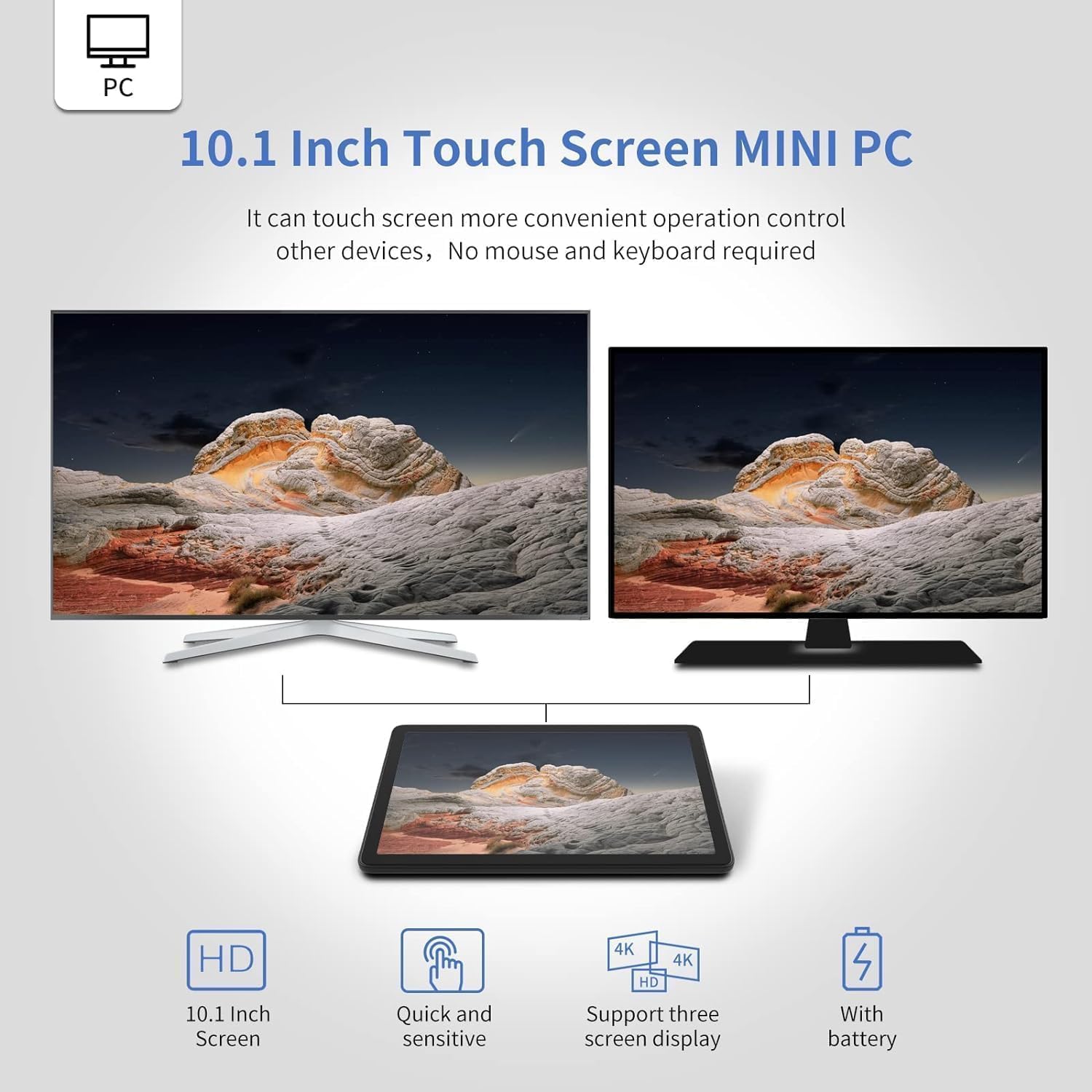
Image: The 10.1-inch touchscreen Mini PC supporting multiple screen displays.
6.2 Wireless Connectivity (Wi-Fi and Bluetooth)
The Mini PC supports Wi-Fi 5.0 (dual-band 2.4GHz and 5.0GHz) and Bluetooth 5.2 for wireless connections.
- Wi-Fi: To connect to a wireless network, go to Windows Settings > Network & Internet > Wi-Fi, then select your desired network and enter the password.
- Bluetooth: To pair Bluetooth devices, go to Windows Settings > Bluetooth & devices > Bluetooth, ensure Bluetooth is turned on, and select 'Add device'.

Image: Wi-Fi 5.0 connectivity features.
6.3 Multi-Display Setup
The Mini PC supports connecting up to two external displays via its HDMI 2.0 ports and Type-C port, in addition to its integrated touchscreen. This allows for extended desktop or mirrored display configurations.

Image: Mini PC connected to multiple monitors for enhanced productivity.
6.4 RS232 Port Usage
The dual RS232 ports are designed for serial communication with various industrial or specialized devices. These ports are commonly used for connecting point-of-sale systems, barcode scanners, or other legacy equipment.

Image: Example of RS232 port in use for data transmission.
6.5 Auto-Boot and Wake-on-LAN
The Mini PC supports advanced power management features:
- Auto Power On: Configurable in the BIOS, this feature allows the PC to automatically power on after a power outage or at a scheduled time.
- Wake on LAN (WoL): Enables the PC to be powered on remotely over a network connection. This feature is useful for remote management and maintenance.
- PXE Boot: Allows the PC to boot from a network server, useful for deploying operating systems or running diagnostics.
- RTC Wake Settings: Real-Time Clock wake-up allows scheduling the PC to power on at a specific time.
7. Maintenance
- Cleaning: Use a soft, dry cloth to clean the exterior of the device. For the touchscreen, use a screen-specific cleaner and a microfiber cloth. Avoid abrasive cleaners or solvents.
- Ventilation: Ensure the ventilation holes are clear of dust and obstructions to maintain proper airflow and prevent overheating.
- Software Updates: Regularly update your operating system and drivers to ensure optimal performance and security.
- Storage: When not in use for extended periods, store the Mini PC in a cool, dry place.
8. Troubleshooting
- No Power: Ensure the power adapter is securely connected to both the Mini PC and a working power outlet. Try a different outlet if necessary.
- No Display on External Monitor: Verify that the HDMI or Type-C cable is properly connected. Check the input source on your monitor. Press Windows key + P to cycle through display modes.
- Wi-Fi/Bluetooth Issues: Check if Wi-Fi/Bluetooth is enabled in Windows Settings. Restart the Mini PC and your router/Bluetooth device.
- Touchscreen Unresponsive: Restart the device. If the issue persists, check for driver updates or recalibrate the touchscreen in Windows settings.
- Slow Performance: Close unnecessary applications. Check for background processes consuming high resources. Ensure sufficient free storage space.
9. Specifications
Detailed technical specifications for the HEIGAOLAPC F10 N5095 Mini PC:

Image: Key features and specifications of the Mini PC.
| Feature | Specification |
|---|---|
| Model | F10 |
| Processor | Intel Celeron N5095 (2.0 GHz base, up to 2.7 GHz burst, 4MB cache) |
| RAM | 8GB LPDDR4 |
| Storage | 128GB eMMC |
| Graphics | Intel UHD Graphics 600 |
| Operating System | Windows 11 Pro (pre-installed), supports Windows 10, Linux, Ubuntu |
| Display | 10.1-inch HD Touchscreen (1280x800 pixels) |
| Wireless Connectivity | Wi-Fi 5.0 (802.11ax, dual-band 2.4GHz/5.0GHz), Bluetooth 5.2 |
| Wired Connectivity | 1x Gigabit Ethernet (10/100/1000Mbps) |
| Ports | 4x USB 3.0, 2x HDMI 2.0 (4K support), 2x RS232, 1x Type-C, 1x TF Card Slot, 1x Headset Jack, 1x DC 12V Power Input |
| Special Features | Fanless design, TPM 2.0, Wake on LAN, PXE Boot, Auto Power On, RTC Wake Settings |
| Dimensions | Approximately 9.5 x 6.3 x 2.6 inches |
| Weight | Approximately 2.87 pounds |

Image: Intel N5095 processor specifications and performance overview.

Image: Operating system compatibility, including Windows 11 Pro, Linux, and Ubuntu.
10. Warranty and Support
HEIGAOLAPC is committed to customer satisfaction. Your product includes:
- 30-Day Price Protection: If the price of the product changes within 30 days of your purchase, you may be eligible for a refund of the difference.
- 24-Hour Customer Support: For any technical assistance or inquiries, please contact our customer support team.
For further support or warranty claims, please refer to the contact information provided on the HEIGAOLAPC official website or your purchase documentation.


