
1. Introduction
This user manual provides comprehensive instructions for the installation, operation, and maintenance of your AKAMATE Dash Cam Portable CarPlay Stereo. This device integrates wireless Apple CarPlay and Android Auto, a 4K dash camera, and a 1080P backup camera, offering a smart and safe driving experience. Please read this manual thoroughly before using the product to ensure proper functionality and safety.
2. What's in the Box
Verify that all components are present in the package:
- Portable Wireless Carplay Stereo Unit
- Power Cable
- AUX Cable
- Backup Camera
- Mounting Hardwire Kit
- User Manual (this document)
3. Product Features

Image: Overview of the AKAMATE Portable CarPlay Stereo system.
3.1 Wireless Apple CarPlay & Android Auto
Seamlessly integrate your smartphone with the portable head unit. Enjoy wireless access to your favorite music, real-time GPS navigation, calls, messages, and voice control via Siri or Google Assistant. This feature upgrades older car infotainment systems.

Image: Wireless Apple CarPlay and Android Auto interfaces on the display.
3.2 CarPlay 4K Dash Cam & DVR Loop Recording
The integrated dashcam records 4K Ultra HD videos with night vision and a 170° wide-angle lens, allowing clear capture of road signs and license plates even in low light. Seamless loop recording supports up to 128GB storage, automatically overwriting the oldest files when the memory card is full to ensure continuous recording.

Image: 4K Dash Cam view with loop recording feature.
3.3 1080p Rear Camera & Split Screen Display
A 1080p backup camera is included. When reversing, the clear rear view images are automatically displayed on the CarPlay monitor. The device supports split-screen functionality, allowing you to view camera feeds and navigation maps simultaneously (e.g., CarPlay/Android Auto + View).

Image: 1080P Rear Camera display with day and night views.
3.4 HD IPS Smart Touchscreen
The 6.25-inch IPS display offers crisp graphics at 1560*720 resolution and vibrant colors. The brightness is adjustable, and the touchscreen provides excellent responsiveness without lag during navigation or app switching.
3.5 Bluetooth / AUX / FM Transmission
Bluetooth connectivity enables hands-free calling and audio streaming. Audio can be transmitted to your car speakers via Bluetooth when using Apple CarPlay and Android Auto. The device also supports an AUX cord for amplified sound and an FM transmitter to play and control music volume through your car's regular radio.

Image: Audio output options including Bluetooth, FM, and AUX.
3.6 Magnetic Mount for Easy Installation
The plug-and-play screen features a magnetic mount, allowing easy placement on your dash or windshield using the adhesive bracket or suction cup. This design ensures no obstruction to your vision. The cigarette lighter port includes an extra USB slot for charging. With 12-24V voltage, it is compatible with various vehicles including campers, RVs, SUVs, trucks, vans, and pickups.
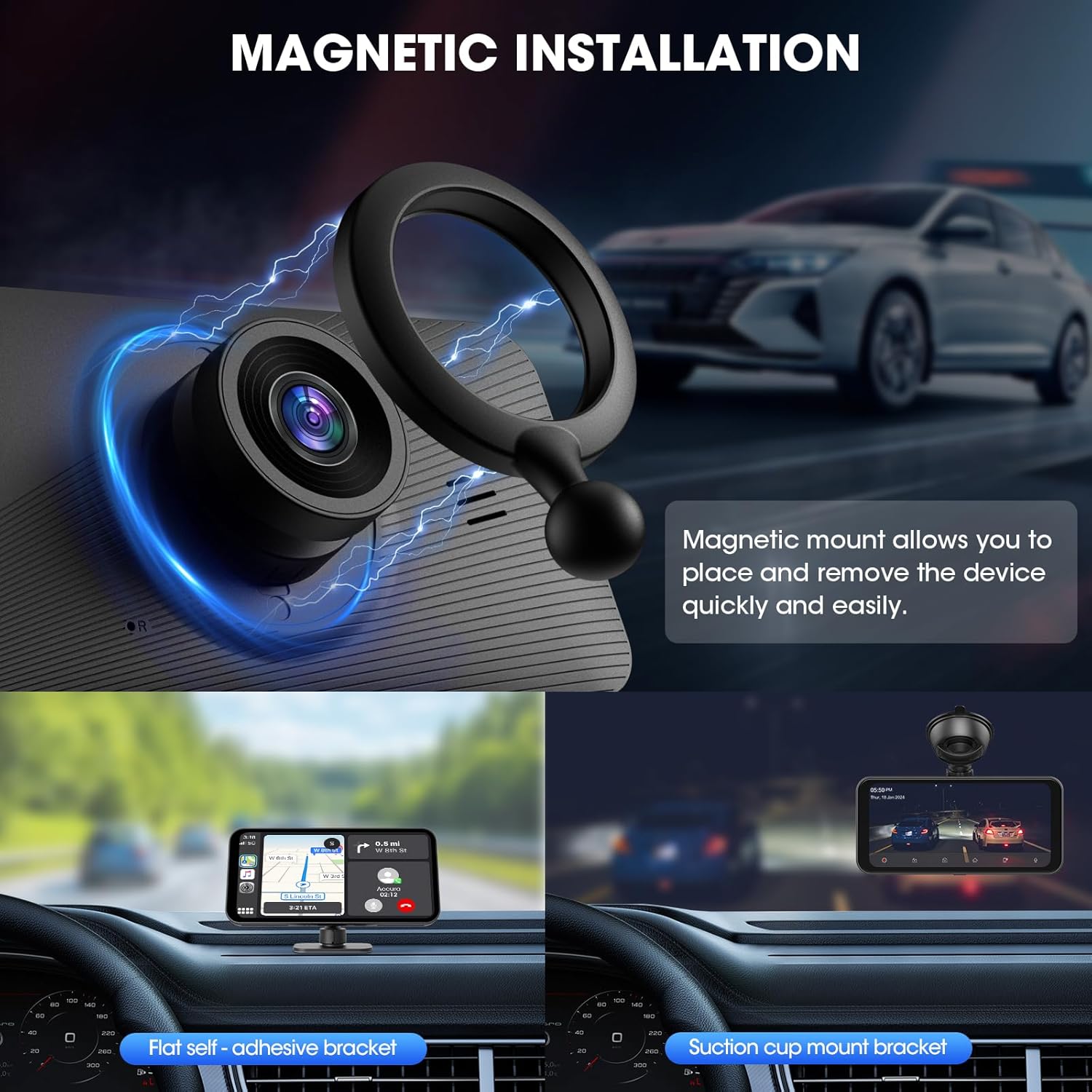
Image: Magnetic mount and installation options.
4. Safety Information
- Do not operate the device or adjust settings while driving. Always pull over safely before making any adjustments.
- Ensure the device is securely mounted and does not obstruct your view of the road or interfere with airbag deployment.
- Avoid exposing the device to extreme temperatures, direct sunlight for prolonged periods, or excessive moisture.
- Use only the provided power cable and accessories. Using unauthorized accessories may damage the device and void the warranty.
- Keep the device away from children.
- Do not attempt to disassemble or repair the device yourself. Refer to qualified service personnel for any repairs.
5. Setup Guide
- Mounting the Unit:
Choose a suitable location on your dashboard or windshield that does not obstruct your driving view. Clean the surface thoroughly. Attach the magnetic mount using either the adhesive bracket or the suction cup. Securely place the Portable CarPlay Stereo onto the magnetic mount.
- Connecting Power:
Insert the power cable into the device's power input and plug the other end into your vehicle's 12-24V cigarette lighter socket. The unit should power on automatically.
- Installing the Backup Camera:
Mount the 1080p backup camera at the rear of your vehicle, ensuring a clear view. Route the camera cable to the main unit and connect it to the designated backup camera input port. Refer to the camera's specific installation guide for detailed wiring instructions (e.g., connecting to reverse light for automatic trigger).
- Initial Setup and Pairing (Wireless CarPlay/Android Auto):
- On the Portable CarPlay Stereo, navigate to the CarPlay or Android Auto section.
- On your smartphone, enable Bluetooth and Wi-Fi.
- Search for the device's Bluetooth name (usually "AKAMATE" or similar) on your phone and pair.
- Follow the on-screen prompts on both the stereo and your phone to complete the wireless connection. The device may prompt you to connect to its Wi-Fi network for full functionality, including audio transmission. If prompted for a Wi-Fi password, try "12345678" if not specified in the device's interface.
- Audio Output Configuration:
- Bluetooth: Once paired, audio should transmit to your car speakers via Bluetooth. Ensure your car's audio system is set to Bluetooth input.
- AUX: Connect the provided AUX cable from the stereo's AUX output to your car's AUX input. Select AUX input on your car's audio system.
- FM Transmission: On the stereo, select the FM Transmitter function. Choose an unused FM frequency. Tune your car's FM radio to the same frequency to receive audio from the stereo. Adjust the position of the power cord if experiencing interference.
6. Operating Instructions
- Navigating the Interface:
The 6.25-inch IPS touchscreen allows for intuitive navigation. Swipe left/right to switch between screens and tap icons to open applications or settings. The interface is designed to be responsive and user-friendly.
- Using Wireless CarPlay/Android Auto:
Once connected, your phone's CarPlay or Android Auto interface will be mirrored on the stereo. Use the touchscreen to access navigation apps (e.g., Google Maps, Apple Maps), music streaming services (e.g., Spotify, Apple Music), make calls, send messages, and more. Voice commands (Siri/Google Assistant) can be activated by tapping the voice icon or using the designated voice button if available.
- Dash Cam Operation:
The 4K dash cam automatically begins recording when the device powers on. Videos are saved to a microSD card (up to 128GB, not included). The loop recording feature ensures continuous recording by overwriting the oldest files when the card is full. Access recorded footage and adjust dash cam settings (e.g., resolution, night vision, G-sensor sensitivity) through the dedicated dash cam application on the stereo.
- Backup Camera Display:
When your vehicle is shifted into reverse, the 1080p backup camera feed will automatically display on the screen, providing a clear rear view with parking guidelines. You can also manually switch to the camera view if needed.
- Split Screen Functionality:
To use split-screen, select the split-screen option from the main menu or within compatible applications. You can display two functions simultaneously, such as navigation on one side and a camera view or music player on the other.
- Audio Playback:
Control music playback from your connected smartphone via CarPlay/Android Auto. Adjust volume using the stereo's controls or your car's audio system. Switch between Bluetooth, AUX, or FM transmission modes as per your setup preference.
7. Maintenance
- Cleaning: Use a soft, dry, lint-free cloth to clean the screen and exterior of the device. Do not use abrasive cleaners, solvents, or aerosol sprays.
- Memory Card: Periodically format the microSD card used for dash cam recording (e.g., once a month) to maintain optimal performance and prevent data corruption. Back up any important footage before formatting.
- Firmware Updates: Check the manufacturer's website (AKAMATE) for any available firmware updates. Follow the instructions provided with the update carefully.
- Storage: If storing the device for an extended period, disconnect it from power and store it in a cool, dry place.
8. Troubleshooting
| Problem | Possible Cause | Solution |
|---|---|---|
| Device does not power on. | No power from cigarette lighter socket; loose connection; faulty power cable. | Check cigarette lighter fuse; ensure power cable is securely plugged in; try a different power source if available. |
| Wireless CarPlay/Android Auto not connecting. | Bluetooth not enabled on phone; incorrect pairing; Wi-Fi not connected for audio. | Ensure Bluetooth and Wi-Fi are enabled on your phone. Forget the device in your phone's Bluetooth settings and re-pair. Ensure you connect to the device's Wi-Fi network if prompted (try password "12345678"). |
| No audio from car speakers. | Incorrect audio output mode selected; car stereo input not set correctly; Wi-Fi not connected for audio. | Verify the stereo's audio output mode (Bluetooth, AUX, FM) matches your car's input. Ensure your car stereo is set to the correct input. For Bluetooth audio, ensure the device's Wi-Fi is also connected to your phone. |
| FM transmission has static/interference. | Chosen FM frequency is occupied; power cable acting as antenna. | Try a different, clearer FM frequency. Adjust the routing of the power cable to minimize interference. |
| Backup camera not displaying. | Camera cable loose; incorrect wiring to reverse light; camera malfunction. | Check all cable connections. Verify the camera's power and trigger wire connections. |
| Screen unresponsive or glitching. | Temporary software issue; extreme temperature. | Restart the device by unplugging and replugging the power. Ensure the device is not exposed to extreme heat or cold. If persistent, contact support. |
9. Specifications
| Feature | Detail |
|---|---|
| Product Dimensions | 1.5"D x 6.3"W x 3.3"H (1.5 x 6.3 x 3.3 inches) |
| Item Weight | 1.5 pounds |
| Display Size | 6.25 inches IPS |
| Display Resolution | 1560*720 |
| Dash Cam Resolution | 4K Full HD |
| Dash Cam Viewing Angle | 170° |
| Backup Camera Resolution | 1080P |
| Connectivity Technology | Auxiliary, Bluetooth, Wi-Fi |
| Compatible Devices | Smartphone, Tablet |
| Control Method | Touch, Voice |
| Voltage Compatibility | 12-24V (suitable for cars, RVs, SUVs, trucks, vans, pickups) |
| Max Storage Support | 128GB (for dash cam recording) |
| Color | Black |
| Manufacturer | AKAMATE |
10. Warranty and Support
AKAMATE products typically come with a standard manufacturer's warranty. Please refer to the warranty card included in your product packaging or visit the official AKAMATE website for detailed warranty terms and conditions.
For technical support, troubleshooting assistance, or warranty claims, please contact AKAMATE customer service. Contact information can usually be found on the product packaging, the official AKAMATE website, or through your point of purchase.
Note: Keep your purchase receipt as proof of purchase for warranty purposes.