
1. Introduction
Thank you for choosing the Doslnlya GX-06 Audio Mixer. This manual provides detailed instructions for the proper setup, operation, and maintenance of your new audio mixer. Please read this manual thoroughly before using the device to ensure optimal performance and to prevent damage.
The GX-06 is a versatile 6-channel audio mixer designed for various applications, including live streaming, karaoke, music production, and recording. It features USB and Bluetooth connectivity, 48V phantom power for condenser microphones, and 99 built-in DSP effects.
2. Safety Information
- Power Supply: Use only the specified power adapter. Ensure the voltage matches the requirements of your region.
- Water and Moisture: Do not expose the unit to water or excessive moisture. Avoid using it in damp environments.
- Ventilation: Ensure adequate ventilation around the unit. Do not block ventilation openings.
- Heat Sources: Keep the unit away from heat sources such as radiators, heat registers, stoves, or other heat-producing appliances.
- Cleaning: Disconnect power before cleaning. Use a dry, soft cloth. Do not use liquid cleaners or aerosol cleaners.
- Servicing: Do not attempt to service this product yourself. Refer all servicing to qualified service personnel.
3. Package Contents
- Doslnlya GX-06 Audio Mixer Unit
- Power Adapter
- USB Cable
- Instruction Manual
4. Product Overview and Features
The GX-06 audio mixer is equipped with a range of features to enhance your audio experience:
- 6 MIC/LINE Mono Inputs: Connect microphones or line-level instruments.
- 1 Stereo Input: For connecting stereo audio sources.
- GAIN Control: Adjust input sensitivity for each channel.
- High/Bass Tuning: Individual equalization for each channel.
- Bluetooth Wireless Connection: Seamlessly connect smartphones, tablets, and other Bluetooth-enabled devices.
- USB/MP3 Compatibility: Play audio directly from USB flash drives or connect to a computer for playback and recording.
- 48V Phantom Power: Essential for condenser microphones, switchable per channel.
- 99 DSP Effects: A wide selection of reverb effects to add depth and character to your sound.
- TRS Main Output: Connects to power amplifiers or active speakers.

Figure 4.1: User operating the GX-06 mixer in a recording setup, demonstrating its high-quality sound processing capabilities.

Figure 4.2: Visual representation of key features: wireless play, PC connection, 48V power supply, multiple mode input (USB), equalizing control, and ear monitoring.
5. Controls and Connections
5.1 Top Panel Controls
The top panel of the GX-06 mixer features all the primary controls and input/output ports for easy access and adjustment.

Figure 5.1: Detailed diagram of the GX-06 mixer's top panel, labeling all controls and ports for easy identification.
- CH1-CH4 Inputs: XLR/TRS combo jacks for microphones and line-level devices.
- +48V Phantom Power Switch: Activates phantom power for condenser microphones on channels 1-4.
- PAD Button: Attenuates input signal for high-output sources.
- GAIN Knob: Adjusts the input sensitivity for each channel.
- HIGH/LOW EQ Knobs: Adjusts treble and bass frequencies for each channel.
- FX Knob: Controls the amount of effect sent to each channel.
- PAN Knob: Adjusts the stereo position of the channel.
- LEVEL Fader: Adjusts the volume level of each channel.
- MAIN OUT (L/R): TRS output jacks for connecting to main speakers or amplifiers.
- PHONES: 6.5mm headphone jack for monitoring.
- USB/MP3 Section: Controls for USB playback, recording, and Bluetooth functions. Includes display and navigation buttons.
- DSP Effects Section: Knob to select from 99 built-in digital effects.
- MAIN Fader: Controls the overall output volume.
5.2 Rear Panel Connections
The rear panel provides the power input and additional connectivity options.
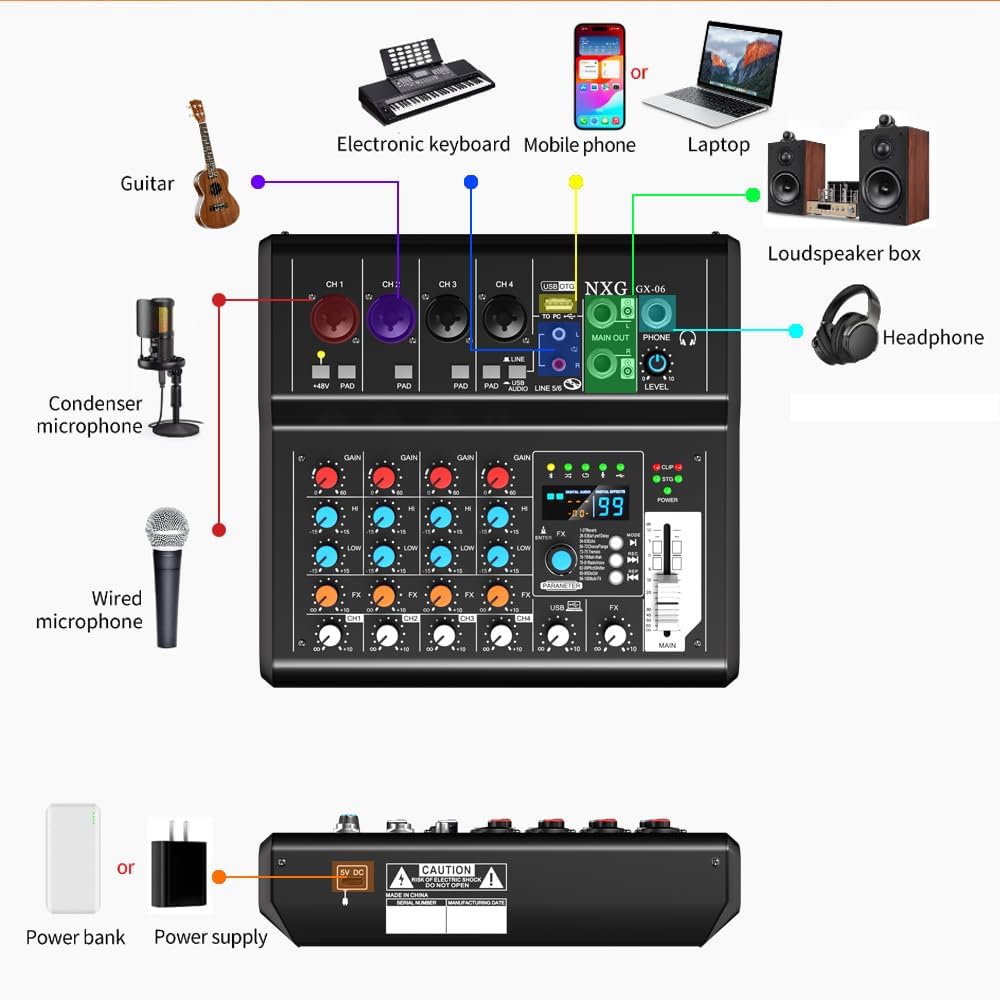
Figure 5.2: Diagram illustrating various input and output connections for the GX-06 mixer, including microphones, instruments, computers, and headphones.
- 5V DC Power Input: Connect the provided power adapter here.
- USB Port: For connecting to a computer or USB flash drive.
6. Setup
6.1 Power Connection
- Connect the provided power adapter to the 5V DC input on the rear panel of the mixer.
- Plug the power adapter into a suitable power outlet.
- The power indicator light on the mixer will illuminate.
6.2 Connecting Microphones and Instruments
- Microphones: Connect dynamic microphones using XLR cables to the CH1-CH4 combo jacks. For condenser microphones, connect via XLR and press the +48V Phantom Power button for the respective channel.
- Line-Level Instruments: Connect instruments like guitars, keyboards, or other audio devices using TRS cables to the CH1-CH4 combo jacks or the stereo input.

Figure 6.1: Activating +48V phantom power for condenser microphones.
6.3 Connecting Output Devices
- Main Speakers/Amplifier: Connect the MAIN OUT (L/R) TRS jacks to your power amplifier or active speakers. Note: This mixer cannot connect directly to passive speakers.
- Headphones: Plug your headphones into the PHONES 6.5mm jack for monitoring.
6.4 Computer Connection (USB)
- Connect the mixer to your computer using the provided USB cable.
- The computer should automatically recognize the mixer as an audio device. You may need to select it as the input/output device in your computer's sound settings or audio software.
7. Operation
7.1 Basic Audio Adjustment
- GAIN Adjustment: Use the GAIN knob for each channel to set the input level. Adjust until the PEAK indicator flashes only occasionally during the loudest parts of the signal.
- Equalization (EQ): Use the HIGH and LOW knobs to adjust the tone of each channel. Turn clockwise to boost frequencies, counter-clockwise to cut.
- Channel Volume: Use the individual LEVEL faders to set the volume for each channel in the mix.
- Main Output Volume: Adjust the MAIN fader to control the overall output volume of the mixer.
7.2 DSP Effects
- Turn the DSP Effects knob to select from the 99 available effects. The selected effect number will be displayed.
- Use the FX knob on each channel to send the desired amount of that channel's signal to the selected effect.
- Adjust the overall effect return level using the dedicated effect return control (if available, or through the main FX knob).
7.3 Bluetooth Wireless Connection
- Press the Bluetooth button in the USB/MP3 section to activate Bluetooth mode. The display will indicate Bluetooth pairing mode.
- On your smartphone or tablet, search for Bluetooth devices and select "GX-06" (or similar name) to pair.
- Once paired, you can play audio from your device through the mixer.

Figure 7.1: Connecting a smartphone via Bluetooth for wireless audio playback.
7.4 USB/MP3 Playback and Recording
- USB Playback: Insert a USB flash drive containing MP3 files into the USB port. Use the controls in the USB/MP3 section to play/pause, skip tracks, and switch playback modes (e.g., single song loop, sequential play, random play).
- USB Recording: When connected to a computer via USB, the mixer can act as an audio interface. You can record the mixed output directly to your computer using appropriate audio recording software.

Figure 7.2: The GX-06 features a high-quality digital processing chip for optimized sound and reduced noise.
7.5 General Operation Demonstration (Video)
Video 7.1: A demonstration video showcasing general mixer operations such as adjusting faders, gain, equalization, using mute switches, selecting digital effects, and USB playback. While this video features a similar mixer model, the demonstrated functions are applicable to the GX-06.
8. Maintenance
- Cleaning: Regularly wipe the mixer's surface with a soft, dry cloth. Avoid using abrasive cleaners or solvents.
- Storage: When not in use, store the mixer in a cool, dry place away from direct sunlight and extreme temperatures.
- Cable Management: Ensure all cables are neatly organized and not under strain to prevent damage to connectors and ports.
9. Troubleshooting
- No Sound Output:
- Check all cable connections (inputs, outputs, power).
- Ensure all channel LEVEL faders and the MAIN fader are raised.
- Verify that connected speakers/amplifiers are powered on and functioning.
- Check if any MUTE buttons are active.
- Distorted Sound:
- Reduce the GAIN for the input channel.
- Check if the PAD button needs to be engaged for high-output sources.
- Ensure the MAIN fader is not set too high, causing clipping.
- Bluetooth Not Connecting:
- Ensure the mixer is in Bluetooth pairing mode.
- Make sure Bluetooth is enabled on your device and it's within range.
- Try forgetting the device on your smartphone/tablet and re-pairing.
- USB Playback Issues:
- Ensure the USB flash drive is properly inserted and contains compatible audio files (e.g., MP3).
- Try a different USB flash drive.
10. Specifications
| Feature | Specification |
|---|---|
| Brand | Doslnlya |
| Model Number | GX-06 |
| Number of Channels | 6 |
| Product Dimensions (D x W x H) | 7.87"D x 7.99"W x 2"H |
| Connectivity Technology | Bluetooth, USB |
| Power Source | Corded Electric |
| Output Connector Type | RCA (Note: Main output is TRS as per feature bullets, RCA might be for other outputs) |
| Audio Input | Auxiliary, XLR, USB |
| Voltage | 5 Volts |
| UPC | 762730162297 |
11. Warranty and Support
Warranty: This product comes with a 1-year warranty from the date of purchase. Please retain your proof of purchase for warranty claims.
Support: For technical assistance, troubleshooting, or warranty inquiries, please contact Doslnlya customer support through the retailer's platform or the official brand website. Please have your product model number (GX-06) and purchase details ready.