
Unix USW_4_REsmartwatchD
Unix USW-4 Ember Smartwatch User Manual
Model: USW-4 Ember
1. Introduction
Welcome to the user manual for your Unix USW-4 Ember Smartwatch. This guide provides essential information on setting up, operating, maintaining, and troubleshooting your device. Please read this manual carefully to ensure optimal performance and longevity of your smartwatch.
The Unix USW-4 Ember Smartwatch combines premium style with advanced functionality, featuring a vibrant 1.96-inch AMOLED display, Bluetooth calling, comprehensive health tracking, and a durable IP67 water and dust resistant design.
2. What's in the Box
Upon unboxing your Unix USW-4 Ember Smartwatch, please ensure all the following items are present:
- Unix USW-4 Ember Smartwatch
- Charging Cable
3. Product Overview
3.1 Key Features
- Vibrant 1.96" AMOLED Display: Ultra HD 410x502 resolution with 650 nits brightness for clear visuals.
- Bluetooth Calling & Voice Assistant: Make and receive calls directly from your wrist with built-in mic and speaker. Compatible with AI voice assistants.
- Durable IP67 Protection: Resistant to water splashes, rain, and dust.
- Advanced Health Tracking: Continuous monitoring of heart rate and SpO₂ levels.
- 100+ Sports Modes: Track various activities with real-time metrics.
- Long-Lasting Battery: Up to 6 days of battery life with fast 2-hour charging.
- Customizable Style: Access over 500 watch faces and interchangeable straps.
- Smart Notifications & Music Control: Receive alerts and control music playback from your wrist.
3.2 Components
The Unix USW-4 Ember Smartwatch features a rectangular display with a side button and charging contacts on the rear. The strap is interchangeable.

Figure 1: Front view of the Unix USW-4 Ember Smartwatch.
4. Setup
4.1 Charging the Smartwatch
Before first use, fully charge your smartwatch. Connect the magnetic charging cable to the charging contacts on the back of the watch and plug the USB end into a compatible power adapter (not included) or a computer's USB port. A full charge takes approximately 2 hours.

Figure 2: Unix USW-4 Ember Smartwatch connected to its charging cable.
4.2 Powering On/Off
- To Power On: Press and hold the side button until the screen lights up.
- To Power Off: Press and hold the side button, then select 'Power Off' on the screen.
4.3 App Installation and Pairing
To unlock the full potential of your smartwatch, download the companion app on your smartphone. Search for the app name (usually mentioned in the quick start guide or on the watch screen during initial setup) in your device's app store (Google Play Store for Android, Apple App Store for iOS).
- Download and install the app.
- Open the app and create an account or log in.
- Enable Bluetooth on your smartphone.
- In the app, follow the instructions to add a new device. Select 'USW-4 Ember' from the list of available devices.
- Confirm the pairing request on both your phone and smartwatch.
5. Operating Instructions
5.1 Basic Navigation
- Swipe Up/Down: Scroll through menus and notifications.
- Swipe Left/Right: Access quick functions or different widgets.
- Tap: Select an item or open an application.
- Side Button: Press to return to the home screen or wake the device. Long press for power options.
5.2 Bluetooth Calling
Once paired with your smartphone, you can make and receive calls directly from your smartwatch.
- Making a Call: Access the dialer or contacts list on your watch.
- Receiving a Call: When a call comes in, you can answer or reject it from the watch screen.
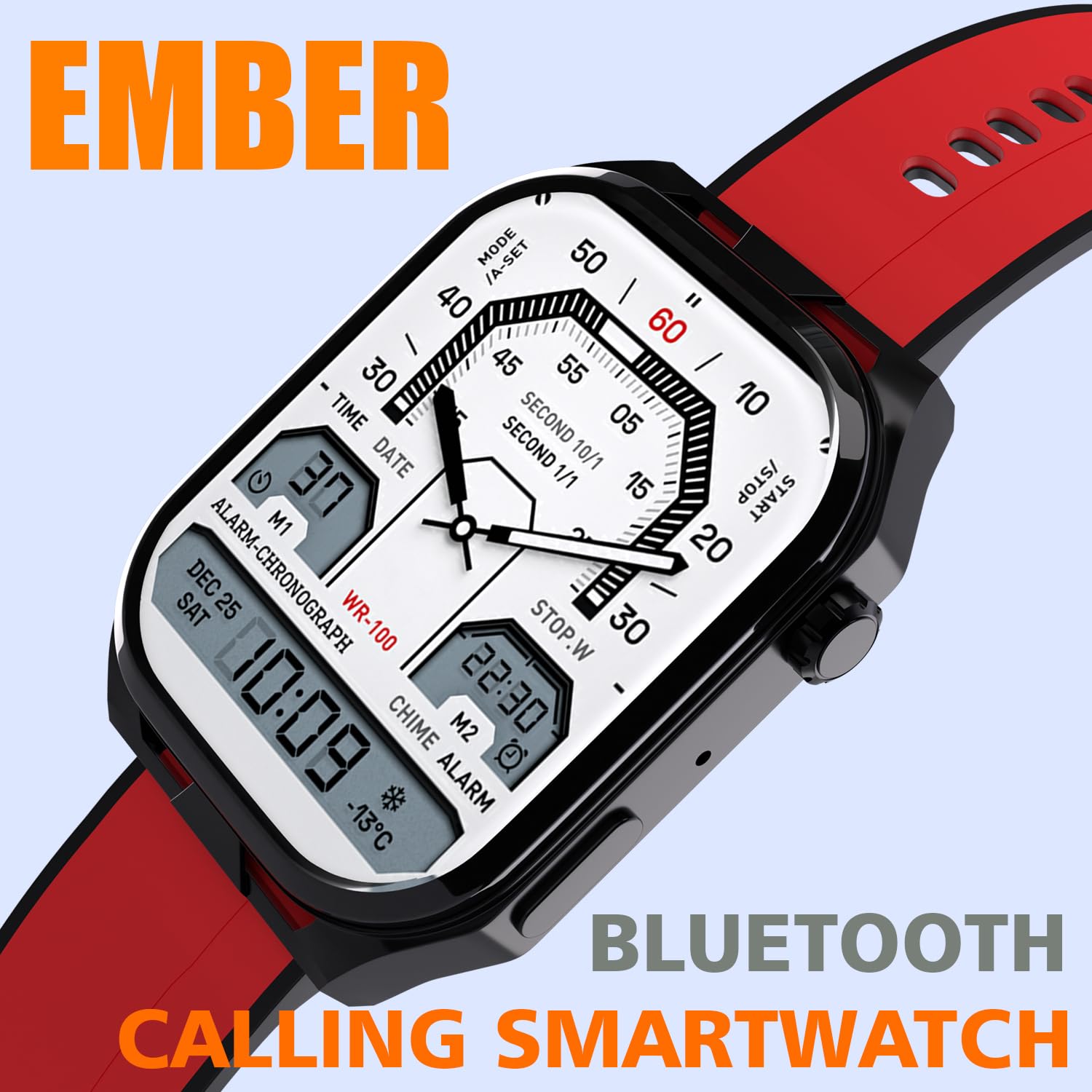
Figure 3: The Unix Ember Smartwatch highlighting its Bluetooth Calling capability.
5.3 Health Tracking
The smartwatch continuously monitors your heart rate and SpO₂ (blood oxygen saturation) levels. Access these readings through the dedicated health app on your watch or the companion app on your phone.
- Ensure the watch is worn snugly on your wrist for accurate readings.
- Consult a medical professional for any health concerns; the watch is not a medical device.
5.4 Sports Modes
The USW-4 Ember supports over 100 sports modes. To start a workout:
- Navigate to the 'Sports' or 'Workout' app on your watch.
- Select your desired activity (e.g., running, cycling, yoga).
- Tap to start tracking. The watch will record metrics like duration, calories burned, and heart rate.
- Tap to pause or end the workout.

Figure 4: The Unix USW-4 Ember Smartwatch tracking activity during a run.
5.5 Smart Notifications & Music Control
- Notifications: Ensure notification permissions are enabled in your phone's settings and the companion app. Swipe down from the top of the watch face to view recent notifications.
- Music Control: While music is playing on your phone, you can control playback (play/pause, skip tracks, adjust volume) directly from your watch.
5.6 Customization
Personalize your smartwatch experience:
- Watch Faces: Long-press the watch face to change it. You can also browse and download more watch faces via the companion app.
- Straps: The watch supports interchangeable straps, allowing you to switch between different materials and colors.
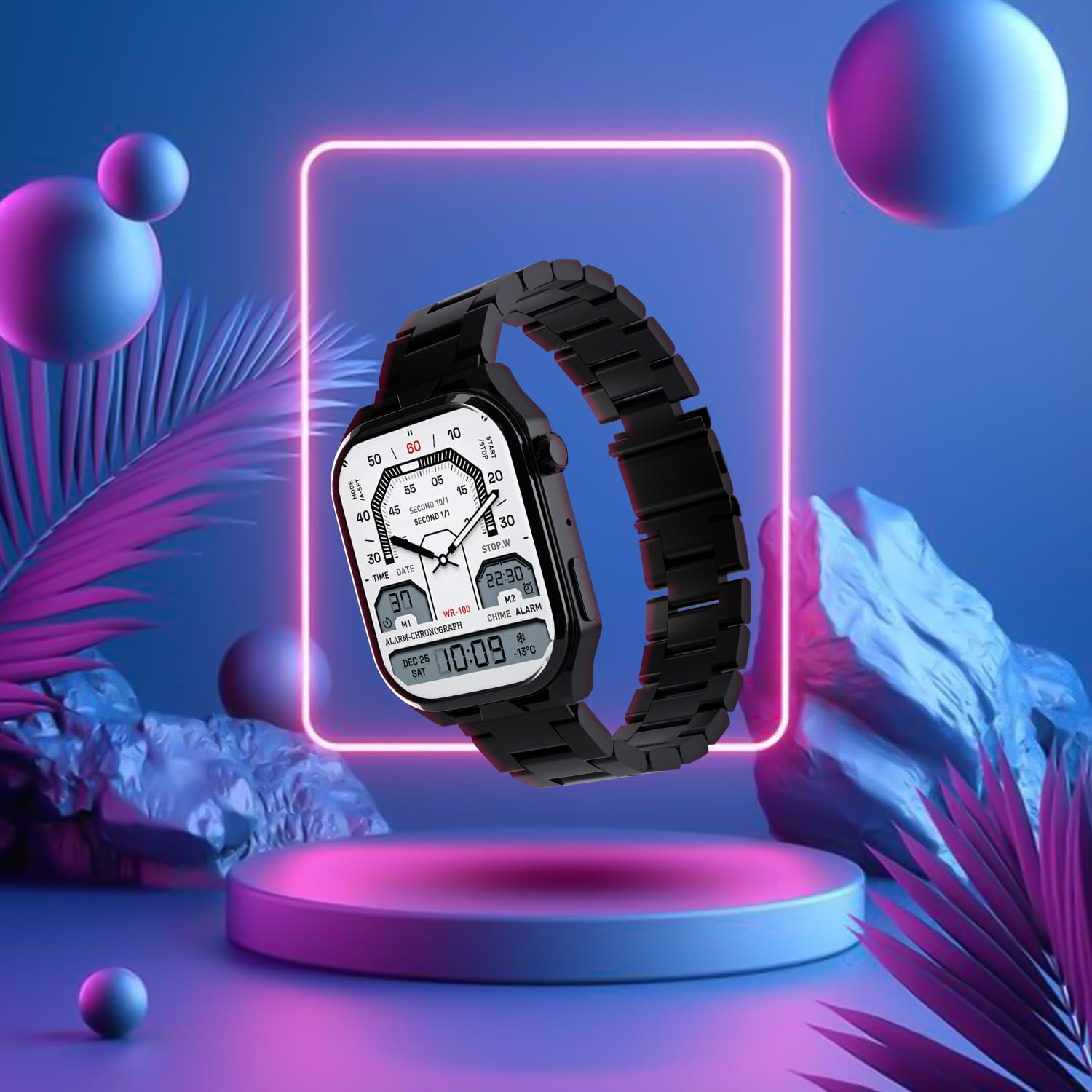
Figure 5: The Unix USW-4 Ember Smartwatch showcasing different customizable watch faces.
5.7 AI Voice Assistant
Activate the AI voice assistant feature on your watch (refer to the watch's interface or companion app for specific activation methods). Once activated, you can use voice commands for various tasks, such as setting alarms, checking weather, or initiating calls.
6. Maintenance
6.1 Cleaning
Regularly clean your smartwatch and strap to prevent skin irritation and maintain its appearance.
- Wipe the screen and body with a soft, lint-free cloth.
- For stubborn dirt, dampen the cloth slightly with water. Avoid harsh chemicals.
- Clean the charging contacts periodically to ensure good connection.
6.2 Water Resistance (IP67)
The Unix USW-4 Ember Smartwatch is rated IP67, meaning it is protected from dust and can withstand immersion in water up to 1 meter for up to 30 minutes. While it is resistant to splashes and rain, it is not suitable for swimming, showering with hot water, or diving.

Figure 6: The Unix USW-4 Ember Smartwatch highlighting its IP67 water and dust resistance.
6.3 Battery Care
- Avoid extreme temperatures, which can degrade battery life.
- Charge the watch regularly, but avoid leaving it fully discharged for extended periods.
- Use only the provided charging cable.
7. Troubleshooting
If you encounter issues with your smartwatch, try the following common solutions:
- Watch not turning on: Ensure the watch is fully charged. Connect it to the charger for at least 10 minutes.
- Cannot pair with phone: Make sure Bluetooth is enabled on your phone and the watch. Restart both devices. Ensure the companion app is updated.
- Inaccurate health readings: Ensure the watch is worn snugly on your wrist, not too loose or too tight. Clean the sensor area on the back of the watch.
- Notifications not appearing: Check notification permissions in your phone's settings and within the companion app. Ensure the watch is connected via Bluetooth.
- Short battery life: Reduce screen brightness, disable unnecessary features (e.g., always-on display), and limit background app refresh.
If the problem persists, refer to the support information in Section 9.
8. Specifications
| Feature | Specification |
|---|---|
| Brand | Unix |
| Model Name | USW_4_RED |
| Display Technology | AMOLED |
| Resolution | 454 x 454 (Note: Product description states 410x502 px for 1.96" display) |
| Operating System | android |
| Memory Storage Capacity | 200 MB |
| Battery Average Life | 31 Hours (Note: Feature bullets state up to 6 days) |
| Charging Time | 1 Hours (Note: Feature bullets state 2 hours) |
| Item Weight | 10 g |
| Product Dimensions | 1 x 1 x 1 cm |
| Connectivity Technology | Wired (for charging) |
Note: Some specifications may vary slightly based on software version and usage. Discrepancies between product description/feature bullets and specifications table are noted where applicable.
9. Warranty and Support
For any product-related queries, technical assistance, or warranty claims, please contact Unix customer support:
- Email: sales@ucase.in
- Phone: +918591844280
Support is typically available from 10:30 AM to 7:00 PM, Monday to Saturday.
Additional protection plans may be available for purchase to extend your warranty coverage. Please check with your retailer for details.