
RED5 Raptor 4K (F5 Pro)
RED5 Raptor 4K FPV Drone User Manual
Model: Raptor 4K (F5 Pro)
Introduction
Welcome to the user manual for your RED5 Raptor 4K FPV Drone. This foldable quadcopter drone features a 4K camera for live streaming and recording via Wi-Fi, a 2.4 GHz radio frequency remote control, and a compact design for portability. This manual provides essential information for setting up, operating, maintaining, and troubleshooting your drone to ensure a safe and enjoyable experience.
The RED5 Raptor 4K drone is designed for ease of use, with features such as foldable arms and a carry case for convenient transport. Its small size and low weight mean that registration is not required in the UK for flight or operation.
Package Contents
Upon opening the package, please ensure all the following components are present:
- RED5 Raptor 4K Drone
- Remote Control
- USB Charger (for drone and controller)
- Accessories (e.g., spare propellers, propeller guards)
- Instruction Leaflet (this manual)
Setup Guide
1. Unfolding the Drone
Gently unfold the drone's arms until they click into place. Ensure all four arms are fully extended and locked before flight.

Image: The RED5 Raptor 4K drone with its four arms fully extended, ready for flight.
2. Charging Batteries
The drone and remote control come with rechargeable batteries and USB charging cables. Connect the provided USB cables to a low-voltage USB power source (e.g., a computer USB port or a 5V/1A USB wall adapter).
- Drone Battery: Insert the drone battery into its compartment and connect the charging cable.
- Remote Control Battery: The remote control requires 3 AA batteries (included). Ensure they are inserted with correct polarity. The remote control also has a rechargeable component for its display.
Allow sufficient time for a full charge before first use. Charging indicators will typically change color or turn off when charging is complete.
3. Installing the App and Connecting Wi-Fi
To utilize the 4K camera's live streaming and recording features, download the official RED5 Raptor app on your smartphone. The app can typically be found by scanning a QR code in the included quick-start guide or by searching in your device's app store.
Once installed:
- Power on the drone.
- On your smartphone, go to Wi-Fi settings and connect to the drone's Wi-Fi network (usually named something like "RED5_Raptor_XXXX").
- Open the RED5 Raptor app. The app should automatically connect to the drone, displaying the live camera feed.
Note: Some users have reported the app setup can be fiddly, and the Wi-Fi password may be limited to exactly 8 digits. Ensure a stable connection for optimal performance.
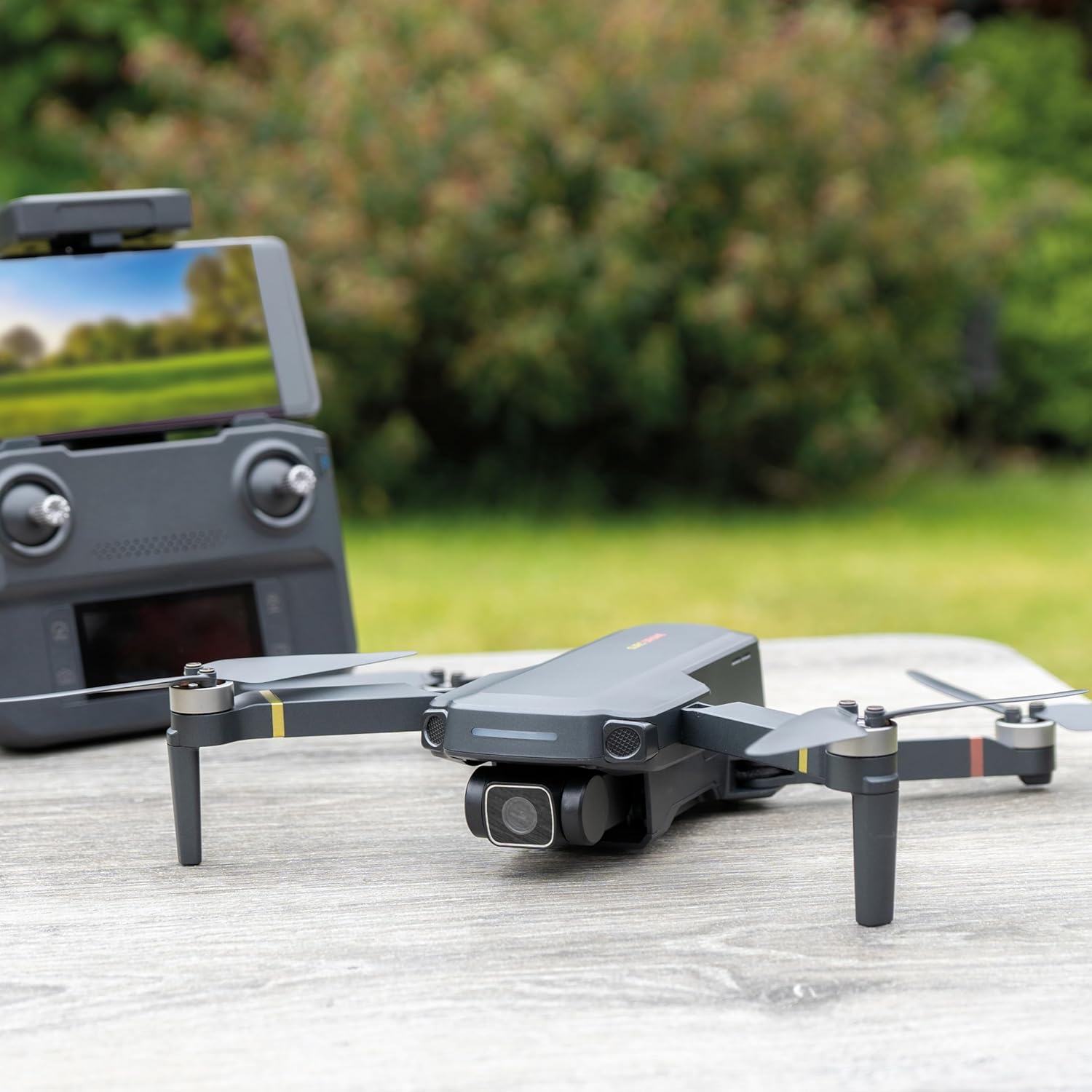
Image: The RED5 Raptor 4K drone positioned next to its remote control, which has a smartphone mounted to display the live camera feed.
Operating Instructions
1. Pre-Flight Checklist
- Ensure drone and remote control batteries are fully charged.
- Check that propellers are securely attached and free from damage.
- Confirm the drone arms are fully unfolded and locked.
- Verify a stable Wi-Fi connection between the drone and your smartphone app.
- Perform a GPS lock acquisition in an open area. This may take some time, especially if indoors or near obstructions.
2. Basic Controls (2.4 GHz Remote Control)
Familiarize yourself with the remote control layout. The remote features joysticks for flight control and dedicated buttons for various functions.

Image: A close-up view of the RED5 Raptor 4K drone's remote control, showing its display screen with flight telemetry data and control sticks.
- Left Joystick: Controls altitude (up/down) and rotation (yaw left/right).
- Right Joystick: Controls forward/backward movement (pitch) and left/right movement (roll).
- Take-off/Landing Button: Initiates automatic take-off or landing.
- Return-to-Home Button: Commands the drone to return to its take-off point (requires GPS lock).
- Speed Button: Adjusts flight speed modes.
- Photo/Video Buttons: Activates the camera to take photos or start/stop video recording.
3. Flight Environment Considerations
Choose an open, clear area for flight, away from obstacles, people, and animals. While the drone is lightweight and does not require UK registration, it is susceptible to wind. Even a small breeze can cause the drone to drift, requiring constant correction. Always maintain visual line of sight with the drone.
4. Advanced Features
- 4K Camera: The built-in 2160p 4K camera allows for high-resolution photo and video capture. Images and videos can be live-streamed and recorded securely via Wi-Fi to the app on your smartphone.
- 360 Degree Flip: The drone is capable of performing 360-degree flips. Refer to the app or remote control instructions for activating this feature.
Maintenance
1. Battery Care and Charging
Proper battery care is crucial for extending the lifespan of your drone's batteries.
- Always use the provided USB charging cables.
- Charge batteries only with low-voltage power supplies (e.g., 5V/1A USB ports). High-wattage chargers may not be compatible or could damage the batteries.
- Do not overcharge or completely drain the batteries.
- Store batteries in a cool, dry place when not in use.
- The claimed battery life is approximately 20 minutes, but actual flight time may vary based on flight conditions and usage.
2. Cleaning and Storage
Keep your drone clean to ensure optimal performance.
- Use a soft, dry cloth to wipe down the drone body and propellers.
- Remove any debris from the motors and propeller shafts.
- When storing, fold the drone's arms to make it compact. Utilize the included foldable drone carry case for protection during transport and storage.

Image: The compact, grey zippered carry case designed for the RED5 Raptor 4K drone, providing protection and portability.
Troubleshooting
| Problem | Possible Cause | Solution |
|---|---|---|
| Drone does not take off or respond to controls. |
|
|
| App connection issues / No live feed. |
|
|
| Drone drifts during flight. |
|
|
| Batteries not charging. |
|
|
Specifications
| Feature | Detail |
|---|---|
| Brand | RED5 |
| Model Name | Raptor 4K |
| Model Number | F5 Pro |
| Product Dimensions (Open) | 27.5 x 30 x 5.5 cm |
| Product Dimensions (Folded) | 14 cm x 9 cm x 5.5 cm |
| Item Weight | 1.8 kg |
| Video Capture Resolution | 4K (2160p) |
| Effective Still Resolution | 16 MP |
| Connectivity Technology | Wi-Fi, 2.4 GHz Radio Frequency |
| Special Features | 360 Degree Flip, Lightweight, Foldable, Compact, Rechargeable |
| Batteries Required | Drone: Rechargeable (included), Remote: 3 AA batteries (included) |
| Battery Capacity | 1600 Milliamp Hours (Drone) |
| Skill Level | All |
Warranty and Support
For information regarding warranty coverage, please refer to the purchase documentation or contact the retailer where the RED5 Raptor 4K Drone was purchased.
For technical support, spare parts, or further assistance, please visit the official RED5 website or contact their customer service department. Contact details are typically found on the product packaging or the brand's official website.
Ask a question about this manual
Ask about setup, troubleshooting, compatibility, parts, safety, or missing instructions. Manuals+ will review the question and use this page’s manual context to help answer it.