
1. Product Overview
This manual provides detailed instructions for the installation, operation, and maintenance of your ASURE 9-inch Android 15 Car Stereo Unit. This unit is specifically designed for Chevrolet Chevy Sonic models from 2012 to 2016, offering advanced features such as Wireless CarPlay, Android Auto, GPS Navigation, and a high-resolution IPS touchscreen.

Image 1.1: ASURE Car Stereo Unit installed in a Chevrolet Sonic dashboard. Note the integrated design for a seamless fit.
Key Features:
- 8-Core Android 15 System: Equipped with a 1.6GHz CPU, 4GB RAM, and 64GB ROM for smooth performance across navigation, music, and applications.
- Wireless CarPlay & Android Auto: Seamless smartphone integration for hands-free access to navigation, messages, and music.
- 9-inch 1280x800 IPS Touchscreen: High-definition display providing clear visuals in various lighting conditions.
- DSP Audio Processor: Enhances sound quality with adaptable audio settings.
- Dual Microphones: Built-in and external microphones ensure clear call quality.
- Plug-and-Play Installation: Custom-fit harness for Chevrolet Sonic 2012-2016, designed for straightforward installation without cutting wires.
- Steering Wheel Control (SWC) Support: Retains original steering wheel control functionality.
- GPS Navigation & WiFi: Supports online and offline navigation with integrated GPS and Wi-Fi connectivity.
- AHD Reversing Camera Input: Provides clear rear view with night vision, 170° wide angle, and distance level warnings.
2. Setup and Installation
This section guides you through the physical installation and initial setup of your ASURE car stereo unit. It is recommended to disconnect the vehicle's battery before beginning installation.
2.1 Package Contents
Verify that all components are present in your package:

Image 2.1: Included accessories. Ensure all items are present before proceeding with installation.
- 1x 8-core car stereo radio unit
- 1x Installation bezel (frame)
- 1x Wiring harness kit (custom-fit for Chevy Sonic 2012-2016)
- 1x GPS cable
- 1x Radio cable
- 1x CAN-BUS box
- 2x USB cables
- 1x Audio video ports cable
- 1x WiFi/BT Antenna
- 1x Reversing Camera Input cable
- 1x Microphone
- 1x User Manual
- 1x Screwdriver
- 1x Reversing Camera (if included in your package)
2.2 Wiring Connections
Follow the wiring diagram carefully. The provided harness is designed for plug-and-play installation, minimizing the need for wire cutting.

Image 2.2: Wiring tips and connections. Ensure the white plug for WiFi/Bluetooth is connected to the main device.
- Connect the main power harness to the vehicle's factory plug.
- Connect the 8-Pin plug (integrated in the power harness) to the radio's rear 8-Pin socket for steering wheel control functionality.
- Ensure the white plug for the WiFi/Bluetooth antenna is securely connected to the main device for proper signal reception.
- Connect the GPS antenna and route it to a location with a clear view of the sky.
- If installing a reversing camera, connect its video output to the 'Camera In' port on the stereo and its power wire to the vehicle's reverse light circuit.
2.3 Steering Wheel Control (SWC) Setup
To enable steering wheel controls, follow these steps after installation:
- Go to Settings on the stereo unit.
- Select Factory Settings.
- Enter the password: 3368.
- Navigate to Car Model.
- Select RZC.
- Choose Chevrolet.
- Select Aveo.
- Choose the model year range 11-14 (this setting is compatible with 2012-2016 Sonic models).

Image 2.3: Car model setting for Chevrolet Sonic to enable steering wheel controls.
2.4 Third-Party Camera Installation Guide
For detailed instructions on installing a third-party camera, refer to the following video. This video demonstrates the wiring process for integrating an aftermarket camera with your ASURE unit.
Video 2.1: Guide for installing a third-party camera. This video provides visual steps for connecting an external camera to the stereo unit.
3. Operating Instructions
This section covers the main functionalities and how to operate your ASURE car stereo unit.
3.1 Wireless CarPlay and Android Auto
Connect your smartphone wirelessly to access navigation, music, messages, and more directly on the stereo's screen.

Image 3.1: Wireless CarPlay and Android Auto interfaces. These features allow seamless integration of your smartphone's functions.
- Ensure Bluetooth and Wi-Fi are enabled on your smartphone and the stereo unit.
- Pair your phone with the stereo via Bluetooth.
- Follow the on-screen prompts to initiate CarPlay or Android Auto.
3.2 GPS Navigation and Wi-Fi Connectivity
The unit supports both online and offline navigation. Connect to Wi-Fi to download maps and access real-time traffic information.
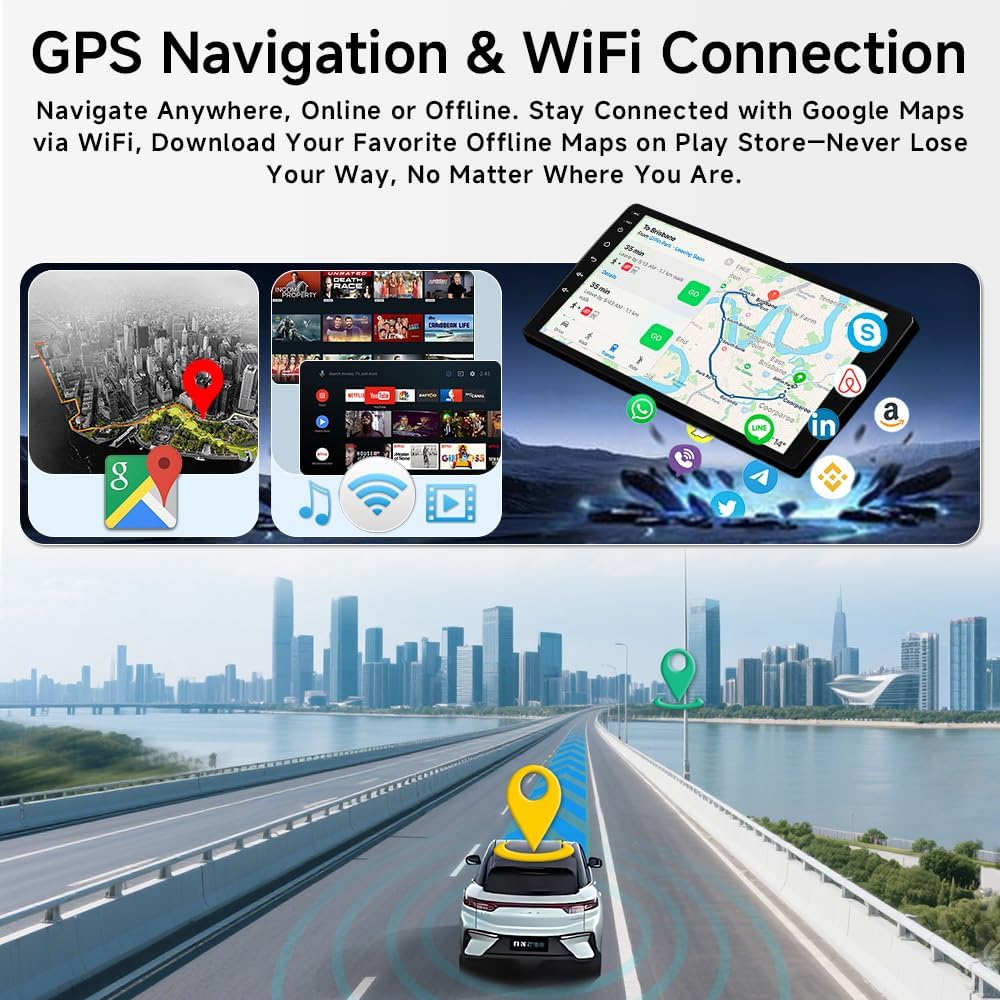
Image 3.2: GPS navigation in action. The unit supports various navigation applications.
- To use online navigation, connect the unit to a Wi-Fi hotspot (e.g., from your smartphone).
- Download offline maps via the Play Store for navigation without an internet connection.
3.3 Bluetooth and FM/RDS Radio
Enjoy hands-free calling and audio streaming via Bluetooth, or tune into your favorite FM radio stations with RDS support.

Image 3.3: Bluetooth and FM/RDS Radio interfaces. Manage calls and listen to radio stations.
- Bluetooth: Pair your phone to make and receive calls, and stream audio.
- FM/RDS Radio: Use the radio application to scan for stations. RDS provides station information and traffic announcements where available.
3.4 AHD Reversing Camera
The unit supports an AHD reversing camera, providing a clear view of the area behind your vehicle when in reverse gear.

Image 3.4: AHD Reversing Camera view. Features night vision, a 170° wide angle, and distance level warnings.
- The camera view automatically activates when the vehicle is shifted into reverse.
- Parking guidelines assist with maneuvering.
3.5 General Settings and Customization
The Android 15 operating system allows for extensive customization and access to various settings. The following video demonstrates how to navigate through some of the general settings of the ASURE car stereo unit.
Video 3.1: Overview of ASURE car stereo radio settings. This video demonstrates how to access and adjust various system settings.
4. Maintenance
Proper maintenance ensures the longevity and optimal performance of your car stereo unit.
4.1 Cleaning the Screen
- Use a soft, lint-free cloth to gently wipe the touchscreen.
- For stubborn smudges, slightly dampen the cloth with water or a screen-safe cleaner. Avoid harsh chemicals or abrasive materials.
4.2 Software Updates
- Periodically check for system updates in the unit's settings menu.
- Connect to a stable Wi-Fi network before downloading and installing updates to prevent data corruption.
4.3 General Care
- Avoid exposing the unit to extreme temperatures or direct sunlight for prolonged periods.
- Ensure all connections are secure to prevent intermittent issues.
5. Troubleshooting
This section addresses common issues you might encounter with your ASURE car stereo unit.
5.1 No Power / Unit Does Not Turn On
- Check the power connections to ensure they are securely plugged in.
- Verify the vehicle's fuse for the stereo is intact.
- If the screen doesn't work, ensure the red ACC power wire in the supplied harness is connected correctly.
5.2 No Sound
- Check speaker wire connections.
- Ensure the volume is not muted or set to minimum.
- Verify audio settings in the unit's menu.
5.3 GPS Signal Issues
- Ensure the GPS antenna is properly connected and placed in a location with a clear view of the sky (e.g., on the dashboard).
- If using online navigation, check your Wi-Fi connection.
5.4 CarPlay/Android Auto Not Connecting
- Ensure Bluetooth and Wi-Fi are active on both your phone and the stereo.
- Try restarting both your phone and the stereo unit.
- Verify that the white plug for the WiFi/Bluetooth antenna is securely connected to the main device.
5.5 Steering Wheel Controls Not Working
- Recheck the 8-Pin SWC connection on the back of the unit.
- Review the SWC setup steps in Section 2.3 to ensure the correct car model settings are applied.
6. Specifications
Detailed technical specifications for the ASURE 9-inch Android 15 Car Stereo Unit.
| Feature | Specification |
|---|---|
| Brand | ASURE |
| Model | B0D3V4XWF1 |
| Operating System | Android 15 |
| CPU | 8-Core 1.6GHz |
| RAM | 4GB |
| ROM | 64GB |
| Screen Size | 9 Inches |
| Resolution | 1280 x 800 IPS |
| Touch Screen Type | Capacitive |
| Connectivity Technology | Bluetooth, Wi-Fi |
| Supported Navigation System | GPS (Worldwide maps) |
| Audio Output Mode | Stereo (with DSP) |
| Mounting Type | Dashboard Mount |
| Compatible Vehicle Type | Chevrolet Chevy Sonic 2012-2016 |
| Item Dimensions (L x W x H) | 8.9"L x 5.1"W x 1.6"H |
7. Warranty and Support
ASURE is committed to providing quality products and customer satisfaction.
7.1 Warranty Information
Your ASURE car stereo unit comes with a warranty that includes:
- 30 days free return and replacement from the date of purchase.
- 1 year repair service for manufacturing defects.
Please retain your proof of purchase for warranty claims.
7.2 Customer Support
For technical assistance, troubleshooting, or warranty inquiries, please contact ASURE customer support through the retailer where the product was purchased. You may also visit the official ASURE store for additional resources and contact information.
ASURE Store: Visit the ASURE Store on Amazon