
nubia V60 (Model Number: 123439101056)
ZTE nubia V60 Smartphone User Manual
Model: V60 (123439101056) | Brand: nubia
1. Introduction
Welcome to the user manual for your new ZTE nubia V60 smartphone. This guide provides essential information to help you set up, operate, maintain, and troubleshoot your device. Please read this manual thoroughly to ensure optimal performance and longevity of your smartphone.
The nubia V60 features a 6.72-inch FHD+ display, a powerful 50MP AI rear camera, a 32MP front camera, 8GB RAM (expandable with 12GB Dynamic RAM), 256GB ROM, a 5000mAh battery with 22.5W fast charging, NFC, fingerprint recognition, and DTS sound effects.
2. Initial Setup
2.1. Unboxing and Package Contents
Before you begin, ensure all items are present in the package:
- ZTE nubia V60 Smartphone
- Power Adapter
- USB Cable
- SIM Ejector Tool (may vary by region)
- Quick Start Guide (this document serves as a comprehensive guide)
2.2. Inserting the SIM Card and microSD Card
- Locate the SIM card tray on the side of your device.
- Insert the SIM ejector tool into the small hole next to the tray and press firmly until the tray pops out.
- Place your Nano-SIM card(s) and/or microSD card (if applicable) into the tray with the gold contacts facing down, ensuring they are correctly aligned.
- Gently push the tray back into the slot until it clicks into place.

Image: Side view of the nubia V60, illustrating the location of the SIM card tray and physical buttons.
2.3. Charging the Battery
Before first use, fully charge your device. Connect the USB cable to the power adapter and then to the phone's charging port. Plug the power adapter into a wall outlet. The device supports 22.5W fast charging.
2.4. Powering On and Initial Configuration
- Press and hold the Power button (located on the right side) until the screen lights up.
- Follow the on-screen instructions to select your language, connect to Wi-Fi, set up your Google account, and configure security features like fingerprint recognition.
3. Operating Your Device
3.1. Basic Navigation
The nubia V60 operates on Android 13.0. Use touch gestures such as tap, swipe, pinch-to-zoom, and long-press to navigate the interface. The power button and volume buttons are located on the right side of the device.

Image: Front view of the nubia V60, showcasing its 6.72-inch FHD+ display.
3.2. Camera Features
Your device is equipped with a 50MP AI Rear Camera and a 32MP Front Camera.
- Launching the Camera: Tap the Camera icon on your home screen or lock screen.
- Taking Photos/Videos: Tap the shutter button to capture an image or switch to video mode to record.
- AI Enhancements: The AI features automatically optimize settings for various scenes and subjects.
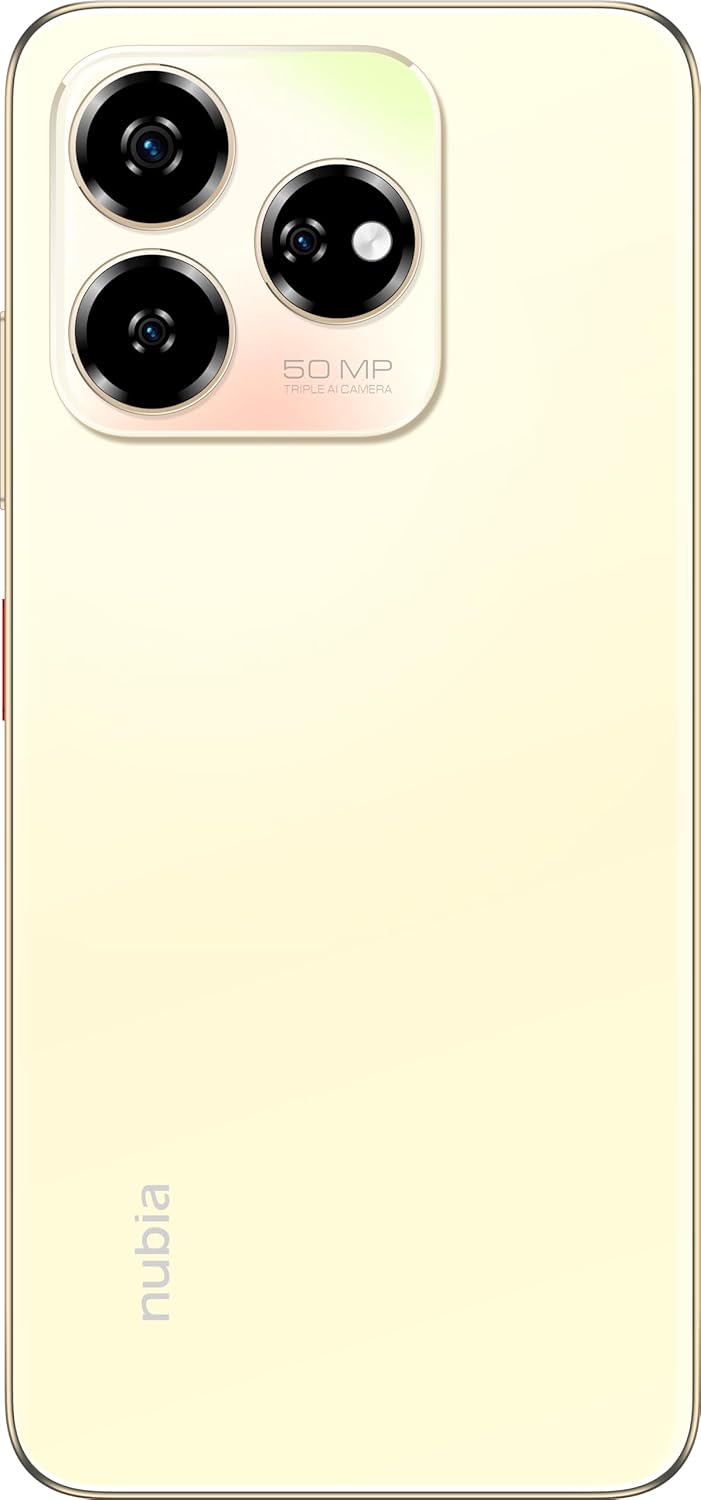
Image: Rear view of the nubia V60, highlighting the 50MP triple AI camera module.
3.3. Fingerprint Recognition
The device features a side-mounted fingerprint sensor for secure and quick unlocking. To set up:
- Go to Settings > Security > Fingerprint.
- Follow the on-screen prompts to register your fingerprint(s).
3.4. NFC Functionality
NFC (Near Field Communication) allows for quick data exchange and contactless payments. To use NFC:
- Ensure NFC is enabled in Settings > Connected devices > Connection preferences > NFC.
- Tap your phone to another NFC-enabled device or payment terminal to initiate a connection or transaction.
3.5. DTS Sound Effect
Experience enhanced audio quality with DTS sound effects. This feature can be configured in your device's sound settings to optimize audio for various media types.
3.6. Live Island
The Live Island feature provides dynamic notifications and quick access to certain functions around the front camera cutout. Explore its functionalities through your device's display settings or by interacting with notifications.
4. Maintenance and Care
4.1. Cleaning Your Device
Use a soft, lint-free cloth to clean the screen and body of your phone. Avoid using harsh chemicals or abrasive materials that could damage the finish or screen coating.
4.2. Software Updates
Regularly check for and install software updates to ensure your device has the latest features, security patches, and performance improvements. Go to Settings > System > System update.
4.3. Battery Care
- Avoid extreme temperatures, as they can degrade battery life.
- Use only the original or certified charging accessories.
- For optimal battery health, avoid frequently discharging the battery completely or keeping it at 100% for extended periods.
4.4. Storage Management
Periodically review your device's storage (256GB ROM) and clear unnecessary files, apps, or media to maintain optimal performance. You can check storage usage in Settings > Storage.
5. Troubleshooting
This section addresses common issues you might encounter with your nubia V60.
5.1. Device Not Turning On
- Ensure the battery is charged. Connect the charger and wait a few minutes before attempting to power on.
- Press and hold the Power button for at least 10-15 seconds to force a restart.
5.2. Charging Issues
- Verify that the charging cable and adapter are securely connected and undamaged.
- Try using a different power outlet or charging accessory.
- Clean the charging port gently with a soft, dry brush to remove any debris.
5.3. Network Connectivity Problems
- Check if your SIM card is properly inserted and activated.
- Toggle Airplane Mode on and off.
- Restart your device.
- Go to Settings > Network & internet > Mobile network and ensure your preferred network type is selected.
5.4. Apps Crashing or Freezing
- Close and reopen the app.
- Clear the app's cache and data in Settings > Apps > [App Name] > Storage & cache.
- Ensure the app is updated to its latest version.
- Restart your device.
5.5. Factory Reset (Last Resort)
Warning: A factory reset will erase all data on your phone. Back up important data before proceeding.
To perform a factory reset, go to Settings > System > Reset options > Erase all data (factory reset) and follow the instructions.
6. Technical Specifications
| Feature | Specification |
|---|---|
| Model Name | V60 |
| Item Model Number | 123439101056 |
| Brand | nubia |
| Operating System | Android 13.0 |
| Screen Size | 6.72 Inches |
| Installed RAM Memory Size | 8 GB (Additional 12GB Dynamic RAM) |
| Memory Storage Capacity | 256 GB |
| CPU Speed | 1.8 GHz |
| Rear Camera | 50MP AI Camera |
| Front Camera | 32MP |
| Battery Power Rating | 5000 mAh |
| Fast Charging | 22.5W |
| Wireless Communication Technologies | NFC |
| Connectivity Technologies | NFC |
| Cellular Technology | 4G |
| GPS | GLONASS |
| Audio Jack | No headphone jack |
| Form Factor | Bar |
| Color | Sunlit Gold |
| Item Weight | 510 g |
| Package Dimensions | 18 x 8.6 x 5.6 cm |
| What's in the box | Power Adapter, USB Cable |
7. Warranty Information
Your ZTE nubia V60 smartphone comes with a standard manufacturer's warranty, covering defects in materials and workmanship under normal use. The duration and terms of this warranty may vary by region. Please refer to the warranty card included in your product packaging for specific details.
Additionally, extended warranty and accidental damage protection plans may be available for purchase. For example, options such as a 1-Year Extended Warranty Plan, 2-Years Extended Warranty Plan, and 1-Year Accidental Damage Protection Plan might be offered by authorized retailers.
Keep your proof of purchase for any warranty claims.
8. Customer Support
For further assistance, technical support, or service inquiries regarding your ZTE nubia V60, please contact nubia customer service through their official website or the contact information provided in your product documentation.
You can often find FAQs, troubleshooting guides, and software downloads on the official nubia support website. When contacting support, please have your device model number (V60) and item model number (123439101056) ready.
Related documentsV60 (Model Number: 123439101056)


Ask a question about this manual
Ask about setup, troubleshooting, compatibility, parts, safety, or missing instructions. Manuals+ will review the question and use this page’s manual context to help answer it.