
ZTE U10
ZTE U10 Wi-Fi 6/4G LTE Mobile Wi-Fi User Manual
Model: U10
Introduction
Thank you for choosing the ZTE U10 Mobile Wi-Fi device. This portable hotspot provides high-speed Wi-Fi 6 and 4G LTE connectivity, allowing you to stay connected on the go. It supports up to 32 devices simultaneously and features a long-lasting 2000 mAh battery. This manual provides essential information for setting up, operating, maintaining, and troubleshooting your ZTE U10 device.

Image: The ZTE U10 Mobile Wi-Fi device, a compact white oval-shaped device, is shown next to its blue product box. The device has a black circular display area on the front.
Setup
What's in the Box
- 1 x ZTE U10 Mobile Wi-Fi Device
- 1 x USB Type-C Charging Cable
- 1 x Quick Start Guide
- 1 x Warranty Card
Inserting the SIM Card
- Ensure the device is powered off.
- Locate the SIM card slot, usually on the side or under the back cover.
- Insert a standard Nano-SIM card into the slot with the gold contacts facing down, as indicated by the diagram on the device.
- Gently push until it clicks into place.
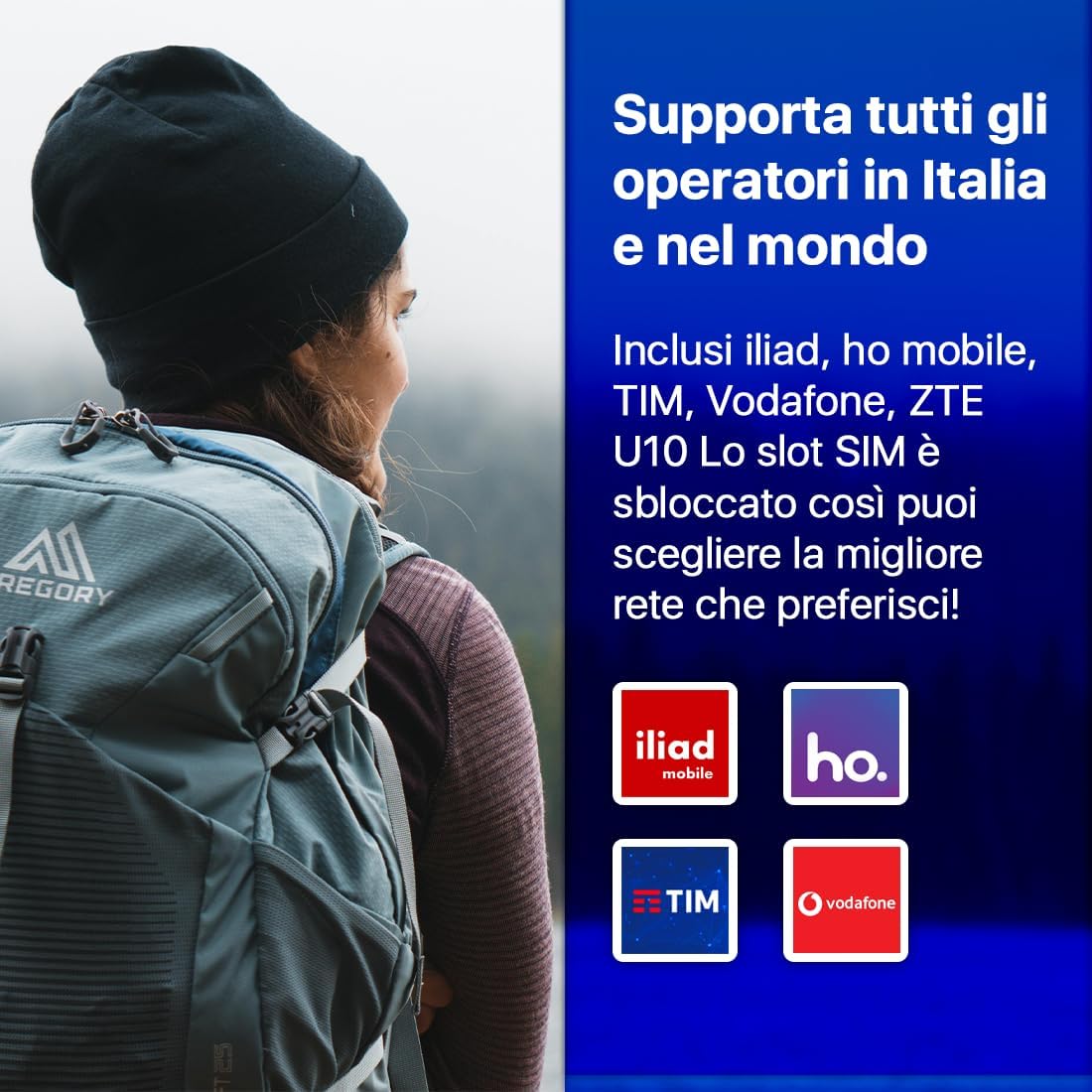
Image: This image illustrates that the ZTE U10 supports various mobile operators, including Iliad, Ho Mobile, TIM, and Vodafone, indicating its unlocked SIM slot for user flexibility.
Charging the Device
Before first use, fully charge the ZTE U10.
- Connect the USB Type-C cable to the charging port on the device.
- Connect the other end of the cable to a compatible USB power adapter (not included) or a computer's USB port.
- The battery indicator on the device will show charging status.
Powering On/Off
- To power on: Press and hold the Power button until the indicators light up.
- To power off: Press and hold the Power button until the device shuts down.
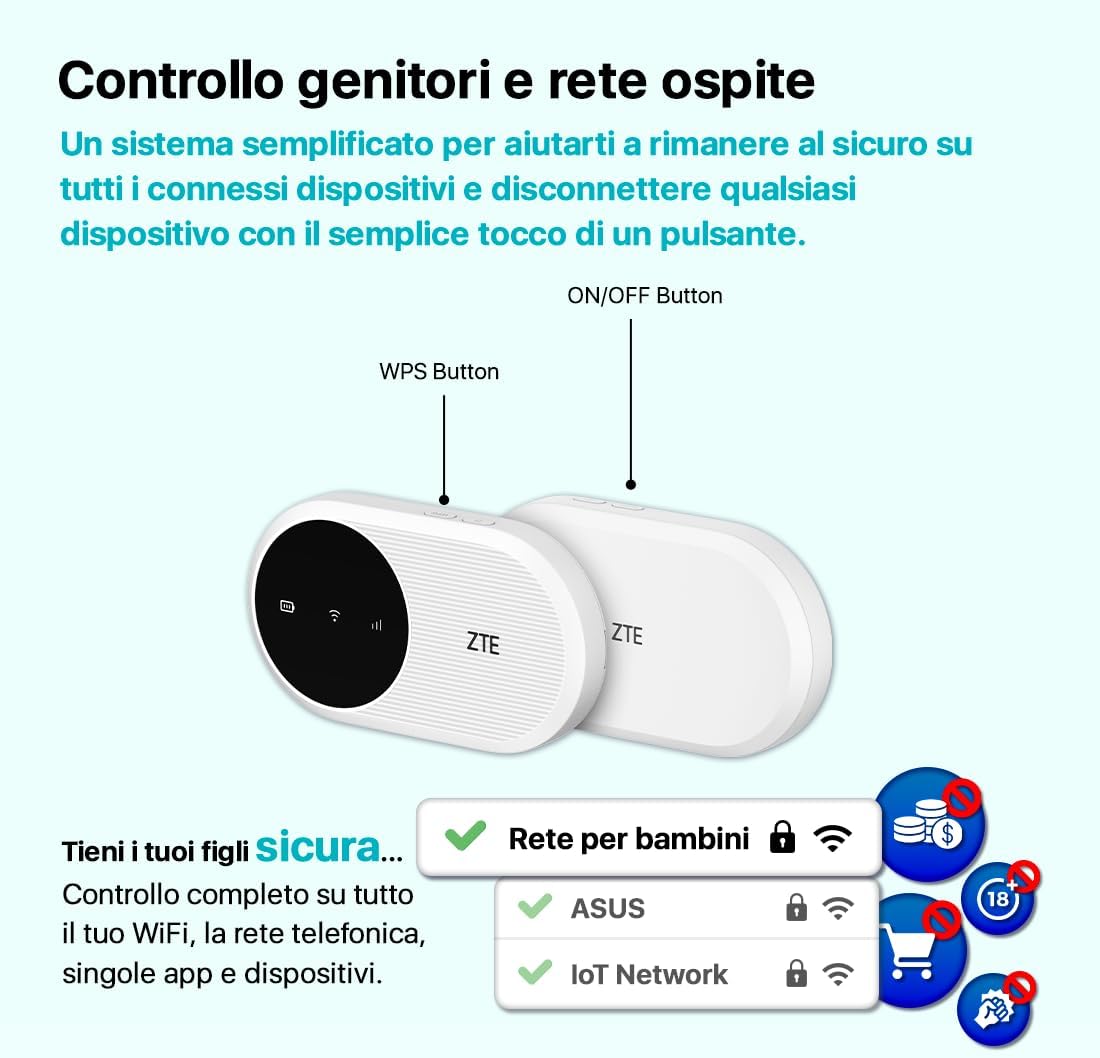
Image: A diagram of the ZTE U10 device highlighting the ON/OFF button and the WPS button. It also illustrates the parental control and guest network features, emphasizing simplified security management.
Operating the Device
Connecting to Wi-Fi
- Power on your ZTE U10 device.
- On your computer, tablet, or smartphone, search for available Wi-Fi networks.
- Select the network name (SSID) displayed on your ZTE U10 screen or on the label inside the device.
- Enter the Wi-Fi password (Key) also found on the device label.
- Your device should now be connected to the internet.
The ZTE U10 supports connection for up to 32 devices simultaneously, making it ideal for sharing internet access with multiple users.

Image: This image highlights the ZTE U10's capabilities: 2.4GHz frequency, speeds up to 287Mbps, and support for connecting up to 32 devices. It shows two people relaxing in a field with the device between them, symbolizing portable connectivity.
Parental Control and Guest Network
The ZTE U10 offers simplified parental control and guest network features to help you manage online safety and access. You can disconnect any connected device with a simple touch of a button.
- Parental Control: Manage and secure online access for connected devices.
- Guest Network: Provide separate Wi-Fi access for guests without sharing your main network password.
Integrated MIMO Antennas
The device is equipped with integrated 2.4 GHz MIMO antennas that automatically activate to boost signal strength and provide faster speeds when needed. This ensures a stable and strong connection, even in challenging environments.

Image: A person is shown outdoors, working on a laptop with the ZTE U10 device placed nearby, emitting a strong Wi-Fi signal. This illustrates the benefit of the integrated 2.4 GHz MIMO antennas for enhanced signal strength.
Using the ZTELink App
The ZTELink app provides an easy way to manage your ZTE U10 device and control your wireless router settings.
- Management: Manage your home network and check network status.
- Security: Manage blacklists and prevent Wi-Fi abuse.
- Remote Control: Remote control of the network for easy management.
Download the ZTELink app from your device's app store (Google Play Store for Android, Apple App Store for iOS).
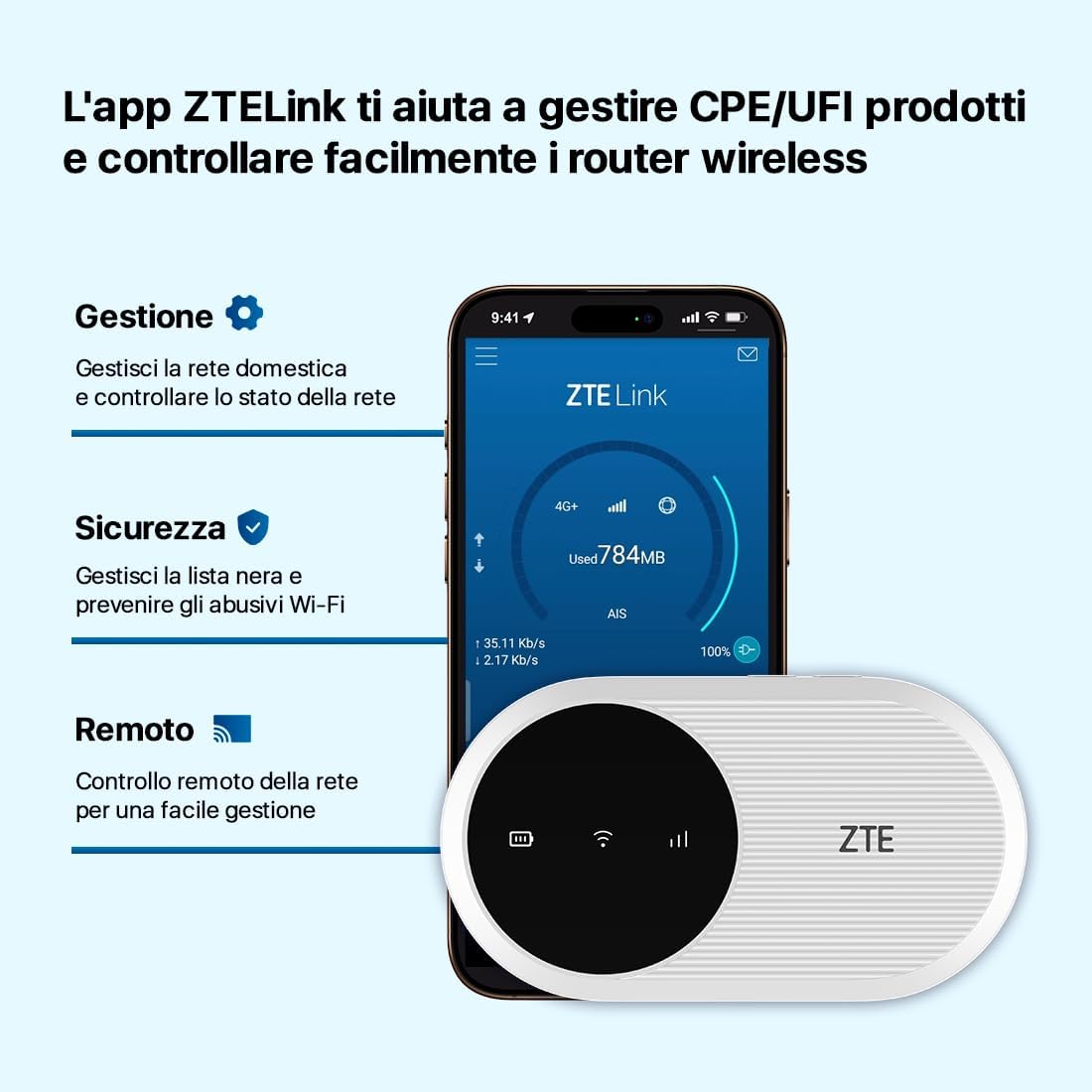
Image: A smartphone screen displaying the ZTELink app interface, showing network management, security settings, and remote control options for the ZTE U10 device. The ZTE U10 device is also shown next to the phone.
Maintenance
Battery Care
- To maximize battery life, avoid exposing the device to extreme temperatures.
- Charge the device regularly, but avoid overcharging for extended periods.
- If the device will not be used for a long time, charge it to about 50% before storing.
Cleaning the Device
- Use a soft, dry cloth to wipe the device.
- Do not use liquid cleaners or aerosols directly on the device.
- Keep the charging port free of dust and debris.
Troubleshooting
| Problem | Possible Cause | Solution |
|---|---|---|
| Device does not power on. | Low battery; Power button not pressed long enough. | Charge the device; Press and hold the Power button for a few seconds. |
| No internet connection. | SIM card not inserted correctly; No data plan; Network signal weak. | Reinsert SIM card; Check data plan with your operator; Move to an area with better signal. |
| Cannot connect to Wi-Fi. | Incorrect Wi-Fi password; Device too far from hotspot. | Verify Wi-Fi password; Move closer to the ZTE U10. |
| Battery drains quickly. | High usage; Old battery; High signal power setting. | Reduce number of connected devices; Adjust signal power via ZTELink app; Consider battery replacement if very old. |
For more advanced troubleshooting and settings, refer to the ZTELink app or the full online user manual.
Specifications
| Feature | Detail |
|---|---|
| Model Name | ZTE U10 |
| Brand | ZTE |
| Connectivity Technology | Wi-Fi, LTE |
| Wireless Communication Standard | 802.11ax (Wi-Fi 6) |
| Frequency Band Class | Single-band (2.4 GHz) |
| Max Speed (Download) | Up to 150 Mbps |
| Max Speed (Upload) | Up to 50 Mbps |
| Battery Capacity | 2000 mAh (Lithium-ion) |
| Battery Life | Up to 8 hours (typical usage) |
| Supported Devices | Up to 32 devices simultaneously |
| Special Features | WI-FI 6, Integrated MIMO Antennas, Parental Control, Guest Network |
| Compatible Devices | Tablets, Smartphones, Laptops, Gaming Consoles, etc. |
| Color | White Pebbles |
Warranty and Support
The ZTE U10 Mobile Wi-Fi device comes with a 2-year warranty from the date of purchase. Please retain your proof of purchase for warranty claims.
For technical support, product inquiries, or warranty service, please contact ZTE customer support through their official website or the contact information provided on your warranty card.
Online Resources: For the most up-to-date information, FAQs, and additional support, visit the official ZTE support website.
Related documentsU10


Ask a question about this manual
Ask about setup, troubleshooting, compatibility, parts, safety, or missing instructions. Manuals+ will review the question and use this page’s manual context to help answer it.