
1. Product Overview
The QRD Maestro S3 is a versatile wireless leverless arcade stick designed for fighting game enthusiasts. It offers broad compatibility across multiple platforms and features advanced functionalities for an optimized gaming experience.
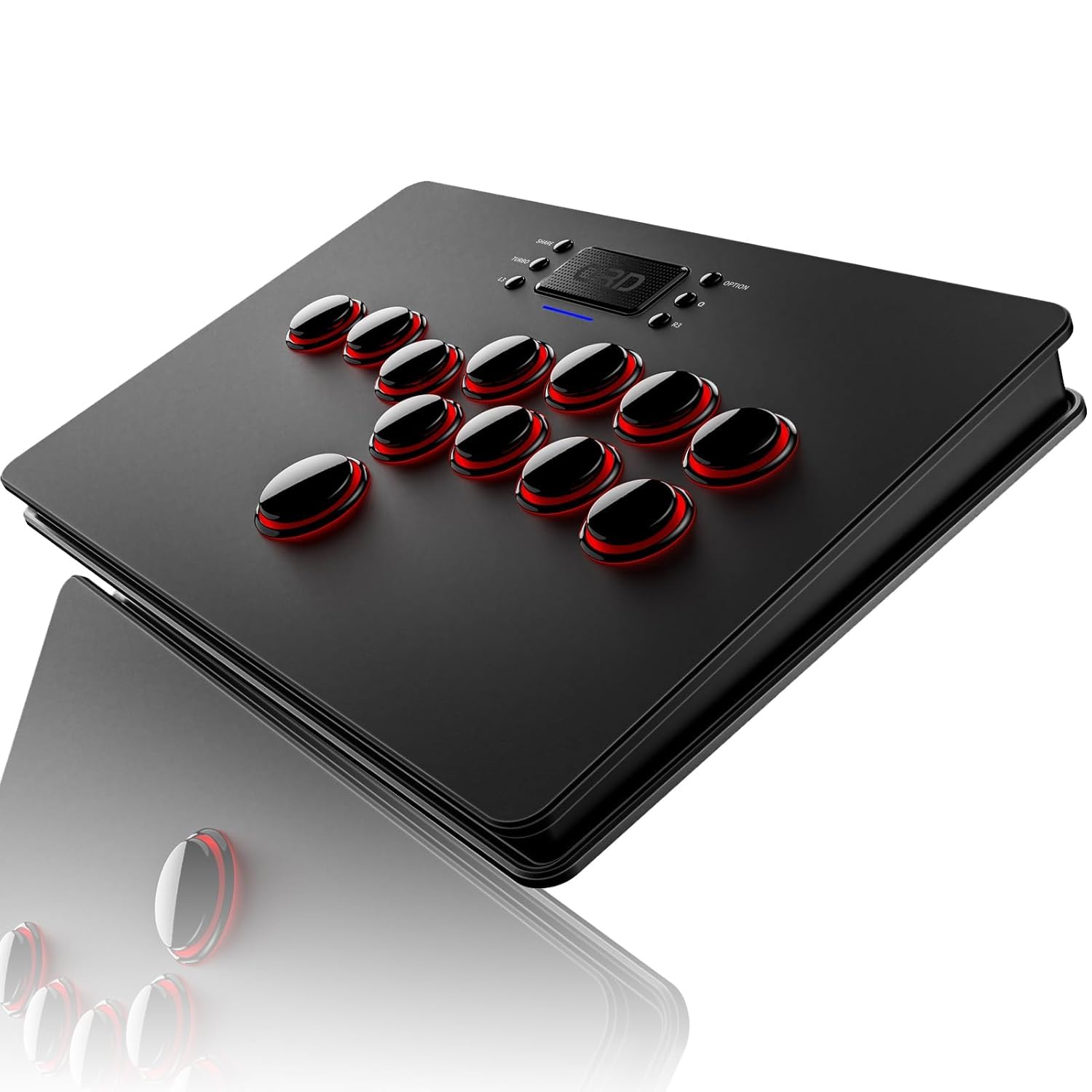
Figure 1.1: Front view of the QRD Maestro S3 Wireless Arcade Stick.
2. Key Features
- Wide Compatibility: Supports Nintendo Switch, PS4, PS3, PS2, Xbox 360, PC (Windows, macOS), iOS, and Android TV box.
- Wireless Connectivity: Integrated Bluetooth 5.3 for stable wireless connection.
- Touchpad Functionality: Features a sensitive touchpad for PS4 functions and mouse control on other supported platforms.
- Silent Micro Switch Buttons: Hot-swappable mechanical buttons designed for quiet operation and precise input.
- 3.5mm Audio Port: Allows direct connection of headphones for immersive audio.
- Customizable Latency Modes: Five distinct latency modes (Low, Medium, High, Highest, Automatic) to optimize performance across various game types.
- 9 LED Backlight Colors: Customizable RGB lighting for personalized aesthetics.
- SOCD & EZ Modes: Two standard SOCD modes and one EZ mode for simplified combo execution.
- Portable Design: Slim, lightweight, and constructed from premium materials for easy transport.
3. Compatibility
The Maestro S3 is engineered for extensive compatibility across a wide range of gaming systems and devices. For PS5 games, a separate QRD Wireless Converter is required.

Figure 3.1: The Maestro S3 is compatible with Nintendo Switch, PS4, PS3, PS2, Xbox 360, PC, Windows, macOS, iOS, and Android TV box.
Supported Platforms:
- Nintendo Switch (including Switch OLED, Switch Lite)
- PlayStation 4 (PS4)
- PlayStation 3 (PS3)
- PlayStation 2 (PS2)
- Xbox 360
- PC (Windows 7/8/10 and later)
- macOS
- iOS devices
- Android TV Box and smartphones
Note: For PS5 game compatibility, a QRD Wireless Converter (sold separately) is necessary. For Xbox Series consoles, an Xbox Converter (sold separately) is required.

Figure 3.2: Connection diagrams for Xbox Series (via Xbox Converter), PS5 (via PS5 Converter), and Nintendo Switch (direct USB-C connection for initial pairing).
4. Setup & Connection
Wireless Connection (Bluetooth 5.3):
- Ensure the Maestro S3 is charged.
- Turn on the Maestro S3.
- On your device (e.g., Nintendo Switch, PC, Android), enable Bluetooth and search for available devices.
- Select "QRD Maestro S3" from the list to pair.

Figure 4.1: The Maestro S3 utilizes Bluetooth 5.3 for a robust wireless connection.
Wired Connection (USB-C):
A 2.5M USB-C cable is included for wired connection. When connected via USB-C, the Maestro S3 defaults to D-input mode. X-input mode is available for USB-C connections only.
- Connect one end of the USB-C cable to the Maestro S3.
- Connect the other end to your gaming console or PC.
- The device should automatically recognize the arcade stick.
Note: For Nintendo Switch, use a USB-C to USB-C data cable to connect. Once the S3 is recognized, you can disconnect the cable, and it will connect wirelessly.
5. Operation
Basic Controls:
The Maestro S3 features a leverless button layout for directional inputs and action buttons. The layout is optimized for fighting games, providing precise and responsive input.

Figure 5.1: The Maestro S3 features a touchpad and a standard fighting game button layout.
Touchpad Function:
The integrated touchpad functions as a touchpad for PS4-related features and as a mouse on other compatible platforms. The touchpad button acts as a confirmation button.
Audio Port:
A 3.5mm audio port is located on the device, allowing users to connect headphones or external speakers directly to the arcade stick for audio output.

Figure 5.2: Overview of additional functions including X-input/D-input modes, SOCD mode, and the 3.5mm audio jack.
Cellphone Holder:
The package includes a specialized smartphone mount clamp. This allows you to attach your cellphone to the arcade stick, turning it into a mobile game controller or providing a convenient screen for game information or streaming.

Figure 5.3: The Maestro S3 with an attached cellphone holder, demonstrating its use for mobile gaming or secondary screen display.
6. Advanced Settings
Latency Modes:
The Maestro S3 offers five adjustable latency modes to match different game requirements and player preferences. These modes help synchronize the arcade stick's response with various game engines and platforms.
- Low Latency: Ideal for classic or emulator games.
- Medium Latency: Suitable for most emulator games.
- High Latency: Recommended for modern games.
- Highest Latency: For the latest and most demanding games.
- Automatic Mode: Automatically adjusts latency based on platform and device identification.

Figure 6.1: Visual representation of the five latency modes and their recommended use cases for emulator and modern fighting games.
SOCD & EZ Modes:
The Maestro S3 includes two standard Simultaneous Opposing Cardinal Directions (SOCD) modes and one EZ mode to assist with complex inputs and combos.
- Standard SOCD Mode: Left + Right = Neutral, Up + Down = Up.
- Special SOCD Mode: Left + Right = Neutral, Up + Down = Neutral.
- EZ Mode: Simplifies combo execution, particularly useful for new players or difficult inputs.

Figure 6.2: Explanation of the two SOCD modes and their directional input resolutions.
LED Backlighting:
The Maestro S3 features 9 customizable RGB LED backlight colors. These can be adjusted to personalize the appearance of your arcade stick.

Figure 6.3: The Maestro S3 with its customizable RGB LED backlighting, showcasing various color options.
7. Care & Maintenance
To ensure the longevity and optimal performance of your QRD Maestro S3, follow these care and maintenance guidelines:
- Cleaning: Use a soft, dry cloth to wipe down the surface of the arcade stick. Avoid abrasive cleaners or solvents.
- Storage: Store the device in a cool, dry place away from direct sunlight and extreme temperatures.
- Button Maintenance: The micro switch buttons are hot-swappable. If a button's performance degrades, it can be replaced. Refer to specialized guides for button replacement procedures.
- Battery Care: Charge the device using a standard 5V/1A power source. Avoid overcharging or completely draining the battery for extended periods.

Figure 7.1: Battery charging and playtime indicators. Charging takes approximately 2.5 hours for up to 10 hours of playtime.

Figure 7.2: Exploded view showing the hot-swappable microswitch buttons, allowing for easy replacement and customization.
8. Troubleshooting
This section addresses common issues you might encounter with your QRD Maestro S3.
| Problem | Possible Cause | Solution |
|---|---|---|
| Device does not power on. | Low battery or no charge. | Connect the device to a power source using the USB-C cable and allow it to charge. |
| Cannot connect wirelessly. | Bluetooth is off on the device or Maestro S3. Pairing issue. | Ensure Bluetooth is enabled on both devices. Try re-pairing the Maestro S3 by going into your device's Bluetooth settings and selecting the arcade stick. |
| Buttons are unresponsive or sticky. | Dust/debris under buttons, or worn-out micro switches. | Clean around the buttons. If the issue persists, consider replacing the micro switches (refer to section 7 for button maintenance). |
| No audio from 3.5mm port. | Headphones not properly connected or audio settings issue. | Ensure headphones are fully plugged in. Check audio output settings on your console/PC to ensure audio is routed through the arcade stick. |
| Input lag experienced. | Incorrect latency mode selected for the game. Environmental interference. | Adjust the latency mode (refer to section 6). Minimize wireless interference by moving closer to the console or reducing other wireless devices. Try wired connection. |
| Not recognized by PS5/Xbox Series. | Requires a separate converter. | Ensure you have the correct QRD Wireless Converter for PS5 or Xbox Converter for Xbox Series consoles. |
9. Technical Specifications
| Feature | Specification |
|---|---|
| Model Number | Maestro S3 |
| Dimensions (L x W x H) | 11.81 x 7.68 x 1.22 inches (30 x 19.5 x 3.1 cm) |
| Weight | 2.33 pounds (1.06 kg) |
| Connectivity | Bluetooth 5.3, USB-C (wired) |
| Battery Type | 1 Lithium Polymer battery (included) |
| Manufacturer | QRD |
| First Available Date | May 9, 2024 |
10. Warranty and Support
QRD products are designed for durability and performance. For any issues or support needs, please refer to the following information:
Return Policy:
This product is eligible for a refund or replacement within 30 days of purchase, in accordance with standard return policies.
Manufacturer Support:
For technical assistance, troubleshooting beyond this manual, or warranty inquiries, please contact QRD customer support. Contact information can typically be found on the official QRD website or through your purchase platform.
Please retain your proof of purchase for warranty claims.


