
1. Introduction
The N newline 4K AI Webcam NewEye 61 is an advanced camera designed for high-quality video conferencing, streaming, and recording. It features Ultra High Definition 4K resolution, AI-powered automatic framing and presenter tracking, gesture control, and a noise-canceling microphone. This manual provides detailed instructions for setting up, operating, and maintaining your webcam to ensure optimal performance.

Image: N newline 4K AI Webcam NewEye 61, highlighting its key features and AI capabilities.
2. What's in the Box
Verify that all components are present in the package:
- 4K AI Webcam (NewEye 61)
- Black USB-A Cable (5ft/1.5m)
- Privacy Cover
- Screwdriver (for potential adjustments or mounting)

Image: The N newline 4K AI Webcam NewEye 61, its USB-A cable, and privacy cover.
3. Features Overview
3.1 4K Resolution & AI Automatic Framing
The NewEye 61 webcam delivers professional-grade Ultra High Definition video with a resolution of 3840 x 2160 pixels. Its AI automatic framing function intelligently detects participants and automatically adjusts the frame to keep everyone centered on screen, providing a realistic meeting experience.

Image: Visual comparison demonstrating the superior clarity of 4K resolution (3840x2160) compared to 1080P resolution (1920x1080).

Image: Illustration of AI-powered auto-framing, showing how the camera adjusts to keep individuals centered in the frame.
3.2 AI Presenter Tracking & Gesture Control
This webcam features three AI modes: Zoom, Auto Framing, and Presenter Tracking. The Presenter Tracking Mode intelligently detects and follows a moving presenter, ensuring they remain in focus and within the frame for an immersive experience. Gesture control allows for easy mode switching without software or remote control.

Image: Depiction of the three AI modes: Auto Framing, Presenter Tracking, and Zoom, with icons representing each function.

Image: A person presenting in front of a whiteboard, demonstrating how the webcam's presenter tracking feature keeps them centered as they move.
3.3 AI Intelligent Scene Optimization & Auto White Balance
The NewEye 61 optimizes picture quality to enhance video aesthetics. Its Auto White Balance and Backlight Compensation features ensure accurate color reproduction and good tone, even in challenging lighting conditions, presenting a true-to-life visual effect.
3.4 Multi FOV & Plug & Play
The webcam offers multiple Fields of View (FOV) including 95° (default), 78°, 65°, and horizontal 88°, allowing you to select the best angle for various scenarios like live streaming or video conferencing. Its plug-and-play functionality means no additional driver software is required for quick setup.

Image: Diagram illustrating the different Field of View (FOV) options available: 95°, 78°, and 65°.
3.5 Auto Focus & Privacy Cover
The HD lens provides fast and accurate autofocus, capturing faces within 0.6 to 2 meters to maintain clarity and stability. A built-in privacy cover protects your privacy and the camera lens when not in use.

Image: The N newline webcam mounted on a laptop, showing the privacy cover in its closed position.
3.6 Noise-Canceling Microphone
Equipped with a 10 ft pickup range and digital noise-canceling technology, the integrated microphone ensures your voice is conveyed clearly by automatically reducing background noise.
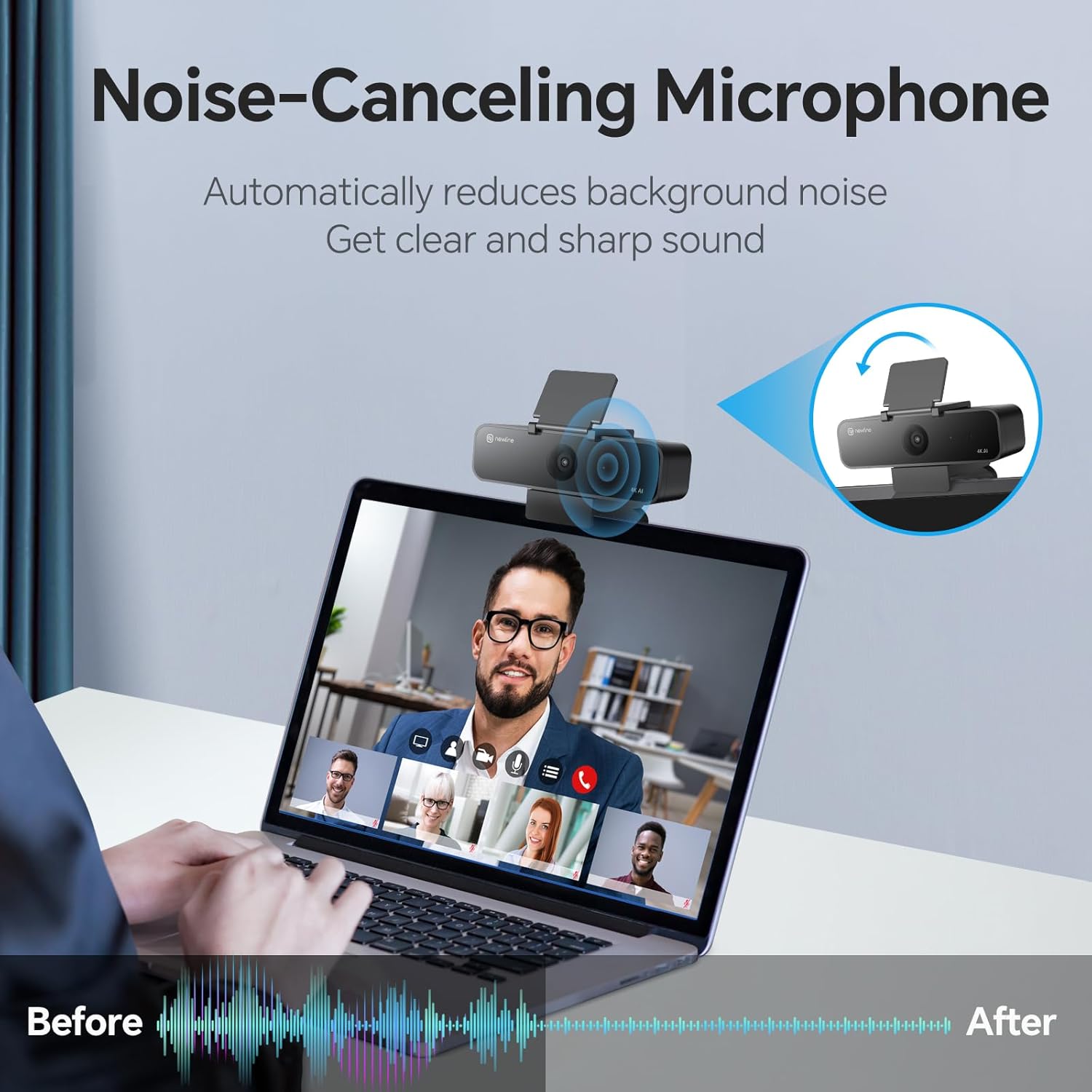
Image: A visual representation of the noise-canceling microphone feature, showing sound waves before and after noise reduction.
4. Setup Guide
4.1 Physical Installation
- Mounting: Open the webcam's clip/stand. Place the webcam securely on top of your laptop screen, desktop monitor, or a tripod. Ensure the camera lens faces you and is stable.
- Privacy Cover: If not already installed, attach the privacy cover over the lens. This can be slid open or closed as needed.
4.2 Connecting to Your Computer
- Connect USB Cable: Plug the USB-A cable from the webcam into an available USB-A port on your computer (laptop or desktop).
- Plug & Play: The NewEye 61 is a plug-and-play device. Your operating system (Windows, macOS, Linux, Android) should automatically detect and install the necessary drivers. No manual driver installation is typically required.
- Verification: Open your preferred video conferencing application (e.g., Zoom, Microsoft Teams, Google Meet, Skype) and navigate to its video/audio settings. Select "N newline NewEye 61" as your camera and microphone input.

Image: The N newline webcam connected to a laptop via its 5ft USB-A cable, illustrating its plug-and-play compatibility with various operating systems and platforms.
5. Operating Instructions
5.1 AI Modes and Gesture Control
The NewEye 61 offers three intelligent AI modes that can be controlled via simple hand gestures:
- Auto Framing Mode: Automatically adjusts the frame to include all detected participants, keeping them centered.
- Presenter Tracking Mode: Follows a single presenter as they move, ensuring they remain in the frame.
- Zoom Mode: Allows for digital zoom adjustments.
Gesture Commands:
- OK Gesture (Mode Switching):
Perform an 'OK' gesture (thumb and index finger forming a circle, other fingers extended) approximately 7 feet from the lens. This gesture cycles through Auto Framing Mode, Presenter Tracking Mode, and Zoom Mode. - L Gesture (Zoom In/Out):
While in Zoom Mode, perform an 'L' gesture (thumb extended, index finger extended horizontally) to zoom in or out. This gesture allows for 5X digital zoom functionality.

Image: A person performing the 'OK' gesture, indicating its use for switching between Auto Framing, Zoom, and Presenter Tracking modes.

Image: A person performing the 'L' gesture, demonstrating its function to zoom in or out of the image, particularly useful for focusing on details like a document.
5.2 Adjusting Field of View (FOV)
The webcam supports multiple FOV settings to suit different environments:
- 95° FOV: Default wide angle, suitable for multiple participants or showing more of the background.
- 78° FOV: A narrower view, good for individual presentations or smaller groups.
- 65° FOV: The narrowest view, ideal for close-up individual shots.
- Horizontal 88° FOV: An additional horizontal option for specific framing needs.
FOV adjustments can typically be made through the webcam's companion software or your video conferencing application's settings.
5.3 Software Control
For fine-tuning settings such as brightness, contrast, saturation, and enabling/disabling AI features, you may use the dedicated software provided by N newline (if available) or the settings within your video conferencing application.

Image: A screenshot of the webcam's software interface, showing options for video and color adjustments like brightness, contrast, and saturation.
6. Maintenance
- Cleaning the Lens: Use a soft, lint-free cloth specifically designed for optical lenses. Do not use abrasive materials or harsh chemicals. Gently wipe the lens to remove dust or smudges.
- Cleaning the Body: Wipe the webcam's body with a soft, damp cloth. Avoid excessive moisture.
- Storage: When not in use, close the privacy cover to protect the lens from dust and scratches. Store the webcam in a clean, dry place.
7. Troubleshooting
| Problem | Possible Cause | Solution |
|---|---|---|
| No image/video output | USB cable not properly connected; Webcam not selected in software; Privacy cover closed. | Ensure USB cable is firmly connected. Check video conferencing software settings to select 'N newline NewEye 61'. Open the privacy cover. |
| Poor image quality (blurry, dark) | Insufficient lighting; Dirty lens; Incorrect software settings; Autofocus issue. | Improve room lighting. Clean the lens. Adjust brightness/contrast in software. Ensure nothing is obstructing the autofocus. |
| Microphone not working | Microphone not selected in software; Muted in software or OS. | Check audio settings in your application and OS to select 'N newline NewEye 61' microphone. Ensure microphone is not muted. |
| AI features (framing, tracking) not responding | Incorrect gesture; Insufficient distance from camera; Software conflict. | Ensure gestures are performed clearly and within approximately 7 feet of the camera. Restart the application or computer. Check for firmware updates. |
8. Specifications
| Feature | Detail |
|---|---|
| Model Name | NewEye 61 4K Webcam |
| Brand | N newline |
| Video Capture Resolution | 4K (3840 x 2160) |
| Photo Sensor Technology | CMOS |
| Connectivity Technology | USB-A |
| Field of View (FOV) | 95° (default), 78°, 65°, Horizontal 88° |
| Microphone | Built-in, 10 ft pickup, Digital Noise Canceling |
| Autofocus Range | 0.6 to 2 meters |
| Cable Length | 5ft (1.5m) |
| Special Features | AI Automatic Framing, AI Presenter Tracking, Gesture Control, AI Intelligent Scene Optimization, Auto White Balance, Backlight Compensation, Privacy Cover |
| Item Weight | 9.1 ounces |
| Color | Black |
9. Warranty and Support
N newline products are designed for reliability and performance. For any technical assistance, product inquiries, or support needs, please refer to the official N newline support channels or visit their website. Information regarding specific warranty terms and conditions may be available on the product packaging or the manufacturer's official website.
You can also find additional resources and contact information on the N newline Brand Store on Amazon.
