
1. Introduction
Thank you for choosing the VOLT PLUS TECH Dual USB-C + MicroUSB Switch Cable. This versatile cable is designed to provide efficient charging and high-speed data transfer for a wide range of devices, featuring both Micro USB and USB-C connectors. This manual provides essential information for setup, operation, maintenance, and troubleshooting to ensure optimal performance of your cable.
2. Key Features
- Universal Compatibility: Equipped with both Micro USB and USB-C connectors, ensuring compatibility with a vast majority of modern devices.
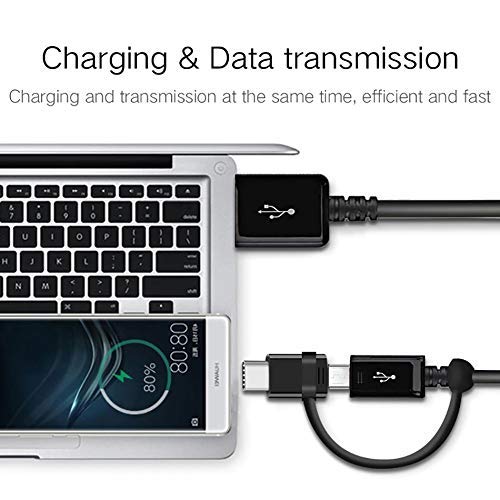
- Dual Functionality: Supports both power delivery for charging and high-speed data transmission simultaneously.
- Fast Charging Support: Engineered to support various fast charging technologies, including Quick Charge (QC 3.0/2.0/1.0) and Power Delivery (PD) up to 25W, for compatible devices.
- High-Speed Data Transfer: Utilizes USB 3.1 technology for rapid data synchronization between your device and computer.
- Durable Construction: Built with premium materials and advanced engineering for enhanced durability and a long lifespan, designed to withstand daily use.
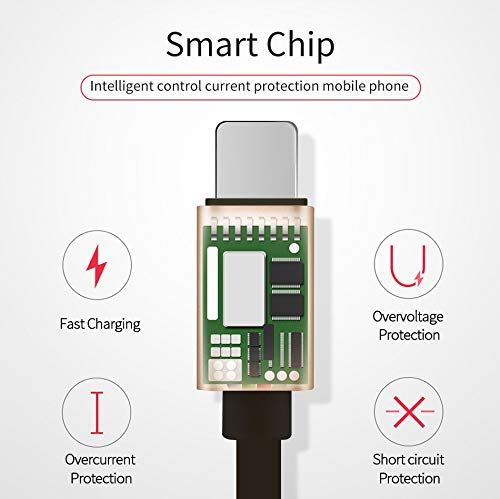
- Integrated Smart Chip: Features an intelligent circuit system for automatic device recognition and protection against overcharging, overcurrent, overvoltage, and short circuits.

3. Setup Instructions
Follow these steps to connect your VOLT PLUS TECH Dual USB-C + MicroUSB Switch Cable:
- Identify Device Connector: Determine whether your device requires a Micro USB or a USB-C connection. The cable features a switch tip design where the USB-C connector attaches over the Micro USB connector.
- Connect to Device: Gently insert the appropriate connector (Micro USB or USB-C) into your device's charging/data port. Ensure a secure fit.
- Connect to Power Source or Computer: Insert the standard USB-A end of the cable into a compatible USB power adapter for charging, or into a USB port on your computer for both charging and data transfer.

4. Operating the Cable
4.1 Charging Your Device
Once connected as described in the Setup section, your device will begin charging. The cable supports fast charging when paired with a compatible fast charger and a device that supports fast charging protocols.
4.2 Data Transfer
To transfer data between your device and a computer:
- Connect the USB-A end of the cable to your computer's USB port.
- Connect the appropriate Micro USB or USB-C end to your mobile device.
- Your computer should recognize the connected device. You may need to select a 'File Transfer' or 'MTP' mode on your mobile device if prompted.
- You can now access your device's storage to copy files, photos, or videos. The cable's USB 3.1 support ensures efficient transfer speeds.
5. Care and Maintenance
To ensure the longevity and optimal performance of your cable, please observe the following guidelines:
- Storage: Store the cable in a clean, dry environment away from direct sunlight and extreme temperatures.
- Handling: Avoid excessive bending, twisting, or pulling on the cable, especially near the connectors, to prevent internal damage.
- Cleaning: If necessary, gently wipe the cable and connectors with a soft, dry cloth. Do not use liquid cleaners or abrasive materials.
- Protection: Do not expose the cable to water or other liquids.

6. Troubleshooting
If you encounter issues with your cable, please refer to the following common problems and solutions:
- Device Not Charging:
- Ensure both ends of the cable are securely plugged into the device and the power source.
- Verify that the power adapter or USB port is functional by testing with another cable or device.
- Check your device's charging port for any debris or damage.
- Slow Charging:
- Confirm that your power adapter supports fast charging (e.g., QC 3.0, PD) and provides sufficient wattage.
- Ensure your device itself is compatible with fast charging technology.
- Data Transfer Issues:
- Make sure the cable is firmly connected to both your device and computer.
- On your mobile device, check if you have selected the correct USB connection mode (e.g., 'File Transfer' or 'MTP') when prompted.
- Try connecting the cable to a different USB port on your computer.
7. Specifications
| Brand | VOLT PLUS TECH |
| Model Number | VPT-2074 |
| Connector Type | Micro USB, USB Type A, USB Type C |
| Cable Type | USB Type-C / MicroUSB to USB-A |
| Compatible Devices | Android, iOS, Mac, Vivo Xplay5 Elite, Windows devices |
| Special Features | Digital IC Chip, Heavy Duty, Lightweight, Multi-Functional, Tangle Free Cord |
| Package Dimensions | 2 x 0.3 x 0.3 inches |
| Item Weight | 1.4 ounces |

8. Warranty Information
For detailed warranty information regarding your VOLT PLUS TECH Dual USB-C + MicroUSB Switch Cable, please refer to the documentation included with your purchase or visit the official VOLT PLUS TECH website. Warranty terms and conditions may vary.
9. Customer Support
If you require further assistance or have questions not covered in this manual, please contact VOLT PLUS TECH customer support through their official website or the retailer from whom you purchased the product. Please have your model number (VPT-2074) and purchase details ready when contacting support.
