
1. Introduction
Thank you for choosing the Andoer 10.1 Inch WiFi Acrylic Digital Photo Frame. This manual provides detailed instructions for setting up, operating, and maintaining your digital photo frame. Please read this manual thoroughly before use to ensure proper functionality and to maximize your experience with the product. Keep this manual for future reference.

Image: The Andoer digital photo frame displaying a family photo, alongside a smartphone illustrating the companion application.
2. Safety Information
- Do not expose the device to extreme temperatures, direct sunlight, or high humidity.
- Use only the provided power adapter and Type-C cable.
- Keep the device away from water or other liquids.
- Do not attempt to disassemble or repair the device yourself. Contact customer support for assistance.
- Keep out of reach of children.
3. Package Contents
Please check the package contents upon unboxing:
- 1 x Andoer 10.1 Inch Digital Photo Frame
- 1 x Type-C Cable
- 1 x Power Adapter
- 1 x Cleaning Cloth
- 1 x User Manual (English)
4. Product Overview
The Andoer 10.1 Inch WiFi Acrylic Digital Photo Frame features a clear LCD screen for displaying photos, videos, and music. It includes 8GB of internal memory and a built-in rechargeable battery for portable use. The frame supports automatic rotation and can be controlled via physical buttons or the Frameo APP.

Image: Annotated rear view of the digital photo frame, highlighting the Type-C interface, speaker, and control buttons.
Key Components:
- Type-C Interface: For charging and connecting to a computer.
- Speaker: For audio playback with videos and music.
- On/Off Button: Powers the device on or off.
- Volume Control: Adjusts the audio output level.
- Play/Pause/Next Video Button: Controls media playback.
5. Setup
5.1 Charging the Device
Before first use, fully charge the digital photo frame. Connect the provided Type-C cable to the frame's Type-C interface and the power adapter to a wall outlet. The built-in 2000mAh rechargeable battery allows for extended use.
5.2 Power On/Off
- To Power On: Press and hold the On/Off button until the screen illuminates.
- To Power Off: Press and hold the On/Off button until a power-off prompt appears, then confirm.
5.3 Initial Setup and Wi-Fi Connection
Upon first power-on, follow the on-screen instructions to select your preferred language and connect to a Wi-Fi network. A stable Wi-Fi connection is required for using the Frameo APP sharing features.

Image: The digital photo frame illustrating its Wi-Fi connectivity for easy sharing through the Frameo application.
6. Operating Instructions
6.1 Uploading Media (Photos, Videos, Music)
The digital photo frame has 8GB of built-in memory, allowing you to store a significant amount of media. To upload files:
- Connect the digital photo frame to your computer using the provided Type-C cable.
- The frame will appear as a removable storage device on your computer.
- Drag and drop your desired photos, videos, or music files into the appropriate folders on the frame.
- Ensure photos and videos are optimized for 720*1080px or 1080*720px resolution for best display quality.
- Safely eject the device from your computer before disconnecting the cable.
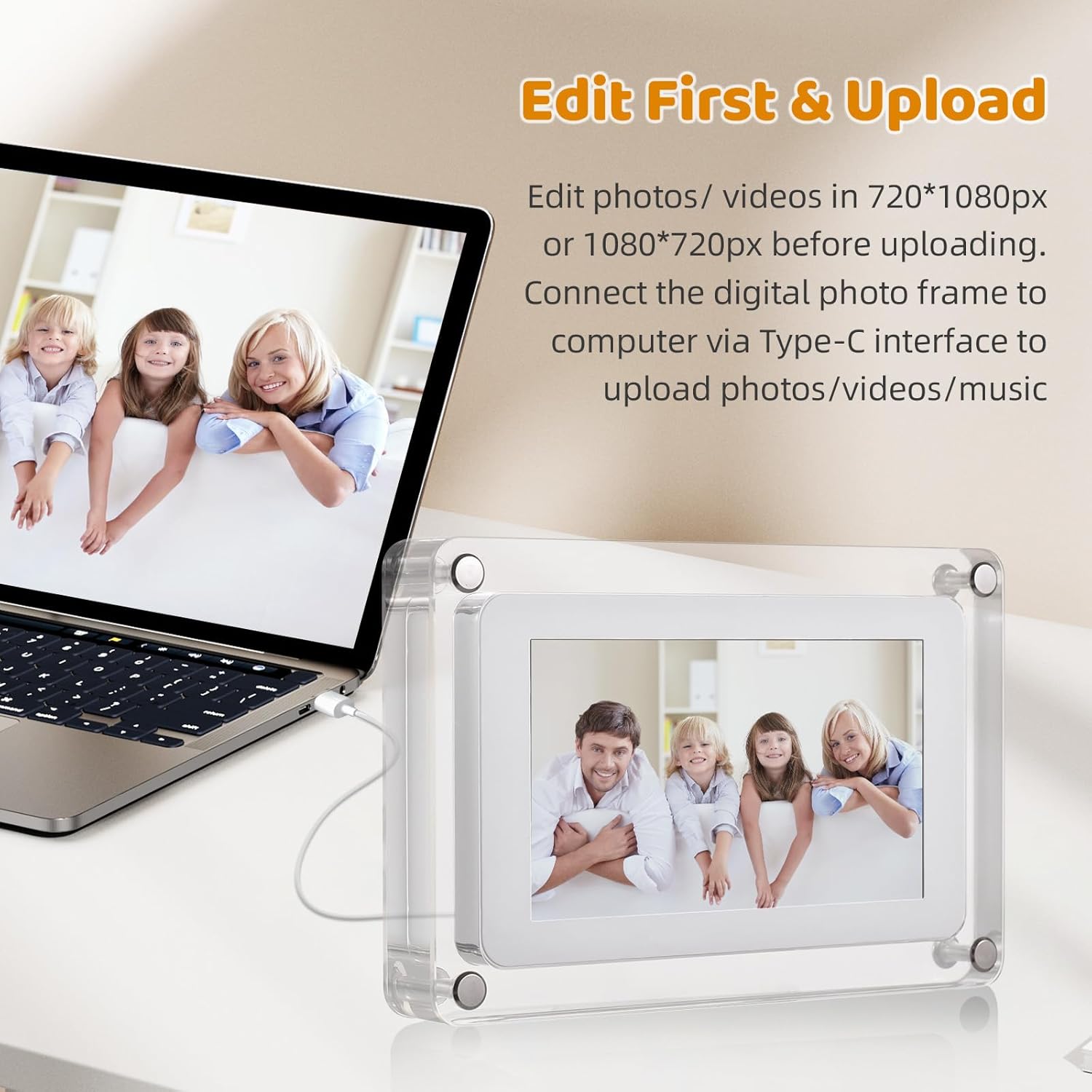
Image: The digital photo frame connected to a laptop, demonstrating the process of uploading media files.
6.2 Displaying Media
- The frame will automatically begin displaying your uploaded photos and videos in a loop.
- Music playback is supported, but it must be played concurrently with photos.
- Use the Play/Pause/Next Video button on the back of the frame to control playback.
6.3 Automatic Rotation
The digital photo frame features an automatic rotation function. It will adjust the display orientation (horizontal or vertical) based on the orientation of the photo or video being displayed. This ensures your media is always shown correctly.

Image: Two digital photo frames illustrating the automatic rotation capability, adapting to both portrait and landscape orientations.
6.4 Frameo APP Sharing
The Frameo APP allows you to easily share photos and videos to your digital photo frame from anywhere. Download the Frameo APP from your smartphone's app store and follow the in-app instructions to connect it to your frame. This enables friends and family to share moments directly to your frame.
7. Maintenance
- Cleaning: Use the provided cleaning cloth to gently wipe the screen and acrylic frame. Do not use abrasive cleaners or solvents.
- Storage: When not in use for extended periods, store the frame in a cool, dry place away from direct sunlight.
- Battery Care: To prolong battery life, avoid fully discharging the battery frequently. Charge the device regularly, even if not in constant use.
8. Troubleshooting
| Problem | Possible Cause | Solution |
|---|---|---|
| Frame does not power on. | Low battery or power adapter issue. | Charge the frame using the provided power adapter and Type-C cable. Ensure the adapter is properly connected to a working outlet. |
| Cannot connect to Wi-Fi. | Incorrect password, weak signal, or router issue. | Verify Wi-Fi password. Move the frame closer to the router. Restart your router. |
| Photos/Videos not displaying. | Unsupported file format or corrupted files. | Ensure files are in supported formats (JPG, BMP, PNG for images; MP4, AVI, MKV, MOV for videos). Re-upload files if corrupted. |
| No sound from videos/music. | Volume too low or muted. | Adjust volume using the volume control buttons. Ensure music is played with photos. |
| Frameo APP not connecting. | Frame not connected to Wi-Fi or incorrect pairing code. | Ensure the frame is connected to Wi-Fi. Double-check the pairing code in the Frameo APP. |
9. Specifications
| Feature | Specification |
|---|---|
| Screen Size | 10.1 Inches |
| Resolution | 720*1080px (supports 720*1080Px videos/photos, frame rate≤30) |
| Internal Memory | 8GB |
| Battery Capacity | 2000mAh |
| Connectivity | USB, Wi-Fi |
| Supported Video Formats | MP4, AVI, MKV, MOV |
| Supported Image Formats | JPG, BMP, PNG |
| Product Dimensions | 7.5 x 11 x 0.99 inches (19.1 x 28.1 x 2.2 cm) |
| Item Weight | 3.78 pounds (1050g) |
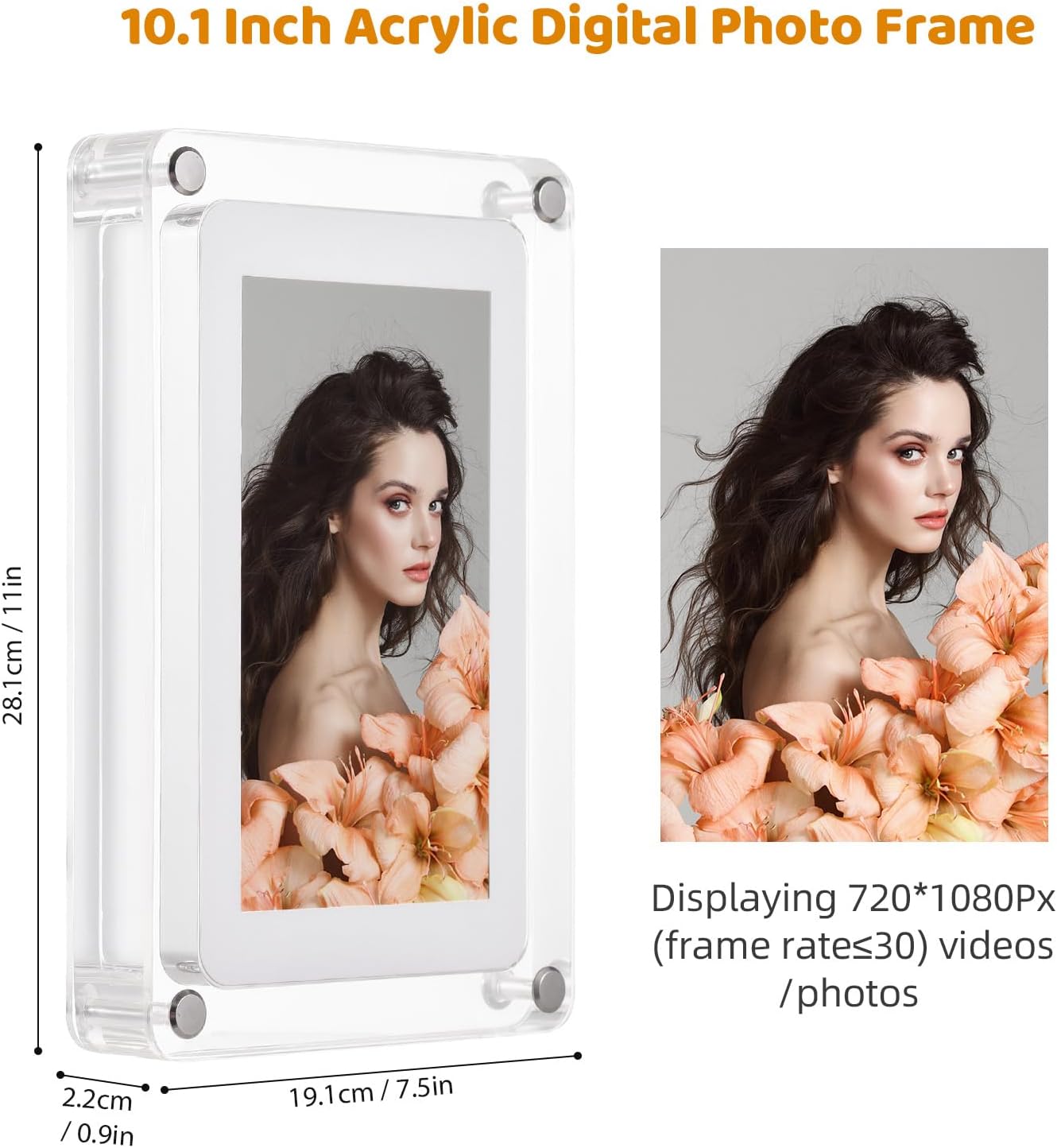
Image: The digital photo frame with its physical dimensions and supported display resolution clearly indicated.
10. Warranty and Support
Andoer products are designed and manufactured to the highest quality standards. For warranty information or technical support, please refer to the warranty card included in your package or contact Andoer customer service through the retailer where you purchased the product. Please have your product model and purchase date available when contacting support.


