
Trueque 59d4d2fe-b8ae-465b-8653-26919cf8a1e2
Trueque Wireless Ergonomic Keyboard Instruction Manual
Model: 59d4d2fe-b8ae-465b-8653-26919cf8a1e2
Brand: Trueque
1. Introduction
This manual provides essential information for the setup, operation, and maintenance of your Trueque Wireless Ergonomic Keyboard. Designed for comfort and efficiency, this keyboard features 7-color backlighting, a built-in phone holder, and broad compatibility with various operating systems.

Image 1: Trueque Wireless Ergonomic Keyboard in white, showcasing its full layout and illuminated keys.
2. What's in the Box
Please verify that all items are present in the package:
- 1 x Wireless Keyboard
- 1 x USB Receiver (2.4 GHz)
- 1 x Type-C Charging Cable
- 1 x User Manual

Image 2: Visual representation of the items included in the keyboard package.
3. Setup
3.1. Connecting the Keyboard
- Locate the 2.4 GHz USB receiver.
- Insert the USB receiver into an available USB port on your computer (PC, Laptop, Desktop, Chromebook, Smart TV).
- Turn on the keyboard using the power switch located on the back or side of the device.
- The keyboard should automatically connect. No additional drivers are typically required.

Image 3: Illustration of the keyboard's 2.4 GHz wireless connection setup.
3.2. Charging the Keyboard
The keyboard is equipped with a rechargeable battery. Use the provided Type-C charging cable to charge the device when the battery is low.
- Connect the Type-C cable to the keyboard's charging port.
- Connect the other end of the cable to a USB power source.
- A blue light indicates charging. The power indicator turns off when fully charged.

Image 4: Detail of the Type-C charging port and cable connection.

Image 5: Smart LED indicators for Power, Caps Lock, and Num Lock. The power indicator flashes when the battery is low.
4. Operating Instructions
4.1. Backlight Control
The keyboard features 7 distinct backlight colors and 3 adjustable brightness levels to enhance your typing experience.
- To turn ON/OFF the backlight and switch between 7 colors: Press Fn + Scroll Lock.
- To adjust backlight brightness (3 levels): Press Fn + Up Arrow (increase) or Fn + Down Arrow (decrease).

Image 6: Instructions for adjusting backlight colors and brightness.
4.2. Ergonomic Design and Wrist Rest
The keyboard is designed with an ergonomic typing angle and an integrated wrist rest to provide support and reduce strain during extended use. This promotes a comfortable typing posture.

Image 7: Visual comparison highlighting the ergonomic design and wrist rest for improved comfort.
4.3. Device Holder
A convenient slot is integrated into the keyboard to securely hold your phone or tablet, keeping your workspace tidy and your devices accessible.

Image 8: The keyboard's integrated phone and tablet holder.
4.4. Shortcut Keys
The full-size keyboard includes a numeric keypad, 12 function keys, and 6 independent shortcut keys for quick access to common functions like music, email, and more, enhancing efficiency.

Image 9: Overview of the keyboard's shortcut keys and numeric pad for high efficiency.
4.5. Smart Energy-Saving Features
To conserve battery life, the keyboard automatically turns off its backlight after 90 seconds of inactivity and enters a smart sleep mode after 15 minutes. Simply type or click any key to wake it up.
4.6. Compatibility
The keyboard is compatible with a wide range of devices and operating systems, including PCs, Laptops, Desktops, Chromebooks, Smart TVs, Windows, Linux, Chrome, and Mac.
4.7. Product Video
Watch this video for a visual demonstration of the keyboard's features, including its 7-color backlights, wrist rest, and wireless functionality.
Video 1: Demonstration of the Trueque Wireless Keyboard's 7-color backlights, ergonomic wrist rest, and wireless operation.
5. Maintenance
5.1. Cleaning
To clean the keyboard, gently wipe the surface with a soft, damp cloth. Avoid using harsh chemicals or abrasive materials that could damage the finish or key legends. The keyboard is designed to be spill-resistant, but excessive liquid exposure should be avoided.
5.2. Battery Care
To prolong battery life, fully charge the keyboard before first use. Recharge when the low battery indicator flashes. Avoid exposing the keyboard to extreme temperatures.
6. Troubleshooting
- Keyboard not connecting: Ensure the USB receiver is securely plugged into your device and the keyboard is powered on. Try plugging the receiver into a different USB port.
- Backlight not working: Press Fn + Scroll Lock to ensure the backlight is turned on. Check battery level and recharge if necessary.
- Keys wearing off: While the keyboard is designed for durability, prolonged heavy use may cause some key legends to fade over time. This is typically cosmetic and does not affect functionality.
- Cursor jumping unexpectedly: This issue is usually software-related. Ensure your operating system and drivers are up to date. If using a mouse, ensure it is not interfering.
7. Specifications
| Feature | Detail |
|---|---|
| Product Dimensions | 16.6 x 8.42 x 1.53 inches |
| Item Weight | 1.92 pounds |
| Connectivity Technology | 2.4 GHz Wireless |
| Keyboard Backlighting | 7 Colors, 3 Brightness Levels (RGB support) |
| Special Features | Ergonomic, Wrist Rest, Phone Holder, Rechargeable, Silent Keys, Spill Resistant |
| Battery Standby Time | Up to 2000 hours |
| Compatible Devices | PC, Laptop, Desktop, Chromebooks, Smart TV |
| Operating Systems | Windows, Linux, Chrome, Mac |
8. Warranty and Support
Trueque offers comprehensive customer support for your product:
- Online Response: 24-hour online response for inquiries.
- Warranty: 12-month free warranty.
- Brand Service: 360 days of dedicated brand service.
For support, please contact us at:
Phone: 1-866-608-6766 (US)
Hours: Mon-Fri, 9am-1pm, 2pm-6pm (PST)
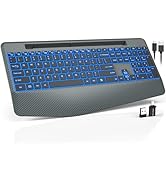
Image 10: Trueque customer support details, including warranty and contact information.
Related documents59d4d2fe-b8ae-465b-8653-26919cf8a1e2

Ask a question about this manual
Ask about setup, troubleshooting, compatibility, parts, safety, or missing instructions. Manuals+ will review the question and use this page’s manual context to help answer it.