
Introduction
This manual provides detailed instructions for setting up, operating, and maintaining your FamBrow 10.1 Inch WiFi Digital Photo Frame P105. Please read this manual carefully before using the device to ensure proper functionality and longevity.
Package Contents
Before you begin, please verify that all items are present in the package:
- FamBrow Digital Picture Frame (1 unit)
- Photo Frame Holder (1 unit)
- DC Power Cord (1 unit)
- 32GB Memory Card (1 unit)
- Multi-language User Manual (1 unit)

Image: Package contents of the FamBrow Digital Photo Frame, showing the frame, stand, power adapter, 32GB memory card, and user manual.
Setup
1. Power Connection
- Place the photo frame on a stable surface or attach it to the wall using appropriate mounting hardware (not included).
- Connect the DC power cord to the frame's power input port.
- Plug the power adapter into a standard electrical outlet. The frame will automatically power on.

Image: The digital photo frame connected to power, displaying an image. This illustrates the power connection.
2. Initial Setup and Wi-Fi Connection
- Upon first power-on, follow the on-screen prompts to select your preferred language, time zone, and other basic settings.
- When prompted, connect the frame to your home Wi-Fi network. Select your network from the list and enter the password. A stable Wi-Fi connection is essential for sharing photos and videos via the app.
3. VPhoto App Download and Pairing
The FamBrow digital photo frame uses the VPhoto app for seamless photo and video sharing.
- Download the "VPhoto" app from the Google Play Store (for Android devices) or the Apple App Store (for iOS devices).
- Open the VPhoto app and complete the setup and login process.
- In the app, select "Add Device" and then "Photo Frame (Wi-Fi)".
- Scan the QR code displayed on your digital photo frame using the VPhoto app to pair your device.
- Once paired, you can select photos and videos from your phone's album and send them directly to the frame.

Image: Visual guide for connecting the frame to the VPhoto app, showing app download, setup, device addition, and photo sharing steps.
Operating Instructions
1. Touchscreen Navigation
The FamBrow digital photo frame features a 10.1-inch HD IPS touchscreen for intuitive control.
- Swipe: Swipe left or right to browse through photos and videos.
- Tap: Tap on a photo or video to view it in full screen or access options.
- Pinch: Use pinch gestures to zoom in or out on photos.
- Settings: Access the main menu by tapping the screen and selecting the settings icon.
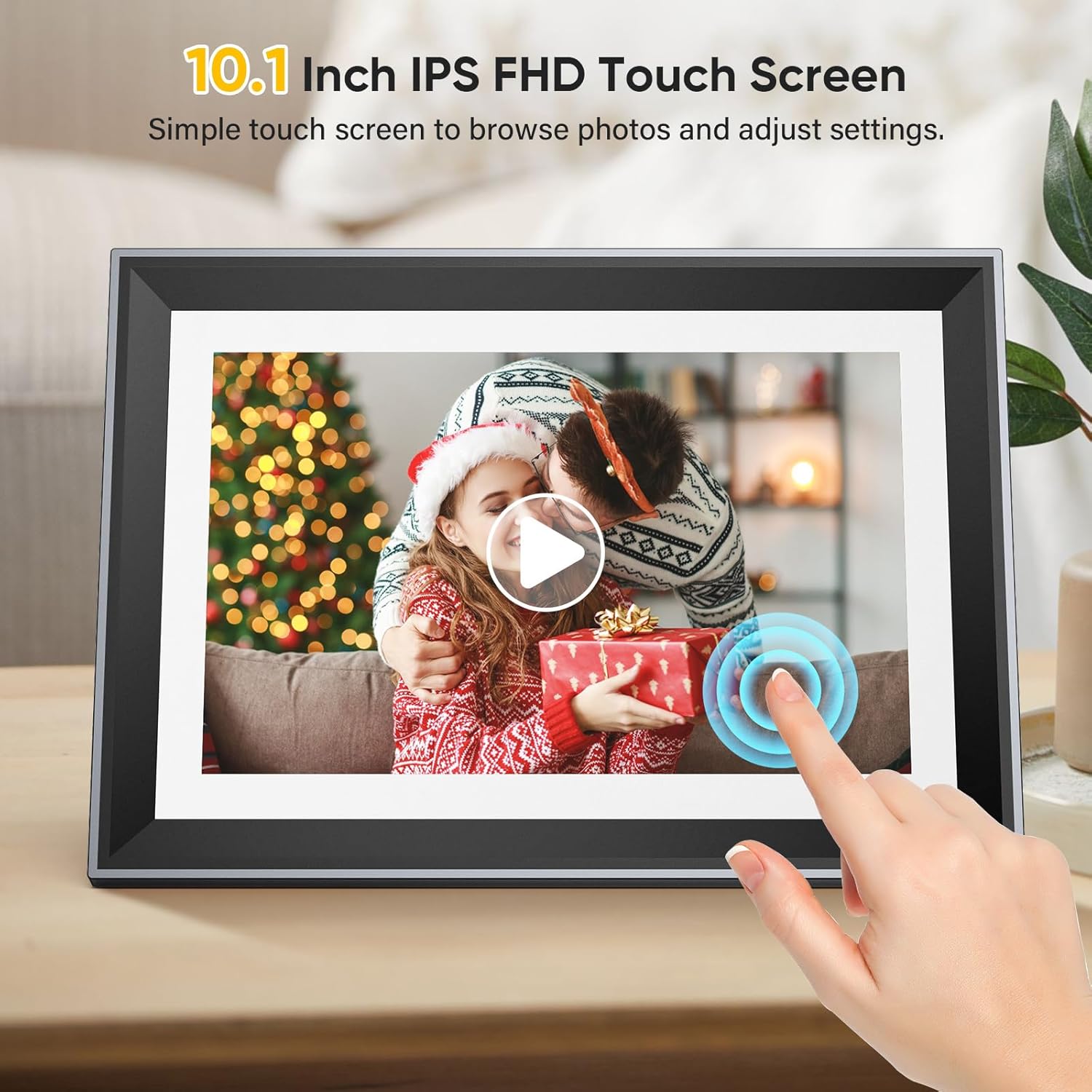
Image: A hand demonstrating touchscreen interaction on the digital photo frame, highlighting its ease of use.
2. Photo and Video Management
The frame supports various media formats and offers ample storage, along with wireless sharing capabilities.
- Internal Storage: The frame has 16GB of built-in memory.
- External Storage: A 32GB SD card is included, expanding total storage to 48GB. You can insert the SD card into the designated slot.
- Supported Formats: The frame supports JPG, PNG, BMP for photos, and MP4, MOV, AVI for videos. Audio formats include FLAC, OGG, WAV.
- Wireless Sharing: Easily share photos and videos (up to 200MB) instantly from your smartphone to the frame using the VPhoto app, connecting friends and family regardless of location.

Image: The frame displaying a collage of photos, illustrating its capacity for storing and displaying a large number of images and videos.

Image: A family sharing a photo wirelessly to the digital photo frame, emphasizing the ease of instant sharing via Wi-Fi.
3. Display Settings and Features
Customize your viewing experience with various settings:
- Brightness: Adjust the screen brightness to suit your environment.
- Sleep Mode: Set a schedule for the frame to automatically turn off or enter a low-power state.
- Slideshow Mode: Configure slideshow intervals, transition effects, and playback order.
- Auto-Rotate: The frame automatically adjusts the display orientation (landscape or portrait) based on its physical position. This feature can be enabled or disabled in settings.
- Wall Mounted: The frame is designed to be wall-mountable for flexible placement.
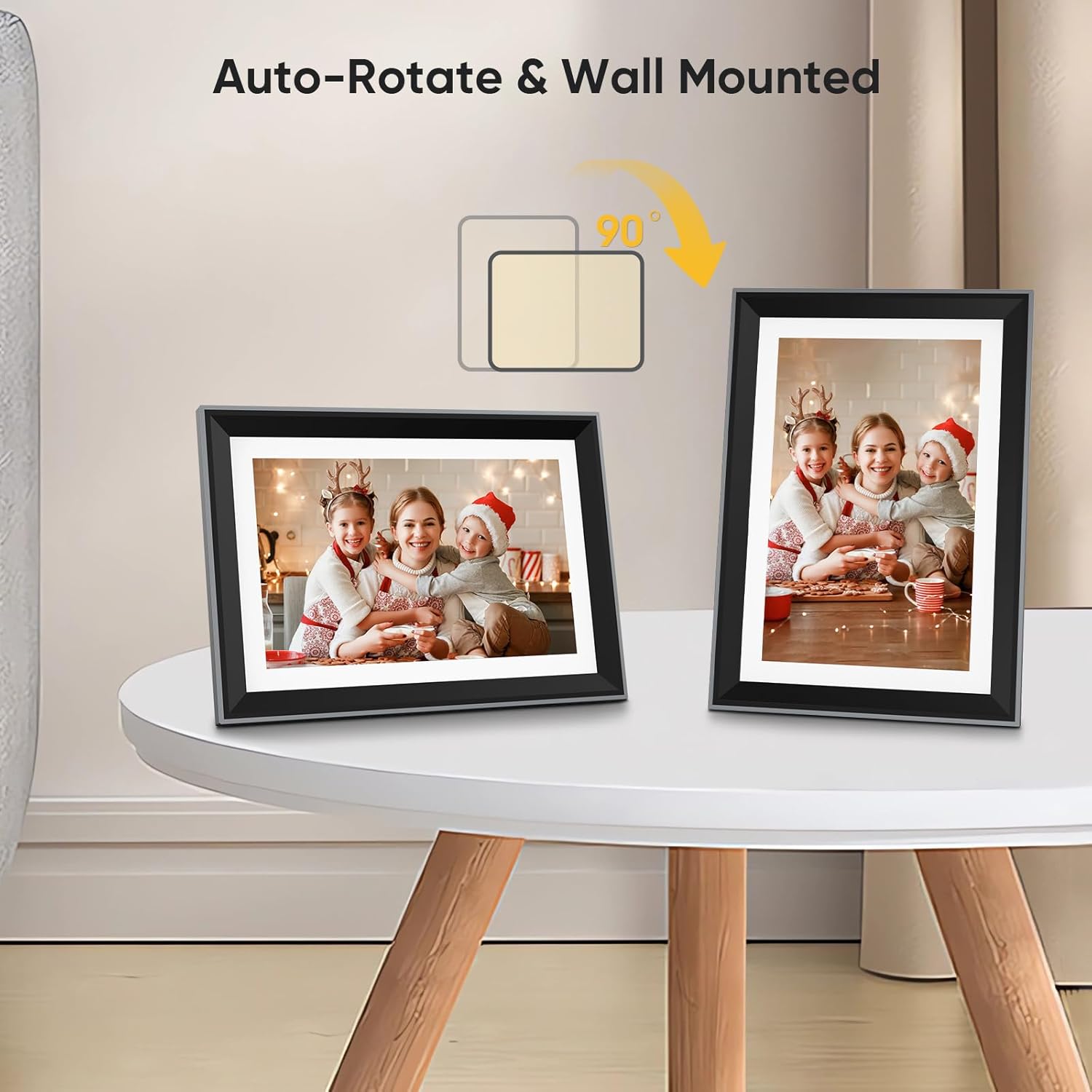
Image: The digital photo frame shown in both landscape and portrait orientations, illustrating its auto-rotate and wall-mounting capabilities.

Image: The main menu of the frame, displaying various functions such as Calendar, Video, Alarm clock, Auto-Rotation, Timer, Slideshow, Music, and Weather.
Maintenance
Cleaning the Frame
- Ensure the frame is powered off and unplugged before cleaning.
- Use a soft, lint-free cloth to gently wipe the screen and frame.
- For stubborn smudges, slightly dampen the cloth with water or a screen-safe cleaning solution. Avoid harsh chemicals or abrasive materials.
Software Updates
The frame may receive periodic software updates to improve performance and add new features. Ensure your frame is connected to Wi-Fi to receive these updates. You can check for updates in the device settings menu.
Troubleshooting
- Frame not powering on: Ensure the power adapter is securely connected to both the frame and a working electrical outlet.
- Cannot connect to Wi-Fi:
- Verify your Wi-Fi password is correct.
- Ensure the frame is within range of your Wi-Fi router.
- Restart your Wi-Fi router and the photo frame.
- Photos/Videos not appearing:
- Confirm the VPhoto app is correctly paired with your frame.
- Check your internet connection on both your phone and the frame.
- Ensure the media files are in supported formats (JPG, PNG, BMP for photos; MP4, MOV, AVI for videos).
- Verify that the SD card is properly inserted if you are using external storage.
- Screen unresponsive: Try restarting the frame by unplugging and replugging the power cord. If the issue persists, contact customer support.
Specifications
| Feature | Specification |
|---|---|
| Model Number | P105 |
| Screen Size | 10.1 Inches |
| Display Resolution | 1280p (1280 x 800 HD IPS) |
| Aspect Ratio | 16:9 |
| Internal Memory | 16 GB |
| Included External Memory | 32 GB SD Card |
| Connectivity Technology | Wi-Fi |
| Human Interface Input | Touchscreen |
| Control Method | Touch |
| Compatible Devices | Personal Computer (for file transfer) |
| Color | Black |
| Item Dimensions (L x W) | 24.4L x 16.8W centimeters |
Warranty and Support
FamBrow is committed to providing quality products and excellent customer service.
- 1-Year Warranty: Your FamBrow digital photo frame is covered by a 1-year warranty from the date of purchase.
- 180-Day Free Return: Enjoy a 180-day free return policy.
- Lifetime Technical Support: FamBrow offers lifetime technical support for your product.
- 24-Hour Response: For any issues or inquiries, please contact us via Amazon.com. We aim to provide a prompt response and satisfactory solution within 24 hours.

Image: FamBrow's commitment to customer service, including 24-hour response, 180-day free return, and 12-month warranty.