
ATTACK SHARK L80
ATTACK SHARK L80 Ultra-Light Wireless Gaming Headset
User Manual
Product Overview
The ATTACK SHARK L80 is a versatile ultra-light wireless gaming headset designed for an immersive audio experience across multiple platforms. It offers tri-mode connectivity: Bluetooth 5.3, 2.4GHz wireless, and a 3.5mm wired connection, ensuring compatibility with PCs, laptops, tablets, and mobile phones. Featuring 40mm Pro-G drivers for precise sound reproduction and a detachable omnidirectional noise-cancelling microphone for clear communication, the L80 is built for extended gaming sessions with its 600mAh battery providing up to 50 hours of playtime.
Package Contents
Please ensure all the following items are included in your package:
- ATTACK SHARK L80 Gaming Headset
- User Manual
- 3.5mm Audio Cable
- 2-in-1 2.4G Receiver (USB-A and Type-C)
- Type-C Charging Cable
- Detachable Microphone

Image: The ATTACK SHARK L80 headset with its complete set of accessories, including the user manual, various cables, and the 2-in-1 receiver.
Setup Guide
1. Charging the Headset
Before first use, fully charge the headset. Connect the supplied Type-C charging cable to the headset's charging port and the other end to a USB power source. The indicator light will show charging status. A full charge takes approximately 3 hours.
The 600mAh battery provides up to 50 hours of playtime at 50% volume and up to 200 hours of standby time via Bluetooth.

Image: Detailed view of the headset's charging port and internal battery capacity.
2. Attaching the Microphone
The L80 headset comes with a detachable omnidirectional microphone. Insert the microphone jack firmly into the designated port on the left earcup until it clicks into place. The microphone is flexible and can be adjusted 360° for optimal positioning.

Image: The headset with its detachable, adjustable microphone, highlighting its noise-cancelling capability.
3. Connecting the Headset
The ATTACK SHARK L80 supports three connection modes: 2.4GHz Wireless, Bluetooth, and Wired (3.5mm).
3.1. 2.4GHz Wireless Connection
For low-latency gaming, use the 2.4GHz wireless mode. The headset includes a 2-in-1 USB-A and Type-C receiver.
- Plug the 2.4GHz receiver into an available USB-A or Type-C port on your PC, laptop, PS4/PS5 console, or Switch dock.
- Long press the power button on the headset for 3 seconds to turn it on.
- Double-click the multi-function button (usually the power button) to switch to 2.4G mode. The indicator light will turn white.
- The headset will automatically connect to the receiver.
Note: When using the USB-A connection, the USB-C plug must also be inserted into the receiver for a complete connection.
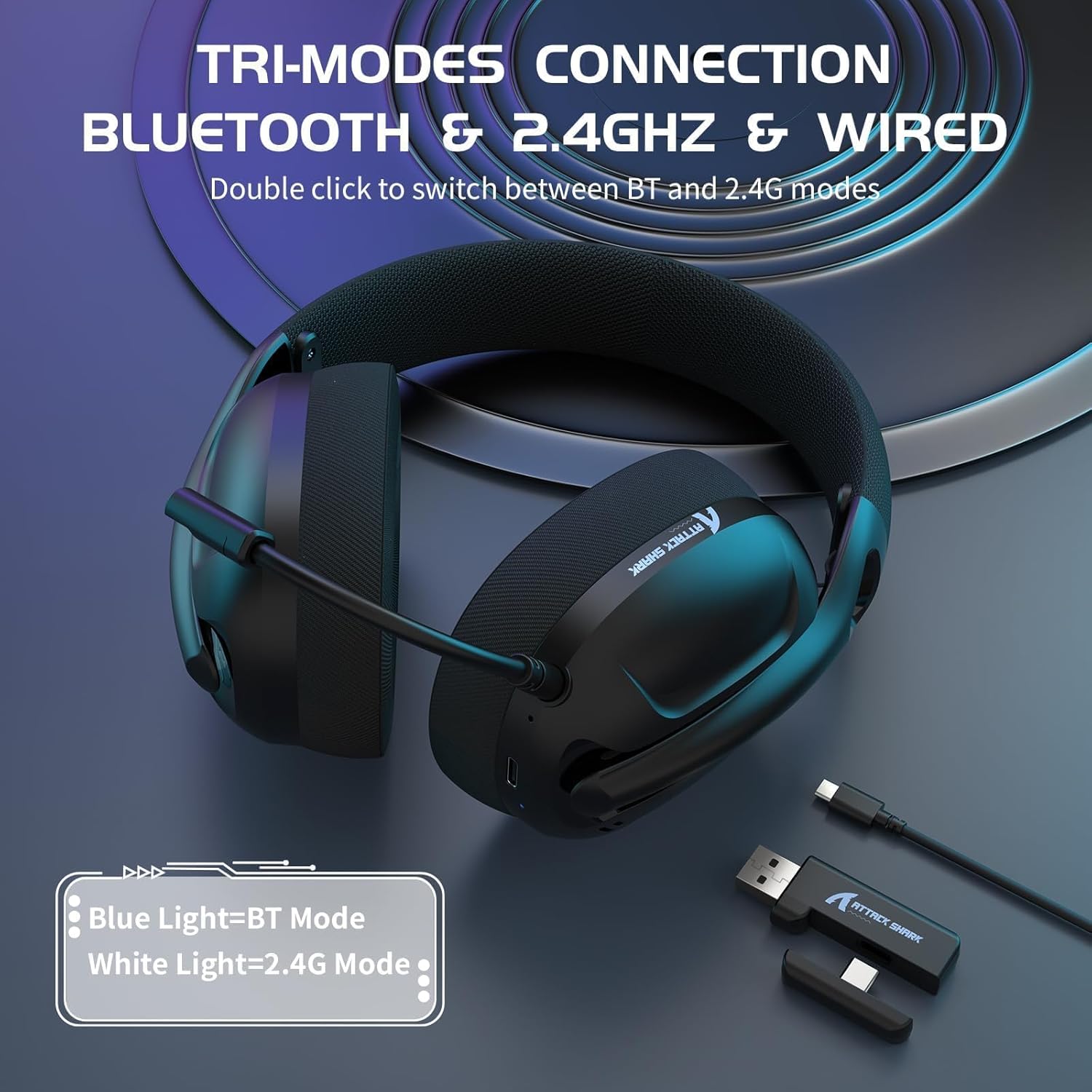
Image: The headset illustrating its tri-mode connectivity and the 2-in-1 USB receiver.
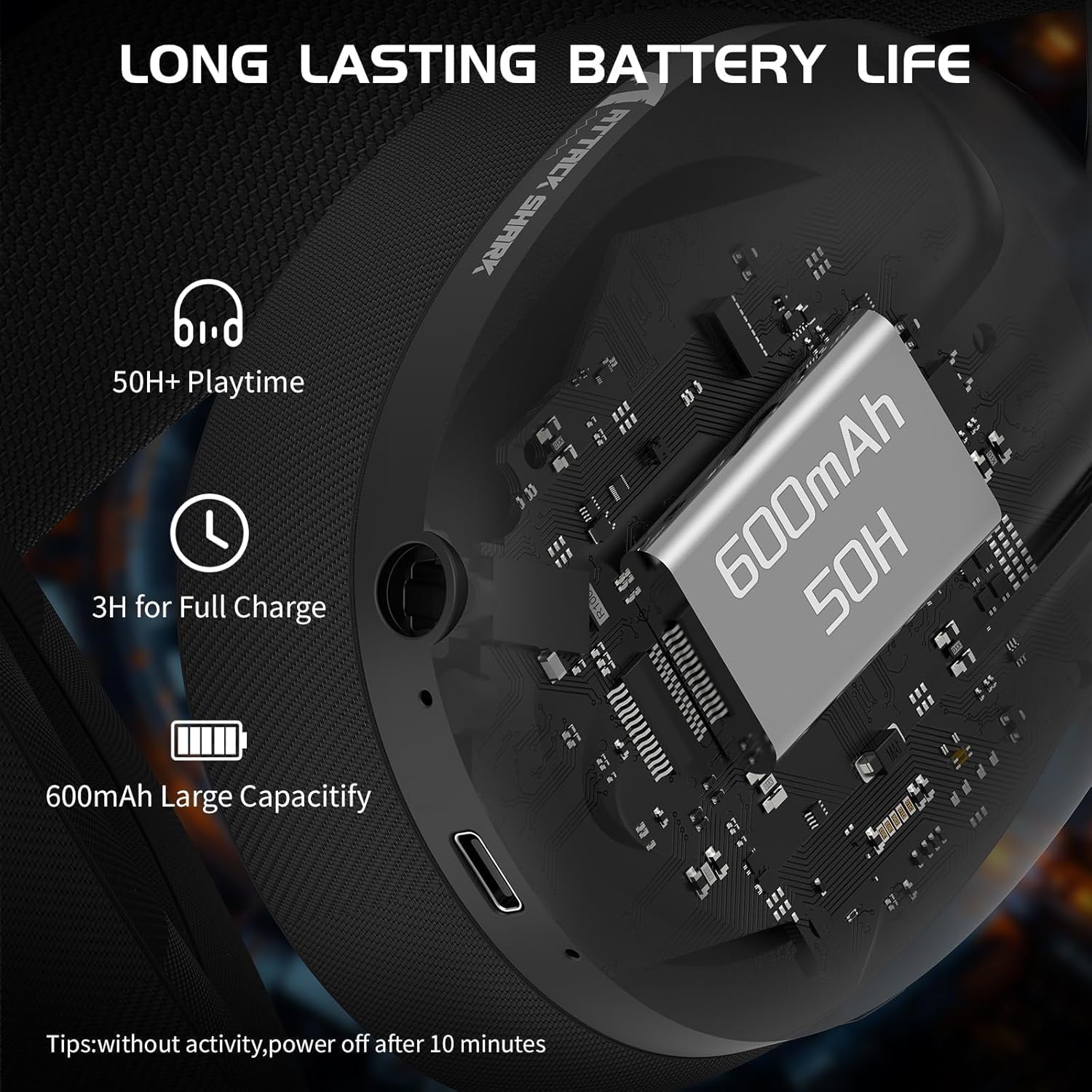
Image: A detailed view of the 2-in-1 USB receiver, demonstrating its compatibility with both USB-A and Type-C ports and its low latency performance.
3.2. Bluetooth Connection
For mobile devices and general wireless use:
- Long press the power button on the headset for 3 seconds to turn it on.
- Double-click the multi-function button to switch to Bluetooth mode. The indicator light will turn blue.
- On your device (smartphone, tablet, laptop), enable Bluetooth and search for "ATTACK SHARK L80" in the list of available devices.
- Select the headset to pair. Once paired, the indicator light will remain solid blue.
3.3. Wired Connection (3.5mm)
For devices with a 3.5mm audio jack or when battery is low:
- Connect one end of the supplied 3.5mm audio cable to the headset's 3.5mm port.
- Connect the other end to the 3.5mm audio jack on your device (PC, console controller, mobile phone, etc.).
- The headset will automatically switch to wired mode.
Note: In wired mode, volume adjustment for PS4/PS5/Xbox may need to be done via the controller or console settings.
Operating Instructions
Headset Controls
The ATTACK SHARK L80 features intuitive controls located on the earcups:

Image: A visual guide to the headset's control layout and functions.
- Power Button / Multi-function Button:
- Long Press (3 seconds): Power On/Off.
- Click: Play/Pause audio. Answer/Hang up phone calls.
- Double-click: Switch between Bluetooth and 2.4G wireless modes.
- Volume Up (+) Button:
- Click: Increase volume.
- Long Press: Previous song.
- Volume Down (-) Button:
- Click: Decrease volume.
- Long Press: Next song.
- Microphone Button:
- Click: Mute/Unmute microphone. A voice prompt will indicate microphone status.
- Indicator Light:
- Blue Light: Bluetooth Mode.
- White Light: 2.4G Mode.
- Red Light: Low battery.
Adjusting the Headset
The L80 headset features an adjustable headband and breathable mesh earmuffs for comfortable wear during long periods.
- Headband Adjustment: Gently slide the earcups up or down along the headband to find a comfortable fit for your head size.
- Earmuffs: The ultra-soft and breathable memory foam earmuffs are designed for comfort and to reduce pressure, ensuring a pleasant experience even during extended use.

Image: The headset's breathable mesh earmuffs, designed for comfort and airflow.

Image: Illustration of the adjustable headband, designed to fit various head sizes.
Maintenance and Care
Proper maintenance ensures the longevity and optimal performance of your ATTACK SHARK L80 headset.
- Cleaning: Use a soft, dry cloth to wipe the headset. For the earmuffs, a slightly damp cloth can be used, but ensure they are completely dry before use. Do not use harsh chemicals or abrasive cleaners.
- Storage: Store the headset in a cool, dry place away from direct sunlight and extreme temperatures. Avoid placing heavy objects on the headset.
- Battery Care: To preserve battery life, avoid fully discharging the headset frequently. If storing for an extended period, charge the battery to about 50% every few months.
- Water Resistance: The headset is not waterproof. Avoid exposure to water or excessive moisture.
Troubleshooting
If you encounter issues with your ATTACK SHARK L80 headset, please refer to the following common solutions:
No Sound / Low Volume
- Ensure the headset is powered on and connected correctly (2.4GHz, Bluetooth, or Wired).
- Check the volume levels on both the headset and your connected device.
- If using 2.4GHz, ensure the receiver is properly plugged in and the headset is in 2.4G mode (white indicator light).
- If using Bluetooth, ensure the headset is paired and connected (blue indicator light).
- If using wired connection, ensure the 3.5mm cable is fully inserted into both the headset and the device.
- Test with another audio source or device to rule out device-specific issues.
Microphone Not Working
- Ensure the detachable microphone is securely attached to the headset.
- Press the microphone button on the headset to ensure it is not muted. A voice prompt will confirm its status.
- Check microphone settings on your connected device (e.g., Windows Sound Settings, game audio settings) to ensure the L80 headset microphone is selected as the input device and its volume is not muted.
- Test the microphone with another application or device.
Connection Issues (Wireless)
- 2.4GHz: Ensure the 2.4G receiver is within 10 meters (33 feet) of the headset and there are no significant obstructions. Try plugging the receiver into a different USB port.
- Bluetooth: Ensure Bluetooth is enabled on your device and the headset is in pairing mode or already paired. Try unpairing and re-pairing the headset. Keep the headset within 10 meters of the device.
- Ensure the headset is not simultaneously connected to another device in the same mode.
- Double-check that you are in the correct mode (Bluetooth or 2.4G) by double-clicking the multi-function button.
Headset Not Charging
- Ensure the Type-C charging cable is securely connected to both the headset and the power source.
- Try a different USB charging port or power adapter.
- Ensure the charging cable is not damaged.
Technical Specifications
| Feature | Detail |
|---|---|
| Model Name | L80 |
| Brand | ATTACK SHARK |
| Connectivity Technology | Wireless (2.4GHz, Bluetooth 5.3), Wired (3.5mm) |
| Driver Size | 40mm |
| Frequency Range | 20 Hz - 20,000 Hz |
| Impedance | 32 ohms |
| Microphone | Detachable, Omnidirectional, Noise-Cancelling |
| Battery Capacity | 600 mAh |
| Playtime | Up to 50 hours (at 50% volume) |
| Charging Time | Approx. 3 hours |
| Weight | 180 grams (approx.) |
| Compatible Devices | PC, Laptop, Tablet, Mobile Phones, PS4, PS5, Switch |
| Material | Plastic |

Image: The headset highlighting its ultra-light design and compatibility across various gaming platforms.
Warranty and Support
For warranty information and customer support, please refer to the official ATTACK SHARK website or contact your point of purchase. Keep your proof of purchase for any warranty claims.
You can visit the ATTACK SHARK store on Amazon for more information: ATTACK SHARK Amazon Store
Related documentsL80


Ask a question about this manual
Ask about setup, troubleshooting, compatibility, parts, safety, or missing instructions. Manuals+ will review the question and use this page’s manual context to help answer it.