
1. Introduction
Thank you for choosing the MAGICRAVEN Portable Dual Monitors. This device is designed to expand your laptop's display capabilities, offering a versatile 3-screen workstation for enhanced productivity. This manual provides essential information for setting up, operating, maintaining, and troubleshooting your new portable monitor system.
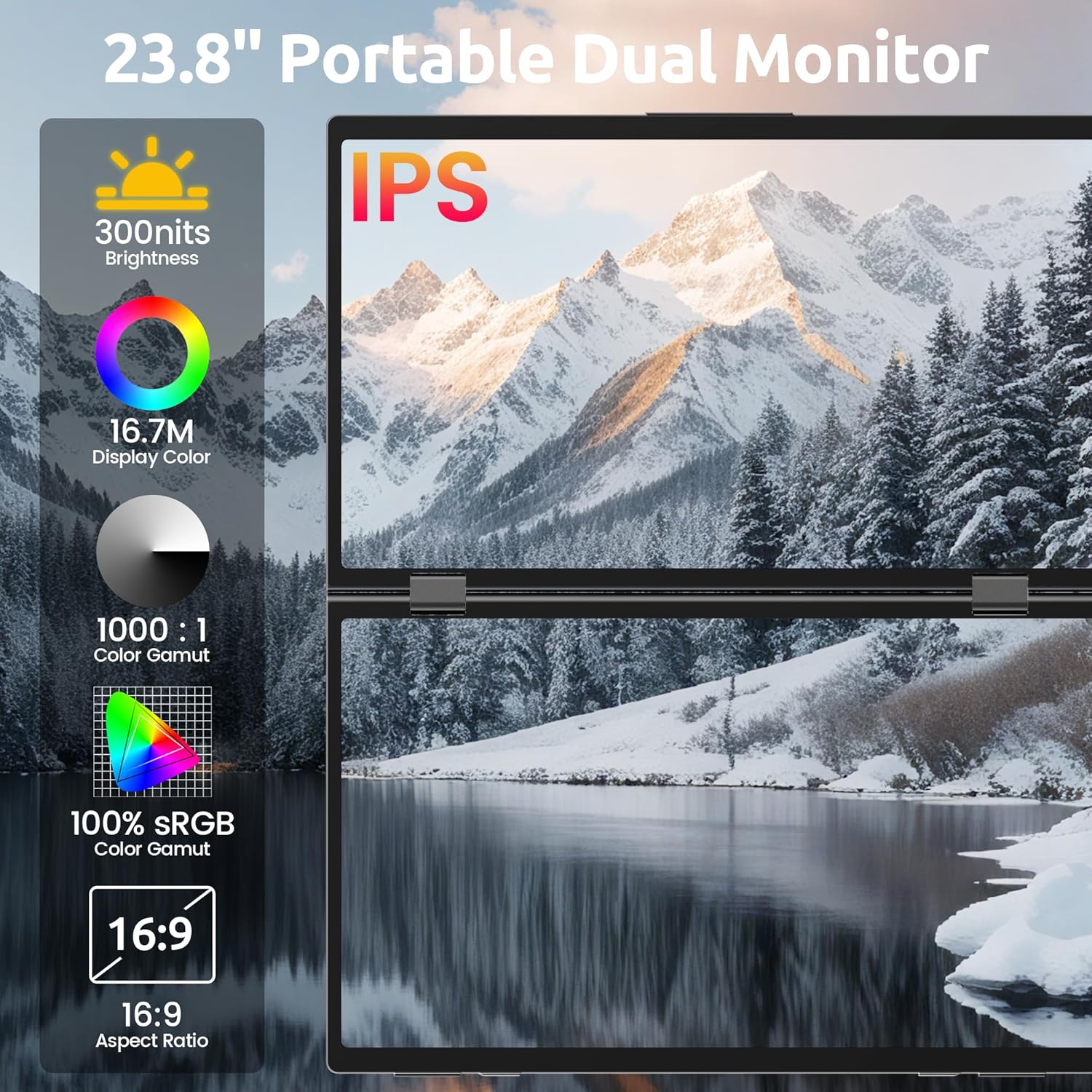
Image 1.1: Overview of the MAGICRAVEN Portable Dual Monitor highlighting key display specifications.
2. Package Contents
Please verify that all items are present in your package:
- MAGICRAVEN Portable Dual Monitors (MRDM-156-1080-60)
- USB-C to USB-C Cable(s)
- User Manual
3. Setup Instructions
The MAGICRAVEN Portable Dual Monitors are designed for true plug-and-play functionality with Windows laptops. No drivers or complex software installations are required.
- Compatibility Check: Ensure your laptop runs on a Windows operating system. This device is compatible with most Windows system laptops.
- USB-C Port Verification: Confirm that your laptop has at least one full-function USB Type-C port. A full-function USB-C port supports both power delivery and video output.
- Connection: Connect the portable dual monitors to your laptop using a single USB-C to USB-C cable. Plug one end into a full-function USB-C port on your laptop and the other end into one of the full-function USB Type-C ports on the monitor system.
- Power On: The monitors should automatically power on and extend your laptop's display. If not, check the connections and ensure your laptop is powered on.
Note: For phone and tablet connections, only mirror mode is supported.
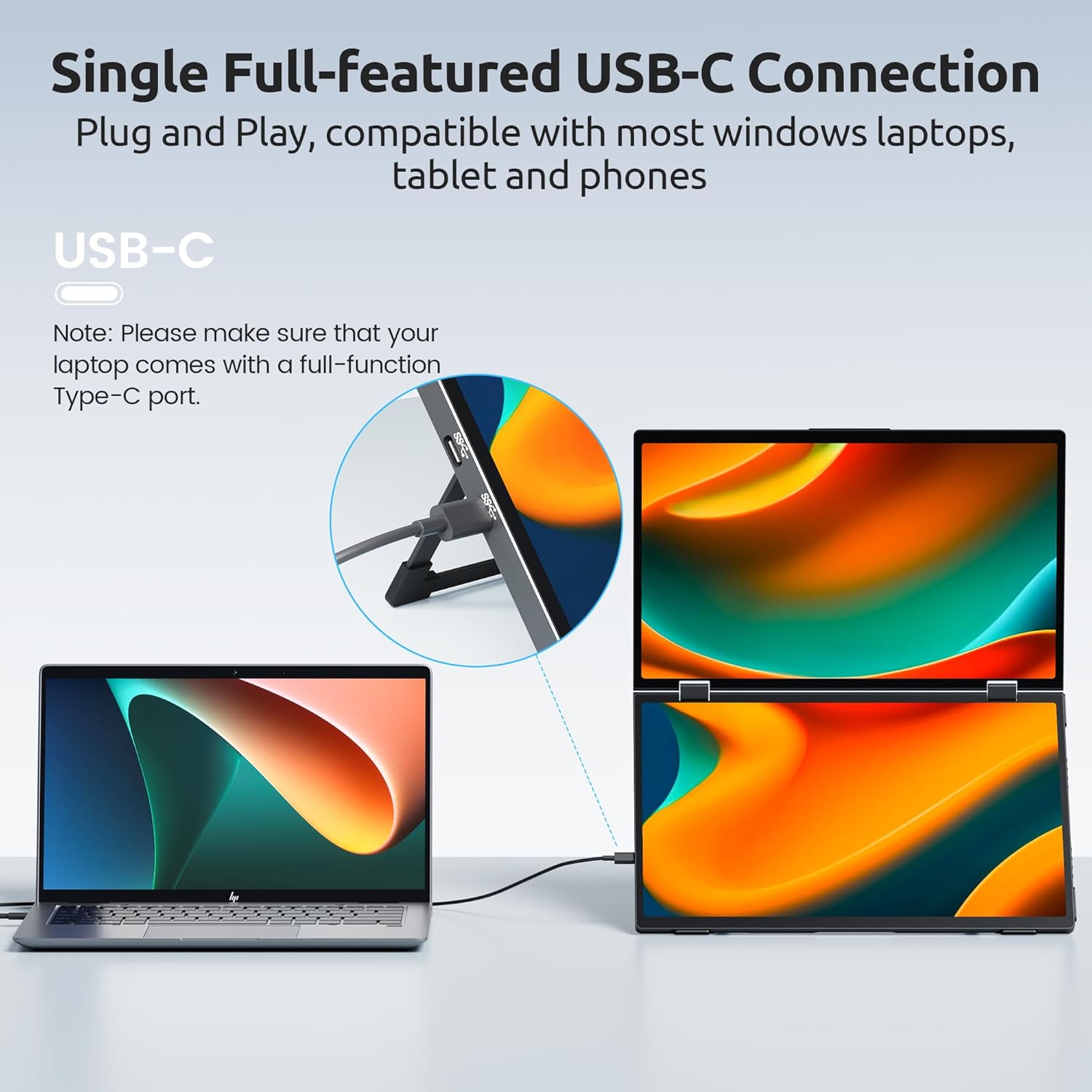
Image 3.1: Simple USB-C connection for plug-and-play setup with a Windows laptop.
4. Operating Instructions
Your MAGICRAVEN Portable Dual Monitors offer various display modes and adjustable features to suit your workflow.
4.1 Display Modes
Once connected, your Windows laptop should automatically detect the additional screens. You can configure the display modes through your operating system's display settings:
- Extended Mode: Each screen displays different content, expanding your desktop workspace. This is ideal for multitasking.
- Mirror Mode: All screens display the same content as your primary laptop screen. Useful for presentations or sharing content.
- Portrait Mode: Screens can be rotated to a vertical orientation, suitable for viewing long documents or code.
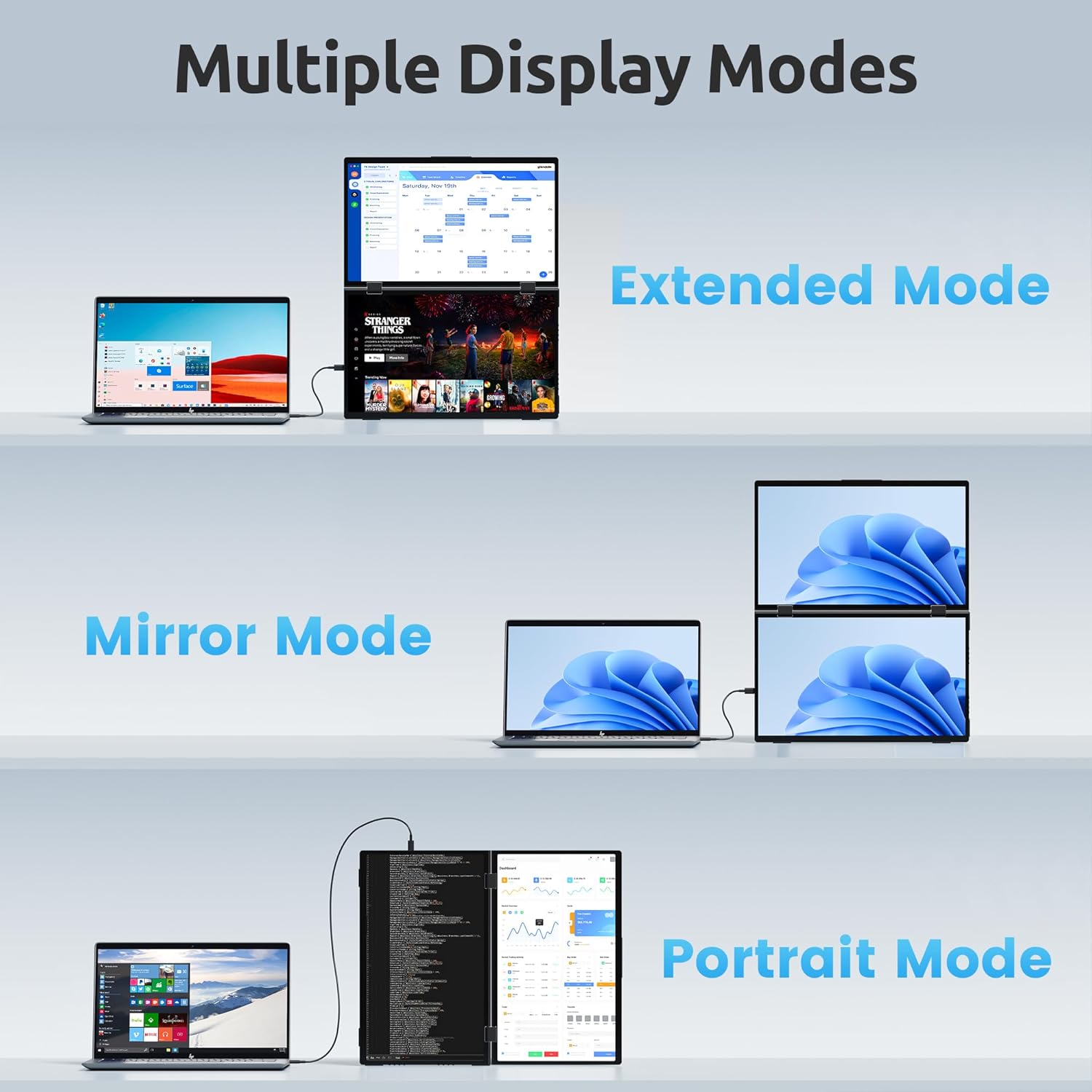
Image 4.1: Illustration of various display modes: Extended, Mirror, and Portrait.

Image 4.2: Example of a triple-screen workstation setup for enhanced productivity.
4.2 Screen Adjustments
Each 15.6" screen features separate buttons for independent adjustments. You can customize settings such as brightness, contrast, and RGB color balance to achieve your preferred viewing experience.
4.3 Foldable Design and Rotation
The monitor system is designed with a 360° rotatable upper screen, allowing you to easily share your display with others. A dedicated screen rotation button facilitates quick 180° flips for face-to-face discussions.

Image 4.3: The 360° rotation feature enables easy screen sharing and collaboration.
4.4 Integrated Kickstand and VESA Mount
A built-in 90° adjustable kickstand provides stable support and allows you to set the monitors at a comfortable viewing angle. For a more permanent setup, the monitors are VESA mountable (75x75mm) for use with compatible monitor arms or stands.

Image 4.4: The monitor features a built-in kickstand and VESA mounting compatibility.
5. Maintenance
To ensure the longevity and optimal performance of your MAGICRAVEN Portable Dual Monitors, follow these maintenance guidelines:
- Cleaning: Use a soft, lint-free cloth slightly dampened with water or a screen-cleaning solution to wipe the display surfaces. Avoid harsh chemicals or abrasive materials.
- Storage: When not in use, fold the monitors securely and store them in a protective case or bag to prevent scratches and damage.
- Handling: Handle the monitors with care. Avoid dropping them or applying excessive force to the screens or hinges.
- Environment: Keep the monitors away from extreme temperatures, direct sunlight, and high humidity.
6. Troubleshooting
If you encounter issues with your portable dual monitors, refer to the following common problems and solutions:
- No Display/Black Screen:
- Ensure the USB-C cable is securely connected to both the laptop and the monitor.
- Verify that your laptop's USB-C port is a full-function port supporting video output and power delivery.
- Check your laptop's display settings to ensure the external monitors are detected and configured for extended or mirror mode.
- Try connecting to a different USB-C port on your laptop, if available.
- Incorrect Display Mode (e.g., only Mirror Mode):
- Access your Windows display settings (Right-click on desktop > Display settings).
- Select "Extend these displays" or "Duplicate these displays" as needed.
- Ensure the orientation of the monitors is correctly set if using Portrait Mode.
- Flickering Screen:
- Check the USB-C cable for damage or loose connections.
- Ensure your laptop's graphics drivers are up to date.
- Reduce the screen brightness if it's set too high.
- No Sound (if applicable):
- Verify that the audio output is set to the monitor's speakers in your laptop's sound settings.
- Adjust the volume on both the monitor and your laptop.
7. Specifications
Detailed technical specifications for the MAGICRAVEN Portable Dual Monitors (MRDM-156-1080-60):
| Feature | Specification |
|---|---|
| Brand | MAGICRAVEN |
| Model Number | MRDM-156-1080-60 |
| Screen Size | Dual 15.6 Inches |
| Resolution | FHD 1080p (1920 x 1080 Pixels) |
| Aspect Ratio | 16:9 |
| Screen Surface | Matte IPS LCD Panels |
| Contrast Ratio | 1000:1 |
| Refresh Rate | 60 Hz |
| Viewing Angle | 178 Degrees |
| Brightness | 300 Candela (nits) |
| Color Gamut | 100% sRGB |
| Connectivity | 2 x Full-function USB Type-C Ports |
| Additional Features | Built-In Speakers, 90° Adjustable Kickstand, VESA Mountable (75x75mm), 360° Rotatable Upper Screen |
| Item Dimensions (D x W x H) | 0.47"D x 9.9"W x 16.65"H (folded) |
| Weight | 3.7 lbs |
| Compatible Devices | Windows Laptops (with full-function USB-C) |

Image 7.1: Physical dimensions and weight of the MAGICRAVEN Portable Dual Monitors.
8. Warranty and Support
MAGICRAVEN is committed to providing reliable products and customer satisfaction.
- Warranty: This product is covered by a 2-year manufacturer warranty from the date of purchase.
- Returns & Replacement: We offer a 30-day return policy and a 90-day replacement policy for eligible products.
- Customer Support: For any inquiries or assistance, MAGICRAVEN provides lifetime support. Our customer service team is available 24/7 and aims to reply within 8 hours. Please refer to your product packaging or the official MAGICRAVEN website for contact details.