
1. Introduction
This manual provides detailed instructions for the setup, operation, maintenance, and troubleshooting of your Cosmic Byte Quantum Gamepad. This versatile controller is designed for use across multiple platforms, including PlayStation 4, PC, iOS, Android, and Nintendo Switch, offering both wired and wireless connectivity options.
Please read this manual thoroughly before using the product to ensure proper functionality and to maximize your gaming experience.
2. Product Overview
The Cosmic Byte Quantum Gamepad features advanced components for precise control and immersive gameplay.

Front view of the Cosmic Byte Quantum Gamepad, showcasing its transparent black design and integrated RGB lighting.
Key Features:
- Hall Effect Triggers and Joysticks: Provides precise and drift-free input.
- Dual Mode Connectivity: Supports both Bluetooth wireless and wired (USB Type-C) connections.
- Integrated Touchpad: Offers additional input options, particularly useful for PS4 and PC (with specific software).
- Built-in Speaker: Enhances audio immersion (compatible with PS4 wirelessly, PC via wired connection).
- 6-Axis Gyroscope: Enables motion control for compatible games.
- Programmable Macro Buttons: Two customizable buttons on the rear for personalized commands.
- RGB LED Effects: Customizable lighting for aesthetic preference.
- Dual Vibration Motors: Provides haptic feedback for an immersive experience.
- 1000mAH Battery: Offers extended wireless playtime.
- Adjustable Trigger Lock: Allows customization of trigger travel distance.
- Backlit Action Buttons: Illuminated buttons for visibility in low-light conditions.
3. Setup and Connection
Follow these instructions to connect your Cosmic Byte Quantum Gamepad to your desired platform.
3.1 Charging the Gamepad
Before first use, fully charge the gamepad. Connect the provided USB Type-C cable to the gamepad's charging port and the other end to a USB power source (e.g., PC, laptop, or a standard USB charger). The LED indicator will show charging status.

The gamepad features a Type-C charging port for convenient recharging and is compatible with multiple platforms.
3.2 Connecting to PlayStation 4 (PS4)
Wireless (Bluetooth):
- Ensure your PS4 is powered on.
- On the PS4, navigate to Settings > Devices > Bluetooth Devices.
- On the gamepad, press and hold the SHARE button and the PS button simultaneously until the light bar begins to flash rapidly. This indicates pairing mode.
- On the PS4 screen, select the 'Wireless Controller' or 'Quantum Gamepad' from the list of available devices.
- Once paired, the light bar will stop flashing and glow a solid color, indicating a successful connection.
Wired:
- Connect the gamepad to the PS4 using the USB Type-C cable. The gamepad will automatically connect and function in wired mode.
3.3 Connecting to PC
Wireless (Bluetooth):
- Ensure your PC has Bluetooth enabled.
- On your PC, go to Settings > Devices > Bluetooth & other devices and click 'Add Bluetooth or other device'.
- Select 'Bluetooth'.
- On the gamepad, press and hold the SHARE button and the PS button simultaneously until the light bar flashes rapidly.
- Select 'Wireless Controller' or 'Quantum Gamepad' from the list on your PC.
- Follow any on-screen prompts to complete pairing.
Note: Some PCs may require a separate Bluetooth dongle for optimal wireless performance. For advanced features like touchpad and speaker functionality on PC, third-party software such as DS4Windows may be required when connected via wired mode.
Wired:
- Connect the gamepad to your PC using the USB Type-C cable. The PC should automatically detect and install the necessary drivers.
3.4 Connecting to Nintendo Switch
Wireless (Bluetooth):
- On your Nintendo Switch, go to System Settings > Controllers and Sensors > Change Grip/Order.
- On the gamepad, press and hold the HOME button (PS button) and the Y button simultaneously until the light bar flashes rapidly.
- The Switch will detect the gamepad. Once connected, the player indicator lights on the gamepad will illuminate.
3.5 Connecting to iOS/Android Devices
Wireless (Bluetooth):
- Enable Bluetooth on your iOS or Android device.
- On your device, go to Bluetooth Settings and scan for new devices.
- On the gamepad, press and hold the HOME button (PS button) and the A button (for Android) or X button (for iOS) simultaneously until the light bar flashes rapidly.
- Select 'Wireless Controller' or 'Quantum Gamepad' from the list of available devices on your phone/tablet.
- Once paired, the light bar will stop flashing, indicating a successful connection.
4. Operating Instructions
Understand the various functions and controls of your Cosmic Byte Quantum Gamepad.
4.1 Basic Controls
The gamepad features standard buttons, D-pad, and analog sticks. Refer to the in-game control scheme for specific button assignments.
4.2 Hall Effect Triggers and Joysticks
The Hall Effect technology in the triggers and joysticks provides magnetic-field driven input, reducing wear and tear and preventing stick drift, ensuring consistent and accurate responses.

Hall Effect magnetic triggers and joysticks provide enhanced precision and durability.
4.3 Touchpad Function
The integrated touchpad can be used for navigation and specific in-game interactions, particularly on PS4. On PC, its functionality may require third-party software.

The touchpad offers additional input, while the 6-axis gyroscope enables motion control.
4.4 Speaker Function
The built-in speaker provides audio feedback for an immersive experience. It functions wirelessly with PS4 and via wired connection with PC (requires compatible game/software).

The integrated speaker enhances audio, and the 1000mAh battery provides extended playtime.
4.5 6-Axis Gyroscope Sensor
The integrated 6-axis gyroscope allows for precise motion control in games that support this feature, enhancing gameplay immersion.
4.6 Macro Buttons
The two macro buttons on the rear of the gamepad can be programmed to execute custom sequences of button presses. Refer to the manufacturer's website or specific product documentation for detailed macro programming instructions.

Backlit action buttons improve visibility, and macro buttons offer customizable shortcuts.
4.7 RGB LED Effects
The gamepad features customizable RGB LED lighting. Use specific button combinations (refer to quick start guide or manufacturer's website) to cycle through different colors, adjust brightness, or turn off the lights.
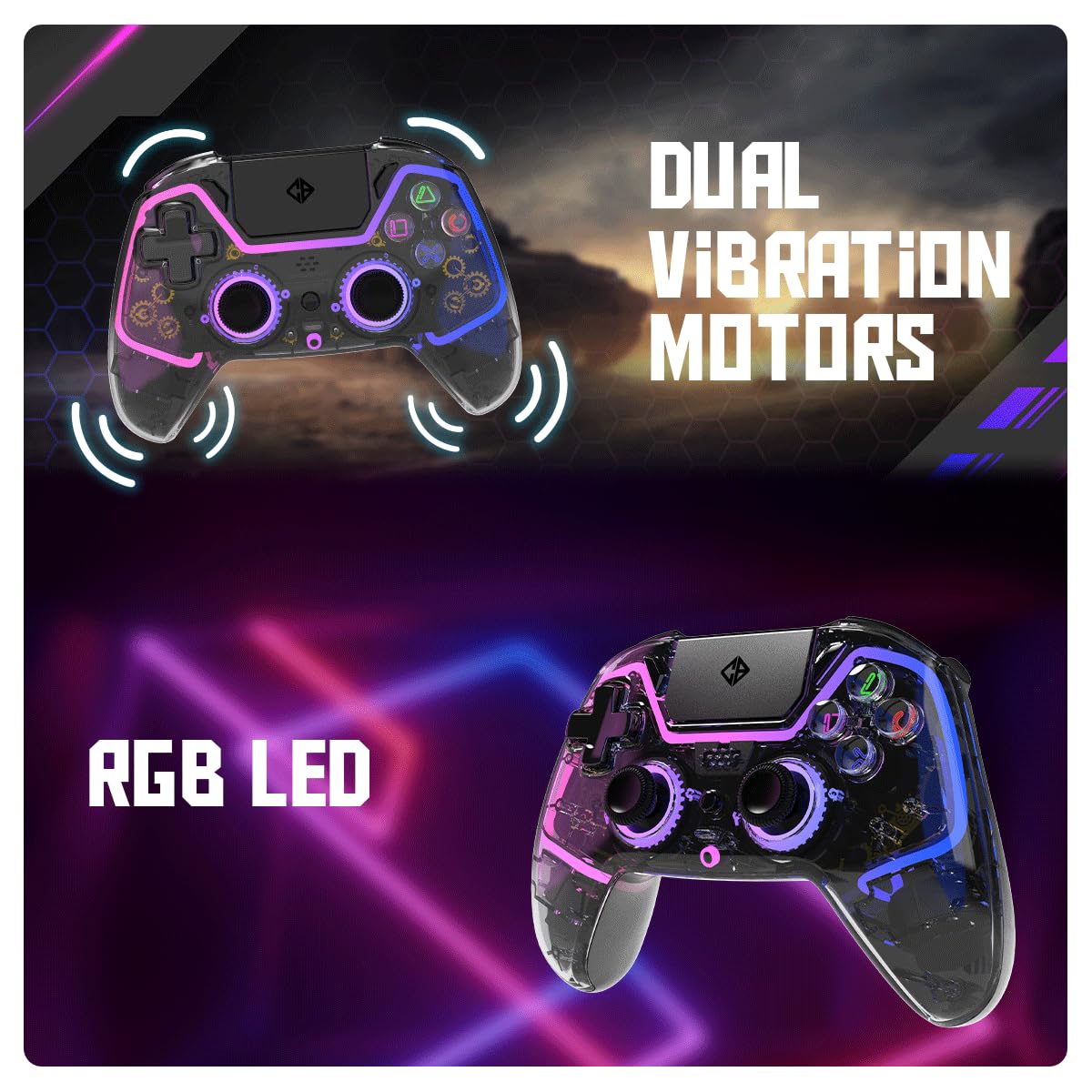
Dual vibration motors provide haptic feedback, complemented by customizable RGB LED lighting.
4.8 Adjustable Trigger Lock
The adjustable trigger locks allow you to modify the travel distance of the L2 and R2 triggers, providing quicker response times in certain games.

The gamepad includes a 3.5mm audio port and adjustable trigger locks for personalized control.
4.9 Audio Port
A 3.5mm audio port is included for connecting a wired headset or microphone. This feature functions exclusively in wired mode with PCs.
5. Maintenance
- Cleaning: Use a soft, dry cloth to clean the gamepad. Avoid using harsh chemicals or abrasive materials.
- Storage: Store the gamepad in a cool, dry place away from direct sunlight and extreme temperatures.
- Battery Care: To prolong battery life, avoid fully discharging the gamepad frequently. Charge the battery using a low-power USB source like a laptop or PC USB port, rather than high-power wall adapters.
- Avoid Physical Impact: Do not drop or subject the gamepad to strong impacts, as this can damage internal components.
6. Troubleshooting
If you encounter issues with your gamepad, refer to the following common problems and solutions.
6.1 Gamepad Not Connecting Wirelessly
- Check Battery: Ensure the gamepad is sufficiently charged.
- Pairing Mode: Confirm the gamepad is in pairing mode (light bar flashing rapidly).
- Device Bluetooth: Verify Bluetooth is enabled on your console/PC/mobile device and that it is discoverable.
- Interference: Move closer to the device and away from potential sources of wireless interference.
- PC Specific: For PC, if direct Bluetooth connection is unstable, consider using a dedicated Bluetooth dongle.
- Reset: If connection issues persist, try turning the gamepad off and on again. Some gamepads may have a small reset button (often recessed, requiring a pin to press).
6.2 Input Lag or Unresponsive Buttons/Joysticks
- Wired Connection: Test the gamepad with a wired connection to determine if the issue is wireless-related.
- Recalibration: Some platforms or games allow for controller calibration. Check your device settings.
- Firmware Update: Check the Cosmic Byte website for any available firmware updates for the gamepad.
6.3 Speaker Not Working (PC)
- The speaker function on PC typically requires a wired connection and may need specific third-party software (e.g., DS4Windows) to enable.
- Ensure the game or application supports controller audio output.
6.4 Rapid Battery Drain
- Ensure the gamepad is fully charged before use.
- Reduce RGB LED brightness or turn off the lighting if not needed, as this consumes battery power.
- If the issue persists, the battery may be degrading. Contact support if the product is under warranty.
7. Specifications
| Feature | Detail |
|---|---|
| Brand | Cosmic Byte |
| Model Name | Quantum |
| Colour | Transparent Black |
| Connectivity Technology | Bluetooth (Wireless), USB (Wired) |
| Compatible Devices | PlayStation 4, PC, iOS, Android, Nintendo Switch |
| Controller Type | Gamepad |
| Battery Type | 1 Lithium Polymer (included) |
| Battery Capacity | 1000mAH |
| Item Weight | 200 g |
| Product Dimensions (LxWxH) | 7.9 x 18.2 x 25.2 cm |
| Special Features | Hall Effect Triggers & Joysticks, Touchpad, Speaker, 6-Axis Gyroscope, Dual Vibration, RGB LED, Macro Buttons, Adjustable Trigger Lock, Backlit Action Buttons, 3.5mm Audio Port |
8. Warranty and Support
For warranty information and technical support, please refer to the official Cosmic Byte website or contact their customer service directly. Keep your purchase receipt as proof of purchase for any warranty claims.
Manufacturer: Cosmic Byte
Contact Information: Please visit www.cosmicbyte.com for support and contact details.
