
podofo A3477A4MI2AM29US-C231
podofo 10.1" Android 13.0 Car Stereo User Manual
Model: A3477A4MI2AM29US-C231
Introduction
This user manual provides detailed instructions for the installation, operation, and maintenance of your podofo 10.1" Android 13.0 Car Stereo. Please read this manual thoroughly before using the product to ensure proper function and safety. Keep this manual for future reference.
Safety Information
- Do not operate the device while driving. Always ensure your vehicle is safely parked before interacting with the stereo.
- Professional installation is recommended to avoid damage to the product or your vehicle.
- Ensure all wiring connections are secure and properly insulated to prevent short circuits.
- Avoid exposing the device to extreme temperatures, direct sunlight for prolonged periods, or excessive moisture.
- Use only specified voltage and power sources.
Package Contents
Verify that all items listed below are included in your package:
- 1 x podofo 10.1" Android Car Stereo
- 1 x Power Cord
- 1 x RCA Cable
- 1 x Rear Camera Input Cable
- 1 x GPS Antenna
- 1 x AHD Backup Camera
- 1 x USB Cable
- 1 x Mounting Bracket Set
- 1 x User Manual (this document)
- 1 x External Microphone
Product Overview
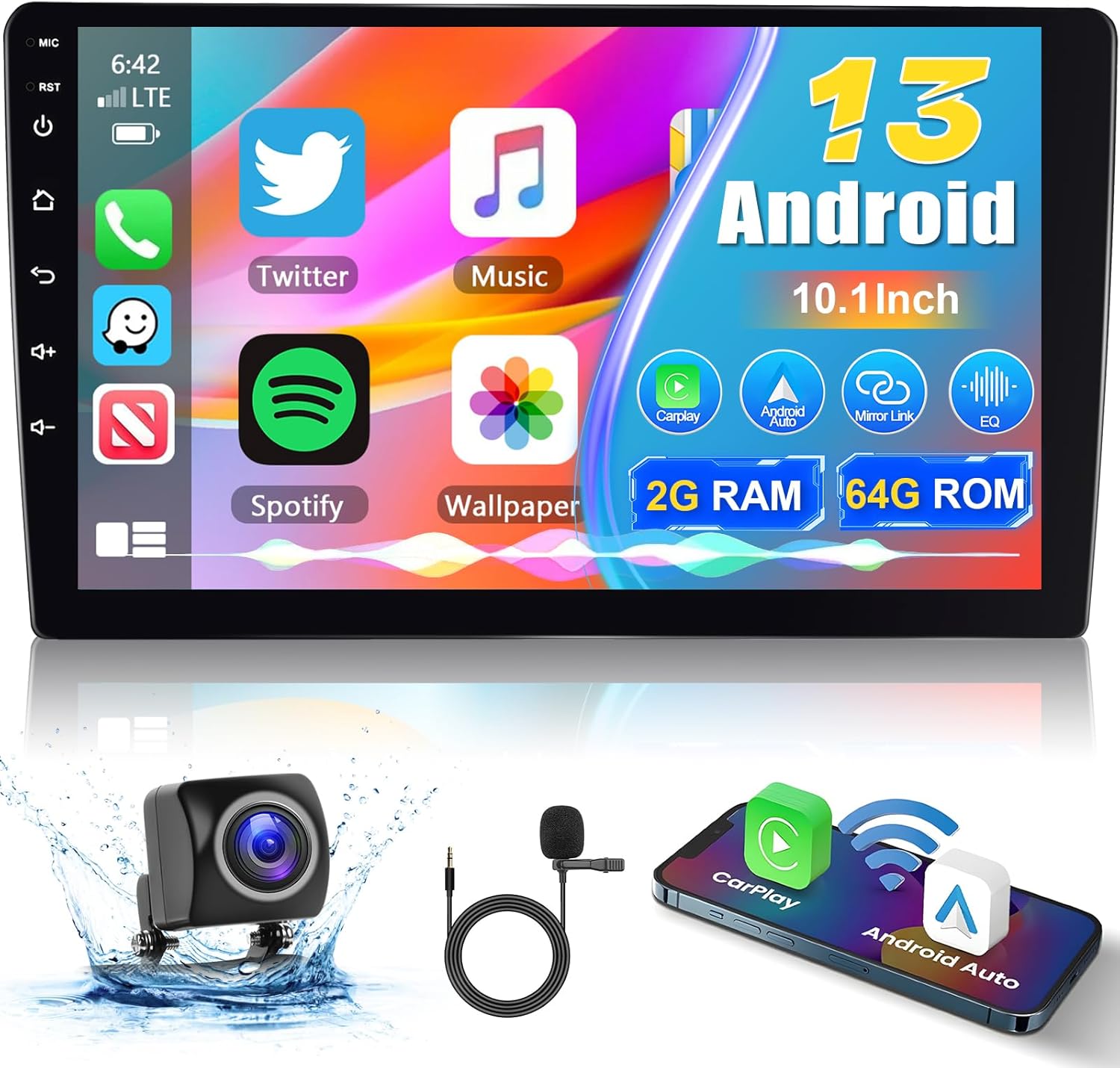
The podofo 10.1" Android 13.0 Car Stereo is a versatile in-car entertainment and navigation system featuring an 8-core processor, 2GB RAM, and 64GB ROM. It supports wireless Apple CarPlay and Android Auto, GPS navigation, Bluetooth connectivity, and a high-definition IPS touchscreen display.

Setup and Installation
Before beginning installation, ensure your vehicle's battery is disconnected to prevent electrical shorts. Professional installation is highly recommended.
1. Pre-Installation Check
Confirm the dimensions of the stereo fit your vehicle's dashboard opening. The product dimensions are 10.1"L x 3.9"W x 3.9"H.

2. Wiring Connections
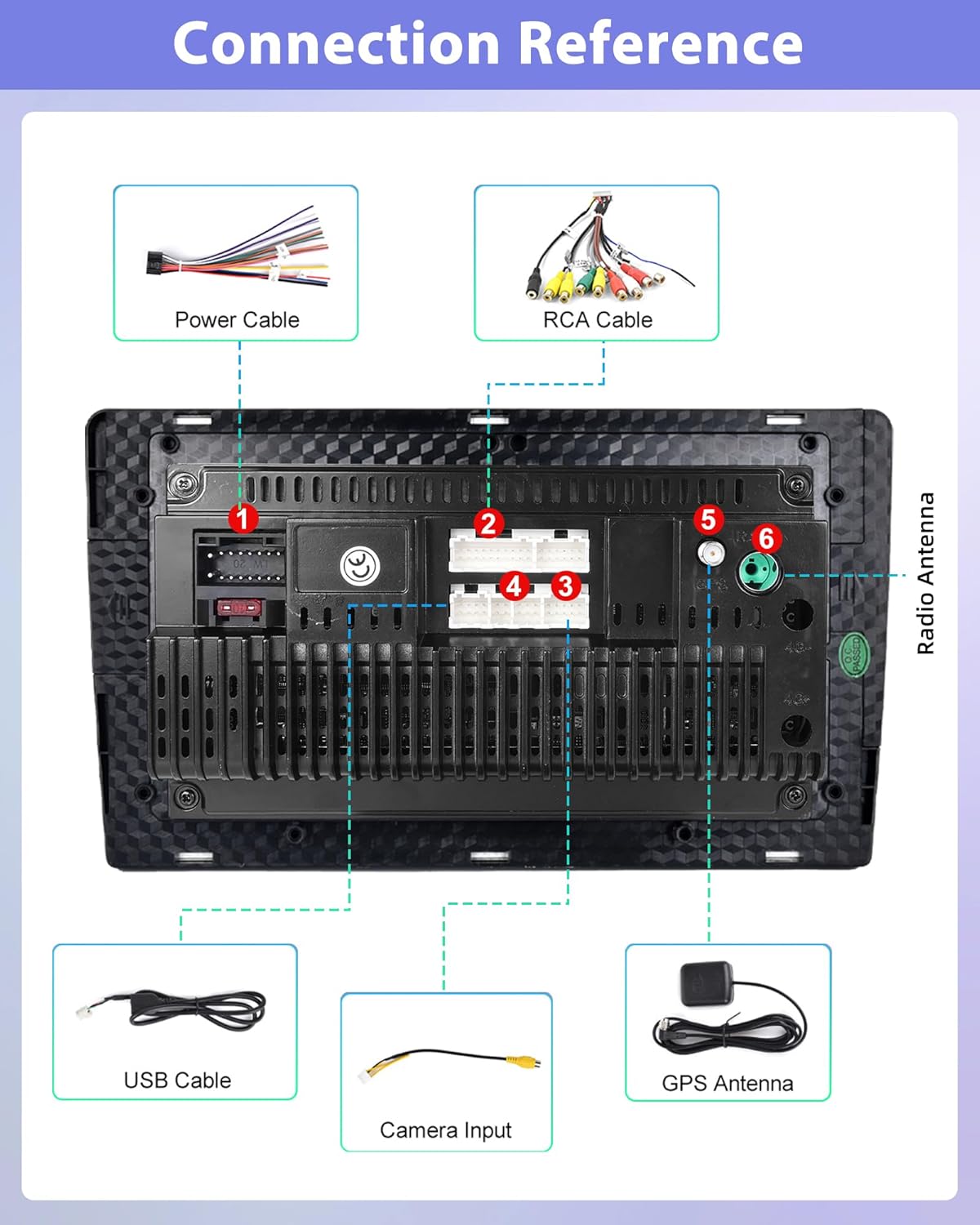
Refer to the connection reference diagram for proper wiring. Each cable is labeled for easy identification.
- Power Cable: Connect the main power harness to your vehicle's wiring. Ensure ACC, B+, and Ground wires are correctly matched.
- RCA Cable: For audio output (front/rear speakers, subwoofer) and video input/output.
- USB Cable: For connecting USB devices, charging, and data transfer.
- Camera Input: Connect the AHD backup camera here.
- GPS Antenna: Mount the GPS antenna in a location with a clear view of the sky for optimal signal reception.
- External Microphone: Plug in the included microphone for clearer hands-free calls and voice commands.
- SWC (Steering Wheel Control) Wires: Connect these to your vehicle's steering wheel control wires if applicable.
3. Mounting the Unit
Use the provided mounting brackets to secure the stereo firmly into the dashboard opening. Ensure it is flush and stable.
4. Final Checks
Once all connections are made and the unit is mounted, reconnect the vehicle's battery. Turn on the ignition and test all functions of the stereo.
Operating Instructions
1. Initial Setup
- Upon first boot, the system may guide you through initial setup steps, including language selection and time zone.
- Connect to a Wi-Fi network for system updates, app downloads, and online services.

2. Wireless Apple CarPlay & Android Auto
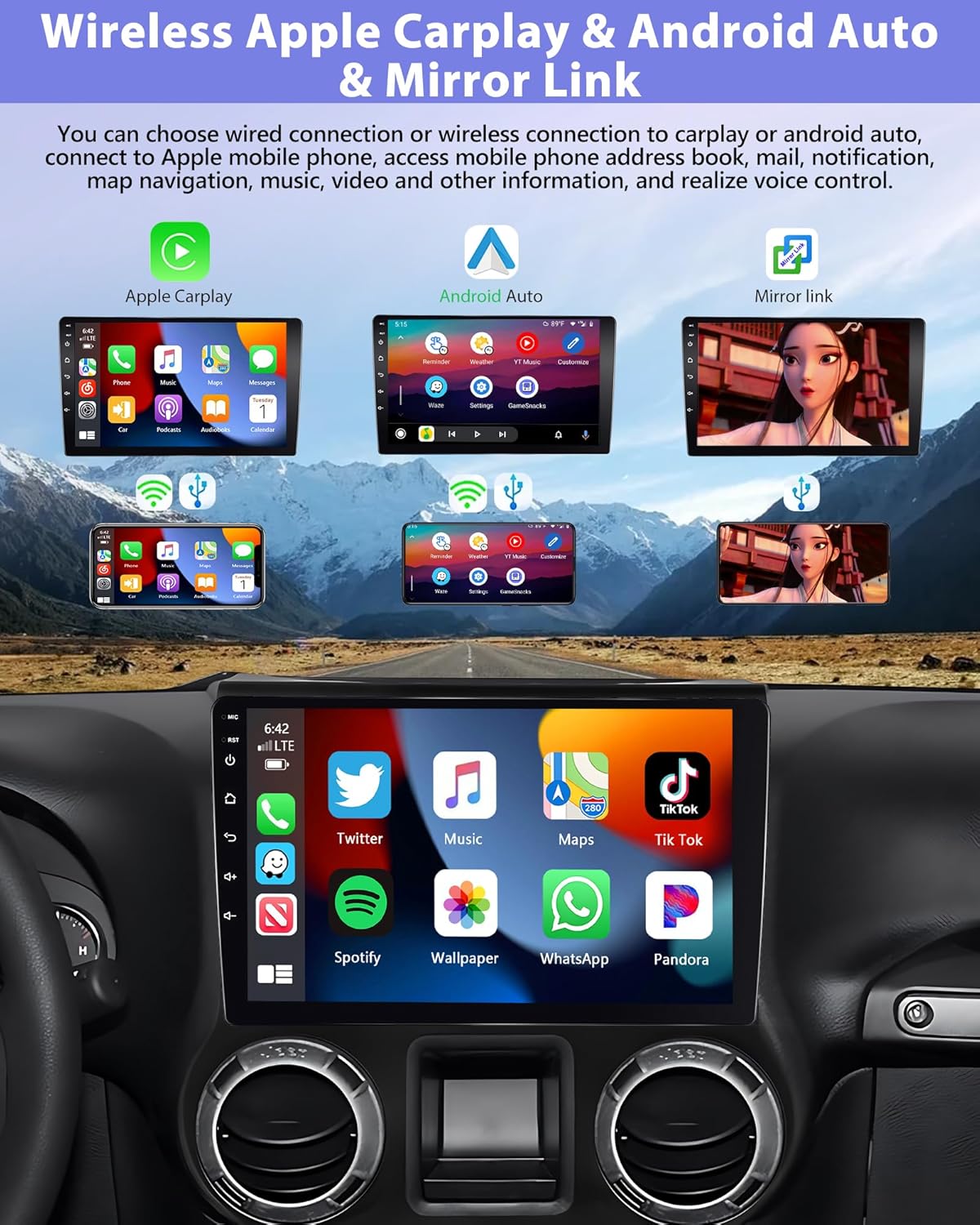
This unit supports both wired and wireless connections for Apple CarPlay and Android Auto.
- For Wireless Connection: Enable Bluetooth and Wi-Fi on your smartphone. Pair your phone with the car stereo via Bluetooth. Once paired, the system will prompt you to launch CarPlay or Android Auto.
- For Wired Connection: Connect your smartphone to the stereo's USB port using a certified USB cable. The system will automatically detect and launch CarPlay or Android Auto.
- Access phone calls, messages, navigation, music, and voice control directly from the stereo screen.

3. Mirror Link
Mirror Link allows you to display your smartphone's screen directly onto the car stereo. This feature supports both iOS and Android devices.
- Follow the on-screen instructions in the "Mirror Link" app on the stereo to connect your phone.
4. GPS Navigation
The unit comes with a pre-installed GPS module. You can download and use various navigation apps from the Google Play Store for online or offline maps.
- Ensure the GPS antenna is properly installed and has a clear view of the sky.
- Open your preferred navigation app (e.g., Google Maps) and enter your destination.
5. Bluetooth Functionality
Connect your smartphone via Bluetooth for hands-free calling and audio streaming.
- Go to the Bluetooth settings on the stereo and enable Bluetooth.
- Search for available devices on your phone and select "podofo" (or similar device name) to pair.
- Once connected, you can make/receive calls, access your phonebook, and play music wirelessly.
6. FM/AM/RDS Radio
Tune into your favorite radio stations with clear reception.
- Select the "Radio" application from the main menu.
- Use the scan function to find available stations or manually tune to a frequency.
- RDS (Radio Data System) provides additional information like station name and program type where available.
7. Steering Wheel Control (SWC)
If your vehicle supports SWC, you can configure the stereo to respond to your steering wheel buttons.
- Navigate to the SWC settings in the system menu.
- Follow the on-screen instructions to map your steering wheel buttons to specific functions (e.g., volume up/down, track skip, answer call).
8. AHD Backup Camera
The included AHD backup camera provides a clear view when reversing.
- When the vehicle is shifted into reverse gear, the stereo will automatically display the camera feed.
- The system supports AHD high-definition 720P camera input. You can switch between CVBS and AHD modes in the settings if needed.
9. Split Screen Function
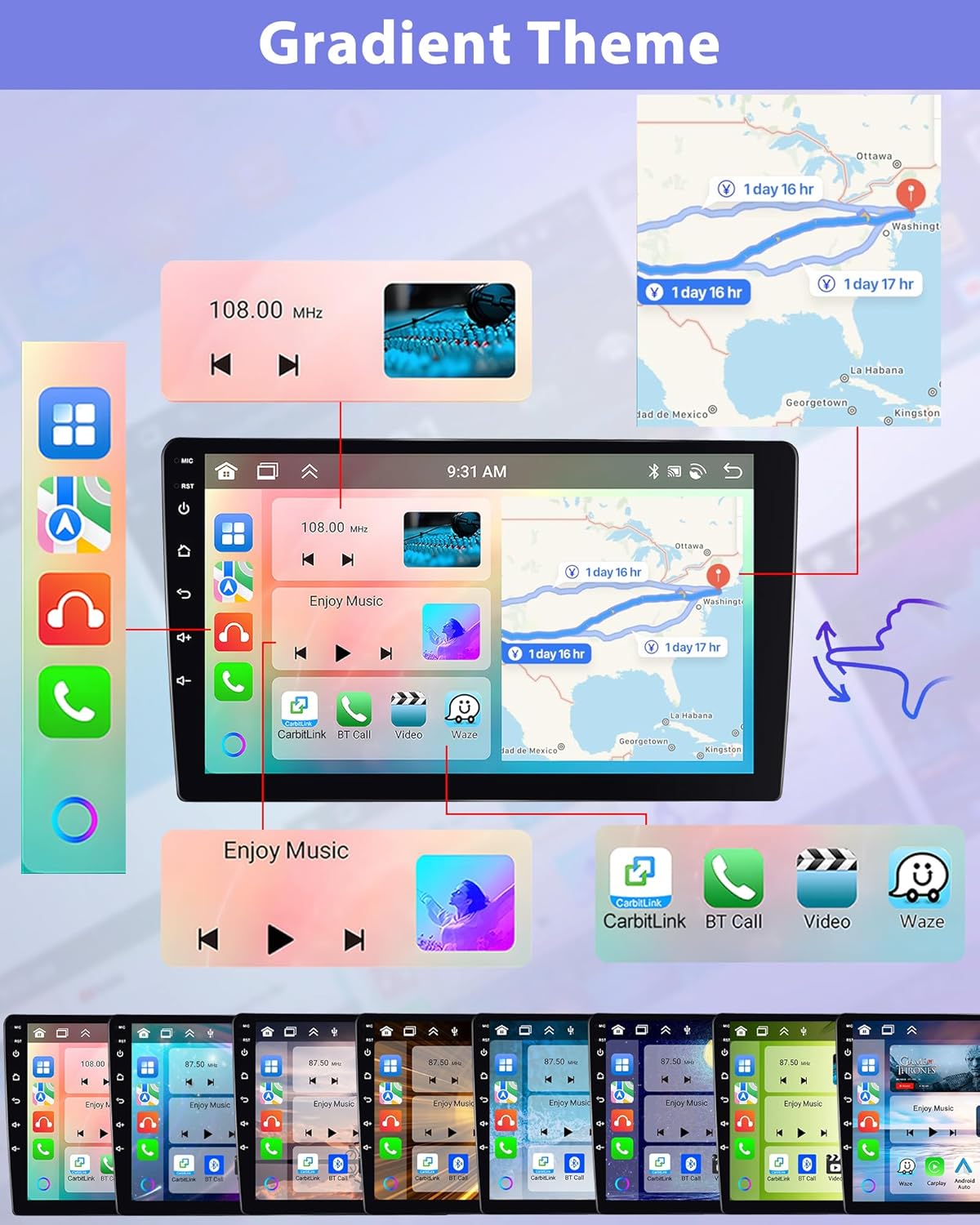
Multitask by displaying two applications simultaneously on the screen.
- To activate, open one app, then long-press the recent apps button or drag another compatible app to the side of the screen.
- This allows for simultaneous use of navigation and music playback, for example.

Maintenance
- Cleaning: Use a soft, dry cloth to clean the screen and exterior. Do not use abrasive cleaners or solvents.
- Software Updates: Periodically check for system software updates via Wi-Fi to ensure optimal performance and access to new features.
- Avoid Liquids: Keep the device away from water and other liquids.
- Temperature: Do not expose the unit to extreme hot or cold temperatures.
Troubleshooting
| Problem | Possible Cause | Solution |
|---|---|---|
| No power | Loose power connection; Blown fuse | Check power wiring; Replace fuse if necessary. |
| No sound | Volume too low; Mute activated; Speaker wiring issue | Increase volume; Check mute setting; Verify speaker connections. |
| GPS signal weak/lost | GPS antenna obstructed or improperly installed | Ensure GPS antenna has clear view of sky; Check antenna connection. |
| Bluetooth not connecting | Bluetooth not enabled; Device not in pairing mode; Interference | Enable Bluetooth on both devices; Put stereo in pairing mode; Move away from other electronic devices. |
| Touchscreen unresponsive | System frozen; Software glitch | Perform a soft reset (refer to device settings or power cycle); If persistent, contact support. |
Specifications
| Feature | Detail |
|---|---|
| Model Name | 8Core 2+64G |
| Item Model Number | A3477A4MI2AM29US-C231 |
| Operating System | Android 13.0 |
| Processor | 8-Core |
| RAM | 2GB |
| Internal Storage | 64GB |
| Screen Size | 10.1 Inches |
| Display Resolution | 1280 x 720 IPS Touchscreen |
| Connectivity | Wireless Apple CarPlay, Android Auto, Bluetooth, GPS, WiFi, Mirror Link |
| Radio Tuner | FM/AM/RDS |
| Audio Features | DSP 32EQ |
| Backup Camera Input | AHD 720P (included) |
| Product Dimensions | 10.1 x 3.9 x 3.9 inches (25.65 x 9.91 x 9.91 cm) |
| Item Weight | 3.44 pounds (1.56 kg) |
Warranty and Support
Your podofo 10.1" Android 13.0 Car Stereo comes with a standard manufacturer's warranty. Please refer to the warranty card included in your package for specific terms and conditions.
For technical support, troubleshooting assistance, or warranty claims, please contact podofo customer service through the retailer where you purchased the product or visit the official podofo website.
Online Resources:
- podofo Store on Amazon: Visit the podofo Store
Related Documents - A3477A4MI2AM29US-C231
 |
Podofo Car Stereo User Guide: Features and Operation Comprehensive user guide for the Podofo Car Stereo, detailing features like Apple CarPlay, Android Auto, Bluetooth, FM radio, USB/SD playback, and phone linking. Includes operation instructions and troubleshooting tips. |
 |
Telescopic Screen CarPlay Manual - Installation and Troubleshooting Guide Comprehensive manual for the Telescopic Screen CarPlay MP5 Player, covering installation, features, functions, and troubleshooting for seamless integration with your vehicle and smartphone. |
 |
Android Car Stereo with Apple CarPlay & Android Auto User Manual Comprehensive user manual for the Android Car Stereo, detailing installation, wiring, features like Apple CarPlay and Android Auto, troubleshooting, and specifications. Learn how to connect your smartphone, use navigation, and manage settings for an enhanced driving experience. |
 |
CarPlay and Android Auto Car Stereo User Manual Comprehensive user manual for a car stereo system supporting Apple CarPlay, Android Auto, MirrorLink, Bluetooth, and various media playback options. Includes installation, operation, and troubleshooting guides. |
 |
Android Car Media Player User Manual and Instructions This manual provides comprehensive instructions for the Android Car Media Player, covering installation, wiring, features such as radio, weather, voice assistant, Carplay/Android Auto connectivity, offline maps, supported devices, and detailed technical specifications. It guides users through setup and operation for an enhanced in-car entertainment experience. |
 |
Podofo Car Infotainment System User Manual: Installation, Features, and Setup Comprehensive user manual for the Podofo car infotainment system. Covers installation, wiring, main functions like Carplay, Android Auto, Mirror Link, Network Radio, Weather, AI Assistant, offline maps, supported devices, and technical parameters. Includes troubleshooting and FCC compliance information. |