
1. Product Overview
The surmen 60% Mechanical Gaming Keyboard is a compact, wired keyboard designed for gaming and general use. It features a 61-key layout, linear red switches for a smooth and responsive typing experience, and customizable ice-blue LED backlighting. Its durable PBT keycaps are designed for longevity and shine-through illumination.
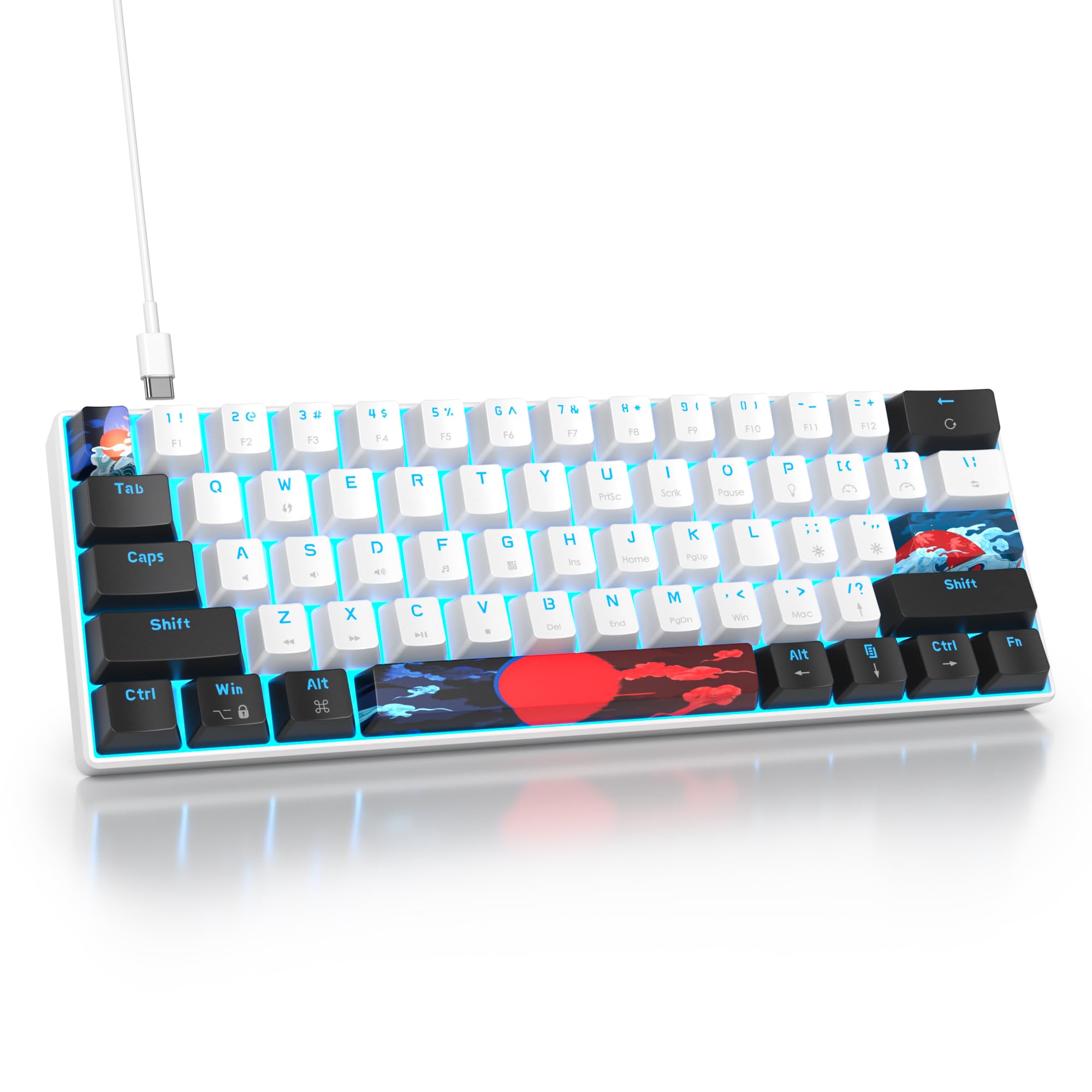
Image: The surmen 60% Mechanical Gaming Keyboard in White-Ice Blue, showcasing its compact design and backlighting.
2. Package Contents
Verify that all items are present in your package:
- surmen 60% Mechanical Gaming Keyboard (61-key)
- USB-A to USB-C Cable
- Keycap Puller
- Switch Puller
- Extra Keycaps (for customization)
- User Manual

Image: Contents of the surmen keyboard package, including the keyboard, USB cable, and tools.
3. Setup
- Connect the Keyboard: Plug the USB-C end of the provided cable into the port on the keyboard and the USB-A end into an available USB port on your computer (PC, laptop, etc.). The keyboard is wired and requires a constant connection.
- Adjust Keyboard Angle: The keyboard features adjustable feet on the underside. Flip out the feet to achieve your preferred typing angle for ergonomic comfort.
- Driver Installation: The keyboard is plug-and-play. Your operating system (Windows, macOS, Linux) should automatically detect and install the necessary drivers.
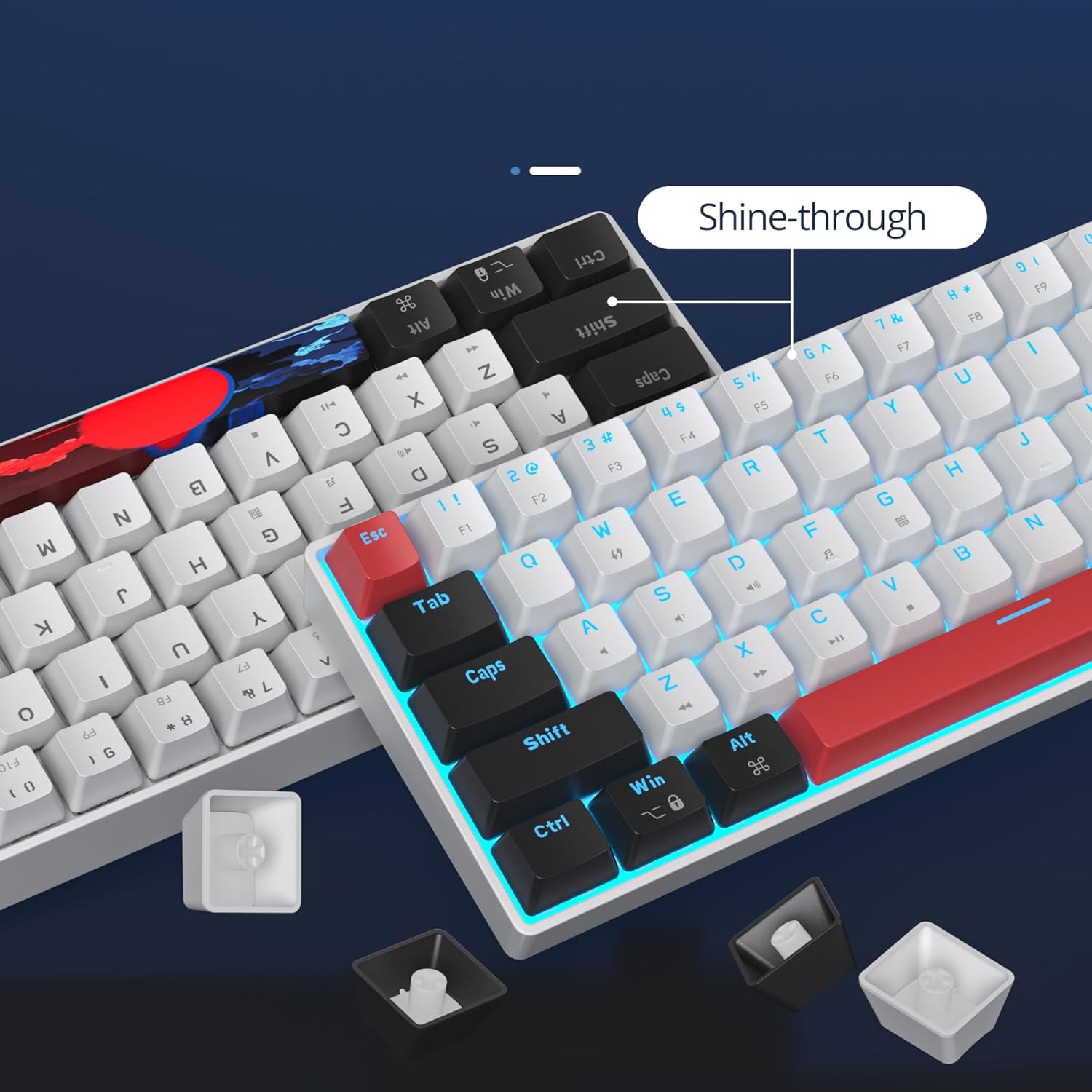
Image: Close-up of the keyboard's Type-C USB port and the included 150cm long cable for connection.
Video: This video demonstrates the physical connection of the surmen 60% Mechanical Gaming Keyboard to a computer and showcases its initial functionality.
4. Operating Instructions
4.1 Key Layout and Function Keys
The 60% layout is compact, omitting the number pad, function row, and navigation cluster to save desk space. Many of these functions are accessible via the Fn (Function) key combined with other keys.

Image: Diagram illustrating the compact 60% layout of the keyboard with 61 keys, highlighting the absence of a number pad and dedicated function row.
4.2 Backlight Control
The keyboard features single ice-blue LED backlighting with various effects. Use the following key combinations to control the lighting:
- Fn + P: Toggle backlight On/Off.
- Fn + [: Decrease backlight brightness.
- Fn + ]: Increase backlight brightness.
- Fn + \: Change backlight mode/effect.
- Fn + Backspace: Restore default lighting settings.
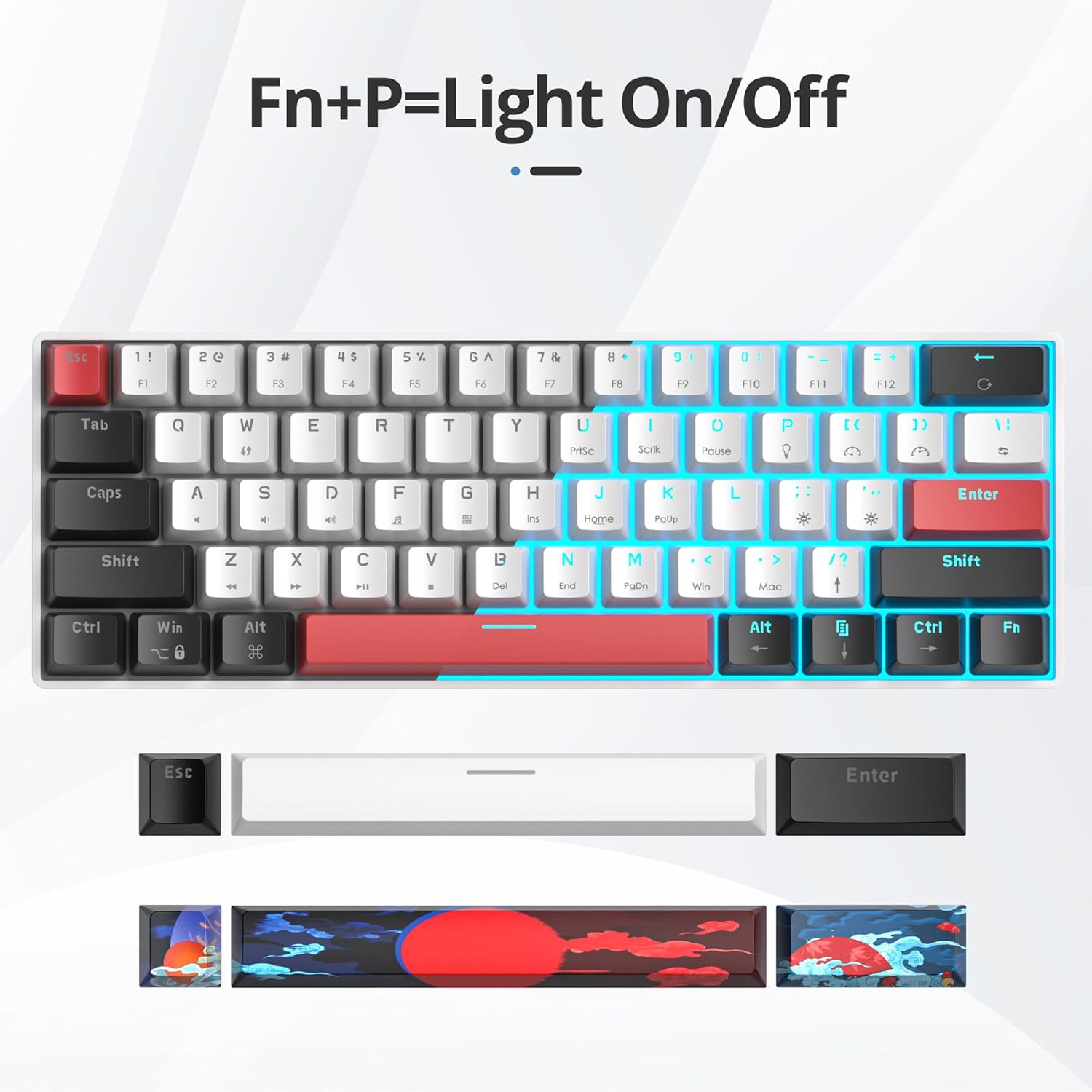
Image: Illustration showing the 'Fn + P' key combination to turn the keyboard backlight on or off.

Image: Visual guide to various backlight modes and controls, including brightness adjustment and effect changes.
Video: This video demonstrates the various rainbow LED lighting effects and patterns available on the surmen compact mini keyboard.
4.3 Linear Red Switches
The keyboard is equipped with linear red mechanical switches. These switches are characterized by a smooth, consistent keystroke from top to bottom, without a tactile bump or audible click. This makes them ideal for fast-paced gaming and quiet typing environments.

Image: Close-up view of a linear red mechanical switch, highlighting its internal structure and smooth actuation.
4.4 Full Anti-Ghosting
All 61 keys on this keyboard feature full anti-ghosting (N-key rollover). This ensures that every keystroke is registered accurately, even when multiple keys are pressed simultaneously, which is crucial for competitive gaming and fast typing.

Image: A visual representation of the keyboard's full anti-ghosting capability, showing multiple key presses being registered simultaneously.
5. Maintenance
5.1 Cleaning
To clean your keyboard, first disconnect it from your computer. Use a can of compressed air to remove dust and debris from between the keycaps. For stubborn dirt, gently wipe the keycaps with a soft, damp cloth. Avoid using harsh chemicals or abrasive materials.
5.2 Keycap and Switch Replacement
The keyboard features durable PBT keycaps. If you wish to replace keycaps or switches, use the provided keycap puller and switch puller. The hot-swappable design allows for easy removal and replacement of switches without soldering.

Image: Close-up of the keyboard's shine-through PBT keycaps, illustrating their design for enhanced backlighting.

Image: The keyboard shown alongside a set of extra keycaps, demonstrating customization options.
6. Troubleshooting
- Keyboard Not Responding:
- Ensure the USB cable is securely connected to both the keyboard and the computer.
- Try plugging the keyboard into a different USB port on your computer.
- Restart your computer.
- Backlight Not Working:
- Press Fn + P to ensure the backlight is turned on.
- Adjust brightness using Fn + [ and Fn + ].
- Try resetting the lighting settings with Fn + Backspace.
- Keys Not Registering:
- Clean the affected key area as described in the Maintenance section.
- If the issue persists, the switch may need replacement. Utilize the switch puller to replace the faulty switch.
7. Specifications
| Feature | Detail |
|---|---|
| Brand | surmen |
| Model | 61-key Mechanical Gaming Keyboard (White-Ice Blue) |
| Switch Type | Linear Red Switch |
| Connectivity | Wired (USB-A to USB-C) |
| Key Rollover | Full Anti-Ghosting (N-key rollover) |
| Keycaps | Backlit PBT Keycaps |
| Backlight | Single Ice-Blue LED (customizable effects) |
| Compatible Devices | Laptop, PC |
| Operating Systems | Windows 2000/Vista/Win7/Win8/Win13/MAC/Linux |
| Dimensions | 13.15 x 6.5 x 1.89 inches |
| Item Weight | 1.65 pounds |
8. Warranty and Support
Your surmen 60% Mechanical Gaming Keyboard comes with a standard manufacturer's warranty. For detailed warranty information, please refer to the warranty card included in your package or visit the official surmen website. If you encounter any issues not covered in this manual or require further assistance, please contact surmen customer support through their official channels.