
Introduction
The Sphero Bolt+ is an advanced coding and AI learning robot designed to make programming accessible and engaging for all skill levels. It supports various programming languages, from visual drag-and-drop blocks to Python and JavaScript, reinforcing STEM, ELA, and math concepts. The robot features an animated LCD display, sensors, and motors for interactive learning and problem-solving. This manual provides essential information for setting up, operating, and maintaining your Sphero Bolt+.
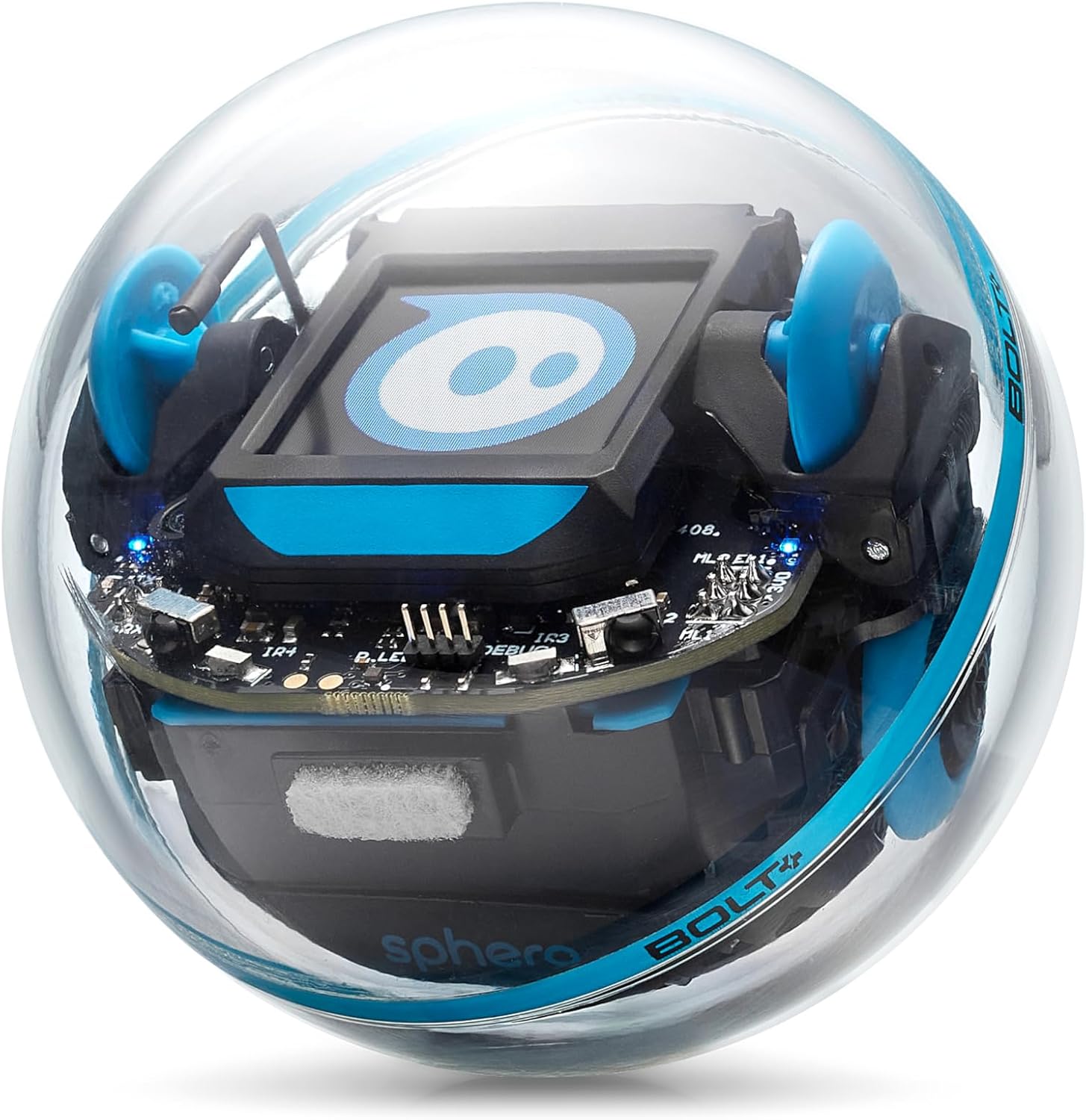
Image: The Sphero Bolt+ robot, showcasing its transparent shell and internal components.
Package Contents
Verify that all items are present in your Sphero Bolt+ package:
- Sphero BOLT+ robot ball
- Inductive charging base with USB charging cable
- 360-degree protractor with heading, directions, and clock
- Sphero sticker sheet
- Quick start guide
- Educator Resources - Guides, activities, and more!

Image: The Sphero Bolt+ robot alongside its product box.
Getting Started: Setup and Connection
Follow these steps to set up your Sphero Bolt+ and connect it to the Sphero Edu app:
- Charge the Robot: Place the Sphero Bolt+ on its inductive charging base. Connect the USB charging cable to a power source. The robot uses Qi wireless charging.
- Wake Up: To activate the robot, simply shake it. The internal lights will illuminate, indicating it is ready.
- Download the Sphero Edu App: Install the Sphero Edu app on your compatible device (iOS, Android, Windows, macOS, ChromeOS, or web browser).
- Connect to the App: Open the Sphero Edu app and follow the on-screen instructions to connect to your Sphero Bolt+. This typically involves selecting your robot from a list of nearby devices.
Once connected, you can begin exploring the various features and programming options.
Video: An overview of the Sphero Bolt+ robot, demonstrating its features and capabilities.
Operating Your Sphero Bolt+
The Sphero Bolt+ offers multiple ways to interact and learn:
- Driving: Use the Sphero Edu app to manually drive the Bolt+ like a remote-controlled vehicle.
- Programming with Draw: For beginners, draw a path on your device screen, and the Bolt+ will follow it.
- Programming with Blocks: Utilize drag-and-drop block-based coding to create complex sequences of movements, light patterns, and sensor interactions.
- Programming with Text: For advanced users, program the Bolt+ using JavaScript or Python to unlock its full potential.
- Interactive LCD Display: Code animations, messages, and real-time data to appear on the robot's animated LCD screen.

Image: A user interacting with the Sphero Bolt+ robot, highlighting its coding capabilities.

Image: Multiple Sphero Bolt+ robots being driven by children, demonstrating interactive play.
Features and Sensors
The Sphero Bolt+ is equipped with various features and sensors to enhance the learning experience:
- 8x8 LED Matrix: Display animations, characters, and real-time data.
- Infrared Communication: Allows Bolt+ robots to communicate with each other.
- Light Sensor: Detects ambient light levels.
- Compass: Provides heading and direction information.
- Accelerometer & Gyroscope: Measures movement and orientation.
- Motor Encoders: Provides precise control over movement.

Image: Sphero Bolt+ robots displaying various images and animations on their LCD screens.
Care and Maintenance
To ensure the longevity and optimal performance of your Sphero Bolt+:
- Charging: Always use the provided inductive charging base and USB cable. Ensure the robot is properly seated on the base for efficient charging.
- Durability: The Bolt+ features a durable, waterproof polycarbonate shell. While robust, avoid excessive force or impact to prevent damage.
- Cleaning: Wipe the exterior with a soft, damp cloth. Do not use harsh chemicals or abrasive materials.
- Storage: Store the robot in a cool, dry place when not in use.

Image: A detailed view of the Sphero Bolt+ robot's robust and transparent casing.
Safety Information
Warning: This toy produces flashes that may trigger epilepsy in sensitized individuals. Exercise caution during use.
Specifications
| Feature | Detail |
|---|---|
| Product Dimensions | 2.87 x 2.86 x 2.87 inches |
| Item Weight | 1.12 pounds |
| Item Model Number | BOLT+ |
| Manufacturer Recommended Age | 8 months and up |
| Batteries | 1 Lithium Ion batteries required (included) |
| Manufacturer | Sphero |
Support and Resources
For additional support, educational resources, and community engagement, visit Sphero Central, our online resource hub. Here you can find standards-aligned lessons, educator guides, and video tutorials to maximize your Sphero Bolt+ experience.
Access Sphero Central: www.sphero.com/pages/sphero-central


