
1. Introduction
This manual provides comprehensive instructions for the safe and efficient use of your PoundMax iLive Pop-Up Movie Theater Kit. Please read this manual thoroughly before operating the device and retain it for future reference. This kit includes a projector, a 120-inch screen, and a Bluetooth speaker, designed for an immersive entertainment experience.
2. Package Contents
Carefully unpack all items and ensure you have received the following components:
- iLive Projector (Model: THE2223BDL)
- 120-inch Projection Screen
- Bluetooth Speaker
- Projector Tripod
- Carry Pouch for Projector and Accessories
- Remote Control
- HDMI Cable
- 16 Adhesive Mounting Hooks (for screen)
- 2 Nylon Ropes (for screen)
- Power Adapter for Projector
- USB Charging Cable for Speaker

Image 2.1: Overview of the complete Pop-Up Movie Theater Kit, including the projector, 120-inch screen, Bluetooth speaker, and carry bag.
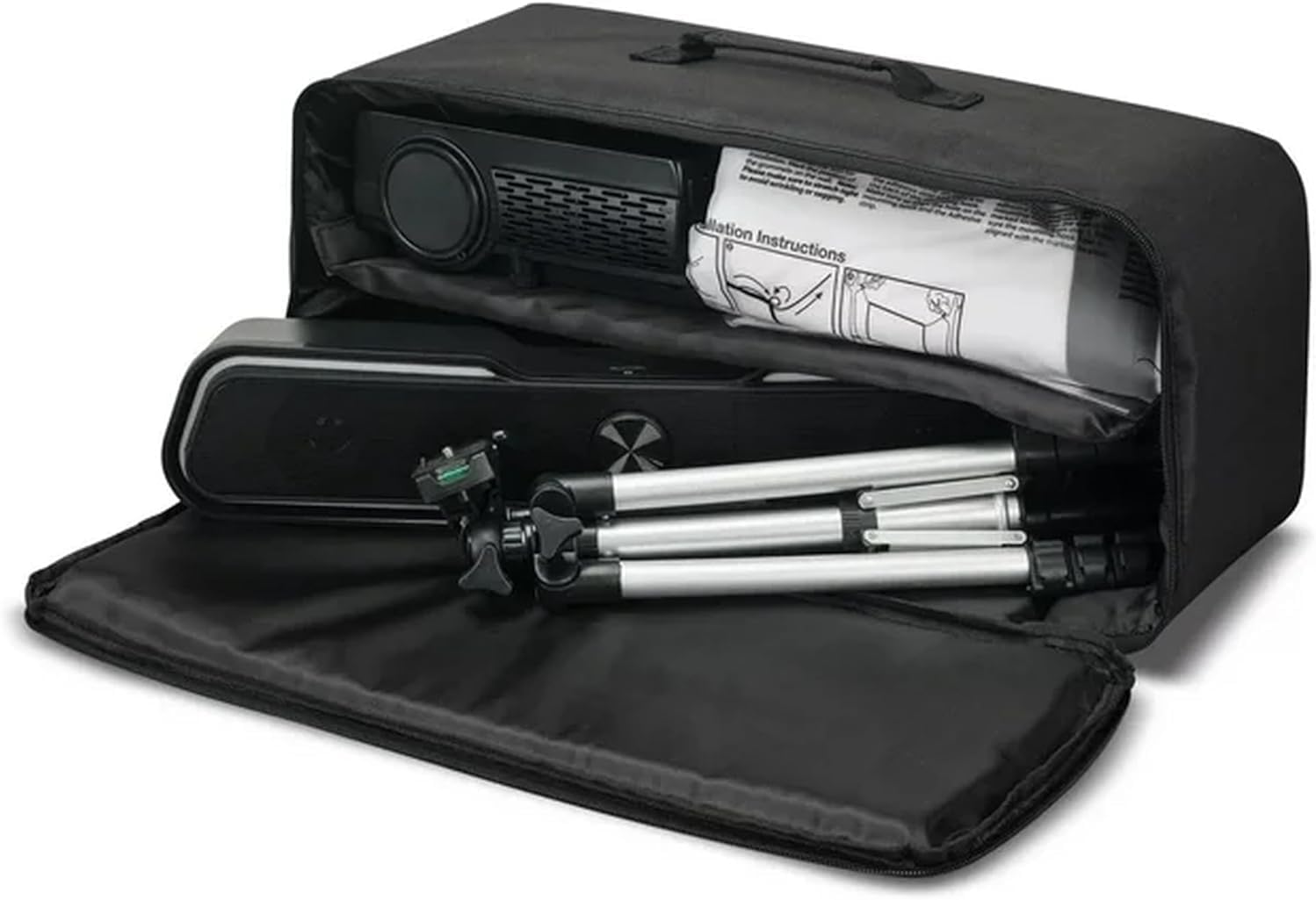
Image 2.2: The kit components, including the projector, speaker, and tripod, neatly packed inside the provided carry bag for portability and storage.
3. Product Overview
3.1 Projector Features
- Supported Resolutions: 480p, 720p, 1080i, 1080p
- Native Resolution: 800 x 480
- Brightness: 2000 peak lumens (65 ANSI lumens)
- Contrast Ratio: 2000:1
- Connectivity: 2 HDMI inputs, Micro SD card slot, USB port, VGA PC video input, 3.5mm headphone/audio output, 3.5mm audio/video input
- Wireless: Built-in Bluetooth wireless transmitter for audio streaming
- Light Source: LED bulb with 20,000-hour life
- Aspect Ratio: 16:9, 4:3LB
- Projection Distance: 3.9 - 12.1 ft. (1.2-3.7M)
- Audio: Built-in speakers
- Dimensions: 8.03 x 6.14 x 3.27 inches
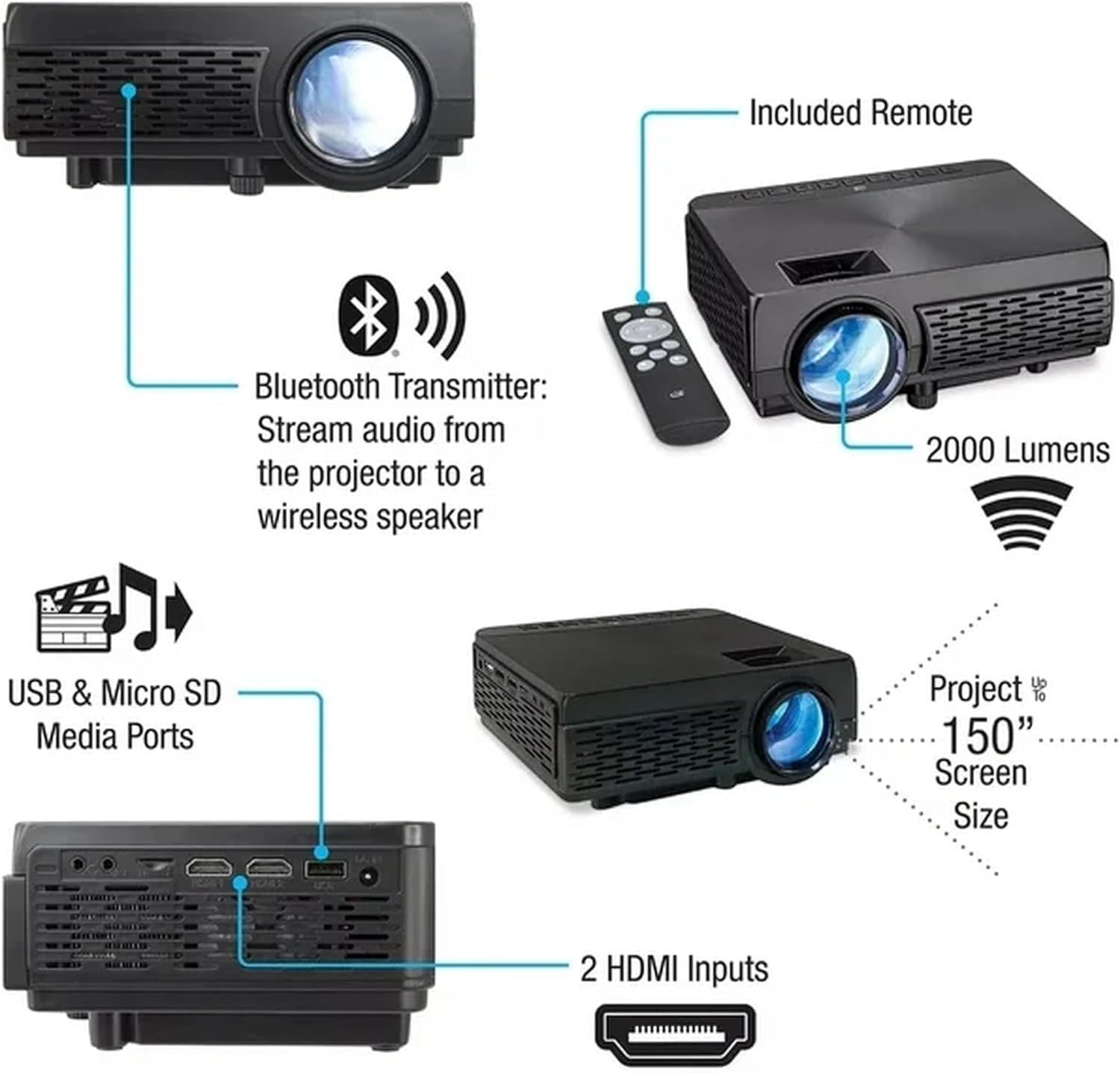
Image 3.1: Detailed view of the projector highlighting its various ports and features, including HDMI inputs, USB and Micro SD media ports, and the Bluetooth transmitter capability.
3.2 Projection Screen Features
- Size: 120-inch diagonal (104" x 58" viewing area)
- Material: Anti-wrinkle fabric
- Portability: Foldable for convenient storage and transport
- Installation: Designed for easy setup with included adhesive mounting hooks and nylon ropes
3.3 Bluetooth Speaker Features
- Audio: Built-in 5.25-inch woofer
- Functions: FM radio, Mic input, USB port
- Visuals: LED light effects
- Power: Built-in rechargeable battery
- Dimensions: 9.45 x 6.3 x 13.98 inches
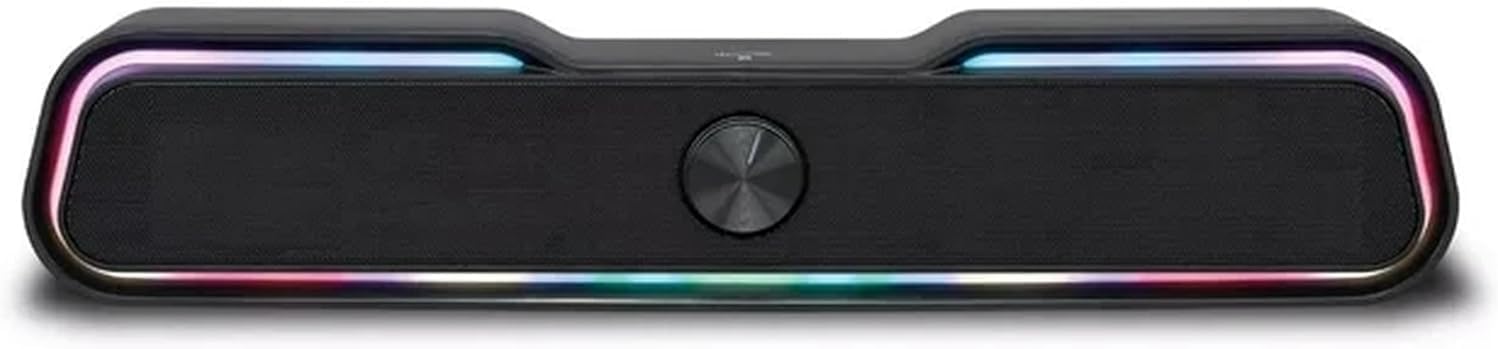
Image 3.2: Front view of the Bluetooth speaker, showcasing its control knob and integrated LED light effects.
4. Setup
4.1 Projector Placement
- Place the projector on a stable, flat surface or mount it on the included tripod.
- Position the projector between 3.9 to 12.1 feet (1.2 to 3.7 meters) from the projection screen for optimal image size and clarity.
- Ensure the projector lens is aligned with the center of the screen.
4.2 Screen Installation
- Unfold the 120-inch projection screen. The anti-wrinkle fabric is designed to minimize creases.
- Identify a suitable flat wall or surface for mounting.
- Use the 16 adhesive mounting hooks to secure the screen to the desired surface. For additional stability, especially outdoors, utilize the 2 nylon ropes by tying them through the screen's grommets and securing them to anchor points.
- Ensure the screen is taut and flat for the best viewing experience.
4.3 Connecting Power
- Projector: Connect the power adapter to the projector's power input and then plug it into a standard electrical outlet.
- Bluetooth Speaker: The speaker has a built-in rechargeable battery. For initial use or recharging, connect the USB charging cable to the speaker's charging port and a USB power source (e.g., USB wall adapter, computer USB port).
4.4 Connecting External Devices to Projector
The projector supports various input sources:
- HDMI: Connect your media player, game console, or laptop using the included HDMI cable to one of the two HDMI input ports.
- USB/Micro SD: Insert a USB flash drive or Micro SD card into the respective ports to play media files directly.
- VGA: Connect a computer using a VGA cable to the VGA PC video input.
- AV: Use a 3.5mm audio/video input cable for older devices.
4.5 Bluetooth Speaker Connection
The projector features a built-in Bluetooth transmitter to stream audio wirelessly to the included Bluetooth speaker or other compatible Bluetooth audio devices.
- Ensure the Bluetooth speaker is powered on and in pairing mode (refer to speaker's specific instructions if needed).
- On the projector, navigate to the Bluetooth settings menu.
- Select 'Scan for Devices' and choose your Bluetooth speaker from the list to pair.
5. Operation
5.1 Powering On/Off
- Projector: Press the power button on the projector or the remote control to turn it on. Press again to turn off.
- Bluetooth Speaker: Press and hold the power button on the speaker to turn it on or off.
5.2 Projector Controls
- Focus Adjustment: Rotate the focus ring on the projector lens until the image appears sharp and clear on the screen.
- Keystone Correction: Use the keystone adjustment dial (if available) or menu option to correct trapezoidal image distortion if the projector is not perfectly perpendicular to the screen.
- Input Source Selection: Use the 'Source' button on the projector or remote to cycle through available input sources (HDMI1, HDMI2, USB, Micro SD, VGA, AV).
- Menu Navigation: Use the directional buttons and 'OK' button on the projector or remote to navigate the on-screen menu for settings adjustments (e.g., picture mode, aspect ratio, sound settings).
5.3 Bluetooth Speaker Controls
- Volume: Use the volume controls on the speaker or connected device to adjust the audio level.
- FM Radio: Switch to FM mode and use the controls to scan for and select radio stations.
- LED Light Effects: Press the dedicated button (if available) to cycle through or turn off the LED light effects.
- USB Playback: Insert a USB drive with audio files into the speaker's USB port for direct playback.
6. Maintenance
- Cleaning the Lens: Use a soft, lint-free cloth specifically designed for optical lenses to gently wipe the projector lens. Avoid abrasive materials or harsh chemicals.
- Cleaning the Exterior: Wipe the projector and speaker exteriors with a soft, dry cloth. For stubborn dirt, slightly dampen the cloth with water. Do not use solvents.
- Screen Care: The anti-wrinkle fabric screen can be gently wiped with a damp cloth if necessary. Allow it to air dry completely before folding for storage.
- Storage: When not in use, store all components in the provided carry pouch in a cool, dry place away from direct sunlight and extreme temperatures.
- Ventilation: Ensure the projector's ventilation openings are clear and unobstructed during operation to prevent overheating.
7. Troubleshooting
If you encounter issues with your Pop-Up Movie Theater Kit, refer to the following common problems and solutions:
- No Image on Screen:
- Ensure the projector is powered on.
- Verify the input source selected on the projector matches the connected device (e.g., HDMI1, USB).
- Check all cable connections (HDMI, VGA) are secure.
- Adjust the focus ring for clarity.
- No Sound:
- Ensure the Bluetooth speaker is powered on and paired with the projector.
- Check the volume levels on both the projector and the Bluetooth speaker.
- If using built-in projector speakers, ensure Bluetooth audio output is not selected.
- Verify the audio output settings on your source device.
- Image is Blurry or Distorted:
- Adjust the focus ring on the projector lens.
- Use keystone correction to fix trapezoidal distortion.
- Ensure the projector is placed within the recommended projection distance (3.9 - 12.1 ft.).
- Check that the screen is flat and taut.
- Remote Control Not Working:
- Replace the batteries in the remote control.
- Ensure there are no obstructions between the remote and the projector's IR receiver.
8. Specifications
8.1 Projector Specifications
| Feature | Specification |
|---|---|
| Model Number | THE2223BDL |
| Supported Resolutions | 480p, 720p, 1080i, 1080p |
| Native Resolution | 800 x 480 |
| Brightness | 2000 peak lumens (65 ANSI lumens) |
| Contrast Ratio | 2000:1 |
| Light Source Life | LED bulb with 20,000 hours |
| Aspect Ratio | 16:9, 4:3LB |
| Projection Distance | 3.9 - 12.1 ft. (1.2-3.7M) |
| Inputs | 2x HDMI, Micro SD, USB, VGA, 3.5mm AV |
| Outputs | 3.5mm Audio |
| Wireless | Bluetooth Transmitter |
| Dimensions | 8.03 x 6.14 x 3.27 inches |
8.2 Projection Screen Specifications
| Feature | Specification |
|---|---|
| Diagonal Size | 120 inches |
| Viewing Area | 104 x 58 inches |
| Material | Anti-wrinkle fabric |
8.3 Bluetooth Speaker Specifications
| Feature | Specification |
|---|---|
| Woofer Size | 5.25 inches |
| Functions | FM radio, Mic input, USB port |
| Visuals | LED light effects |
| Battery | Built-in rechargeable |
| Dimensions | 9.45 x 6.3 x 13.98 inches |
9. Warranty and Support
For warranty information and customer support, please refer to the documentation included with your product packaging or visit the official PoundMax website. You may also contact customer service for assistance with product inquiries, technical support, or warranty claims.
Customer Support Contact: Please refer to the contact information provided on the product packaging or the manufacturer's official website.