1. Introduction
Thank you for choosing the ZZB 10-Inch Android Tablet. This manual provides essential information for setting up, operating, maintaining, and troubleshooting your new device. Please read it thoroughly to ensure optimal performance and longevity of your tablet.
2. Product Overview
The ZZB 10-Inch Android Tablet is designed for daily use, featuring a vibrant 10.1-inch IPS HD display, a powerful quad-core processor, and ample storage. It is equipped with dual cameras for capturing moments and video calls, and supports Wi-Fi 6 and Bluetooth connectivity.
2.1. Tablet Components

Figure 2.1: Front and back view of the ZZB 10-Inch Android Tablet, showcasing its sleek silver design and camera module.
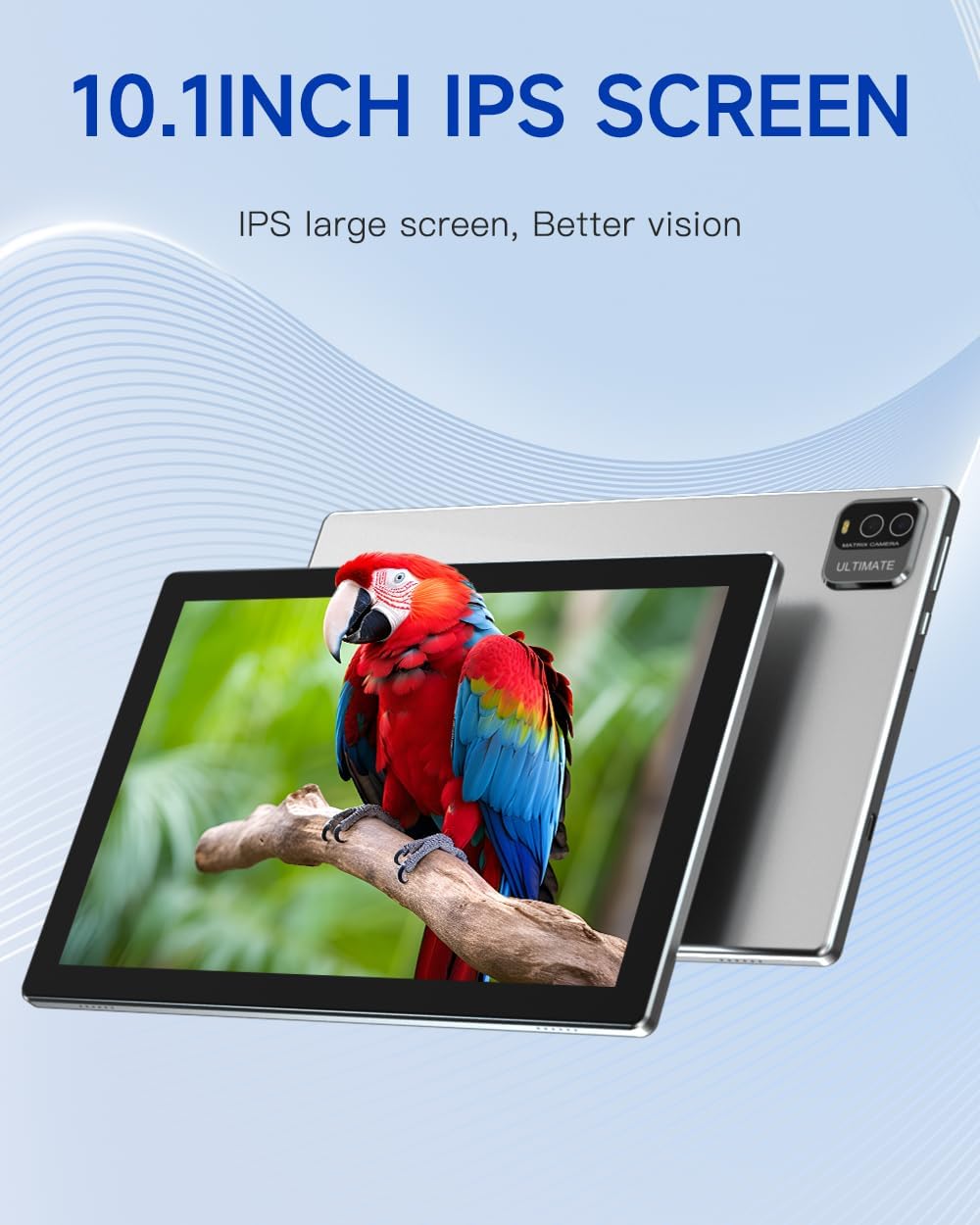
Figure 2.2: The 10.1-inch IPS display, highlighting its wide viewing angles and vibrant color reproduction for an enhanced visual experience.
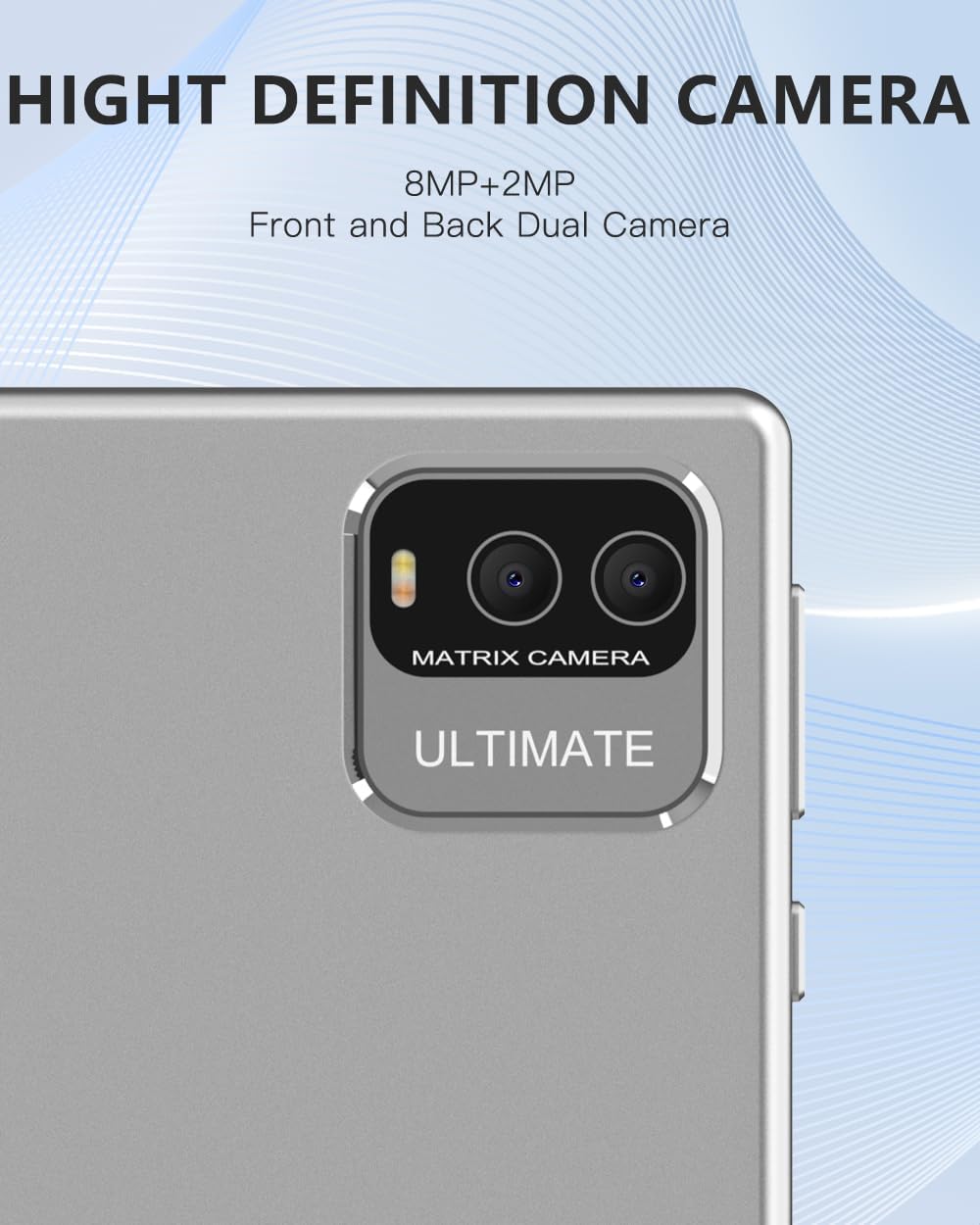
Figure 2.3: Detailed view of the tablet's dual camera system, featuring an 8MP rear camera and a 2MP front camera for photography and video calls.

Figure 2.4: An illustration demonstrating the tablet's efficient charging and the long-lasting 6000mAh battery, providing hours of usage.
3. Setup
3.1. Initial Charging
Before first use, fully charge your tablet. Connect the included USB cable to the tablet's charging port and the other end to a compatible power adapter (not always included) or a computer's USB port. The battery indicator on the screen will show charging progress.
3.2. Powering On/Off
- To Power On: Press and hold the Power button located on the side of the tablet until the screen lights up.
- To Power Off: Press and hold the Power button until a power-off menu appears. Select 'Power off' to shut down the device.
- To Restart: From the power-off menu, select 'Restart' to reboot the device.
3.3. Initial Setup Wizard
Upon first power-on, the tablet will guide you through an initial setup process. Follow the on-screen prompts to:
- Select your preferred language.
- Connect to a Wi-Fi network.
- Accept terms and conditions.
- Set up your Google account (optional, but recommended for app downloads).
- Configure date and time settings.
3.4. Inserting a MicroSD Card
The tablet supports up to 1TB of expandable storage via a microSD card. Locate the microSD card slot on the side of the tablet. Gently insert the microSD card into the slot until it clicks into place. Ensure the card is oriented correctly as indicated by the diagram near the slot.
4. Operating Instructions
4.1. Touch Screen Navigation
The tablet features a responsive touch screen. Use the following gestures:
- Tap: To select an item or open an app.
- Tap and Hold: To access contextual menus or move icons.
- Swipe: To scroll through pages or lists.
- Pinch-to-Zoom: To zoom in or out on images or web pages.
4.2. Wi-Fi Connectivity
To connect to a Wi-Fi network:
- Go to Settings > Network & internet > Wi-Fi.
- Toggle Wi-Fi On.
- Select your desired network from the list.
- Enter the password if prompted, then tap Connect.
4.3. Bluetooth Pairing
To pair with a Bluetooth device:
- Go to Settings > Connected devices > Bluetooth.
- Toggle Bluetooth On.
- The tablet will scan for available devices. Select the device you wish to pair with.
- Confirm the pairing code if prompted.
4.4. Camera Usage
The tablet has an 8MP rear camera and a 2MP front camera. Open the Camera app to take photos or record videos. You can switch between front and rear cameras using the icon on the screen.
4.5. Storage Management
Your tablet comes with 32GB of internal storage. To manage storage or check usage:
- Go to Settings > Storage.
- Here you can see how much space is used by apps, photos, videos, and other files.
- To free up space, consider uninstalling unused apps or moving files to the microSD card.
4.6. Battery Optimization
The 6000mAh battery provides extended usage. To maximize battery life:
- Adjust screen brightness.
- Disable Wi-Fi and Bluetooth when not in use.
- Close background apps.
- Enable battery saver mode in Settings > Battery.
5. Maintenance
5.1. Cleaning the Tablet
Use a soft, lint-free cloth to clean the screen and body of the tablet. For stubborn smudges, slightly dampen the cloth with water or a screen cleaner. Avoid using harsh chemicals or abrasive materials.
5.2. Software Updates
Periodically check for system updates to ensure your tablet has the latest features and security patches. Go to Settings > System > System update.
5.3. Storage Optimization
Regularly clear cache data from apps and delete unnecessary files to maintain optimal performance. You can do this through Settings > Apps & notifications > [App Name] > Storage & cache > Clear cache.
6. Troubleshooting
If you encounter issues with your ZZB tablet, refer to the following common solutions:
| Problem | Possible Solution |
|---|---|
| Tablet does not turn on | Ensure the battery is charged. Connect the charger and wait a few minutes before attempting to power on again. If it still doesn't turn on, try holding the power button for 10-15 seconds. |
| Slow performance or freezing | Close unused applications. Clear app caches. Restart the tablet. Ensure sufficient free storage space. |
| Wi-Fi connection issues | Ensure Wi-Fi is enabled. Restart your Wi-Fi router. Forget the network in tablet settings and reconnect. Check if other devices can connect to the same network. |
| Battery drains quickly | Reduce screen brightness. Disable Wi-Fi, Bluetooth, and GPS when not in use. Close background apps. Limit push notifications. |
| Apps crashing or not responding | Clear the app's cache and data (Settings > Apps > [App Name] > Storage > Clear cache/data). Uninstall and reinstall the app. Ensure the app is updated to its latest version. |
7. Specifications
Key technical specifications for the ZZB 10-Inch Android Tablet (Model: ZZBNV10):
| Feature | Detail |
|---|---|
| Model Name | ZZBNV10 |
| Operating System | Android |
| Screen Size | 10.1 Inches |
| Screen Resolution | 1280 x 800 pixels (IPS HD) |
| Processor | Quad-Core Processor |
| RAM | 2GB |
| Internal Storage | 32GB |
| Expandable Storage | Up to 1TB (microSD card) |
| Rear Camera | 8 MP |
| Front Camera | 2 MP |
| Battery Capacity | 6000mAh (up to 12 hours video playback) |
| Wireless Connectivity | Wi-Fi 802.11ax, Bluetooth |
| Dimensions (LxWxH) | 9.6 x 6.4 x 0.3 inches |
| Item Weight | 1 pound |
| Color | Silver |
8. Warranty and Support
Your ZZB tablet comes with a 90-day return policy and a 1-year warranty from the date of purchase. This warranty covers manufacturing defects and issues arising from normal use.
For technical support, warranty claims, or any questions not covered in this manual, please contact ZZB customer service through the retailer's platform or the contact information provided with your purchase. Please have your model number (ZZBNV10) and purchase details ready when contacting support.


