
1. Product Overview
This manual provides detailed instructions for the GOHHDL Android 13 Car Stereo, designed specifically for Ford F150 models from 2009 to 2014. This unit features an 8-core processor, 6GB RAM, 128GB ROM, and a 9-inch IPS touchscreen with 1280*720 resolution. Key functionalities include wireless CarPlay, Android Auto, GPS navigation, Bluetooth 5.0, and support for a backup camera.

Image 1.1: Comparison of the Ford F150 dashboard before and after installing the GOHHDL car stereo.
2. Package Contents
Verify that all items listed below are included in your package:
- 1 x Android 13 Car Stereo for Ford F150 2009-2014
- 1 x Power Cable
- 2 x RCA Cable
- 1 x Radio Cable
- 1 x Small Bracket
- 1 x Canbus Box
- 1 x Installation Tool
- 1 x GPS Antenna
- 1 x Rear Camera Input Cable
- 2 x USB Cable
- 1 x AHD Backup Camera
- 1 x Microphone
- 1 x User Manual

Image 2.1: Detailed view of the car stereo unit, its ports, and the complete list of included accessories.
3. Setup and Installation
The GOHHDL car stereo is designed for plug-and-play installation in compatible Ford F150 models (2009-2014). The package includes the necessary frame and cables for integration with your vehicle's existing system.
3.1 Wiring Connections
Refer to the included wiring diagram in the user manual for specific connections. Key connections typically include:
- Power Port: Connects to the vehicle's power supply.
- RCA Ports: For audio/video input/output.
- Canbus Port: For vehicle data communication (e.g., steering wheel controls).
- USB Ports: For external devices, CarPlay/Android Auto wired connection.
- Antenna Port: For radio reception.
- GPS Port: Connects to the GPS antenna.
3.2 Backup Camera Installation
The included AHD backup camera provides a 170-degree ultra-wide angle view with night vision and waterproof design. Connect the camera as follows:
- Connect the camera's red wire to the reversing lamp's positive (+) power.
- Connect the camera's black wire to ground (GND).
- Connect the video output cable from the camera to the "CAM-IN" port on the car stereo.
The stereo will automatically display the camera feed when the vehicle is in reverse gear.
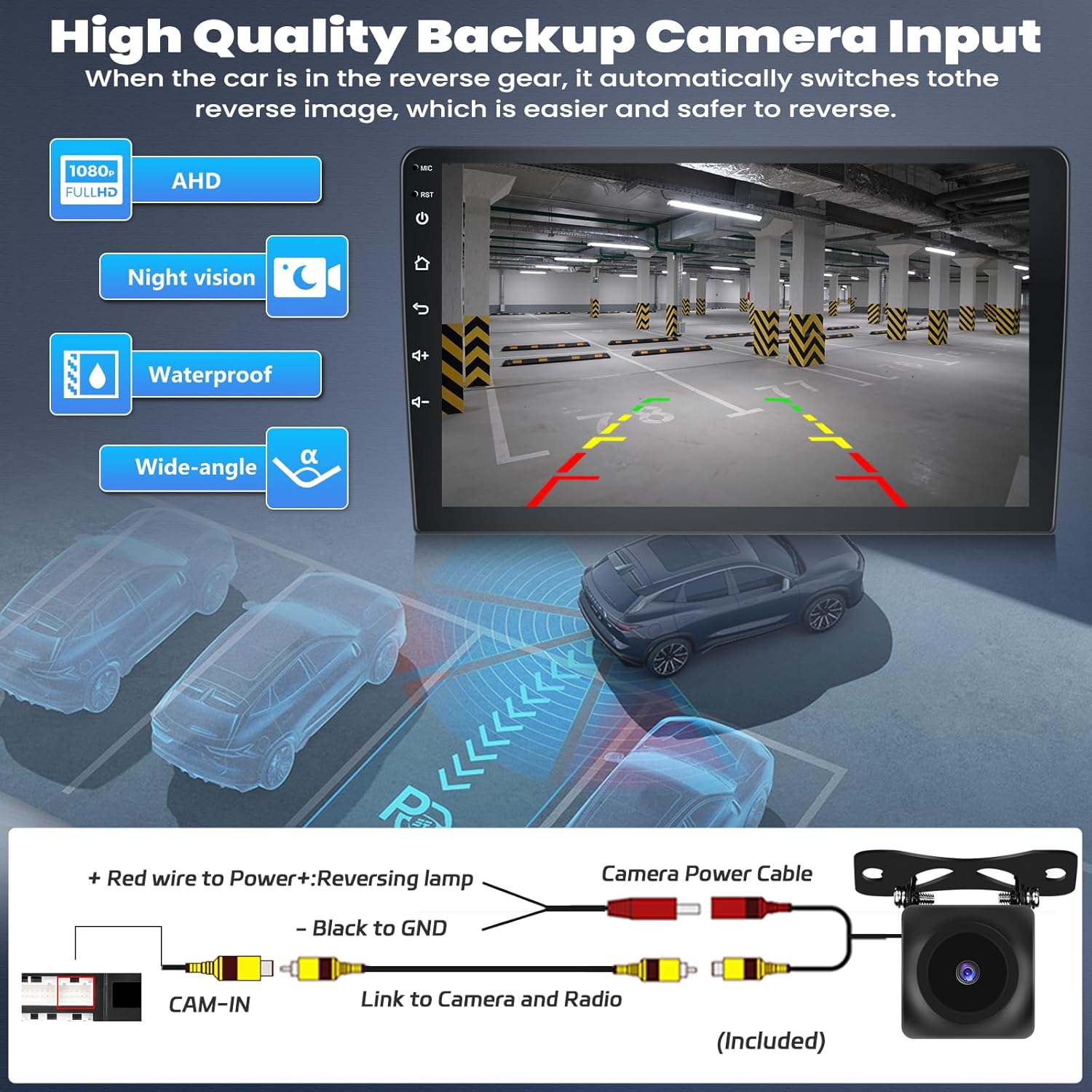
Image 3.1: Backup camera connection diagram and example of the display when reversing.
4. Operating Instructions
The GOHHDL car stereo runs on the Android 13 operating system, offering a wide range of features and customization options.
4.1 Wireless CarPlay and Android Auto
Connect your smartphone wirelessly via Bluetooth and Wi-Fi, or using a USB cable. This allows access to phone apps like messages, music, and maps directly on the stereo screen. Voice commands (Siri or Google Assistant) are supported for hands-free operation.

Image 4.1: Wireless CarPlay and Android Auto interfaces with voice command functionality.
4.2 GPS Navigation and WiFi/Hotspot
The unit comes with Google Maps pre-installed. Connect to Wi-Fi or a mobile hotspot to access real-time traffic conditions and online services. You can also download map data for offline navigation. The split-screen function allows you to run navigation and another app simultaneously.

Image 4.2: GPS navigation display and online video streaming via WiFi.
4.3 Mirror Link
Mirror your phone's screen (iOS or Android) to the car stereo via Wi-Fi or USB cable. This allows you to view your phone's content, such as navigation or videos, on the larger display. For Android devices, ensure necessary permissions are set in developer options and use the "CarbitLink" app.

Image 4.3: Overview of Wireless CarPlay, Android Auto, and Mirror Link capabilities.
4.4 Bluetooth 5.0
The built-in Bluetooth system with microphone supports hands-free calling, Bluetooth music streaming, and automatic phone book loading.
4.5 FM/RDS Radio
Enjoy high-quality FM/RDS radio with automatic channel search. The frequency range is 87.5-108FM, and you can preset up to 18 favorite channels.

Image 4.4: FM/RDS Radio interface and demonstration of steering wheel control functionality.
4.6 DSP/EQ Settings
Utilize the Digital Sound Processor (DSP) tuning technology and customizable EQ settings (32-band EQ, 10-band EQ) to adjust audio frequencies and enhance your listening experience.
4.7 Steering Wheel Control
The unit supports the original steering wheel buttons of your Ford F150, allowing you to quickly switch functions, adjust volume, and control playback for safer driving.
4.8 Additional Features
- Intelligent Voice Assistant: Control the device using voice commands.
- Network Radio: Access mainstream radio stations from over 20 countries.
- Global Weather Forecast: Display real-time weather information when connected to the internet.
- 59 UI Desktop Themes: Customize the user interface appearance.

Image 4.5: DSP/EQ sound adjustment interface and examples of different UI themes.
5. Maintenance
To ensure the longevity and optimal performance of your GOHHDL car stereo, follow these general maintenance guidelines:
- Screen Cleaning: Use a soft, lint-free cloth to gently wipe the touchscreen. Avoid abrasive cleaners or harsh chemicals.
- Temperature: Avoid exposing the unit to extreme temperatures, both hot and cold, for extended periods.
- Software Updates: Periodically check for and install any available software updates to ensure system stability and access to new features.
- Cable Connections: Ensure all cables are securely connected to prevent intermittent issues.
6. Troubleshooting
If you encounter any issues with your GOHHDL car stereo, please refer to the following basic troubleshooting steps. For more complex problems, contact customer support.
- No Power: Check all power cable connections and the vehicle's fuse box. Ensure the unit is properly seated in the dashboard.
- No Sound: Verify speaker connections, volume settings, and audio source selection. Check EQ settings for any extreme adjustments.
- Touchscreen Unresponsive: Try restarting the unit. If the issue persists, a factory reset might be necessary (consult customer support before performing a factory reset).
- GPS Signal Issues: Ensure the GPS antenna is properly installed and has a clear view of the sky. Check for any obstructions.
- CarPlay/Android Auto Connection Problems: Ensure Bluetooth and Wi-Fi are enabled on your phone and the stereo. For wired connections, try a different USB cable. For Android Auto, confirm the "CarbitLink" app is installed and permissions are granted.
7. Specifications
| Feature | Specification |
|---|---|
| Operating System | Android 13 |
| Processor | 8-Core |
| RAM | 6GB |
| ROM | 128GB |
| Display Size | 9 Inches |
| Display Resolution | 1280*720 IPS |
| Connectivity | Bluetooth 5.0, USB, Wi-Fi |
| Special Features | Apple CarPlay, Android Auto, Split Screen, DSP 32EQ-Audio, 1080P HD Video Playback, Voice Control, GPS Navigation, Steering Wheel Control, Weather Forecast, FM RDS Radio, Mirror Link, 59 UI Desktop Themes |
| Compatible Vehicles | Ford F150 2009-2014 |
| Item Weight | 4.14 pounds |
| Package Dimensions | 15.55 x 11.02 x 3.35 inches |
| Model Number | A7015A3533H1MI2 |
8. Warranty and Support
GOHHDL is committed to providing excellent customer service and product support.
- Warranty: One year warranty from the date of purchase.
- Money-Back Service: 30-day money-back guarantee.
- After-Sales Support: 24 months of after-sales support.
- Online Customer Service: 7 days a week, 16 hours a day (excluding weekends).
For technical assistance, installation guidance, or any operational questions, please contact our customer support team:
Email: hyl881166@163.com

Image 8.1: GOHHDL customer support is available for assistance.