
Cable Matters 201495
Cable Matters USB C to 5Gb Ethernet Adapter (Model 201495) Instruction Manual
Model: 201495 | Brand: Cable Matters
Introduction
This manual provides detailed instructions for the Cable Matters USB C to 5Gb Ethernet Adapter. This adapter is designed to provide ultra-fast 5 Gigabit network speeds to compatible USB-C, USB4, Thunderbolt 4, and Thunderbolt 5 devices. Please read this manual thoroughly before use to ensure proper installation and operation.
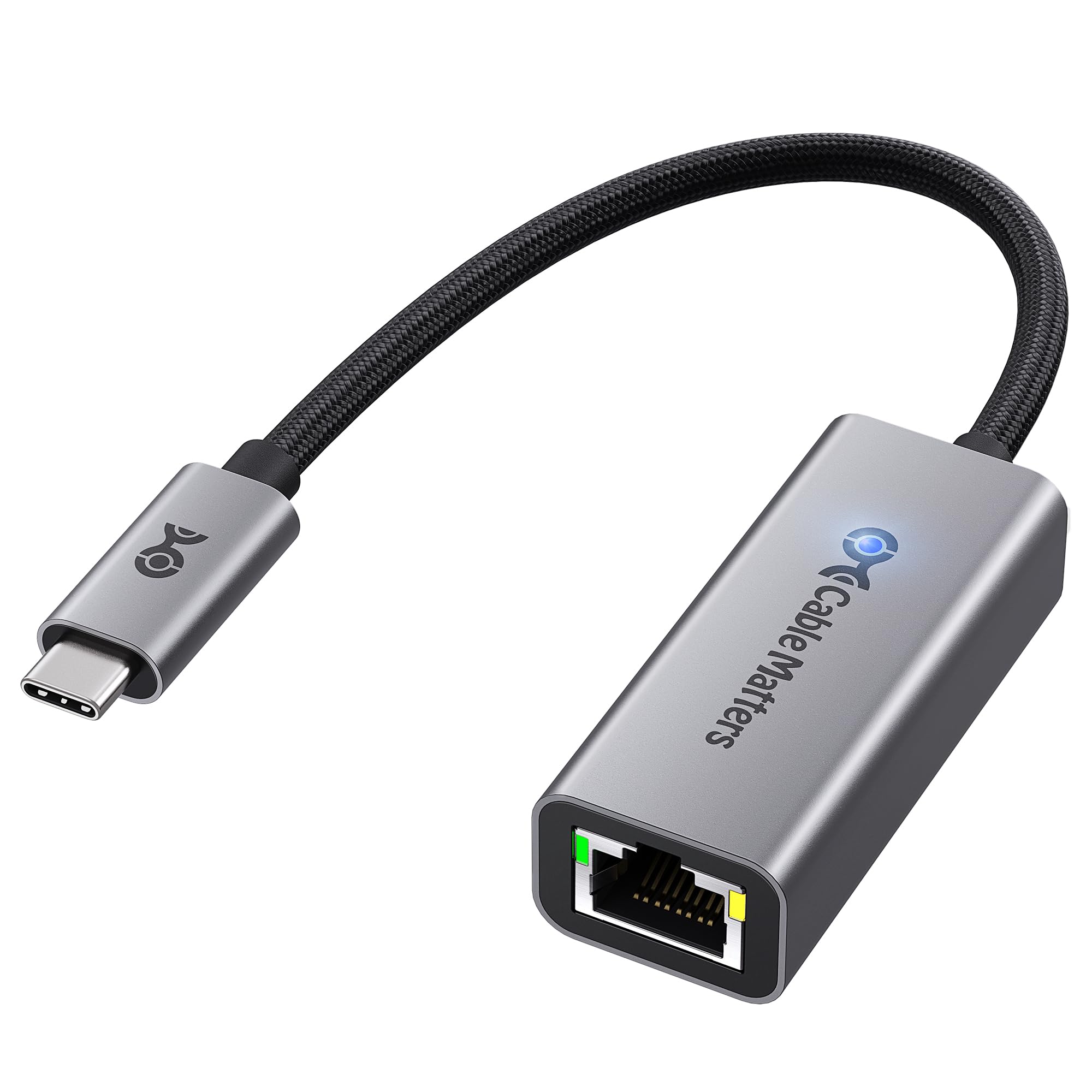
Image: The Cable Matters USB C to 5Gb Ethernet Adapter, showcasing its compact design and USB-C connector.
Product Features
- Blazing-Fast 5Gbps Network Speed: Experience ultra-fast internet performance up to 5000 Mbps for UHD/8K/4K streaming, online gaming, and large file transfers. Requires a device's USB-C port to support USB 3.2 Gen 2 (10Gbps) or higher for full 5Gbps speed.
- Stable Performance with Advanced Chipset: Equipped with an advanced chipset for consistent performance, minimal power consumption, and effective heat management. Provides a more secure and faster network connection than wireless alternatives.
- Premium & Durable Design: Features a rugged aluminum housing for enhanced durability and heat dissipation. The braided pigtail cable resists fraying, making it suitable for daily use and travel.
- Easy Setup & Optimized Performance: Offers plug-and-play functionality on the latest macOS and Windows versions. For older Windows or certain Linux kernels, installing the latest Realtek USB 5G Ethernet Controller (RTL8157) driver is recommended for optimal speed. macOS typically requires no manual driver installation; ensure your macOS is up to date.
- Wide Compatibility Across Devices: Compatible with MacBook, iMac, Dell XPS, iPad Pro, Surface, and other devices supporting USB-C, USB4, Thunderbolt 5, Thunderbolt 4, and Thunderbolt 3. Supports Windows, macOS, Linux, Chrome OS, and iOS. Note: Does not support Android devices.
Setup Instructions
- Connect the Adapter to Your Device: Insert the USB-C connector of the Cable Matters 5Gb Ethernet Adapter into an available USB-C port on your computer, laptop, or compatible device. Ensure the USB-C port supports USB 3.2 Gen 2 (10Gbps) or higher for maximum performance.
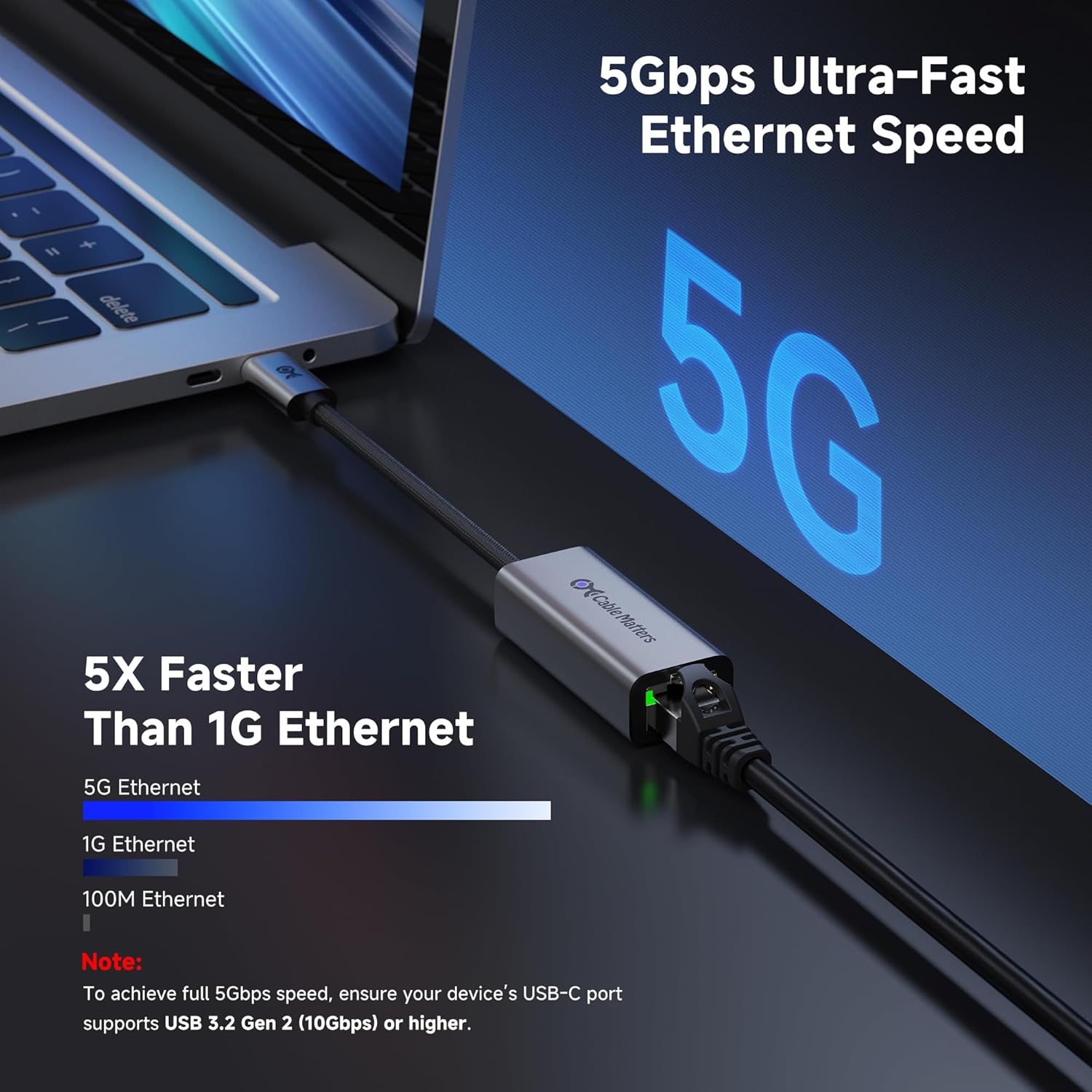
Image: The USB-C end of the adapter being plugged into a laptop's USB-C port.
- Connect Ethernet Cable: Plug a standard Ethernet cable (Cat6 or higher recommended for 5Gbps speeds) into the RJ45 port on the adapter. Connect the other end of the Ethernet cable to your router, modem, or network switch.
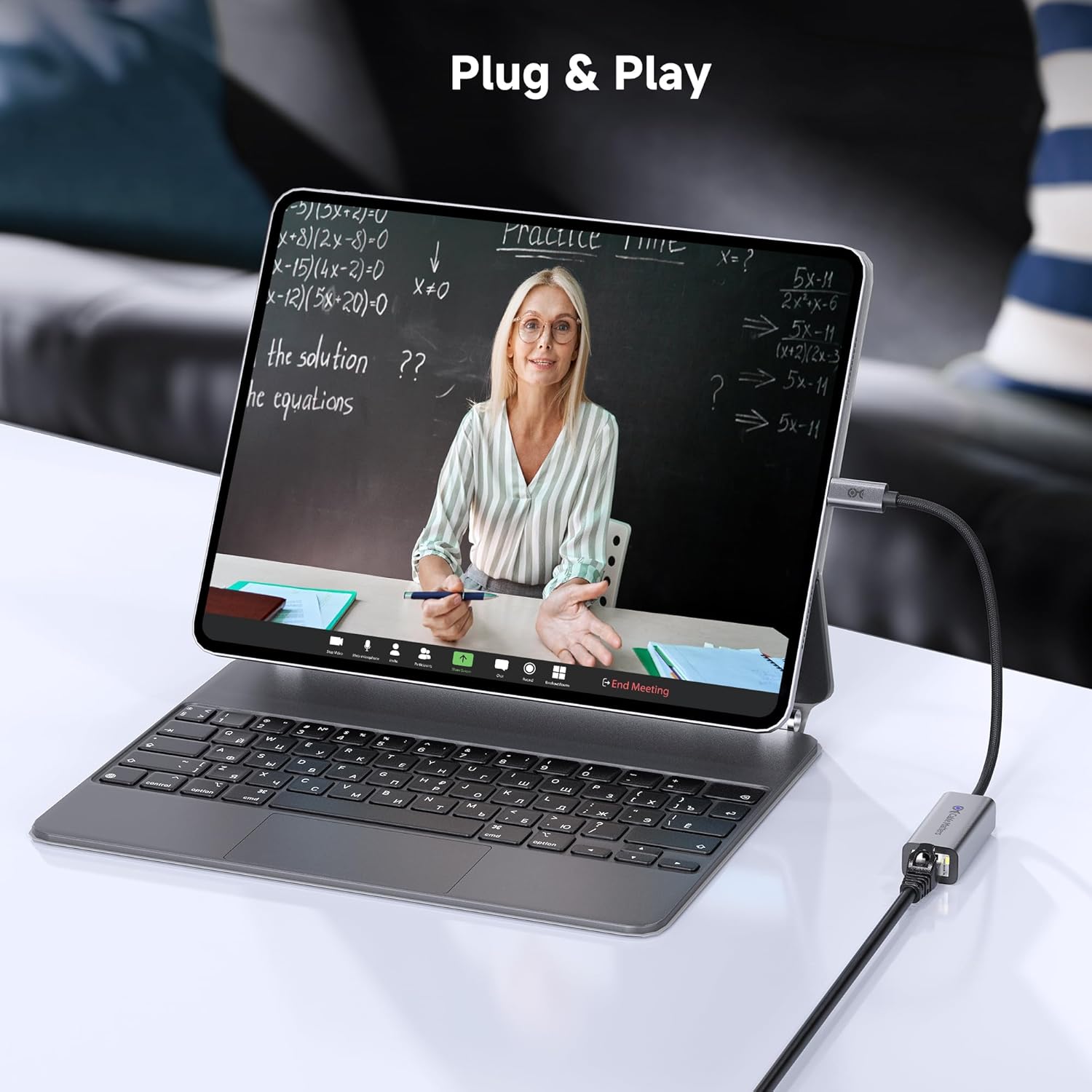
Image: An Ethernet cable connected to the adapter, which is then connected to a laptop, illustrating the plug-and-play functionality.
- Driver Installation (if necessary):
- macOS: The adapter is plug-and-play with the latest macOS versions and typically requires no manual driver installation. Ensure your macOS is up to date for best performance.
- Windows/Linux: For optimal performance on Windows or certain Linux kernels, it is recommended to install the latest Realtek USB 5G Ethernet Controller (RTL8157) driver. Drivers can usually be found on the Cable Matters support website or Realtek's official site.
- Verify Connection: Once connected, the adapter's LED indicator will illuminate, typically blue for power and green/amber for network activity, indicating a successful connection. Check your device's network settings to confirm the Ethernet connection is active and operating at the desired speed.
Operating Instructions
The Cable Matters USB C to 5Gb Ethernet Adapter operates automatically once connected and drivers are installed (if required). It provides a stable, high-speed wired network connection.
- Network Speed: The adapter supports speeds up to 5Gbps. Actual speeds may vary based on your internet service provider, router, Ethernet cable quality, and the capabilities of your device's USB-C port.
- LED Indicators:
- Blue LED: Indicates power to the adapter.
- Green/Amber LED (on RJ45 port): Indicates network link status and activity. Green typically signifies a 5Gbps connection, while amber might indicate a lower speed (e.g., 1Gbps or 2.5Gbps) or activity.

Image: A close-up view of the adapter highlighting its aluminum housing, braided pigtail cable, and blue power LED indicator.
- Usage Scenarios: Ideal for applications requiring high bandwidth and low latency, such as:
- High-resolution video streaming (UHD/4K/8K)
- Online gaming
- Large file transfers to/from NAS or servers
- Professional workstations requiring stable network access

Image: A laptop connected to the adapter, displaying a gaming scene, illustrating lag-free gaming with 5Gbps speed.

Image: A person using a laptop connected to the adapter for a video conference, demonstrating enhanced productivity with stable 5Gbps Ethernet.
Maintenance
- Cleaning: Use a soft, dry cloth to clean the adapter. Avoid liquid cleaners or solvents.
- Storage: Store the adapter in a cool, dry place when not in use. Avoid extreme temperatures and direct sunlight.
- Cable Care: Do not bend or crimp the braided pigtail cable excessively to prevent internal damage.
Troubleshooting
- No Network Connection:
- Ensure the USB-C connector is fully inserted into your device.
- Verify the Ethernet cable is securely connected to both the adapter and your network device (router/modem/switch).
- Check if your router/modem is functioning correctly and providing an internet connection.
- Restart your computer and network devices.
- Slow Network Speed:
- Confirm your device's USB-C port supports USB 3.2 Gen 2 (10Gbps) or higher to achieve full 5Gbps speeds. If it's a USB 3.2 Gen 1 (5Gbps) port, the maximum speed will be limited to 5Gbps.
- Ensure your Ethernet cable is rated for 5Gbps (Cat6 or higher).
- Update the Realtek USB 5G Ethernet Controller (RTL8157) driver, especially for Windows and Linux systems.
- Check your internet service plan to ensure it supports 5Gbps speeds.
- Verify your network switch or router supports 5Gbps Ethernet.
- Adapter Not Recognized:
- Try connecting the adapter to a different USB-C port on your device.
- Test the adapter on another compatible device to rule out a device-specific issue.
- Ensure your operating system is up to date.
Specifications
| Feature | Detail |
|---|---|
| Model Number | 201495 |
| Brand | Cable Matters |
| Hardware Interface | Ethernet, USB Type C |
| Data Link Protocol | Gigabit Ethernet (supports up to 5Gbps) |
| Data Transfer Rate | 5 Gigabits Per Second |
| Compatible Devices | Desktop, Laptop, Smartphone (not Android), Tablet |
| Compatible Operating Systems | Windows, macOS, Linux, Chrome OS, iOS |
| Item Weight | 1.41 ounces (0.04 Kilograms) |
| Package Dimensions | 4.13 x 2.8 x 0.75 inches |
| UPC | 810115185765 |
Compatibility Overview
The Cable Matters USB C to 5Gb Ethernet Adapter offers broad compatibility with various devices and operating systems, ensuring a reliable wired connection for many modern computing environments.

Image: A visual representation of the adapter's wide compatibility with operating systems like Windows, macOS, Linux, Chrome OS, and iOS, and devices such as MacBooks, Windows laptops, phones, and tablets. Android devices are explicitly noted as not supported.
- USB-C Port Compatibility: Supports USB-C, USB4, Thunderbolt 5, Thunderbolt 4, and Thunderbolt 3 devices.
- Operating System Compatibility: Fully compatible with Windows, macOS, Linux, Chrome OS, and iOS.
- Device Compatibility: Works seamlessly with MacBook, iMac, Dell XPS, iPad Pro, Surface, and other laptops, desktops, and tablets with compatible USB-C ports.
- Important Note: This adapter does not support Android devices.
Product Video Overview
Video: An official overview of the Cable Matters USB C to 5Gb Ethernet Adapter, demonstrating its features and connectivity. This video highlights the adapter's ability to provide high-speed network access for various tasks like large file transfers.
Warranty and Support
Cable Matters products are designed for reliability and performance. For warranty information and technical support, please refer to the official Cable Matters website or contact their customer service directly.
- Product Registration: Register your product on the Cable Matters website to receive updates and support.
- Technical Support: Visit www.cablematters.com/support for FAQs, driver downloads, and contact information for technical assistance.
- Warranty: Information regarding the product warranty period and terms can be found on the Cable Matters website.
Related documents201495


Ask a question about this manual
Ask about setup, troubleshooting, compatibility, parts, safety, or missing instructions. Manuals+ will review the question and use this page’s manual context to help answer it.