
Introduction
This manual provides detailed instructions for the setup, operation, and maintenance of your AT&T GL2101-4 DECT 6.0 4-Handset Cordless Home Phone. Please read this manual thoroughly to ensure proper use and to take full advantage of all available features.
What's in the Box
Verify that your package contains the following items:
- Base Unit
- 4 Handsets
- 3 Chargers (for additional handsets)
- 4 AC Adapters
- 4 Battery Packs
- Telephone Line Cord
- Quick Start Guide
Setup
Follow these steps to set up your new cordless phone system.
1. Connect the Base Unit
Plug one end of the telephone line cord into the TEL LINE jack on the back of the base unit. Plug the other end into a telephone wall jack. Plug the small end of the base unit AC adapter into the POWER jack on the back of the base unit. Plug the large end into an electrical outlet.
2. Install and Charge Handset Batteries
Open the battery compartment cover on each handset. Connect the battery pack connector securely into the jack inside the compartment. Place the battery pack inside the compartment and close the cover. Place each handset in its respective charger or the base unit. Allow the handsets to charge for at least 10 hours before first use. The CHARGE light on the handset will illuminate when properly placed in the charger.

Image: A handset placed in its charging base, indicating proper charging setup.
Operating Instructions
Learn how to use the various features of your AT&T cordless phone.
Making and Receiving Calls
- To make a call: Press PHONE, then dial the number.
- To answer a call: Press PHONE or any dialing key.
- To end a call: Press OFF or place the handset in the charger.
Full-Duplex Handset Speakerphone
The built-in full-duplex speakerphone allows both parties to speak and be heard simultaneously for more natural conversations. During a call, press SPEAKER to activate the speakerphone. Press SPEAKER again to return to normal handset use.
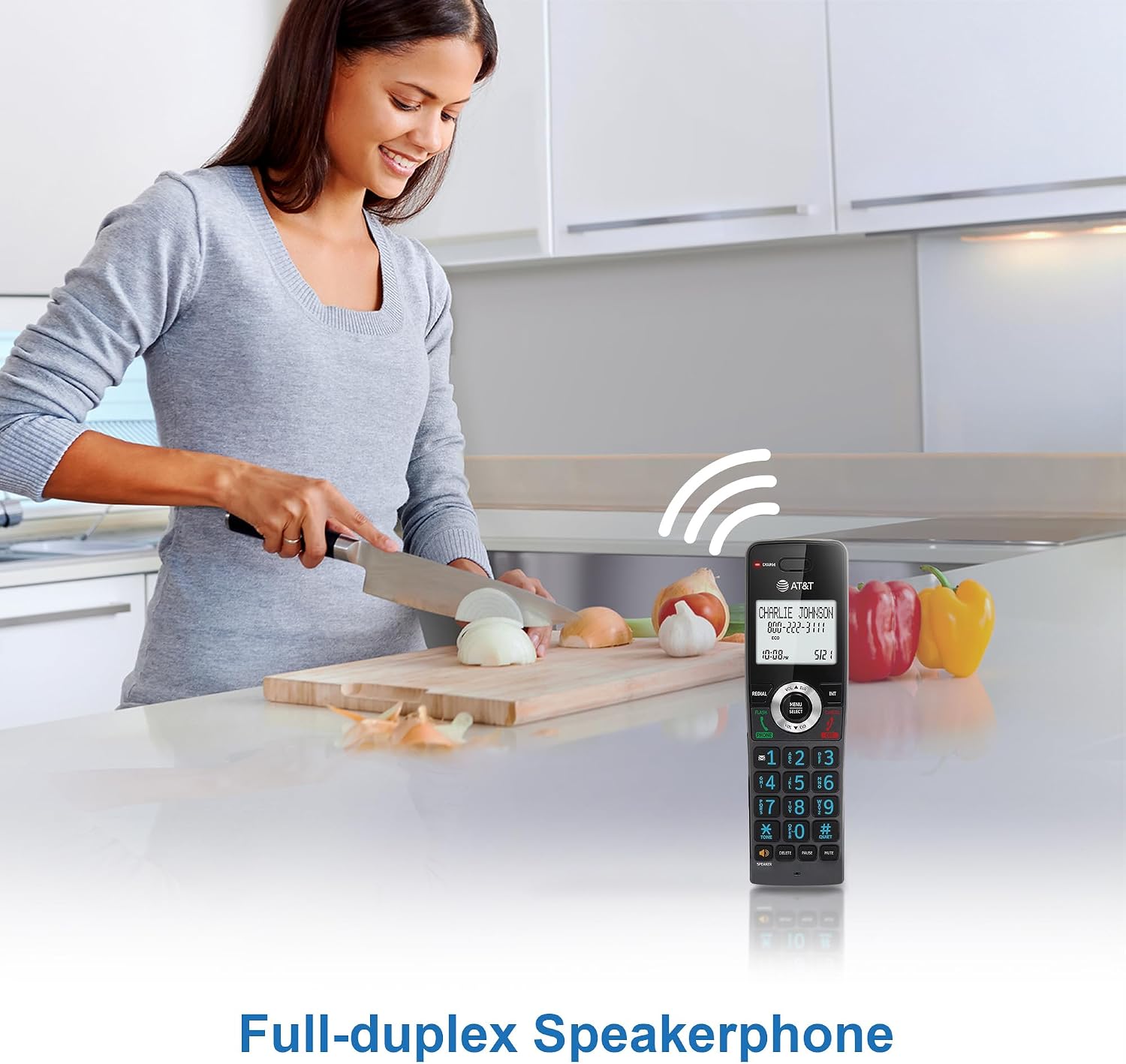
Image: A user demonstrating the full-duplex speakerphone feature, allowing hands-free communication.
Caller ID / Call Waiting
The handset's 2-inch white backlit display shows the caller's name and number (if available) for incoming calls. This feature requires a subscription from your telephone service provider. If you have call waiting, the display will show the incoming caller's information while you are on another call.

Image: The phone's display clearly showing caller ID information, including name and number.
Call Block
Block unwanted calls by adding up to 20 names and numbers to the call block directory. When an incoming call is received, press the CALL BLOCK button to add the number to the block list. This feature requires Caller ID subscription.

Image: The call block feature allows users to easily block unwanted callers, enhancing privacy.
Handset to Handset Intercom
Use the intercom feature to communicate between handsets. Press INT on one handset, then dial the number of the desired handset (e.g., 2 for Handset 2). The receiving handset will ring, and you can begin an intercom conversation.

Image: Visual representation of the intercom function, enabling communication between multiple handsets.
Phonebook Directory
Store up to 50 names and numbers in the phonebook directory for quick dialing. To add an entry, press MENU/SELECT, navigate to 'Phonebook', and follow the on-screen prompts. To dial from the phonebook, press DIR and select the desired entry.

Image: The phonebook feature allows storage and quick access to frequently called contacts.
Backlit Keypad and Display
The handset features a 2-inch white backlit display and an orange backlit keypad, making it easy to read caller information and dial numbers in low-light conditions.

Image: The 2-inch white backlit display provides clear visibility of information.

Image: The backlit keypad ensures easy dialing even in dim lighting.
Quiet Mode
Activate Quiet Mode to silence all handset and base unit ringers for a set period. Press and hold the #QUIET button to toggle Quiet Mode on or off. You can configure the duration in the phone settings.

Image: The Quiet Mode feature allows users to silence ringers for undisturbed periods.
Battery Life and ECO Mode
The rechargeable handset battery provides up to 10 hours of talk time or 5 days of standby time on a single charge. ECO mode automatically manages power consumption, optimizing battery life and reducing energy usage.

Image: Illustration of the phone's long-lasting battery, offering extended talk and standby times.
Maintenance
To ensure optimal performance and longevity of your phone system, follow these maintenance guidelines:
- Cleaning: Wipe the phone and base unit with a soft, damp cloth. Do not use cleaning sprays or harsh chemicals.
- Battery Care: Replace batteries when they no longer hold a charge effectively. Use only the specified replacement battery packs.
- Location: Avoid placing the phone system near heat sources, direct sunlight, or areas with excessive moisture.
Troubleshooting
If you encounter any issues with your phone system, refer to the table below for common problems and solutions.
| Problem | Solution |
|---|---|
| No dial tone | Ensure the base unit is properly connected to the telephone wall jack and power outlet. Check the telephone line cord for damage. |
| Handset not charging | Make sure the handset is correctly seated in the charger. Verify the charger's AC adapter is plugged into a working electrical outlet. Clean the charging contacts on the handset and charger. |
| Poor sound quality/static | Move closer to the base unit. Avoid placing the phone near other electronic devices that may cause interference. Check for loose connections. |
| Cannot make/receive calls | Check if the telephone line is active. Ensure the handset battery is charged. Reset the base unit by unplugging it from power for a few minutes, then plugging it back in. |
Specifications
Key technical specifications for the AT&T GL2101-4 DECT 6.0 4-Handset Cordless Home Phone:
| Feature | Detail |
|---|---|
| Product Dimensions | 4.25 x 3.23 x 7.24 inches (Base Unit) |
| Item Weight | 2.55 pounds |
| Model Number | GL2101-4 |
| Brand | AT&T |
| Color | Graphite |
| Telephone Type | Cordless |
| Material | Plastic |
| Power Source | Corded Electric |
| Answering System Type | No |
| Compatible Devices | Standard Landline Networks |
| Multiline Operation | Single-Line Operation |
Warranty and Support
For warranty information or technical support, please refer to the documentation included with your product or visit the official AT&T support website. Keep your purchase receipt as proof of purchase for warranty claims.


