
SPC Zeus 4G Pro
SPC Zeus 4G Pro User Manual
Model: Zeus 4G Pro (2352464N)
1. Product Overview
The SPC Zeus 4G Pro is a smartphone designed for ease of use, particularly for seniors. It features a simplified interface with large icons, physical buttons for common actions, and an integrated SOS function for emergencies. The device runs on Android 11 and includes a charging base for convenient power management.

Image: The SPC Zeus 4G Pro smartphone positioned in its charging base. The screen shows a simplified interface with large, easy-to-read icons for essential applications like WhatsApp, Phone, Camera, and Contacts, designed for user accessibility.
2. What's in the Box
Upon unboxing your SPC Zeus 4G Pro, please ensure all the following items are present:
- SPC Zeus 4G Pro Smartphone
- Charging Base
- USB Cable
- Screen Protector
- User Manual (this document)
3. Key Features
3.1. Easy Mode with XXL Icons
The SPC Zeus 4G Pro features an intuitive 'Easy Mode' interface with extra-large icons for applications, making navigation straightforward. This mode also provides direct access to frequently used contacts and a shortcuts section for essential settings.

Image: The SPC Zeus 4G Pro displaying its Easy Mode interface, characterized by oversized icons for applications, enhancing visibility and ease of selection.
3.2. Physical Buttons and SOS Function
The device includes convenient physical buttons for answering and ending calls, returning to the home screen, and navigating back. On the rear, an SOS button allows users to quickly request help by initiating calls and sending SMS messages with geolocation to up to three pre-defined contacts.

Image: A detailed view highlighting the physical call answer/end buttons at the bottom front of the phone, and the prominent SOS button located on the rear, near the camera.
3.3. Convenient Charging Base
The SPC Zeus 4G Pro comes with a charging base, simplifying the charging process. Alternatively, the phone can be charged via its reversible USB-C port, allowing for easy connection in any orientation.

Image: The SPC Zeus 4G Pro smartphone securely placed in its charging base on a clean desk surface, alongside a notebook and reading glasses, illustrating its convenient charging solution.
3.4. Android 11 Operating System
Running on Android 11, the SPC Zeus 4G Pro provides access to the Google Play Store, enabling users to download a wide range of popular applications. Users can choose between the adapted Easy Mode interface or the native Android interface.
3.5. Video Calls and Expanded Memory
With its 5.5-inch IPS display and 4G connectivity, the smartphone is well-suited for video calls, including those made via WhatsApp. It features 4GB of RAM for smooth performance and 64GB of internal memory, expandable by an additional 512GB via a microSD card, for storing photos and videos from its 13MP camera. It also includes an FM radio.

Image: The SPC Zeus 4G Pro screen showing a contact list where each entry is accompanied by a photo, facilitating easy identification and selection for users.
3.6. Smart Help Remote Assistance
The Smart Help function allows authorized family members or caregivers to remotely configure phone settings via SMS, such as adding contacts, adjusting volume, or activating the SOS function. It can also send alerts for low battery or missed calls and automatically increase volume if calls are not answered.
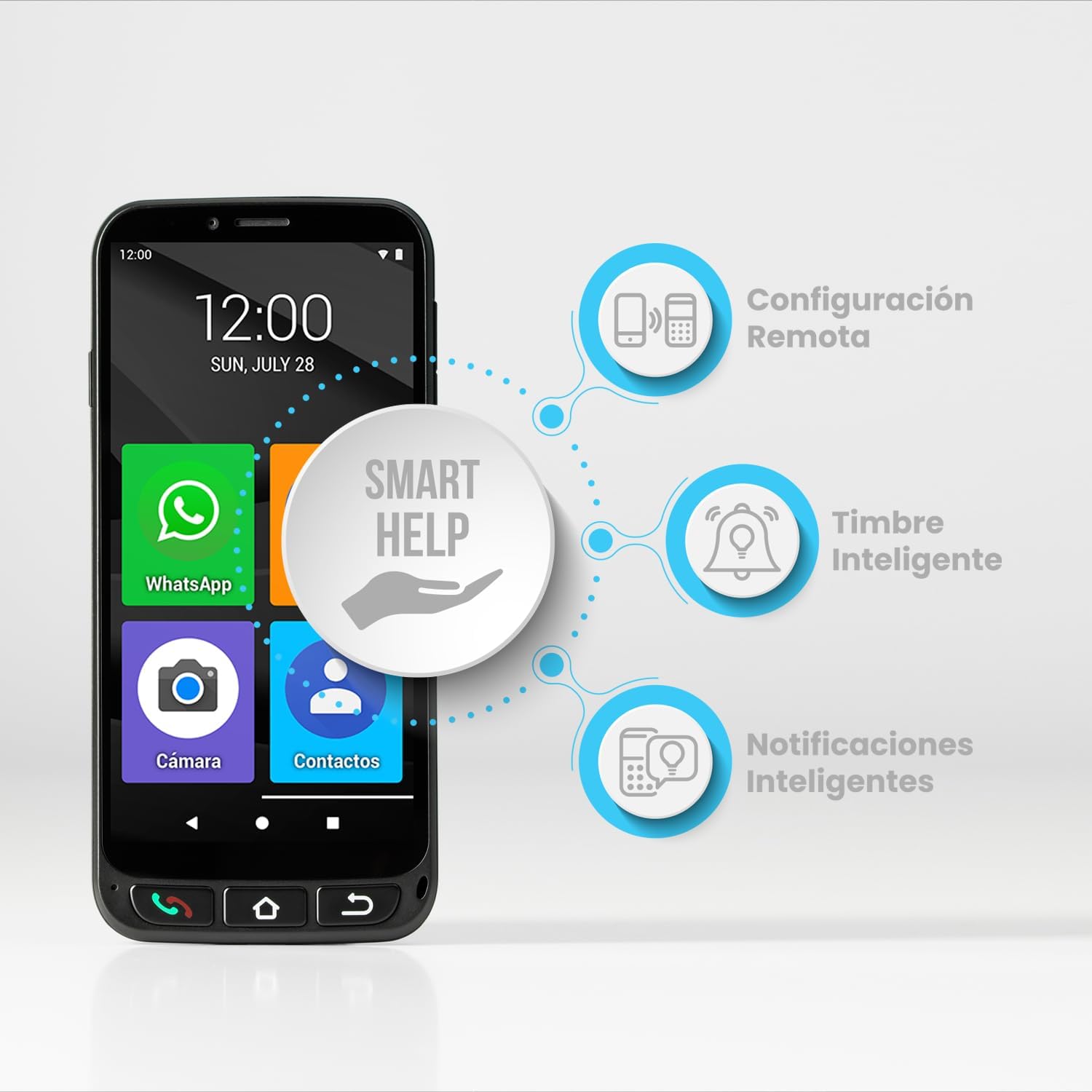
Image: A visual representation of the Smart Help system, showing its three main components: Remote Configuration, Smart Ringer (automatic volume adjustment), and Smart Notifications (alerts for low battery or missed calls).
4. Setup Guide
4.1. Inserting SIM Card and MicroSD Card
- Locate the SIM/MicroSD card tray on the side of the phone.
- Use the provided SIM ejector tool to open the tray.
- Carefully place your NanoSIM and MicroSIM cards (if applicable) and MicroSD card into their respective slots.
- Gently push the tray back into the phone until it clicks into place.
4.2. Initial Charging
Before first use, fully charge your SPC Zeus 4G Pro. You can use either the included charging base or the USB-C cable.
- Using the Charging Base: Place the phone vertically into the charging base, ensuring the charging contacts align. The phone will indicate charging.
- Using USB-C Cable: Connect the USB-C cable to the phone's charging port and the other end to a compatible USB power adapter.
4.3. Powering On and Initial Configuration
- Press and hold the Power button (usually on the side) until the SPC logo appears.
- Follow the on-screen prompts to select your language, connect to Wi-Fi, and set up your Google account.
- Choose between 'Easy Mode' (recommended for simplified use) or the standard Android interface during setup.
- Configure your emergency contacts for the SOS function.
5. Operating Instructions
5.1. Making and Receiving Calls
- To Make a Call: In Easy Mode, tap the large 'Phone' icon. You can dial a number directly or select a contact from your favorites or contact list. Press the green physical call button to initiate the call.
- To Receive a Call: When a call comes in, press the green physical call button or swipe the green icon on the screen to answer.
- To End a Call: Press the red physical call button or tap the red icon on the screen.
5.2. Using the SOS Button
In an emergency, press and hold the SOS button located on the back of the phone for approximately 3 seconds. The phone will automatically:
- Initiate calls to your pre-defined emergency contacts in sequence until one answers.
- Emit an audible alarm to attract attention.
- Send an SMS message with your current geolocation to all emergency contacts.
5.3. Navigating Easy Mode
- Home Screen: Displays large icons for frequently used apps and favorite contacts.
- Shortcuts: Swipe left or right (or tap the 'Shortcuts' icon) to access quick settings like Wi-Fi, Bluetooth, and font size.
- Physical Navigation Buttons:
- Green Button: Answer call / Initiate call.
- Home Button (middle): Return to the main home screen.
- Back Button (right): Go back to the previous screen.
- Red Button: End call.
6. Maintenance
6.1. Battery Care
- To prolong battery life, avoid extreme temperatures.
- Charge the phone regularly, ideally before the battery completely drains.
- Use only the provided charging base or USB-C cable and a compatible power adapter.
6.2. Cleaning Your Device
- Gently wipe the screen and body with a soft, lint-free cloth.
- Avoid using harsh chemicals, abrasive cleaners, or aerosol sprays.
- Ensure no liquid enters the ports or openings.
6.3. Software Updates
Periodically check for software updates to ensure optimal performance and security. You can usually find this option in the phone's settings under "System" or "About phone."
7. Troubleshooting
| Problem | Possible Cause | Solution |
|---|---|---|
| Phone does not turn on. | Battery is completely drained. | Connect to charger and allow to charge for at least 15 minutes before attempting to power on. |
| Cannot make or receive calls. | No SIM card inserted, SIM card not properly seated, or no network signal. | Ensure SIM card is correctly inserted. Check network signal strength. Contact your service provider if issues persist. |
| Screen is unresponsive. | Temporary software glitch. | Restart the phone by pressing and holding the Power button until it reboots. |
| Charging base does not charge phone with case on. | Case interferes with charging contacts. | Remove the protective case before placing the phone in the charging base. Charge via USB-C cable if case is preferred. |
| SOS button not working. | Emergency contacts not set up or incorrect. | Verify and configure emergency contacts in the phone's settings. Ensure sufficient balance/plan for calls/SMS. |
8. Specifications
| Model Name | Zeus 4G Pro |
| Model Number | 2352464N |
| Operating System | Android 11.0 |
| Display Size | 5.5 Inches |
| Display Resolution | 1440 x 720 pixels |
| RAM | 4 GB |
| Internal Storage | 64 GB (Expandable up to 512GB via MicroSD) |
| Camera | 13MP (Rear), Frontal |
| Battery Capacity | 2400 mAh |
| Talk Time | 6 Hours |
| Connectivity | Bluetooth, USB, Wi-Fi, 4G |
| Special Features | Dual SIM, Wi-Fi Hotspot, Integrated GPS, Expandable Memory, SOS Button, Easy Mode, Smart Help |
| Product Weight | 620 g |
| Color | Black |
9. Warranty and Support
The SPC Zeus 4G Pro comes with a standard manufacturer's warranty. For detailed warranty terms and conditions, please refer to the warranty card included in your product packaging or visit the official SPC website. For technical support, troubleshooting assistance, or service inquiries, please contact SPC customer support through their official channels.
You can find more information and support resources on the SPC Brand Store on Amazon or the manufacturer's official website.
Related documentsZeus 4G Pro


Ask a question about this manual
Ask about setup, troubleshooting, compatibility, parts, safety, or missing instructions. Manuals+ will review the question and use this page’s manual context to help answer it.