
Introduction
The TFA Dostmann 37.1001.08 Digital Photo Frame allows you to share and display your cherished photos and videos with family and friends, regardless of distance. This 10-inch frame features a touch screen, Wi-Fi connectivity, and a motion sensor for convenient operation. Photos and videos can be sent directly to the frame using the free Frameo app on your smartphone.
The frame displays images in high resolution with vibrant colors, similar to a slideshow. You can customize the display speed, from one second to 24 hours per image. Additionally, the frame can show the current time and weather report. Its versatile design allows for horizontal or vertical placement on a surface, or wall mounting using the included stand and hanging loop. For energy efficiency, the frame enters standby mode after a set period and reactivates automatically when motion is detected.
Package Contents
- Digital Photo Frame
- Power Adapter (European plug)
- Stand
- Instruction Manual
Setup
- Unpack the Frame: Carefully remove the digital photo frame and all accessories from the packaging.
- Attach the Stand or Mount:

Image: Side view of the digital photo frame with its stand, illustrating how the frame can be positioned on a flat surface.
Attach the included stand for tabletop use, or utilize the hanging loop on the back for wall mounting. The frame supports both horizontal and vertical orientations. - Connect Power:

Image: Rear view of the digital photo frame, highlighting the power port, USB port, and Micro SD card slot for media input.
Connect the power adapter to the frame's power input and then plug it into a suitable electrical outlet. The frame will power on automatically. - Initial Setup: Follow the on-screen prompts to complete the initial setup:
- Language Selection: Choose your preferred language from over 30 available options.
- Wi-Fi Connection: Connect the frame to your local Wi-Fi network to enable photo and video transfer via the Frameo app.
- Time and Location: Set the correct time zone and location for accurate time and weather displays.
- Install Frameo App: Download and install the free Frameo app on your Android or iOS smartphone.
Operating Instructions
Sending Photos and Videos via Frameo App
The Frameo app allows you to send photos and videos directly from your smartphone to the digital photo frame. Multiple users (family and friends) can be granted access to send content to your frame.
- Open the Frameo app on your smartphone.
- Follow the app's instructions to connect to your digital photo frame. You may need to enter a unique code displayed on your frame.
- Select the photos or videos you wish to send from your smartphone's gallery.
- Send the selected content to the frame. The content will appear on the frame once transferred via Wi-Fi.
Displaying Media from USB/Micro SD
The frame supports displaying photos and videos directly from a USB stick or Micro SD card.
- Insert a USB stick into the USB port or a Micro SD card into the Micro SD slot on the back of the frame.
- The frame will detect the storage device. Navigate through the frame's menu using the touch screen to access and play your media.
- Supported formats include: JPEG, JPG, PNG, HEIC, WEBP for photos; MP4, M4V, MOV, 3GP, HEVC for videos.
Frame Features and Settings
- Touch Screen: Navigate menus, adjust settings, and interact with your photos using the intuitive 10.1-inch touch screen.
- Automatic Image Alignment: Photos are automatically adjusted to fit the frame's orientation.
- Slideshow Mode: Enjoy a continuous display of your photos. You can adjust the play order and transition speed.
- Captions: Add captions to your photos via the Frameo app.
- Hide/Unhide Photos: Manage which photos are displayed on the frame.
- Adjustable Brightness: Customize the screen brightness via the touch screen or app.
- Time and Weather Display: The frame displays the current time and local weather report in the top right corner.
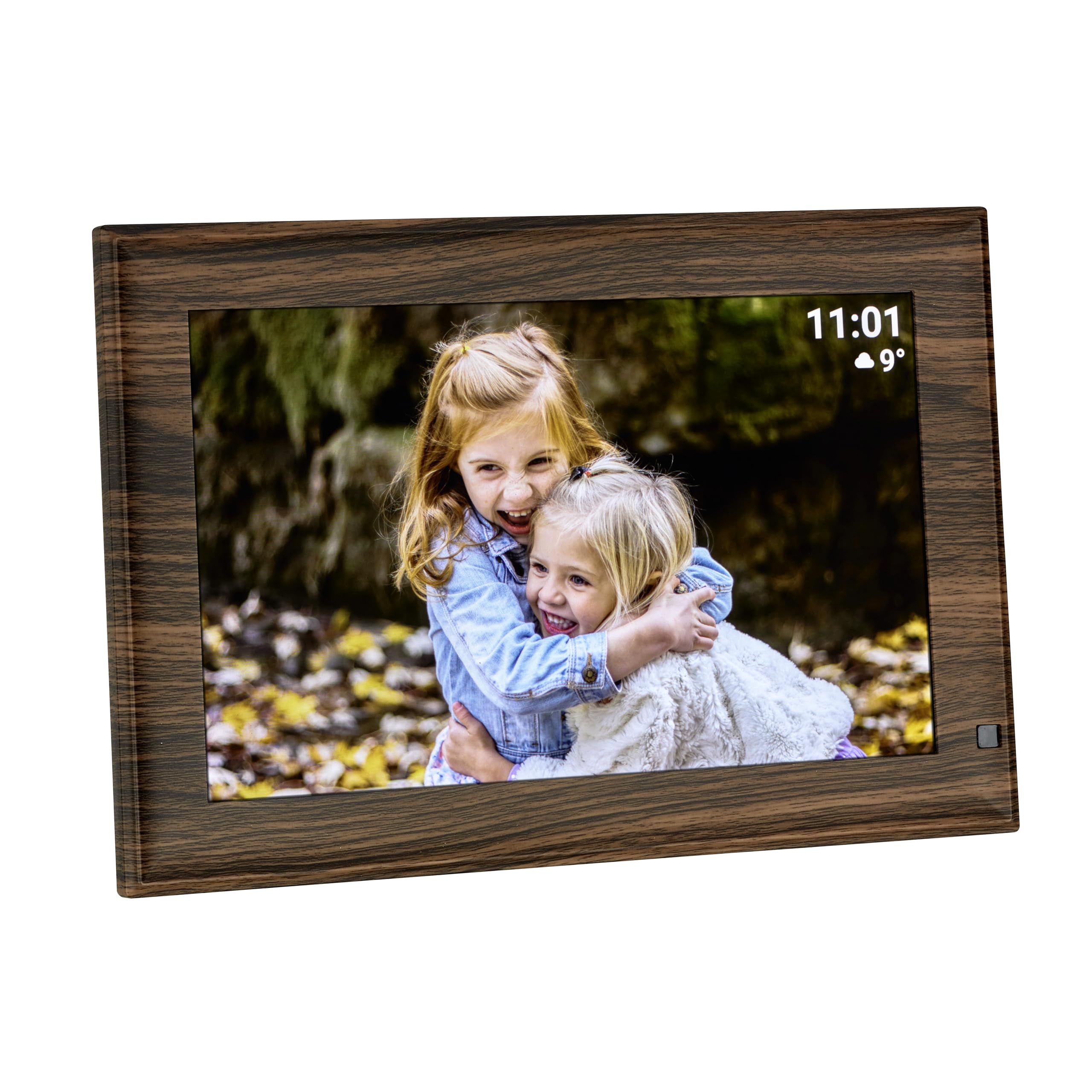
Image: The digital photo frame showcasing a picture, with the time and weather information clearly visible on the screen.
- Motion Sensor and Standby Mode: The frame features an automatic standby mode. After a user-defined period of inactivity, the screen will turn off to save energy. It will automatically reactivate when motion is detected nearby.
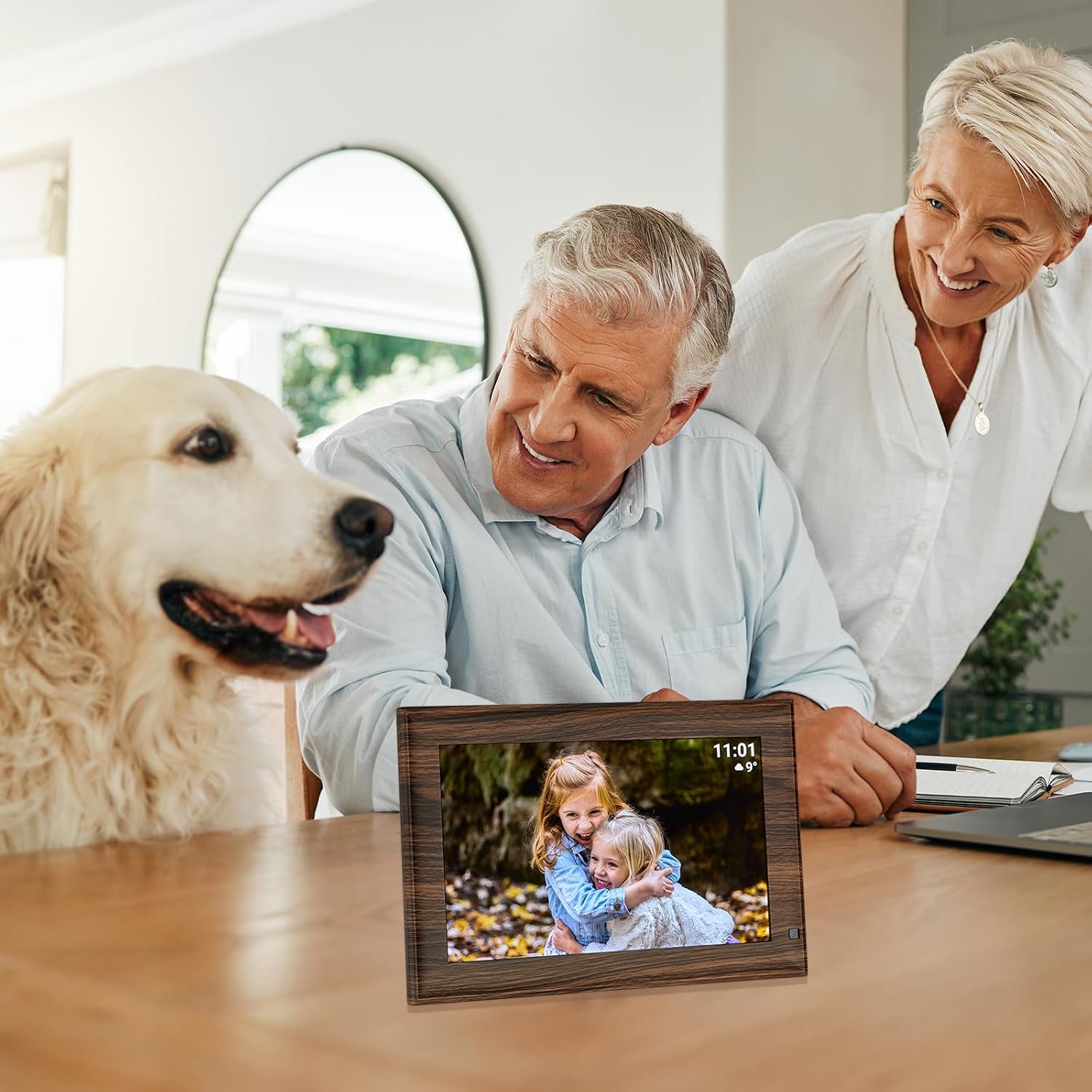
Image: The digital photo frame in a home setting, demonstrating its use for sharing family moments.
Maintenance
- Cleaning: Use a soft, dry, lint-free cloth to clean the screen and frame. Do not use liquid cleaners or sprays directly on the device.
- Storage: When not in use for extended periods, store the frame in a cool, dry place away from direct sunlight and extreme temperatures.
- Power: Always use the original power adapter provided with the frame.
Troubleshooting
- Frame does not power on: Ensure the power adapter is securely connected to both the frame and a working electrical outlet.
- Cannot connect to Wi-Fi: Check your Wi-Fi network settings and ensure the frame is within range of your router. Re-enter the Wi-Fi password if necessary.
- Photos/Videos not appearing: Verify that the Frameo app is correctly linked to your frame and that content has been successfully sent. If using USB/Micro SD, ensure the media is in a supported format and the storage device is properly inserted.
- Screen is unresponsive: Try restarting the frame by unplugging it from the power source, waiting a few seconds, and plugging it back in.
- Motion sensor not working: Check the frame's settings to ensure the motion sensor feature is enabled and adjust its sensitivity if available.
Specifications
| Feature | Specification |
|---|---|
| Brand | TFA Dostmann |
| Model Number | 37.1001.08 |
| Screen Size | 10.1 inches |
| Resolution | 1280 × 800 pixels |
| Aspect Ratio | 1.60:1 |
| Internal Memory | 32 GB |
| Connectivity Technology | USB, Wi-Fi |
| User Interface Input | Touchscreen |
| Power Source | Corded Electric (Power Adapter) |
| Frame Material | Plastic (Wooden Look) |
| Color | Brown |
| Product Dimensions | 26.6 x 2.6 x 2.51 cm |
| Weight | 519 grams |
| Compatible Devices | Tablet, Smartphone |
Warranty and Support
For warranty information or technical support, please refer to the documentation included with your product or contact TFA Dostmann customer service directly. Contact details can typically be found on the manufacturer's official website or in the product packaging.
