
1. Product Overview
The Imou 2K Solar Wireless Outdoor PTZ Security Camera (Lite Kit 2K) is a comprehensive surveillance solution designed for outdoor use. It features a 360° pan-tilt-zoom function, 2K resolution for clear imaging, and a 5000mAh battery powered by an integrated solar panel for continuous operation. Key functionalities include color night vision, AI-powered human detection, two-way audio communication, and an integrated siren for deterrence. This camera connects via 2.4GHz Wi-Fi for stable wireless connectivity.
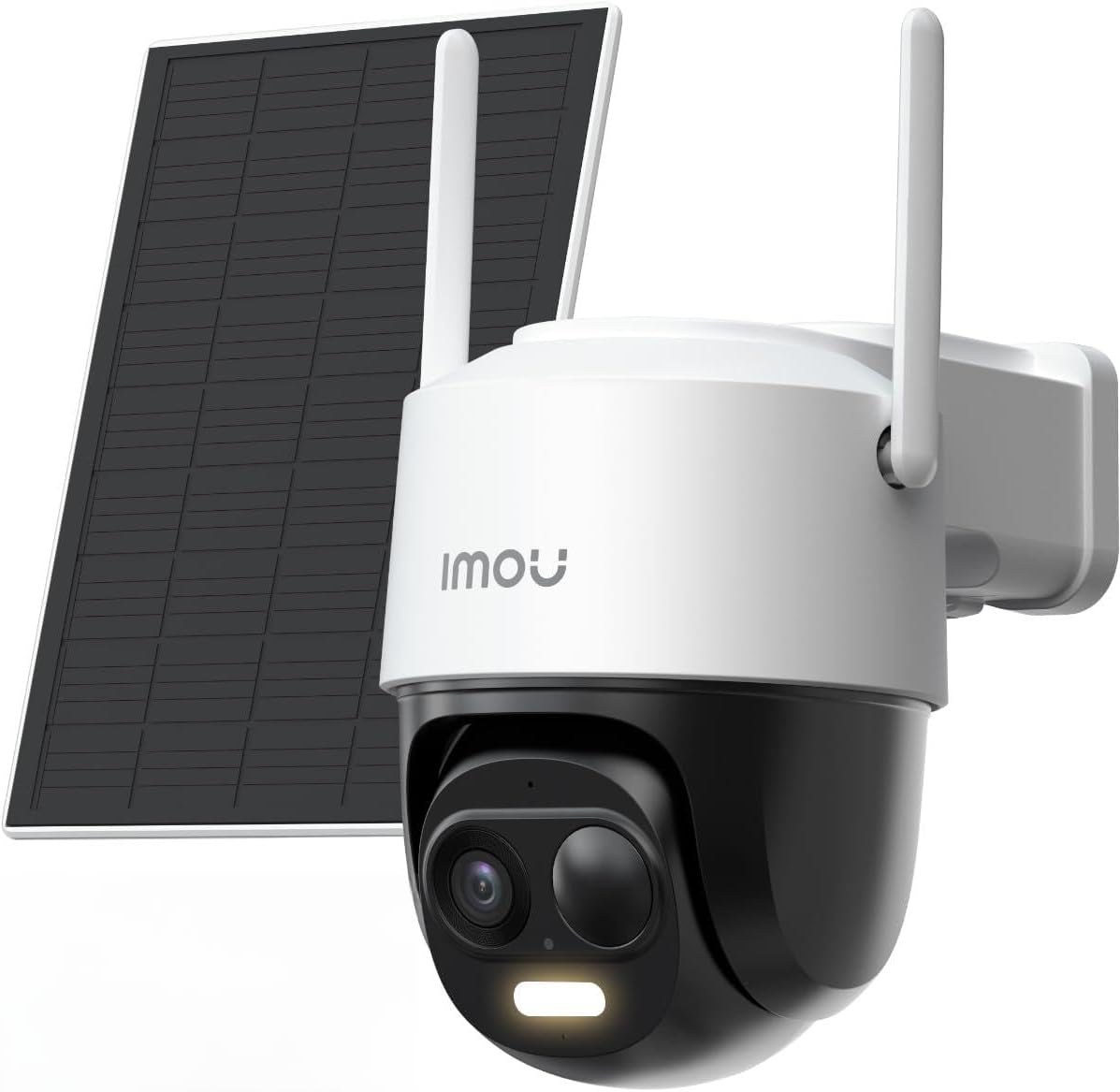
Image 1.1: Imou 2K Solar Wireless Outdoor PTZ Security Camera with its solar panel.
2. Package Contents
Verify that all items are present in the package:
- 1 x Imou 2K Solar Wireless Outdoor PTZ Security Camera
- 1 x Power Cable (1 meter)
- 1 x Mounting Template
- 4 x Screws
- 1 x Quick Guide
- 1 x Mounting Bracket
- 4 x Expansion Screws
3. Key Features
- 100% Wireless Solar Charging & Type-C Port: Equipped with a solar panel and a built-in 5000mAh rechargeable battery, ensuring continuous power. The 4-meter Type-C cable allows flexible solar panel placement.
- Ultra HD 2K Resolution & 20M Night Vision: Features a 3MP lens with a 107° wide angle and 8x digital zoom, providing clear 2K panoramic color images. The camera offers up to 20 meters of night vision.
- IP66 Waterproof Design: The camera is IP66 rated for outdoor use, with a curved body design to prevent water accumulation, enhancing its waterproof performance.
- AI Human Detection & Smart Tracking: Accurately identifies human figures, reducing false alarms by up to 95%. The camera can automatically track detected individuals to record more details.
- Sound and Light Alarms: Upon detecting suspicious activity, the camera sends immediate notifications, activates a bright spotlight, and triggers a powerful siren (up to 110 dB) to deter intruders.
- Two-Way Audio & Split Screen View: Customize two-way audio with original, male, or robotic voice options. View up to four Imou cameras simultaneously on one screen and share access with up to six family members.
- Flexible Storage Options: Supports local storage via an SD card up to 256GB (not included) or cloud storage with Imou Cloud (30-day free trial with 7-day recording cycle).
- 2.4GHz Wi-Fi Connectivity: Connects easily to 2.4GHz Wi-Fi networks (5GHz Wi-Fi is not supported) for a stable connection. The Imou app supports smartphones, tablets, and PCs.

Image 3.1: Overview of the camera's main features including 2K QHD resolution and 360-degree coverage.

Image 3.2: Example of 2K resolution with 8x zoom capability, demonstrating clarity.

Image 3.3: Illustration of color night vision in an outdoor setting.
4. Setup Guide
4.1 App Download and Account Creation
- Download the Imou Life App from your smartphone's app store (iOS or Android).
- Register for an Imou account and log in.
4.2 Camera Installation
The camera is designed for wall mounting. Choose a location that provides the desired viewing angle and receives adequate sunlight for the solar panel.
- Use the provided mounting template to mark the screw positions on the wall.
- Drill holes and insert the expansion screws.
- Attach the mounting bracket to the wall using the screws.
- Secure the camera to the mounting bracket.
- Connect the solar panel to the camera using the Type-C cable. Position the solar panel to maximize sun exposure throughout the day.

Image 4.1: Example of outdoor camera mounting with solar panel.
4.3 Device Pairing
- Power on the camera.
- Open the Imou Life App and tap the '+' icon to add a new device.
- Follow the on-screen instructions to scan the QR code on the camera.
- The app will guide you through connecting the camera to your 2.4GHz Wi-Fi network using Bluetooth pairing.
- Once connected, you can name your camera and complete the setup.
5. Operating Instructions
5.1 Live View and Playback
- Open the Imou Life App and select your camera from the device list.
- The live feed will appear. Use the on-screen controls to pan, tilt, and zoom the camera.
- To view recorded footage, tap the 'Playback' option and select the desired date and time.

Image 5.1: Example of setting preset monitoring positions for efficient surveillance.
5.2 Two-Way Audio
- From the live view screen, tap the microphone icon to speak through the camera.
- Tap the speaker icon to hear audio from the camera's location.
- You can change your voice output (original, male, robotic) in the app settings.

Image 5.2: Demonstrating two-way audio communication with a delivery person.
5.3 Motion Detection and Alarms
- In the app settings, configure AI human detection sensitivity and detection zones.
- Enable or disable the spotlight and siren for alarm events.
- Set up a recording schedule for continuous or event-based recording.

Image 5.3: The camera's siren and spotlight activating to deter an intruder.

Image 5.4: AI human detection in action, identifying a person in the surveillance area.

Image 5.5: Smart tracking feature following movement within the camera's view.

Image 5.6: Customizing detection zones to focus on specific areas of interest.

Image 5.7: Setting up a 24/7 recording schedule and viewing different time periods.
5.4 Storage Management
- Micro SD Card: Insert a Micro SD card (up to 256GB, not included) into the designated slot on the camera for local storage.
- Imou Cloud: Access cloud storage options through the Imou Life App. A 30-day free trial with a 7-day recording cycle is available.

Image 5.8: Local and cloud storage options for recorded footage.
5.5 Device Sharing and Multi-View
- Share camera access with family members through the Imou Life App.
- Use the split-screen view feature to monitor multiple Imou cameras simultaneously.

Image 5.9: Multi-camera view on a smartphone, showing simultaneous feeds.
5.6 Smart Home Integration
- The camera is compatible with Amazon Alexa.
- Integrate the camera with your smart home system for voice control and viewing on compatible devices.

Image 5.10: Integration with Amazon Alexa for convenient monitoring.
6. Maintenance
- Cleaning: Regularly clean the camera lens and solar panel with a soft, damp cloth to ensure optimal performance and charging efficiency. Avoid abrasive cleaners.
- Battery Check: Monitor the battery level through the Imou Life App. Ensure the solar panel receives sufficient sunlight to keep the battery charged.
- Firmware Updates: Keep the camera's firmware updated through the Imou Life App to benefit from the latest features and security enhancements.
- SD Card Management: If using an SD card, periodically check its status and manage recordings through the app. Format the card if necessary to maintain performance.
7. Troubleshooting
- Camera Not Connecting to Wi-Fi:
- Ensure your Wi-Fi network is 2.4GHz. The camera does not support 5GHz Wi-Fi.
- Check Wi-Fi signal strength at the camera's location.
- Restart your router and the camera.
- Verify the Wi-Fi password entered in the app is correct.
- Battery Not Charging:
- Ensure the solar panel is clean and free from obstructions.
- Verify the solar panel is positioned to receive direct sunlight for several hours daily.
- Check the Type-C cable connection between the solar panel and the camera.
- False Alarms:
- Adjust the AI human detection sensitivity in the app.
- Define specific detection zones to exclude areas with frequent non-human movement (e.g., trees swaying).
- No Audio/Poor Audio Quality:
- Check the microphone and speaker settings in the Imou Life App.
- Ensure there are no physical obstructions blocking the microphone or speaker on the camera.
- Verify your smartphone's volume settings.
- Image Quality Issues:
- Clean the camera lens.
- Ensure adequate lighting for optimal image clarity, especially for color night vision.
For further assistance, refer to the quick guide included in your package or visit the official Imou support website.
8. Specifications
| Model Name | Cell PT 2C 2K Kit |
| Model Number | IPC-B7C-3M0WEH |
| Mounting Type | Wall Mount |
| Video Recording Resolution | 1296p (2K) |
| Color | White |
| Wireless Communication Technology | Wi-Fi (2.4GHz only) |
| Form Factor | Dome |
| Viewing Angle | 360 Degrees |
| Installation Type | Screw-in |
| Night Vision Range | 15 Meters |
| Material | Plastic |
| Voltage | 5 Volts |
| Power | 3 Watts |
| Dimensions (L x W x H) | 17 x 11 x 14 centimeters |
| Water Resistance Level | IP66 Waterproof |
| Battery | 1 Lithium metal (included), 5000 mAh |
| Special Features | 5000 mAh Battery, Two-way audio, PIR & Human Detection, 2K Resolution, Night Vision |
| Recommended Uses | 360-degree coverage, Surveillance, Pet surveillance |
| Indoor/Outdoor Use | Outdoor |
| Compatible Devices | Computer, Smartphone |
| Power Source | Solar Powered |
| Controller Type | Amazon Alexa |
9. Warranty and Support
For warranty information and technical support, please refer to the official Imou website or contact Imou customer service directly. Details regarding specific warranty periods and support channels are typically provided with your product documentation or on the manufacturer's website.


