
CENAVA W10N
CENAVA Rugged Tablet W10N User Manual
Model: W10N | Brand: CENAVA
Your guide to setting up, operating, and maintaining your rugged tablet.
1. Introduction
The CENAVA Rugged Tablet W10N is a robust and high-performance device designed for demanding environments. Featuring Windows 11 Pro, an Intel N5100 processor, 8GB RAM, and 128GB storage, it offers powerful computing capabilities. Its IP68 waterproof and MIL-STD-810H certified rugged design ensures durability in harsh conditions, while the sunlight-readable display makes it ideal for outdoor use. This manual provides essential information to help you get the most out of your tablet.

Figure 1: CENAVA Rugged Tablet W10N with Windows 11 Pro interface and stylus.
2. What's in the Box
Verify that all items are present in your package:
- 1 x Rugged Tablet W10N
- 1 x AC Power Charger
- 1 x Carrying handle
- 1 x Stylus
- 1 x Four-point Strap & 4 x Screws
3. Product Features
3.1 Performance
The W10N tablet is equipped with an Intel Jasper Lake N5100 CPU and Windows 11 Pro, offering significantly improved performance. With 8GB RAM and 128GB storage, it handles memory-intensive applications efficiently, enhancing overall operating speed and user experience.

Figure 2: Performance comparison highlighting the Intel Jasper Lake N5100 CPU.

Figure 3: The tablet runs Windows 11 Pro, supporting a wide range of applications.
3.2 Durability and Protection
Built for resilience, the CENAVA Rugged Tablet is MIL-STD-810H certified, capable of withstanding drops from up to 4 feet. It also boasts an IP68 rating for water and dust resistance, making it suitable for use in construction sites, warehouses, or other harsh outdoor environments.

Figure 4: The tablet's robust design with IP68 and MIL-STD-810H certifications.
Video 1: Demonstration of the CENAVA Rugged Tablet's IP68 waterproof and drop resistance capabilities.
3.3 Display
The 10.1-inch IPS display features a resolution of 1920x1200 pixels and a brightness of up to 700cd/m². This high brightness, combined with a sunlight visibility film, ensures content is readable even under intense sunlight, reducing eye strain during outdoor operations.
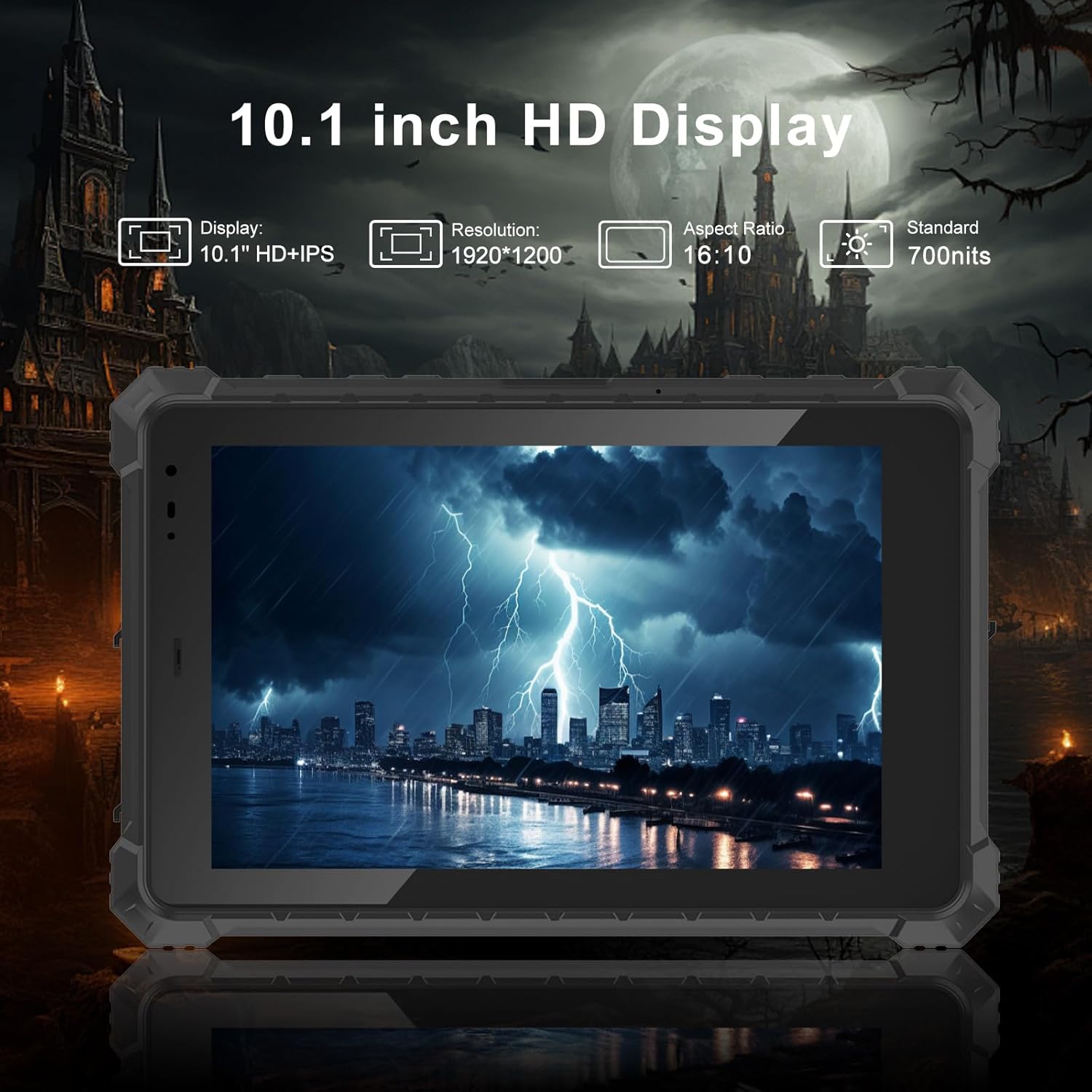
Figure 5: The tablet's 10.1-inch HD display is designed for clarity and outdoor visibility.
3.4 Battery Life
A built-in 5550mAh high-capacity battery provides up to 7 hours of uninterrupted usage, meeting the demands for extended battery life during long work shifts.

Figure 6: High-capacity battery for extended operational hours.
3.5 Connectivity
The tablet supports high-speed 4G LTE with a SIM card slot compatible with major mobile carriers (Verizon, AT&T, T-Mobile), ensuring stable signal connections. It also features dual-band 2.4GHz and 5.8GHz Wi-Fi 6 technology for faster and more reliable network access, and Bluetooth 5.2 for wireless peripheral connections.

Figure 7: Comprehensive connectivity options including 4G LTE and Wi-Fi 6.
For navigation, the tablet includes built-in GPS, Beidou, Galileo, and GLONASS, providing accurate positioning and navigation capabilities.

Figure 8: Integrated GPS for reliable navigation and traffic monitoring.
3.6 Interfaces
The tablet offers a variety of rich interfaces for versatile connectivity:
- 1 x Type-C port
- 1 x Type-A USB 3.0 port
- 1 x RS232 port
- 1 x 3.5mm Standard headphone jack
- 1 x Standard Micro SIM card slot
- 1 x Micro HDMI port
- 1 x 12V-4A DC plug (outer diameter 3.5mm, inner diameter 1.35mm)
- 1 x 12Pin USB+charger port

Figure 9: Multiple interfaces for connecting various devices and peripherals.
4. Setup Guide
4.1 Initial Power On
- Ensure the tablet is charged or connected to the AC power charger.
- Press and hold the power button located on the side of the tablet until the screen lights up.
- Follow the on-screen prompts to complete the initial Windows 11 Pro setup, including language, region, network connection, and user account creation.
4.2 Inserting SIM/TF Card
To utilize 4G LTE connectivity or expand storage:
- Locate the sealed port cover on the side of the tablet (refer to Figure 9).
- Carefully open the cover to reveal the Micro SIM card slot and TF card slot.
- Insert your Micro SIM card and/or TF card into the respective slots, ensuring correct orientation.
- Securely close the port cover to maintain the IP68 waterproof rating.
5. Operating Instructions
5.1 Basic Navigation
The tablet operates on Windows 11 Pro, providing a familiar desktop experience. Use the touch screen for navigation, tapping to select items, swiping to scroll, and pinching to zoom.
Video 2: Overview of the tablet's features, including touch screen operation and port accessibility.
5.2 On-Screen Keyboard Settings
To enable or adjust the on-screen keyboard for touch input:
- Go to System Settings.
- Click on "Personalization".
- Scroll down and click on "Taskbar".
- Under "System tray icons" or "Taskbar items", find "Touch keyboard".
- Select the "Always" option to the right of the Touch Keyboard to ensure it's always available.
Video 3: Guide on how to configure the on-screen keyboard settings in Windows 11 Pro.
6. Maintenance and Care
To ensure the longevity and optimal performance of your CENAVA Rugged Tablet, follow these maintenance guidelines:
- Cleaning: Use a soft, damp cloth to clean the screen and body. Avoid harsh chemicals or abrasive materials.
- Port Protection: Always ensure all port covers are securely closed when not in use, especially in dusty or wet environments, to maintain the IP68 rating.
- Temperature: Operate and store the tablet within the recommended temperature ranges to prevent damage to internal components.
- Battery Care: For optimal battery life, avoid fully discharging the battery frequently. Charge the tablet regularly.
7. Troubleshooting
Here are some common issues and their potential solutions:
| Problem | Possible Cause | Solution |
|---|---|---|
| Tablet does not power on. | Low battery; power button not pressed long enough. | Connect to charger and allow to charge for at least 30 minutes. Press and hold power button for 5-10 seconds. |
| Touch screen unresponsive. | Software glitch; screen protector interference. | Restart the tablet. Ensure screen protector is properly applied or remove it for testing. |
| No Wi-Fi connection. | Wi-Fi disabled; out of range; router issue. | Check Wi-Fi settings to ensure it's enabled. Move closer to the Wi-Fi router. Restart router. |
| 4G LTE not working. | SIM card not inserted correctly; no signal; carrier issue. | Reinsert SIM card. Check for network signal. Contact your mobile carrier. |
8. Specifications
| Feature | Detail |
|---|---|
| Brand | CENAVA |
| Model | W10N |
| Operating System | Windows 11 Professional |
| Screen Size | 10.1 Inches |
| Screen Resolution | 1920 x 1200 pixels (IPS) |
| Brightness | Up to 700cd/m² |
| Processor | Intel Jasper Lake N5100 (1.1 GHz) |
| RAM | 8GB |
| Storage | 128GB Flash Memory (expandable via TF card) |
| Battery Capacity | 5550mAh (7.6V) |
| Average Battery Life | 8 Hours (usage dependent) |
| Wireless Type | 802.11n, 802.11a, 802.11g, 802.11ac (Wi-Fi 6), Bluetooth 5.2 |
| Cellular Connectivity | 4G LTE (compatible with Verizon, AT&T, T-Mobile) |
| GPS | Built-in GPS, Beidou, Galileo, GLONASS |
| Ports | Type-C*1, Type-A USB3.0*1, RS232*1, 3.5mm Headphone Jack*1, Micro SIM Slot*1, Micro HDMI*1, DC Plug*1, 12Pin USB+charger*1 |
| Durability | IP68 Waterproof, MIL-STD-810H Certified (4-foot drop resistance) |
| Item Weight | 4.1 pounds |
| Product Dimensions | 14.7 x 8.5 x 2.4 inches |
9. Quality Assurance and Certifications
CENAVA is committed to delivering high-quality, durable products. Our manufacturing process adheres to strict quality control standards, including over 120 rigorous tests such as Key Life Test, Screen Touch Test, Plug Life Test, Salt Spray Test, Roller Test, Drop Test, Paper Tape Abrasion Test, Boiling Test, Vibration Test, Ball Impact Test, and Electrostatic Discharge Test.
Video 4: An overview of CENAVA's manufacturing process and rigorous quality control testing for rugged tablets.
Our products have obtained numerous domestic and international authoritative certifications, including CCC, CE, RoHS Environmental Protection Certification, FCC Certification, and MIL-STD-810H Standard Reports, as well as ISO management system certifications.
10. Warranty and Support
For detailed warranty information and technical support, please refer to the official CENAVA website or contact their customer service directly. Keep your purchase receipt as proof of purchase for any warranty claims.
For further assistance, you may visit the CENAVA Store on Amazon.
Related documentsW10N


Ask a question about this manual
Ask about setup, troubleshooting, compatibility, parts, safety, or missing instructions. Manuals+ will review the question and use this page’s manual context to help answer it.