
1. Overview
The Browning Defender Pro Scout Max HD is a cellular trail camera designed for remote monitoring of wildlife and property. It features 24MP image capture, 1080p Full HD video recording with sound, and a 100-foot detection range with infrared illumination for night vision. This camera offers dual SIM cellular connectivity, allowing it to operate on either AT&T or Verizon networks based on the best available signal. Key functionalities include on-demand picture and video requests, GPS-tagged images, and compatibility with a smartphone application for remote management.

Image: The Browning Defender Pro Scout Max HD cellular trail camera, highlighting its name and key features.
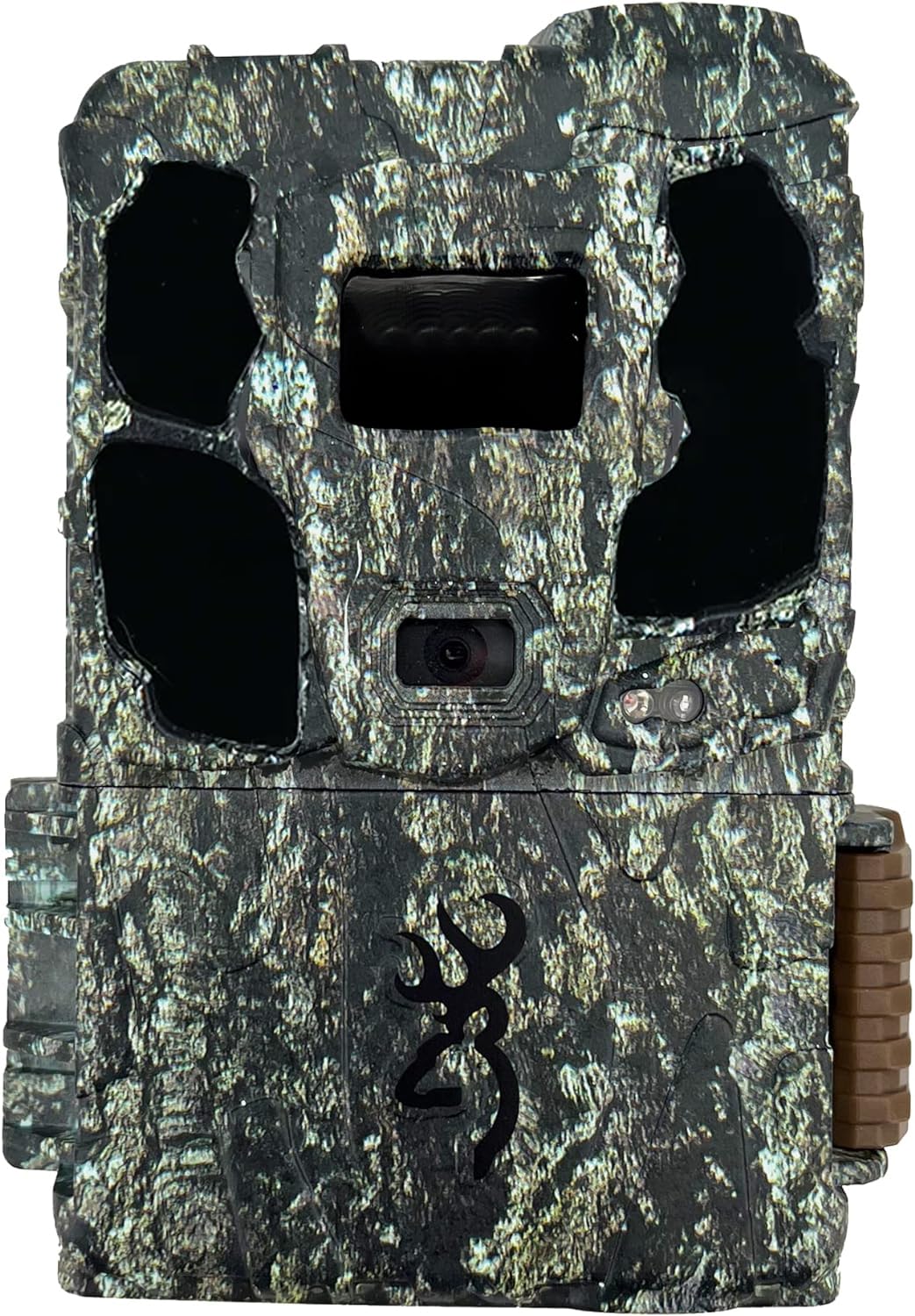
Image: A Browning Defender Pro Scout Max HD cellular trail camera mounted on a tree in a wooded environment.
2. What's in the Box
Upon unboxing your Browning Defender Pro Scout Max HD, verify that all components are present:
- Browning Defender Pro Scout Max HD Trail Camera
- Tree Strap for mounting
3. Setup
Follow these steps to prepare your camera for use:
3.1 Battery Installation
- Open the camera housing latch.
- Locate the battery compartment.
- Insert 8 AA batteries, ensuring correct polarity (+/-). The camera is designed for extended battery life, up to one year in the field.
- Close the battery compartment securely.
3.2 SD Card Installation
- With the camera housing open, locate the SD card slot.
- Insert an SD card (up to 512GB capacity) into the slot until it clicks into place.
- It is recommended to format the SD card using the camera's menu system before first use.
3.3 Cellular Activation and SIM Card
The Defender Pro Scout Max HD supports dual SIM functionality, automatically detecting the best cellular carrier (AT&T or Verizon) at your location. Activation is typically done through the Browning Strike Force Wireless app.
- Download the Browning Strike Force Wireless app on your smartphone or tablet.
- Follow the in-app instructions to create an account and activate your camera. The app will guide you through selecting a data plan and connecting your camera to the cellular network.
- Ensure a strong cellular signal at the camera's intended location for optimal performance.
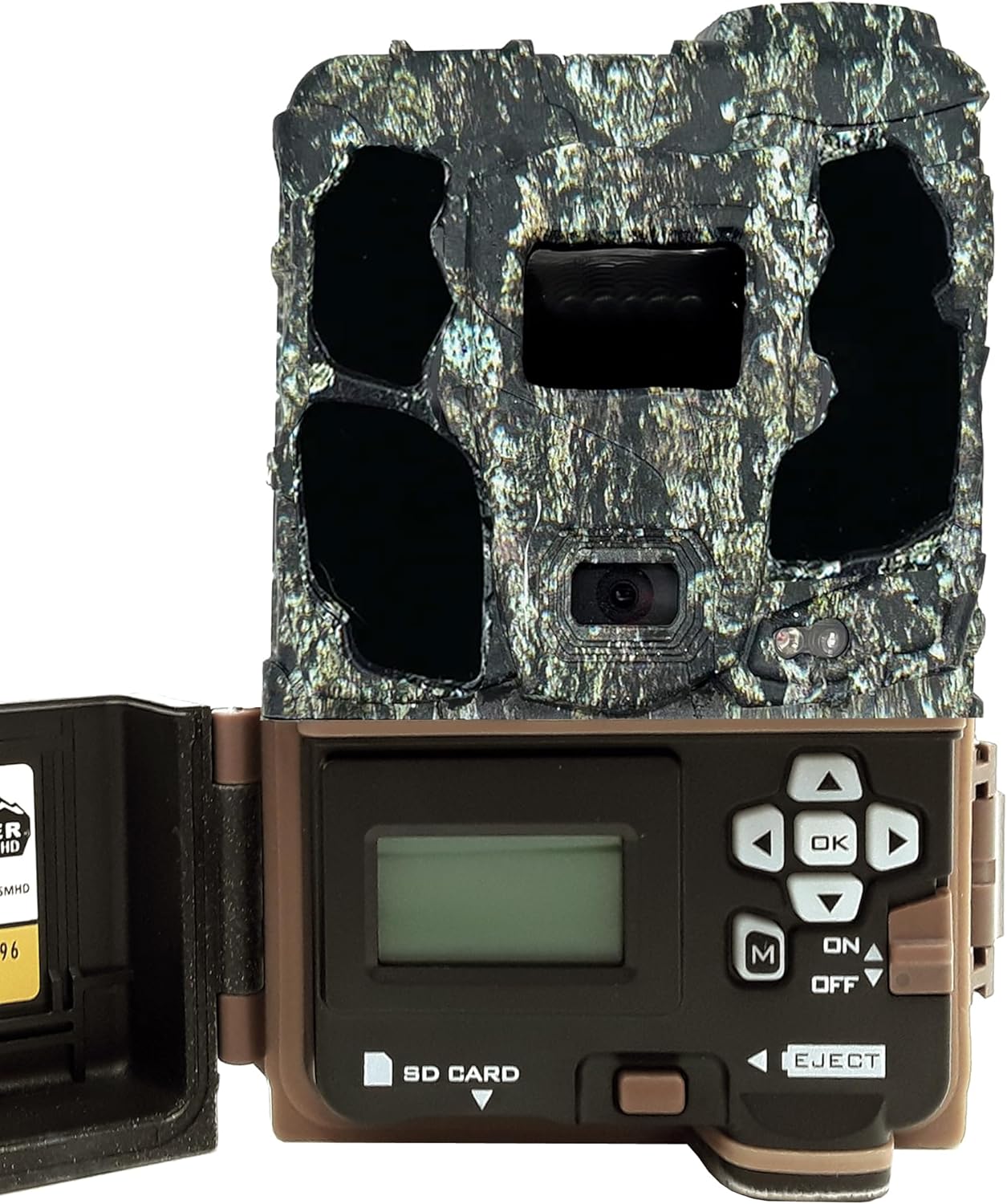
Image: The camera with its front housing open, revealing the control panel, display screen, and SD card slot.

Image: A person attaching the Browning Defender Pro Scout Max HD camera to a tree using the provided strap.
3.4 Mounting the Camera
- Select a sturdy tree or post at the desired height.
- Use the included tree strap to securely fasten the camera. Ensure the camera is level and pointed towards the area you wish to monitor.
- Verify the camera's position and detection range using the test mode (if available) or by walking in front of the camera.
4. Operating Instructions
Understand the various modes and features of your trail camera for effective use.
4.1 Powering On/Off
Use the ON/OFF switch located inside the camera housing to power the device. The camera will perform a self-check upon powering on.
4.2 Photo and Video Capture
The camera captures 24MP still images and 1080p Full HD videos with sound. It features a rapid 0.25-second trigger speed and a 0.35-second recovery time between images to minimize missed activity. Illuma-Smart Technology optimizes night photos for clarity.
- Programmable Picture Delay: Adjust the delay between captures from 1 second to 60 minutes.
- Multi-Shot and Rapid Fire: Configure the camera to take multiple images per trigger event.
- Smart IR Video: This feature ensures video recording continues as long as motion is detected during the day.

Image: A graphic detailing the camera's features, including 24MP images, 1080 FHD videos, 100ft detection range, and customizable options.
4.3 Cellular Functions and App Usage
The Browning Strike Force Wireless app is central to managing your camera remotely. It allows you to:
- Receive alerts when activity occurs.
- View captured photos and videos from anywhere.
- Remotely manage camera settings.
- Request instant pictures or videos from the field (On-Demand Feature).
- Access GPS-tagged images for location tracking.

Image: A graphic illustrating the cellular functions of the camera, including 4G LTE network operation, app compatibility, and GPS tagging.
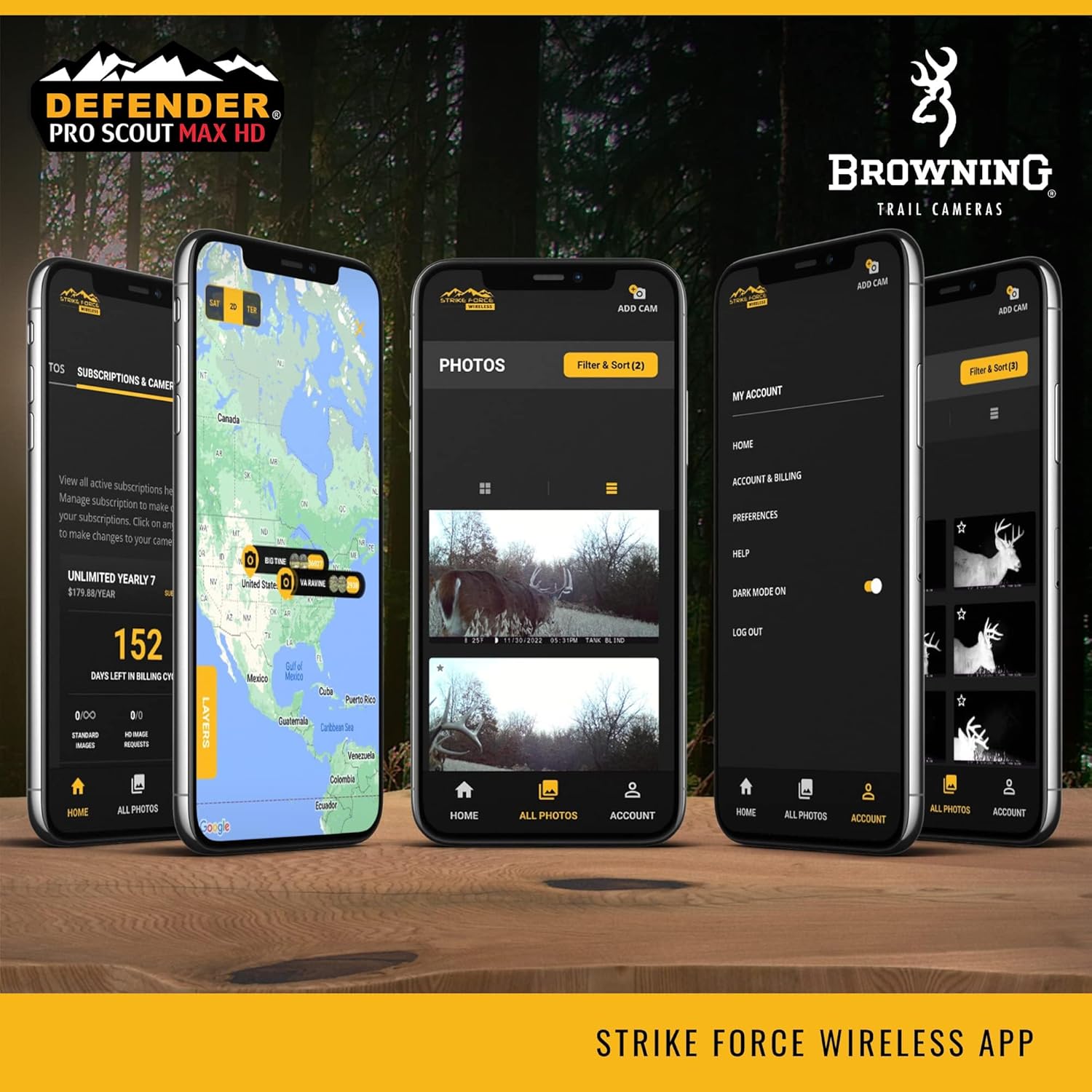
Image: Multiple screenshots of the Browning Strike Force Wireless app interface, showing photo galleries, subscription management, and account settings.

Image: A table outlining various Browning Mobile Data Plans, including costs, maximum cameras, and image/video upload limits.
4.4 Picture Info Bar
Each captured image includes an info bar displaying important data such as Time, Date, Temperature, Barometric Pressure, Moon Phase, and Camera ID.
5. Maintenance
Proper maintenance ensures the longevity and optimal performance of your trail camera.
- Cleaning: Gently wipe the camera lens and housing with a soft, dry cloth. Avoid abrasive cleaners.
- Battery Management: Replace batteries when the power indicator shows low levels. For best performance, use high-quality AA alkaline or lithium batteries.
- SD Card Management: Regularly check and format your SD card to prevent data corruption and ensure sufficient storage space.
- Firmware Updates: Periodically check the Browning website or app for any available firmware updates to ensure your camera has the latest features and bug fixes.
6. Troubleshooting
If you encounter issues with your camera, refer to the following common problems and solutions:
- Camera Not Powering On:
- Ensure batteries are inserted correctly with proper polarity.
- Replace with fresh batteries.
- Check that the ON/OFF switch is in the 'ON' position. - No Images/Videos Captured:
- Verify the SD card is properly inserted and has sufficient free space.
- Format the SD card.
- Check camera settings for proper photo/video mode and delay.
- Ensure the detection range is clear of obstructions. - Poor Cellular Connectivity:
- Relocate the camera to an area with a stronger cellular signal.
- Ensure your cellular data plan is active and not expired.
- Check the camera's signal strength indicator in the app or on the camera display. - App Connection Issues:
- Ensure your smartphone has a stable internet connection.
- Update the Browning Strike Force Wireless app to the latest version.
- Restart both your camera and smartphone. - Night Photos are Dark/Blurry:
- Ensure the camera lens and IR LEDs are clean.
- Check for obstructions directly in front of the camera that might reflect IR light.
- Verify that the camera is within the effective IR illumination range (100 feet).
7. Specifications
Detailed technical specifications for the Browning Defender Pro Scout Max HD (Model BTC-PSMHD):
| Feature | Specification |
|---|---|
| Model Name | Defender Pro Scout Max HD |
| Model Number | BTC-PSMHD |
| Effective Still Resolution | 24 MP |
| Video Capture Resolution | 1080p Full HD with Sound |
| Trigger Speed | 0.25 seconds |
| Recovery Time | 0.35 seconds |
| Detection Range | 100 feet |
| IR Illumination Range | 100 feet |
| Batteries | 8 AA (not included) |
| SD Card Capacity (Max) | 512 GB |
| Connectivity Technology | Wireless, Cellular (Dual SIM: AT&T/Verizon) |
| Water Resistance Level | Water Resistant (IP65) |
| Item Dimensions | 5 x 3.5 x 2 inches |
| Item Weight | 16 ounces |
| Power Source | Battery Powered (12 Volts) |
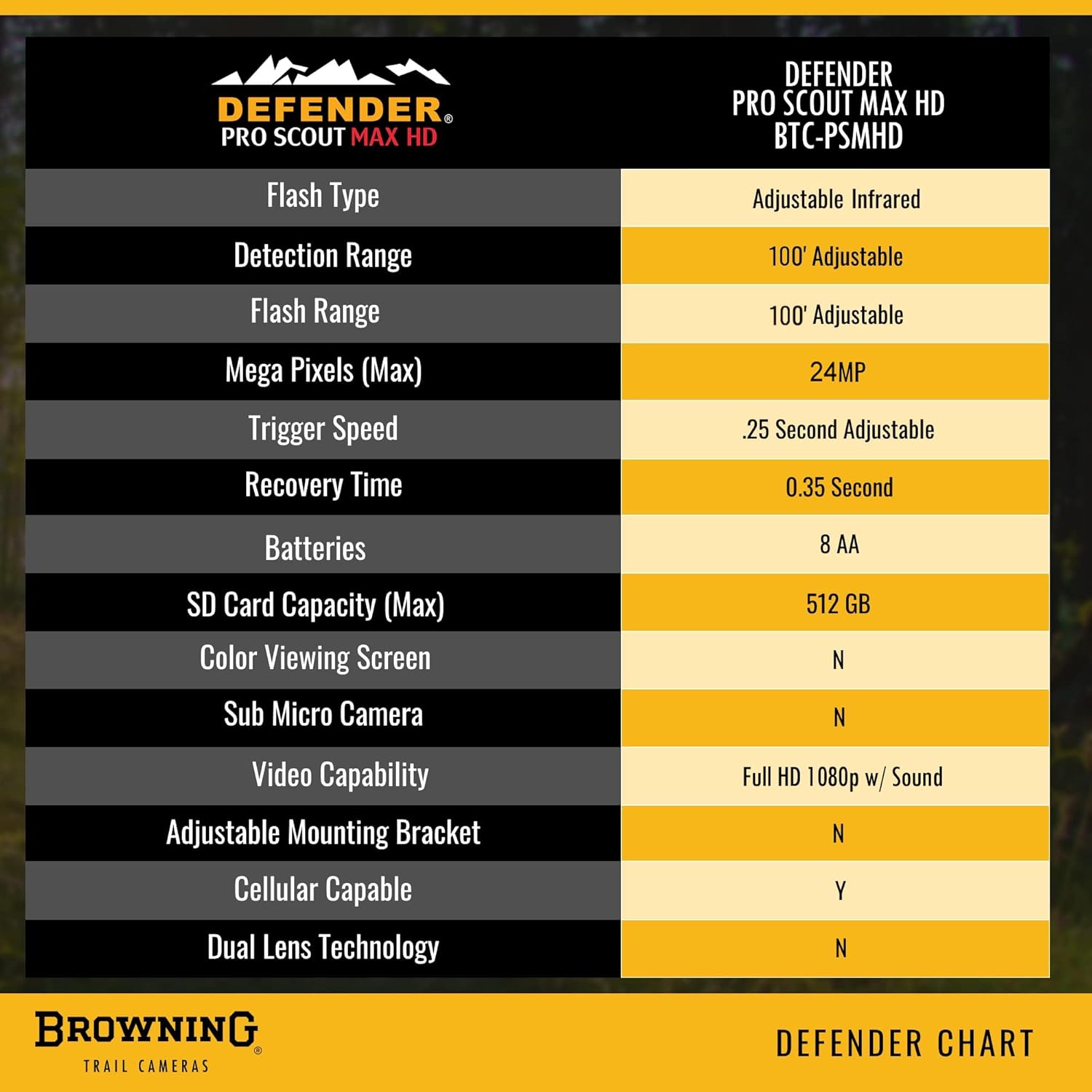
Image: A chart detailing the specifications of the Defender Pro Scout Max HD (BTC-PSMHD), including flash type, detection range, megapixels, trigger speed, and battery requirements.
8. Warranty and Support
Browning Trail Cameras products are manufactured with quality and durability in mind. For specific warranty information, please refer to the documentation included with your purchase or visit the official Browning Trail Cameras website. If you require technical assistance or have questions regarding your Defender Pro Scout Max HD camera, please contact Browning technical support. Contact details can typically be found on the manufacturer's website or within the Strike Force Wireless app.


