
1. Product Overview
The NEWSKILL Chiron Pro is an ambidextrous wireless gaming mouse designed for precision and comfort. It features a high-performance optical sensor, programmable buttons, and customizable RGB lighting.

Image: Angled view of the NEWSKILL Chiron Pro Wireless Gaming Mouse, showcasing its ergonomic shape and design.
2. Package Contents
- NEWSKILL Chiron Pro Wireless Gaming Mouse
- USB 2.4GHz Wireless Receiver
- USB-C to USB-A Charging/Data Cable
- User Manual (this document)
3. Setup Instructions
3.1 Initial Charging
Before first use, it is recommended to fully charge the mouse. Connect the provided USB-C cable to the mouse's front port and the USB-A end to a powered USB port on your computer or a USB wall adapter. A full charge takes approximately 2 hours and provides up to 80 hours of usage.

Image: Front view of the mouse, highlighting the USB-C charging port.
3.2 Wireless Connection (2.4GHz)
- Locate the USB 2.4GHz wireless receiver. It is typically stored in a compartment on the underside of the mouse.
- Plug the USB receiver into an available USB port on your computer.
- Turn on the mouse using the ON/OFF switch located on the bottom of the mouse.
- Your computer should automatically detect and install the necessary drivers. The mouse is ready for use once the RGB lighting activates.
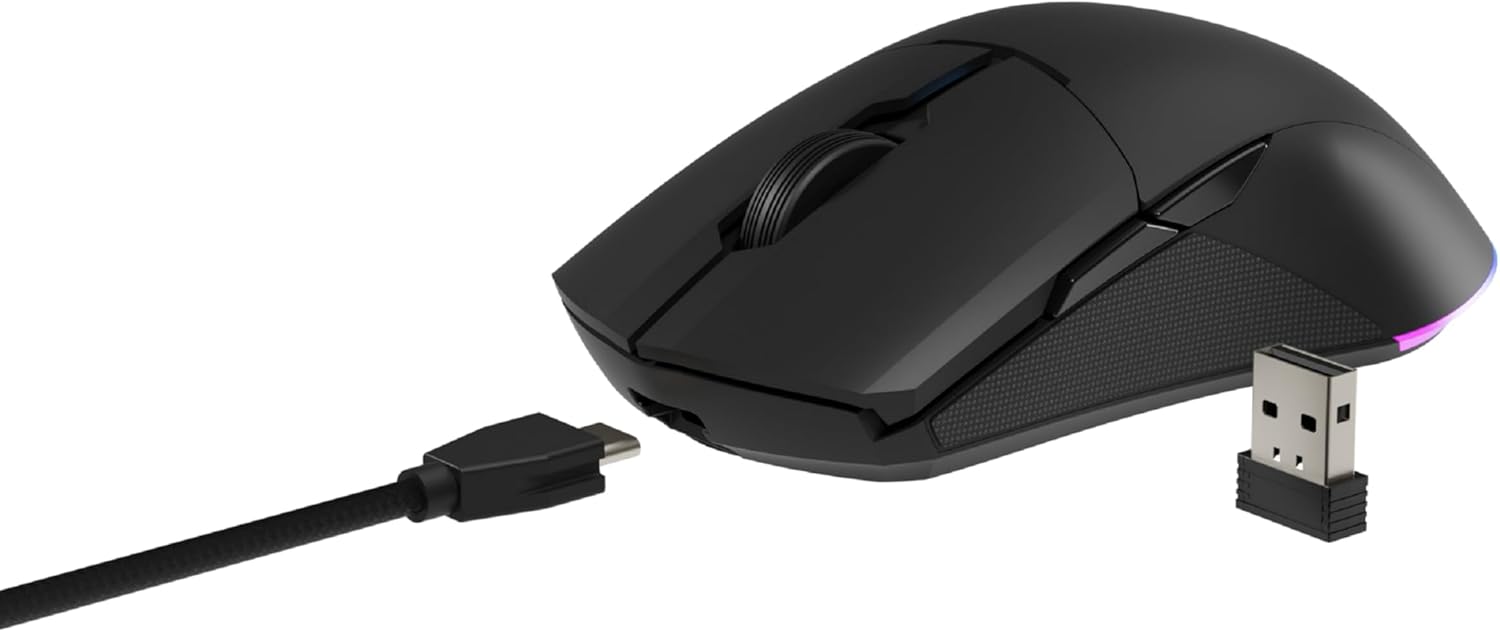
Image: The NEWSKILL Chiron Pro mouse shown with its USB-C cable and the 2.4GHz wireless receiver.
3.3 Wired Connection
The mouse can also be used in wired mode. Simply connect the USB-C cable to the mouse and the USB-A end to your computer. The mouse will function as a wired device and charge simultaneously.
4. Operating Instructions
4.1 Basic Functions
- Left Click Button: Primary action.
- Right Click Button: Secondary action/context menu.
- Scroll Wheel: Scroll up/down, middle click.
- Side Buttons (8 programmable): Default functions may vary, but are customizable via software.

Image: Side view of the mouse, showing the textured grip and two side buttons.
4.2 DPI Adjustment
The mouse features a Pixart PMW3335 optical sensor with up to 16000 configurable DPI. The DPI button on the underside of the mouse allows you to cycle through preset DPI levels. For fine-tuning and custom DPI settings, use the advanced software.

Image: Underside of the mouse, showing the DPI button, optical sensor, and ON/OFF switch.
4.3 RGB Lighting Customization
The Chiron Pro features customizable RGB lighting. To personalize lighting effects, colors, and brightness, download and install the dedicated NEWSKILL software from the official website. The software also allows for button remapping and macro creation.

Image: The NEWSKILL Chiron Pro mouse displaying its customizable RGB lighting.
5. Maintenance
5.1 Cleaning
To maintain optimal performance, regularly clean your mouse. Use a soft, dry cloth to wipe the surface. For stubborn dirt, a slightly damp cloth with mild soap can be used, ensuring no liquid enters the mouse. Avoid abrasive cleaners or solvents.
5.2 Battery Care
To prolong battery life, avoid fully discharging the mouse frequently. Charge the mouse when the battery indicator suggests low power. Store the mouse in a cool, dry place when not in use for extended periods.
6. Troubleshooting
- Mouse not responding:
Ensure the mouse is turned ON. Check if the USB receiver is securely plugged into a working USB port. If using wired mode, ensure the USB-C cable is properly connected. Try a different USB port. - Wireless connection issues:
Ensure the mouse is within range of the USB receiver (typically up to 10 meters). Avoid placing the receiver near other wireless devices that might cause interference. Re-pair the mouse if necessary (refer to software instructions). - DPI or button issues:
Ensure the NEWSKILL software is installed and up-to-date. Check your settings within the software. Reset to default settings if custom configurations are causing issues. - Charging problems:
Verify the USB-C cable is not damaged and is properly connected. Try a different USB port or charging adapter. Ensure the mouse is not in an extremely hot or cold environment during charging. - Missing USB Receiver:
The USB receiver is typically stored in a compartment on the underside of the mouse for safekeeping. Please check this compartment thoroughly. If it is genuinely missing, contact customer support.
7. Specifications
| Feature | Specification |
|---|---|
| Brand | NEWSKILL |
| Model Name | CHIRON PRO |
| Model Number | 10831240 |
| Color | Black |
| Connectivity Technology | Wireless (2.4GHz), USB (Wired) |
| Sensor Type | Optical (Pixart PMW3335) |
| DPI | Up to 16000 DPI |
| Number of Buttons | 8 (Programmable) |
| Switch Lifespan | Huano switches (up to 20 million clicks) |
| Hand Orientation | Ambidextrous |
| Battery Life | Up to 80 hours |
| Charging Time | Approx. 2 hours |
| Product Dimensions | 12.4 x 6.75 x 0.1 cm |
| Product Weight | 500 g |
| Compatible Operating Systems | Windows 10, Windows 7, Windows Vista, Windows XP, Linux |
8. Warranty and Support
8.1 Warranty Information
NEWSKILL products are covered by a manufacturer's warranty. For specific warranty terms and conditions, please refer to the warranty card included with your product or visit the official NEWSKILL website. Keep your proof of purchase for warranty claims.
8.2 Customer Support
If you encounter any issues or have questions regarding your NEWSKILL Chiron Pro Wireless Gaming Mouse, please visit the official NEWSKILL support website or contact their customer service team. You can find contact information on the NEWSKILL website: www.newskillgaming.com
