
1. Introduction
The OWL Meeting Owl 4+ & Owl Bar is an intelligent video conferencing device designed to enhance meeting experiences. This device features a 4K front-of-room camera, multiple microphones, and an integrated speaker. It is designed to pair with a Meeting Owl (sold separately) to provide comprehensive room coverage and automatic speaker focus, ensuring clear video and audio for all participants.
This manual provides essential information for setting up, operating, and maintaining your Meeting Owl 4+ & Owl Bar device. Please read it thoroughly before use.
2. What's in the Box
- Owl Bar
- Table / Wall mount
- 6' USB Type C Cable
- Power supply
- AC line cord
3. Setup
3.1 Device Placement
The Owl Bar can be placed on a table or mounted on a wall/display. For optimal performance, position the device at the front of the meeting room, ideally below or above your main display.

Figure 1: Owl Bar on a table stand.

Figure 2: Front view of the Owl Bar, showing the central camera and speaker grilles.
3.2 Connecting to Power and Computer
- Connect the AC line cord to the power supply, then plug the power supply into a wall outlet.
- Connect the power supply to the Owl Bar.
- Connect the 6' USB Type C Cable from the Owl Bar to your computer.
3.3 Mounting Options
The included table/wall mount allows for flexible installation. For wall mounting, ensure the bracket is securely fastened to a sturdy surface. The Owl Bar can then be attached to the bracket.

Figure 3: Side view of the Owl Bar, illustrating the mounting bracket attachment.
4. Operating Instructions
4.1 Powering On/Off
Once connected to power, the Owl Bar will typically power on automatically. Refer to the device's indicator lights for status. Disconnect power to turn off the device.
4.2 Platform Compatibility
The Owl Bar is universally compatible with most web-based video conferencing platforms, including Zoom, GoTo Meeting, Google Meet, Cisco Webex, and others. It is certified for Microsoft Teams.
4.3 Pairing with Meeting Owl (Optional)
For 360-degree coverage and automatic camera switching, the Owl Bar can be paired with a Meeting Owl (Meeting Owl 4+, Meeting Owl 3, or Meeting Owl Pro, sold separately). This pairing allows the system to cover every angle of the meeting room from two perspectives: the front of the room (Owl Bar) and the center of the table (Meeting Owl).
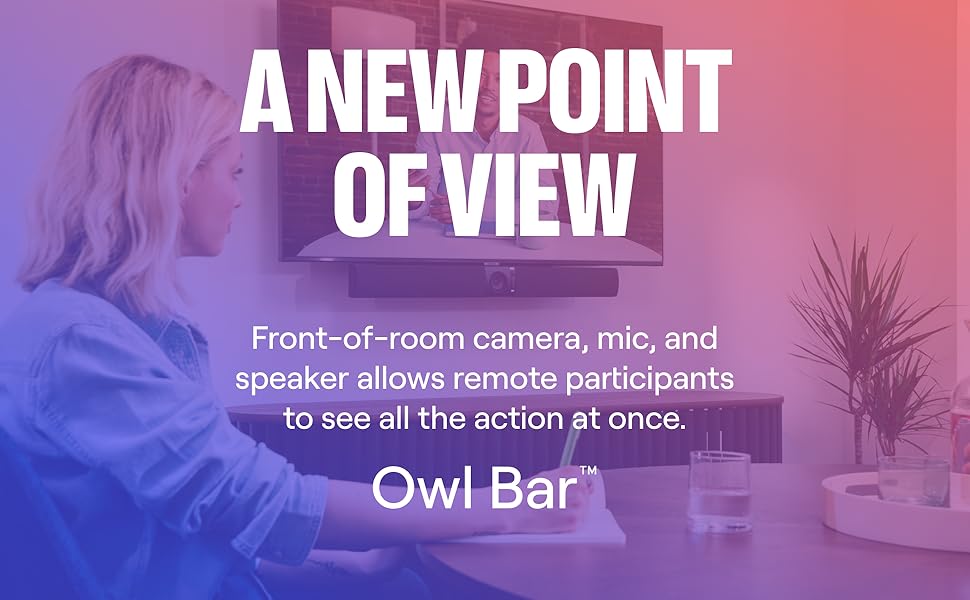
Figure 4: Meeting Owl 4+ and Owl Bar paired for comprehensive room coverage.
4.4 Active Speaker Focus
The AI-powered software automatically focuses on the active speaker, providing the best view for remote participants. This feature works in conjunction with the camera switching when paired with a Meeting Owl.

Figure 5: Meeting participants interacting with the Owl Bar.
5. Key Features
- Front and Center Coverage: Pairs with the Meeting Owl to cover every angle of the meeting room from two different perspectives: the front of the room and the center of the table. Pairing also enables automatic camera-switching to capture the best perspective.
- Auto-Focuses on the Speaker: AI-powered software automatically focuses on whoever is speaking to show the best view of active speakers.
- Clear Video and Audio: 4K 30MP camera, 4 omnidirectional mics, and integrated speaker ensure clear video and audio for all participants on both ends of the meeting.
- Part of the Owl Labs Ecosystem: Works seamlessly with other Owl Labs solutions, including the Meeting Owl, the Whiteboard Owl, and the Expansion Mic to scale and support different room types.
- Universally Compatible: Certified for Microsoft Teams. Compatible with most web-based video conferencing platforms, including Zoom, GoTo Meeting, Google Meet, Cisco Webex, and many others.
6. Specifications
| Feature | Specification |
|---|---|
| Manufacturer | Owl Labs |
| Model Number | FRS100-1100 |
| Product Dimensions | 3.8 x 30.3 x 3 inches |
| Item Weight | 11.33 pounds (5.15 Kilograms) |
| Color | Charcoal |
| Connectivity Technology | USB |
| Special Feature | Face Detection |
| Compatible Devices | Laptops, Personal Computers, Smartphones |
| Number of Channels | 4 |
7. Maintenance
- Cleaning: Use a soft, dry cloth to clean the exterior of the Owl Bar. Avoid abrasive cleaners or solvents.
- Software Updates: Regularly check for and install software updates from Owl Labs to ensure optimal performance and access to new features.
- Storage: When not in use for extended periods, store the device in a cool, dry place.
8. Troubleshooting
- No Power: Ensure the power supply is securely connected to both the Owl Bar and a working power outlet.
- No Video/Audio: Verify the USB-C cable is properly connected to your computer. Check your video conferencing platform settings to ensure the Owl Bar is selected as the active camera, microphone, and speaker.
- Pairing Issues: If experiencing difficulty pairing with a Meeting Owl, ensure both devices are within the recommended distance (typically 4-8 feet apart) and follow the pairing instructions provided by Owl Labs.
- Poor Video Quality: Ensure adequate lighting in the meeting room. Check your platform's video settings for resolution options.
9. Warranty and Support
For detailed warranty information, technical support, and additional resources, please visit the official Owl Labs website or contact their customer service. Keep your purchase receipt for warranty claims.


