
TP-Link Archer NX200
TP-Link Archer NX200 AX1800Mbps Wi-Fi 6 5G Router User Manual
Model: Archer NX200
Introduction
The TP-Link Archer NX200 is a high-performance 5G CPE Router designed to provide fast and reliable internet connectivity. Featuring AX1800Mbps Wi-Fi 6 technology, it offers dual-band speeds of up to 4.67 Gbps, making it ideal for demanding applications like Ultra HD streaming, rapid file downloads, and smooth video conferencing. With its integrated SIM card slot, the Archer NX200 provides plug-and-play 5G network access. It is also EasyMesh-compatible, allowing for seamless whole-home Wi-Fi coverage when paired with other EasyMesh products. The router includes a Gigabit WAN/LAN port, enabling it to function as a traditional wireless router with cable, fiber, or DSL modems.

Image: The TP-Link Archer NX200 router and its retail packaging, highlighting its 5G and Wi-Fi 6 capabilities.
Setup
1. SIM Card Installation
The Archer NX200 supports a SIM card for 5G network access. Ensure the router is powered off before inserting or removing the SIM card.
- Locate the SIM card slot on the bottom of the router.
- Insert your 5G/4G SIM card into the slot until it clicks into place. Ensure the SIM card is oriented correctly as indicated by the diagram near the slot.
- If using a smaller SIM card (Nano or Micro), use the appropriate adapter to fit the standard SIM slot.
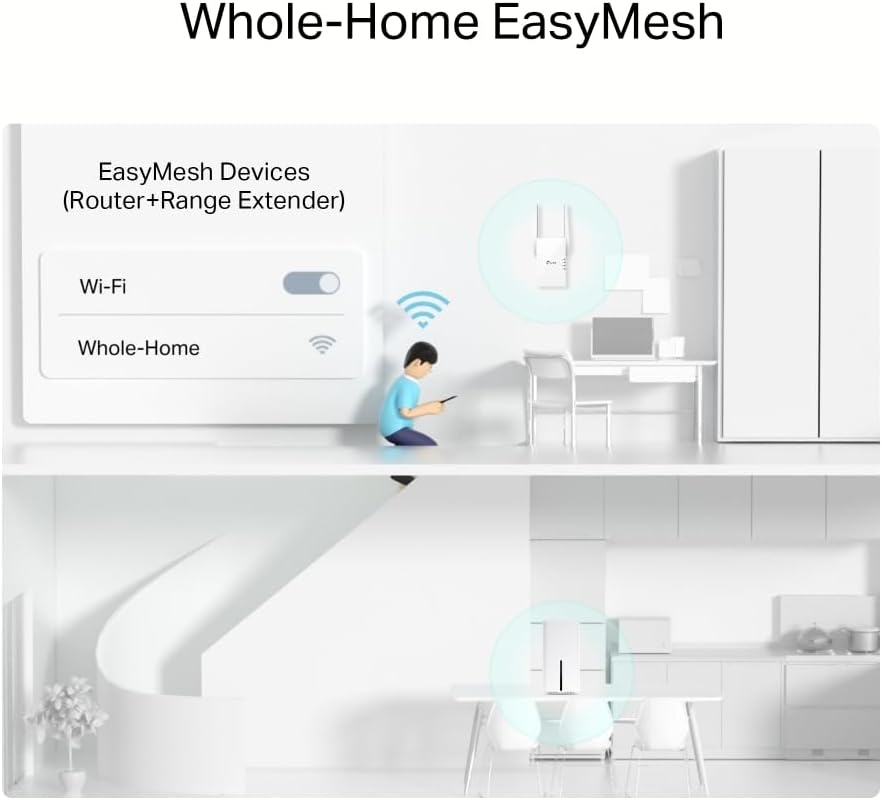
Image: Bottom view of the Archer NX200 router, illustrating the SIM card insertion process. The router can be used in various environments such as lodging, farms, temporary stores, and holiday homes.
2. Powering On and Initial Connection
- Connect the provided power adapter to the router's power port and plug it into a wall outlet.
- Wait for the router's LED indicators to stabilize, indicating it has successfully powered on and established a network connection.
- Connect your device (computer, smartphone, tablet) to the router's Wi-Fi network using the SSID (network name) and password printed on the label at the bottom of the router. Alternatively, connect via an Ethernet cable to one of the LAN ports.

Image: Rear view of the Archer NX200 router, displaying the external antenna connectors, reset/WPS button, LAN ports, LAN/WAN port, and power input.
3. Accessing the Web Management Interface
For advanced configuration, access the router's web management interface:
- Open a web browser on a device connected to the router.
- Type http://tplinkwifi.net or http://192.168.1.1 into the address bar and press Enter.
- Log in using the default username and password (usually "admin" for both, or as specified on the router's label). You will be prompted to change the password upon first login for security.
Alternatively, use the TP-Link Tether app for simplified setup and management:

Image: Screenshots of the TP-Link Tether app interface, showing network status, connected clients, and firmware update options. The app is available on App Store and Google Play.
Download the Tether App: http://www.tp-link.com/common/promos/app_tether_v2.html
Operating Instructions
Wi-Fi Connectivity
The Archer NX200 provides dual-band Wi-Fi 6 connectivity, operating on both 2.4 GHz and 5 GHz frequencies for optimal performance.
- 2.4 GHz Band: Ideal for wider coverage and connecting older devices. Speed up to 574 Mbps.
- 5 GHz Band: Provides higher speeds (up to 1201 Mbps) and less interference, suitable for bandwidth-intensive activities like gaming and 4K streaming.

Image: Visual representation of the Archer NX200's Wi-Fi 6 capabilities, showing 5GHz (1201 Mbps) and 2.4GHz (574 Mbps) speeds, along with features like SIM Card Plug & Play, Available WAN Connection, and Tether App for Simple Setup.
EasyMesh Compatibility
The Archer NX200 is EasyMesh-compatible, allowing it to co-work with other EasyMesh products to create a unified Mesh Wi-Fi network. This provides seamless whole-home coverage with a single Wi-Fi name, eliminating dead zones and ensuring uninterrupted streaming as you move around your home.

Image: Diagram illustrating EasyMesh compatibility, showing how the Archer NX200 can extend Wi-Fi coverage throughout a home by connecting with other EasyMesh devices like range extenders, creating a single, seamless network.
WAN/LAN Port Usage
The Gigabit WAN/LAN port allows the Archer NX200 to function as a traditional wireless router, compatible with existing cable, fiber, or DSL modems. This provides flexibility for various internet connection types.

Image: Diagram demonstrating the flexibility of the Archer NX200's WAN/LAN port, showing its ability to connect to an existing modem for traditional broadband internet access.
Maintenance
- Firmware Updates: Regularly check for and install firmware updates via the web management interface or the Tether app to ensure optimal performance, security, and access to new features.
- Cleaning: Keep the router clean and free from dust. Use a soft, dry cloth for cleaning. Do not use liquid cleaners or aerosols.
- Ventilation: Ensure the router is placed in a well-ventilated area to prevent overheating. Do not cover ventilation openings.
- Restart: If you experience network issues, try restarting the router by unplugging the power adapter for 10 seconds and then plugging it back in.
Troubleshooting
No Internet Access
- Verify that the SIM card is correctly inserted and activated with your mobile network provider.
- Check the signal strength indicators on the router. If the signal is weak, try relocating the router to an area with better reception.
- Ensure the WAN/LAN cable is securely connected if using a wired internet source.
- Restart the router and your connected devices.
- Log into the web management interface or Tether app to check the network status and any error messages.
Slow Wi-Fi Speed
- Ensure your devices are connected to the 5 GHz band for higher speeds, if supported.
- Reduce interference by moving the router away from other electronic devices (e.g., microwaves, cordless phones).
- Check for obstacles like thick walls or large metal objects that might block the Wi-Fi signal.
- Limit the number of active devices or bandwidth-intensive applications on your network.
Cannot Access Web Management Page
- Ensure your device is connected to the router's network (either Wi-Fi or Ethernet).
- Verify that you are using the correct address: http://tplinkwifi.net or http://192.168.1.1.
- Clear your browser's cache and cookies, or try a different web browser.
- Temporarily disable any firewall or antivirus software on your computer.
Specifications
| Feature | Detail |
|---|---|
| Model | Archer NX200 |
| Wi-Fi Standard | Wi-Fi 6 (802.11ax) |
| Wi-Fi Speeds | AX1800 (1201 Mbps on 5 GHz, 574 Mbps on 2.4 GHz) |
| 5G Download Speed | Up to 4.67 Gbps |
| Connectivity | 5G, 4G, Wi-Fi, Gigabit WAN/LAN Port |
| SIM Card Slot | Yes (Plug & Play) |
| Mesh Compatibility | EasyMesh-Compatible |
| Dimensions | 9.9 x 9.9 x 1.9 cm |
| Weight | 1.17 kg |
| Operating System | RouterOS |
| Included Components | Archer NX200 Router |
Warranty and Support
TP-Link products typically come with a limited warranty. For specific warranty terms and conditions applicable to your region, please refer to the warranty card included with your product or visit the official TP-Link website.
Technical Support
For technical assistance, troubleshooting, or further inquiries, please visit the official TP-Link support website. You can find FAQs, firmware updates, and contact information for customer support.
- TP-Link Support Website: https://www.tp-link.com/support/
- TP-Link Community Forums: Engage with other users and TP-Link experts for solutions and discussions.
Related documentsArcher NX200


Ask a question about this manual
Ask about setup, troubleshooting, compatibility, parts, safety, or missing instructions. Manuals+ will review the question and use this page’s manual context to help answer it.