
NEOHIPO DC10 Mini USB DAC Instruction Manual
Model: DC10
Introduction
The NEOHIPO DC10 Mini USB DAC is a versatile digital-to-analog audio converter designed to enhance your audio experience. It supports various input sources and provides high-fidelity sound output for powered speakers, amplifiers, and headphones. This manual provides essential information for setting up, operating, and maintaining your DC10 DAC.
Safety Information
Please read all safety instructions before using the device. This product is designed for a 1st degree of difficulty in operation, meaning it is straightforward to use. Ensure proper ventilation and avoid exposing the device to moisture or extreme temperatures.
Package Contents
Verify that all items are present in the package:
- NEOHIPO DC10 DAC x1
- PC-USB-C cable x1
- User Manual x1

Figure 1: Contents included in the NEOHIPO DC10 package.
Product Features
- High-Performance Chipset: Utilizes NE5532 and ES9028Q2M chips for distortion below 0.0008% and an SNR of 116dB. Supports swappable operational amplifiers for sound customization.
- Lossless High-Fidelity Audio: Decodes audio streams up to DSD256 and PCM768kHz/32bit, providing a high-fidelity sound experience. Features DSD and PCM indicator lights.
- Multi-Function Connectivity: Seamlessly switches between USB, Optical (OPT), and Coaxial (COA) inputs. Compatible with streaming devices, TVs, PCs, and amplifiers.
- Durable Aluminum Alloy Shell: Mini-sized digital audio converter constructed from aluminum alloy. Includes an output protection circuit system.
- Plug-and-Play: Simple setup with no special driver installation required for most operating systems.

Figure 2: Internal components and performance metrics of the DC10 DAC.
Setup Guide
Follow these steps to connect your NEOHIPO DC10 DAC:
- Power Connection: Connect the provided PC-USB-C cable to the USB/POWER port on the back of the DC10 and to a USB power source (e.g., a computer USB port or a 5V USB power adapter).
- Input Source Connection: Choose your desired audio input:
- USB Input: Connect the PC-USB-C cable from your computer to the USB/POWER port on the DC10. This port handles both power and data when connected to a PC.
- Optical Input (OPT): Connect an optical audio cable from your source device (e.g., TV, game console) to the OPTICAL input on the DC10.
- Coaxial Input (COA): Connect a coaxial audio cable from your source device to the COAXIAL input on the DC10.
- Audio Output Connection: Connect the RCA L/R outputs on the DC10 to your amplifier, powered speakers, or other audio receiving equipment using RCA cables.
- Power On: Use the toggle switch on the front panel to turn the device ON.
- Select Input: Use the input mode switch (USB, OPT, COA) on the front panel to select your active audio source.
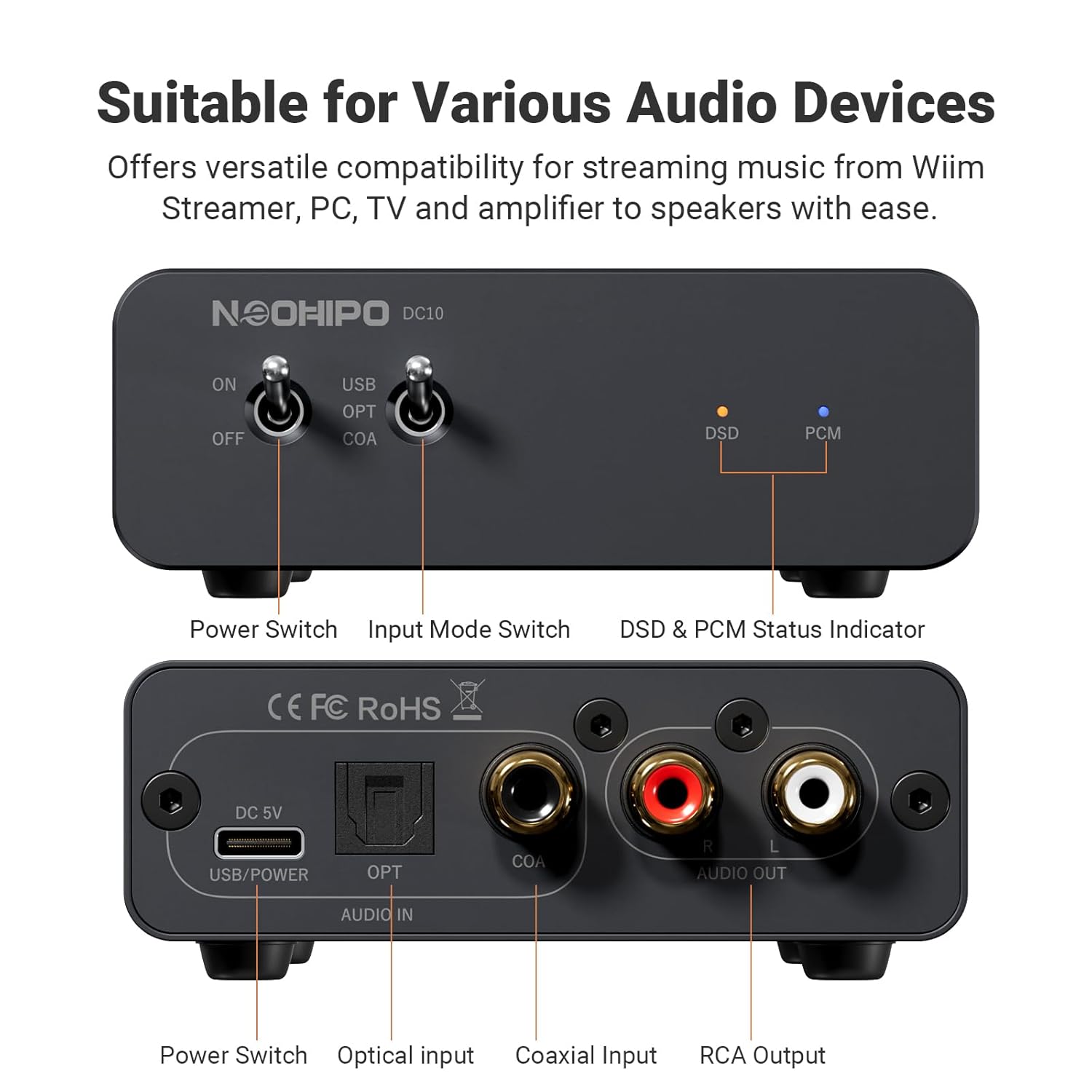
Figure 3: Front and rear panel connections and controls.

Figure 4: Connectivity scenarios for the DC10 DAC with various audio systems.
Operating Instructions
Once connected, operate the DC10 as follows:
- Power On/Off: Use the left toggle switch on the front panel to turn the unit ON or OFF.
- Input Selection: Use the right toggle switch to select between USB, OPT (Optical), or COA (Coaxial) input sources.
- DSD/PCM Indicators: The DSD and PCM indicator lights on the front panel will illuminate to show the format of the audio track currently being played.
Maintenance
To ensure the longevity and optimal performance of your DC10 DAC:
- Keep the device clean by wiping it with a soft, dry cloth.
- Avoid using harsh chemicals or abrasive cleaners.
- Ensure the device is placed in a well-ventilated area to prevent overheating.
- Do not expose the unit to direct sunlight, high humidity, or extreme temperatures.
Troubleshooting
If you encounter issues with your DC10 DAC, refer to the following common solutions:
- No Sound Output:
- Ensure the DC10 is powered on and the correct input source (USB, OPT, COA) is selected.
- Check all cable connections (input and output) are secure.
- Verify that your amplifier or powered speakers are turned on and set to the correct input.
- For TV optical output, some streaming services (e.g., Netflix, HBO, VIX, Star) may not output audio in a format compatible with the DAC by default. Access your TV's audio settings and change the digital audio output format to PCM (Pulse Code Modulation) and set any audio delay to 0.
- Distorted or Low-Quality Sound:
- Ensure the audio source is of good quality.
- Check for loose connections or damaged cables.
- If using a PC, ensure the correct audio output device (NEOHIPO DC10) is selected in your sound settings.
- Device Not Recognized by PC:
- Try connecting the DC10 to a different USB port on your computer.
- Restart your computer. The DC10 is designed for plug-and-play operation and typically does not require specific drivers.
Specifications
| Brand | NEOHIPO |
| Model Number | DC10 |
| Product Dimensions | 9.9L x 8.4W centimetres (9.91 x 8.38 x 0.1 cm) |
| Item Weight | 0.22 kg (220 g) |
| Material | Aluminum |
| Interface Type | Coaxial, Optical, USB |
| Number of Channels | 2 |
| SNR | Around 95 dB (A-weighting) |
| Max Headphone Output Power | Around 140 mW /16 ohms; 100 mW /32 ohms at 1 KHz |
| Headphone Drive Ability | 16-150 ohm |
| Supported Audio Formats | DSD256, PCM768kHz/32bit |
| Supported OS | Windows 11, 10, 8.x, 7, Vista, XP 32/64-bit, MACOSX, Linux Kernel 3.10.x and above |
Warranty and Support
The NEOHIPO DC10 DAC comes with a warranty covering a 1st degree of difficulty. For technical support or warranty claims, please contact NEOHIPO customer service. Manufacturer contact information: NEOHIPO.