
Introduction
This manual provides detailed instructions for the installation, operation, and maintenance of your KUNFINE Universal Dual Display Knob 10.1-inch Android Car Stereo. This advanced head unit features a QLED IPS touch screen, wireless CarPlay and Android Auto, GPS navigation, Bluetooth, Wi-Fi, and steering wheel control compatibility. Please read this manual thoroughly before use to ensure proper installation and optimal performance.
Package Contents
Carefully unpack the box and verify that all the following items are included:
- 1x Car Android Head Unit (10.1-inch display with dual knobs)
- 1x GPS Antenna
- 1x Power Cable (Note: Not Plug & Play, requires wiring)
- 2x USB Port Cables (one 4-pin, one 6-pin)
- 1x RCA Expand Cable
- 1x RCA Connector for Backup Camera
- 2x Installation Support Brackets
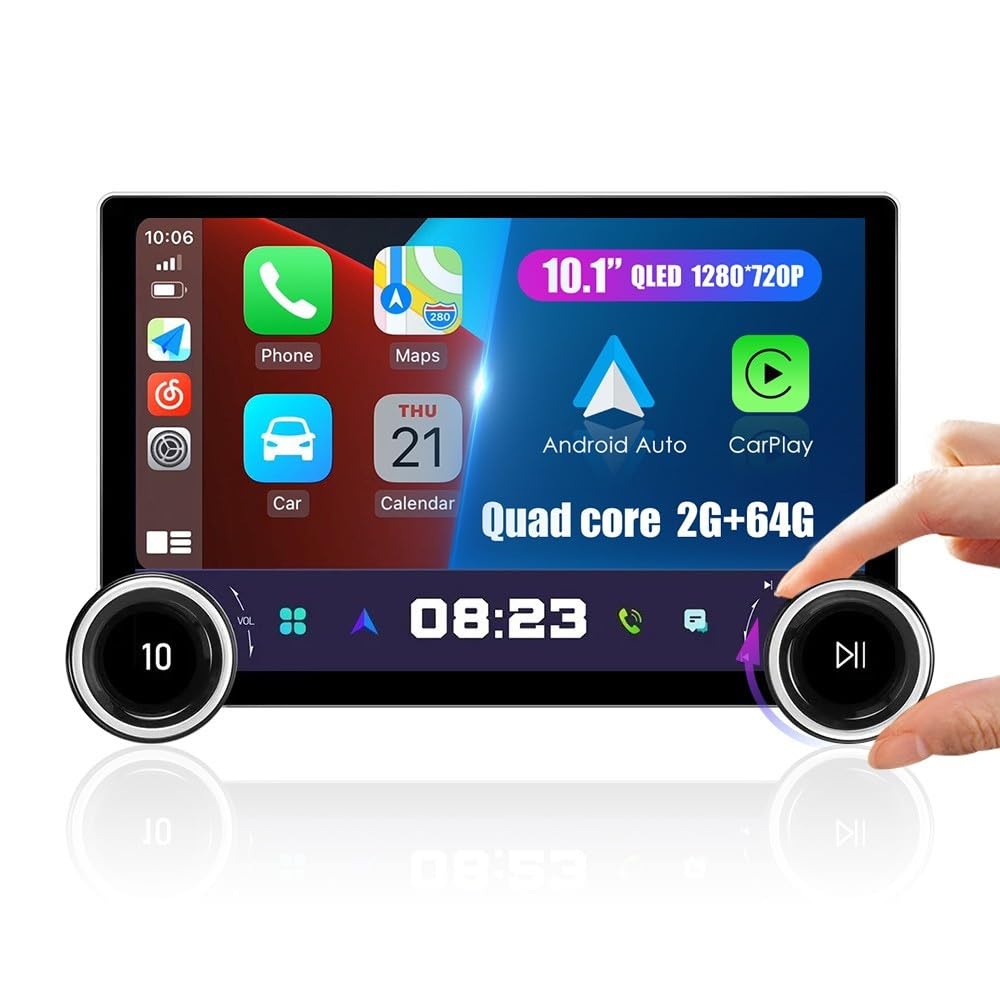
Image: Overview of the KUNFINE car stereo head unit and its included accessories, such as cables, GPS antenna, and installation brackets.
Key Features
- Dual Display Knobs: Physical knobs with integrated displays for intuitive control and enhanced safety while driving.
- Wireless CarPlay & Android Auto: Seamless integration with iOS and Android smartphones for navigation, music, calls, and more.
- 10.1-inch QLED IPS Touch Screen: High-definition (1280x720P) multi-touch display for clear visuals and responsive interaction.
- Android Operating System: Provides a versatile platform with access to various applications.
- Powerful Hardware: Quad-core CPU, 2GB RAM, and 64GB ROM for smooth performance.
- GPS Navigation: Built-in GPS for accurate real-time navigation.
- Connectivity: Internal Bluetooth for stereo music and hands-free calling, internal Wi-Fi for internet access and hotspot sharing, USB input.
- Mirror Link: Supports screen mirroring for both Android and iOS devices.
- Steering Wheel Control (SWC): Compatible with existing steering wheel controls for convenient operation.
- Rear View Camera Support: Compatible with aftermarket RCA type backup cameras.
- Audio Features: Supports 1280P hardware decoding and various audio formats, built-in EQ and DSP.
- Multi-language OSD: Supports over 20 languages including English, French, German, Spanish, and Italian.
Setup and Installation
This unit is designed for vehicles with a double DIN head unit slot. Professional installation is highly recommended due to the complexity of car audio wiring and potential vehicle-specific requirements. Ensure the vehicle's power is disconnected before beginning installation.
Compatibility Check
Verify that your vehicle has a standard double DIN opening. If your car is equipped with an original factory amplifier, please contact KUNFINE support before purchase to confirm compatibility.
Installation Steps (General Guide)
- Remove Existing Head Unit: Carefully remove your vehicle's current stereo system.
- Connect Wiring:
- Connect the provided Power Cable to your vehicle's wiring harness. This cable is not plug-and-play and requires proper wire-to-wire connections (e.g., constant power, accessory power, ground, speaker wires). Refer to your vehicle's wiring diagram.
- Connect the GPS Antenna and position it in a location with a clear view of the sky (e.g., dashboard).
- Connect USB cables for external devices or media.
- If installing a backup camera, connect it to the RCA Connector for Backup Camera and the main unit.
- Connect the RCA Expand Cable for additional audio/video inputs/outputs if needed.
- Mount the Head Unit: Use the provided Installation Support Brackets to secure the head unit into the double DIN slot.
- Test Functionality: Before fully reassembling your dashboard, reconnect the vehicle's power and test all functions of the new head unit (power, audio, touch screen, GPS, Bluetooth, etc.).
- Reassemble Dashboard: Once all functions are verified, carefully reassemble your vehicle's dashboard components.

Image: Comparison showing a car dashboard with an older stereo unit (left) and the KUNFINE 10.1-inch Android Car Stereo installed (right).
Operating Instructions
Power On/Off
Press and hold the power button (usually integrated into one of the knobs) to turn the unit on or off. A short press typically mutes audio or returns to the home screen.
Using the Dual Display Knobs
The dual physical knobs provide tactile control for common functions, enhancing safety by reducing the need to look at the screen. Each knob may have multiple functions depending on the context (e.g., volume, track skip, menu navigation).

Image: A hand demonstrating the use of the manual knob on the car stereo, highlighting its ease of adjustment.

Image: Close-up of the car stereo's knob display, illustrating its high-grade texture, ease of use, and quick blind operation capability, along with the 10.1-inch QLED 1280*720P screen specification.
Wireless CarPlay / Android Auto
To connect your smartphone wirelessly:
- Ensure Bluetooth and Wi-Fi are enabled on your smartphone.
- On the car stereo, navigate to the CarPlay or Android Auto application.
- Follow the on-screen prompts to pair your phone via Bluetooth first, then confirm the Wi-Fi connection.
- Once connected, your phone's interface will appear on the stereo screen, allowing access to navigation, music, messages, and voice assistants.

Image: Screenshots demonstrating the user interfaces for Wireless CarPlay and Android Auto on the car stereo, showing various app icons and navigation features.
GPS Navigation
The unit comes with built-in GPS. To use navigation:
- Ensure the GPS antenna is properly installed and has a clear signal.
- Open the navigation application from the main menu.
- Enter your destination or select a saved location. The system will provide real-time road conditions and directions.

Image: The car stereo display showing a GPS navigation map with route information and a red pin indicating a destination.
Steering Wheel Control (SWC)
If your vehicle supports steering wheel controls, you can configure them to operate the stereo:
- Go to the system settings menu on the head unit.
- Locate the "Steering Learn" or "SWC Settings" option.
- Follow the on-screen instructions to map your steering wheel buttons to specific functions (e.g., volume up/down, track skip, mode).

Image: The car stereo display showing the "Steering Learn" menu, where users can configure steering wheel controls for various functions like volume, navigation, and mode.
Bluetooth Connectivity
To pair your phone via Bluetooth for calls and audio streaming:
- Enable Bluetooth on your phone and make it discoverable.
- On the car stereo, open the Bluetooth application.
- Search for available devices and select your phone from the list.
- Confirm the pairing code on both devices.
Wi-Fi and Hotspot Sharing
Connect to a Wi-Fi network or use your phone's hotspot for internet access on the head unit. This enables online features, app downloads, and real-time traffic updates for navigation.
Media Playback
The unit supports various media sources:
- USB: Connect USB drives to play audio and video files.
- Bluetooth Audio: Stream music wirelessly from your paired smartphone.
- Radio: Access FM/AM radio stations.

Image: The car stereo's 10.1-inch QLED 1280*720P display showing a high-definition video, illustrating its clear and smooth visual experience.
Maintenance
- Screen Cleaning: Use a soft, lint-free cloth to gently wipe the screen. For stubborn smudges, slightly dampen the cloth with water or a screen-safe cleaner. Avoid harsh chemicals.
- Software Updates: Periodically check for software updates through the system settings or KUNFINE's official website to ensure optimal performance and access to new features.
- General Care: Avoid exposing the unit to extreme temperatures, direct sunlight for prolonged periods, or excessive moisture.
Troubleshooting
| Problem | Possible Cause | Solution |
|---|---|---|
| Unit does not power on. | Incorrect wiring, blown fuse, vehicle power issue. | Check power cable connections (constant, accessory, ground). Verify vehicle fuses. Consult a professional installer. |
| No sound. | Volume muted, incorrect audio source, speaker wiring issues. | Check volume level and mute status. Select correct audio source. Verify speaker connections. |
| Touch screen unresponsive. | Temporary software glitch, screen calibration needed. | Restart the unit. If issue persists, check for a reset button (often a small pinhole) or perform a factory reset via settings (data will be lost). |
| GPS signal lost or inaccurate. | GPS antenna obstruction, poor placement, software issue. | Ensure GPS antenna has a clear view of the sky. Check antenna connection. Restart the unit. |
| CarPlay/Android Auto not connecting. | Bluetooth/Wi-Fi off, phone compatibility, software glitch. | Ensure Bluetooth and Wi-Fi are enabled on both devices. Restart phone and head unit. Check phone's compatibility with CarPlay/Android Auto. |
If troubleshooting steps do not resolve the issue, please contact KUNFINE customer support for further assistance.
Specifications
| Feature | Detail |
|---|---|
| Brand | KUNFINE |
| Model Number | KF-V4931B |
| Operating System | Android |
| Screen Size | 10.1 Inches |
| Display Type | QLED IPS Capacitive Touch Screen |
| Resolution | 1280 x 720 |
| CPU | Quad Core |
| RAM | 2GB |
| ROM (Internal Storage) | 64GB |
| Connectivity | Bluetooth, Wi-Fi, USB |
| Special Features | Wireless CarPlay, Android Auto, Dual Display Knobs, GPS, DSP, EQ, SWC, Mirror Link |
| Supported Satellite Navigation System | GPS |
| Vehicle Service Type | Bus, Car, Truck |
| Audio Output Mode | Stereo |
| Human-Interface Input | Touchscreen, Physical Knobs |
Warranty and Support
Your KUNFINE Universal Dual Display Knob 10.1-inch Android Car Stereo comes with a one-year warranty covering manufacturing defects (non-human damage). For any questions, technical assistance, or warranty claims, please contact KUNFINE customer support directly. Your satisfaction is important, and prompt assistance will be provided.
Contact information can typically be found on the product packaging, KUNFINE's official website, or through your purchase platform.