
1. Introduction
Thank you for choosing the inphic X9 Wireless Vertical Mouse. This manual provides detailed instructions for the proper setup, operation, and maintenance of your new ergonomic mouse. Please read this manual thoroughly before use to ensure optimal performance and longevity of the product.

Image 1.1: The inphic X9 Wireless Vertical Mouse, showcasing its ergonomic design.
2. Package Contents
Please verify that all items are present in your package:
- inphic X9 Wireless Vertical Mouse
- USB Receiver (2.4Ghz)
- USB-C Charging Cable
- User Manual (this document)

Image 2.1: The inphic X9 mouse alongside its compact USB receiver.
3. Setup Instructions
- Charge the Mouse: Before first use, connect the included USB-C charging cable to the mouse's charging port and to a USB power source (e.g., computer USB port, USB wall adapter). The mouse has a 400mAh rechargeable battery.
- Insert USB Receiver: Locate the USB receiver, typically stored in a compartment on the underside of the mouse. Plug the USB receiver into an available USB port on your computer (Laptop or Personal Computer).
- Power On: Turn on the mouse using the power switch located on the underside of the device.
- Automatic Connection: The mouse should automatically connect to your computer. No additional drivers are typically required for Windows XP, Linux, or other compatible operating systems.

Image 3.1: Illustration of the 2.4G wireless connection process between the mouse, USB receiver, and computer, with a stable 10-meter transmission distance.

Image 3.2: Detailed view of the mouse's underside, indicating the optical light, power switch, anti-slip pads, USB receiver slot, Type-C charging port, side button, and 'Boss-coming Key'.
4. Operating Instructions
4.1 Basic Functions
- Left Click: Standard selection and activation.
- Right Click: Accesses contextual menus.
- Scroll Wheel: Navigates vertically through documents and web pages.
- Side Buttons: Typically function as Forward/Backward for web browsing.
4.2 Silent Click Feature
The inphic X9 mouse is designed with silent click buttons, reducing noise during use. This feature allows for a focused work environment without disturbing others.
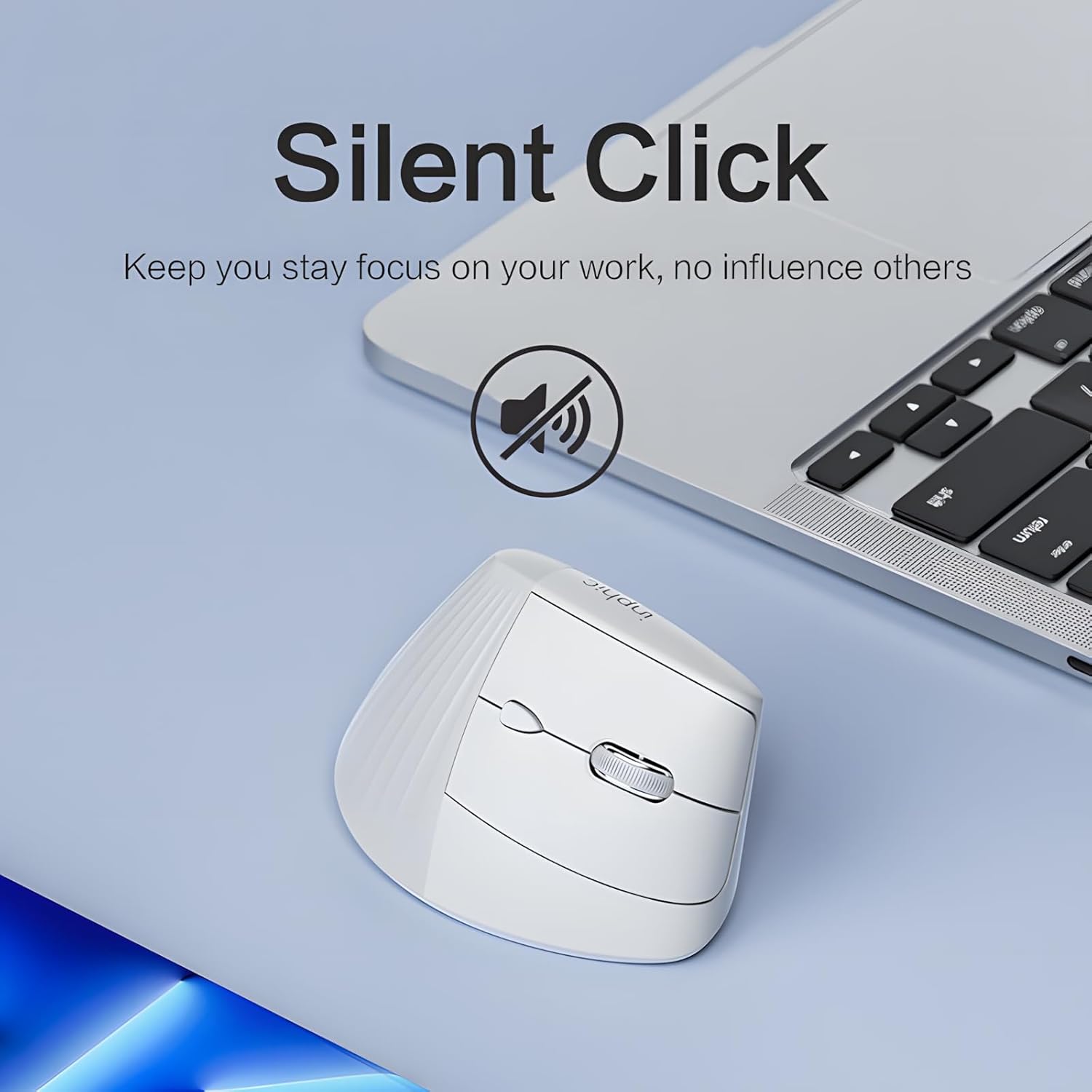
Image 4.1: The inphic X9 mouse highlighting its silent click capability, indicated by a muted speaker icon.
4.3 DPI Adjustment (5 Levels)
The mouse features a DPI switch button, allowing you to adjust cursor sensitivity. There are 5 adjustable DPI levels for precise tracking and responsiveness:
- 800 DPI
- 1200 DPI
- 1600 DPI
- 2000 DPI
- 2400 DPI
Press the DPI button (usually located near the scroll wheel) to cycle through the settings. A red indicator light may flash to confirm the change.

Image 4.2: Diagram illustrating the 5-level DPI switch on the inphic X9 mouse, with a red indicator light showing DPI changes.
4.4 "Return to Desktop" Key
The mouse includes a dedicated "Return to Desktop" key, often referred to as a "Boss-coming Key". Pressing this button instantly minimizes all open windows and displays your desktop, enhancing privacy and efficiency.

Image 4.3: The inphic X9 mouse highlighting the "Boss-coming Key" which provides a one-click return to the desktop function.
5. Ergonomic Design
The inphic X9 features an ergonomic vertical design, angled at 57 degrees, to promote a natural hand and wrist posture. This design aims to reduce wrist strain and discomfort often associated with traditional mouse usage, helping to prevent "mouse hand" syndrome.

Image 5.1: Illustration demonstrating the 57-degree ergonomic angle of the inphic X9 mouse, designed to maintain a natural wrist posture and alleviate discomfort.

Image 5.2: A diagram illustrating the difference between a natural, untwisted wrist posture promoted by the vertical mouse and a twisted wrist posture from a traditional mouse.
6. Maintenance
- Cleaning: Use a soft, dry cloth to clean the mouse. Avoid using harsh chemicals or abrasive materials.
- Storage: Store the mouse in a cool, dry place when not in use.
- Battery Care: To prolong battery life, avoid fully discharging the mouse frequently. Recharge when the battery indicator suggests low power.
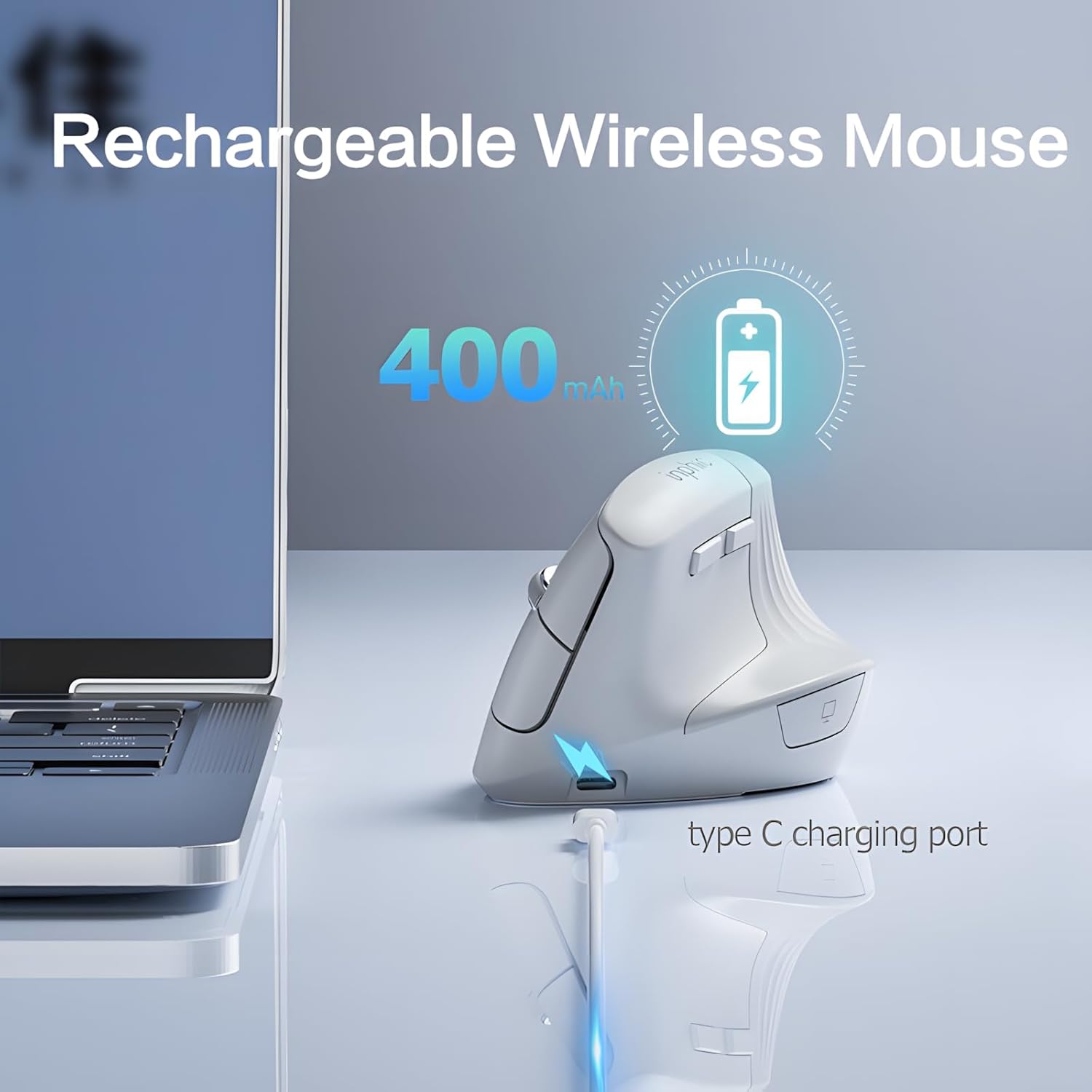
Image 6.1: The inphic X9 mouse connected to a Type-C charging cable, illustrating its rechargeable feature with a 400mAh battery.
7. Troubleshooting
- Mouse not responding:
- - Ensure the USB receiver is securely plugged into a working USB port.
- - Check if the mouse is powered on using the switch on the underside.
- - Recharge the mouse if the battery is low.
- - Try plugging the USB receiver into a different USB port.
- - Restart your computer.
- Cursor movement is erratic or slow:
- - Clean the optical sensor on the underside of the mouse.
- - Ensure you are using the mouse on a suitable surface (non-reflective, non-transparent).
- - Adjust the DPI setting to a higher level if the cursor is too slow (refer to Section 4.3).
- Connectivity issues:
- - Ensure the mouse is within the 10-meter operating range of the USB receiver.
- - Avoid placing the receiver near strong interference sources (e.g., other wireless devices, large metal objects).
8. Specifications
| Brand | inphic |
| Model | X9 |
| Connectivity Technology | 2.4Ghz Wireless |
| Movement Detection Technology | Optical |
| DPI Levels | 800, 1200, 1600, 2000, 2400 |
| Special Features | Ergonomic Design, Silent Click, Rechargeable, Return to Desktop Key |
| Battery | 400mAh Rechargeable (Type-C charging) |
| Hand Orientation | Ambidextrous |
| Compatible Operating Systems | Windows XP, Linux |
| Compatible Devices | Laptop, Personal Computer |
9. Warranty and Support
inphic products are manufactured with quality and reliability in mind. For warranty information and technical support, please refer to the official inphic website or contact your local retailer. Keep your purchase receipt for warranty claims.
For further assistance, you may visit the inphic Store on Amazon.


