
1. Introduction
This manual provides detailed instructions for the Akko MU01 Mountain Seclusion Mechanical Gaming Keyboard. Please read this manual thoroughly before using the product to ensure proper operation and maintenance. This keyboard features a unique walnut wooden case, multi-mode connectivity, hot-swappable switches, and customizable RGB backlighting.
2. Package Contents
- Akko MU01 Mountain Seclusion Mechanical Gaming Keyboard (Walnut wooden case, PBT dye-sub keycaps)
- USB-C to USB-A Cable
- 2.4G Wireless Dongle
- Keycap Puller
- Switch Puller
- Extra Keycaps (Akko Rosewood Switch)
- Wood Wax
- Cleaning Cloth
- User Manual (this document)
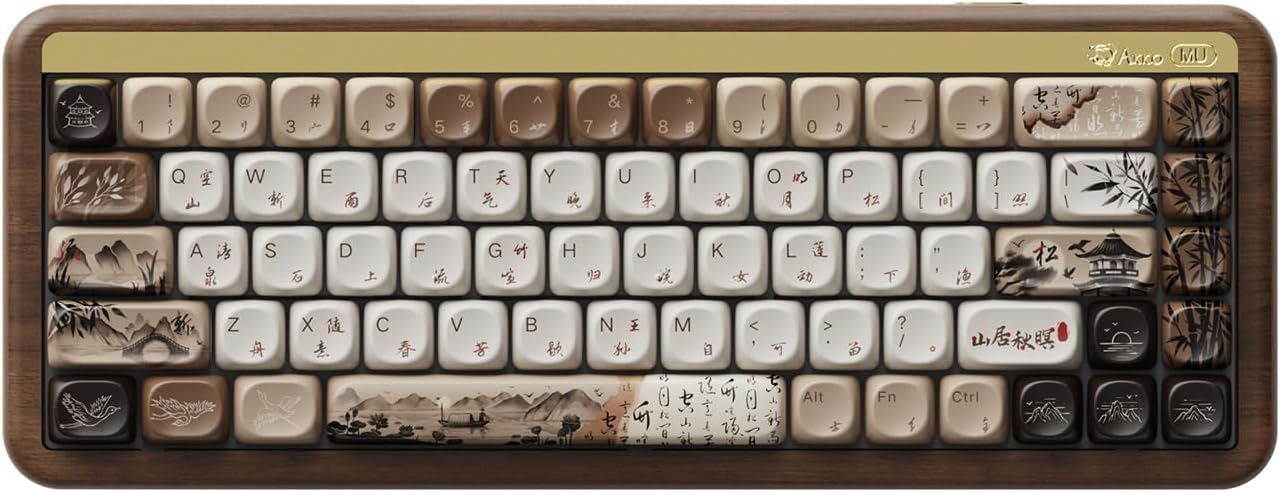
Figure 2.1: Akko MU01 Mountain Seclusion Keyboard and its packaging.
3. Features
- Solid Walnut Wooden Case: Encased in smooth, polished solid wood, evoking the serenity of nature. Includes wood wax for maintenance.
- Multi-Mode Connectivity: Seamlessly switch between 2.4Ghz wireless, Bluetooth 5.0, and USB-C wired connection modes.
- Large Battery Capacity: Equipped with a 4000mAh battery for consistent and stable wireless connectivity.
- PBT Dye-Sub Keycaps: Extremely sturdy and resistant to wear, ensuring legends do not fade or become oily. Features MOA profile for comfortable typing.
- Hot-Swappable Switches: Easily change mechanical switches without soldering, allowing for customization and easy replacement of faulty keys.
- Programmable & RGB Backlit: All key definitions, RGB profiles (per-key supported), and animation effects can be re-mapped and customized via Akko Cloud Driver.
- Media Hotkeys: Over 12 pre-defined media hotkeys (e.g., volume control, calculator, mute) to improve efficiency.
- Mac & Windows Compatibility: Supports both Windows and Mac systems with an easy switch located under the CAPS key.
- Updated Sound Dampening Structure: Features a 5-layer noise reduction system, including an additional PET layer and 3.0mm Poron case foam for enhanced sound dampening.

Figure 3.1: PBT Dye-Sub Keycaps and MOA Profile.

Figure 3.2: Multi-Mode & Large Battery.
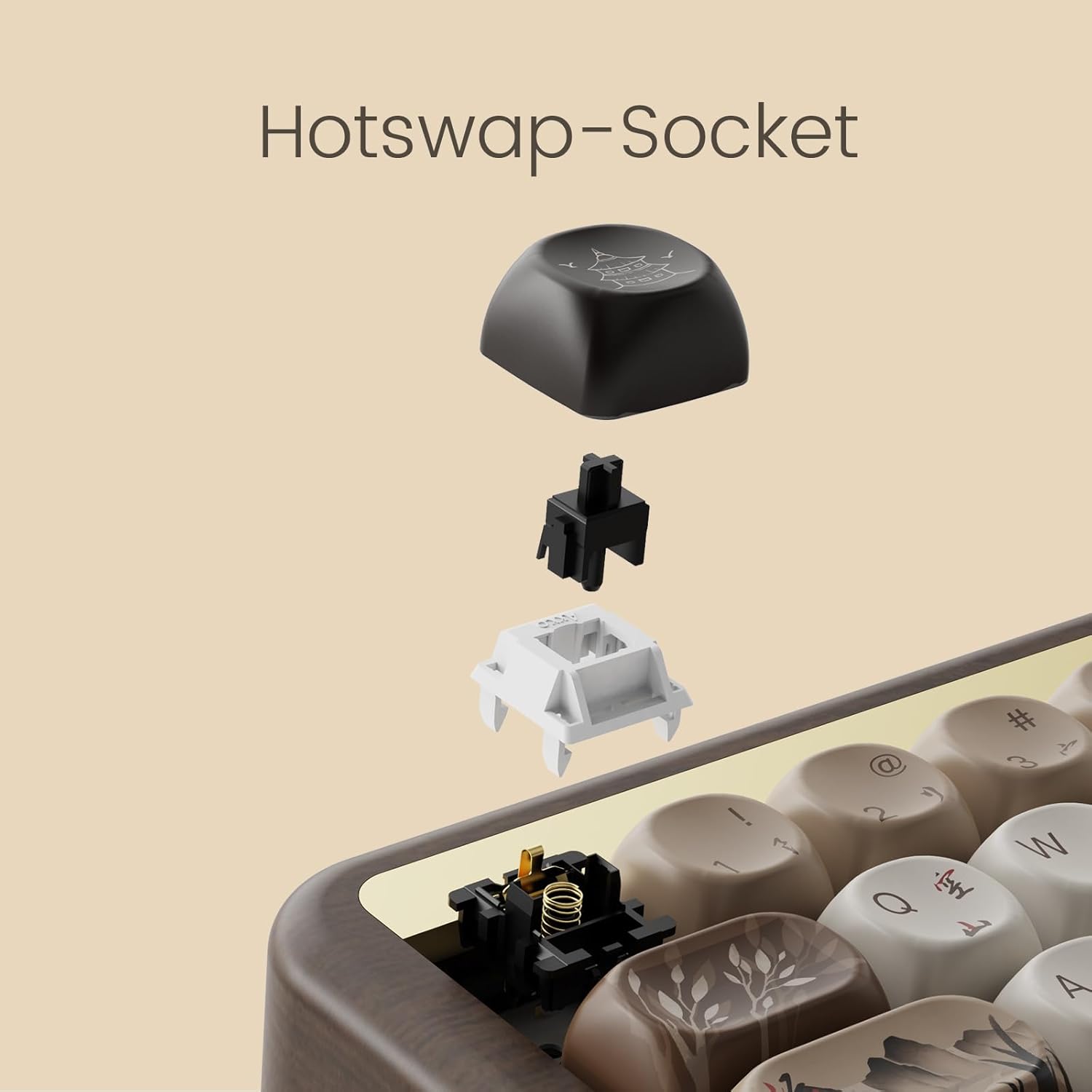
Figure 3.3: Hot-Swap Socket for easy switch replacement.
4. Setup
4.1 Connectivity Modes
The Akko MU01 keyboard supports three connection modes:
- USB-C Wired: Connect the keyboard directly to your device using the provided USB-C cable.
- 2.4G Wireless:
- Plug the 2.4G wireless dongle into an available USB port on your computer.
- Ensure the keyboard's mode switch (located under the CAPS key) is set to the appropriate wireless mode.
- Bluetooth 5.0:
- Ensure the keyboard's mode switch is set to Bluetooth mode.
- On your device, search for Bluetooth devices and select "Akko MU01" to pair.
4.2 Operating System Switch
The keyboard supports both Windows and Mac operating systems. The switch is located under the CAPS key. Use a keycap puller to remove the CAPS keycap and access the switch. Adjust the switch to your desired operating system (Mac or Windows).
Figure 4.1: Mode switch location under the CAPS key.
5. Operating the Keyboard
5.1 RGB Backlighting
The Akko MU01 features customizable RGB backlighting. You can control RGB profiles and animation effects using the Akko Cloud Driver software. Per-key RGB customization is supported.
Video 5.1: Official product video demonstrating the keyboard's features, including RGB backlighting.
5.2 Key Remapping and Macros
All key definitions and macros can be re-mapped and customized using the Akko Cloud Driver software. Refer to the software's interface for detailed instructions on creating custom layouts and macros.
5.3 Media Hotkeys
The keyboard includes dedicated media hotkeys for quick access to functions like volume control, calculator, and mute. Consult the user manual pamphlet for a full list of pre-defined hotkeys and their combinations.
6. Maintenance
6.1 Wooden Case Care
The walnut wooden case can be beautified and protected using the included wood wax. Apply a small amount of wax to the cleaning cloth and gently rub it onto the wooden surfaces to maintain its health and appearance over time.

Figure 6.1: Solid Walnut Wood case.
6.2 Keycap and Switch Cleaning
Use the provided cleaning cloth to wipe down keycaps and the keyboard surface regularly. For deeper cleaning or switch replacement, use the keycap and switch pullers as needed.
7. Troubleshooting
If you encounter any issues with your Akko MU01 keyboard, please refer to the following common solutions:
- Connectivity Issues: Ensure the keyboard is fully charged. Verify the mode switch is set correctly for your desired connection (wired, 2.4G, or Bluetooth). For wireless connections, ensure the dongle is properly inserted or Bluetooth is paired.
- Key Malfunction: The hot-swappable design allows for easy replacement of individual switches. Use the switch puller to remove the faulty switch and replace it with a new one.
- RGB Lighting Problems: Ensure the Akko Cloud Driver is installed and updated. Use the software to troubleshoot and customize lighting effects.
- OS Compatibility: Double-check the OS switch under the CAPS key is set to your current operating system (Mac/Windows).
For further assistance, visit the official Akko website or contact customer support.
8. Specifications
| Feature | Detail |
|---|---|
| Product Dimensions | 12.87 x 4.93 x 1.83 inches |
| Item Weight | 3.03 pounds |
| Manufacturer | Akko |
| Country of Origin | China |
| Batteries | 1 Lithium Ion battery required (included) |
| Connectivity Technology | USB-C, 2.4G Wireless, Bluetooth 5.0 |
| Number of Keys | 68 |
| Keyboard Backlighting | RGB |
| Material | Wood (Walnut) |
9. Warranty & Support
Akko products typically come with a manufacturer's warranty. Please refer to the warranty information provided in your product packaging or visit the official Akko website for details on warranty coverage and how to obtain support.
For additional resources, including drivers and FAQs, visit the Akko Official Website.


