
GMKtec M6
GMKtec M6 Gaming Mini PC User Manual
Model: M6
Brand: GMKtec
1. Introduction
Product Overview
The GMKtec Nucbox M6 Series is a compact yet powerful mini PC designed for productivity, office work, and gaming. Equipped with the AMD Ryzen 5 6600H processor, it offers significant performance improvements over previous generations. This mini PC comes preinstalled with Windows 11 Pro and features advanced connectivity options.
Key features include:
- Best Value Ryzen Mini PC: Powered by AMD R5 6600H processor (6 Cores/12 Threads, up to 4.50GHz) with ZEN 3+ architecture and integrated AMD Radeon 660M GPU.
- DUAL NIC LAN 2.5G RJ45: Provides fast network speeds up to 2500Mbps, ideal for various applications including server use.
- 16GB DDR5 RAM & 512GB PCIe SSD: Features 16GB DDR5 RAM (expandable to 64GB) and a 512GB M.2 2280 PCIe 3.0 SSD (supports dual slot expansion to PCIe 4.0 4TB SSD).
- 4K Triple Screen Display: Integrates AMD Radeon 660M GPU for powerful graphics, supporting 4K@60Hz UHD video and simultaneous connection to three display screens.
- Fast Internet WiFi 6E + BT5.2 Connection: Equipped with WiFi-6E (2.5G/5G/6G triple band) for faster speeds and lower latency, and Bluetooth 5.2 for wireless device connectivity.
2. What's in the Box
Upon opening your GMKtec M6 Mini PC package, you should find the following items:
- GMKtec M6 AMD Ryzen 5 6600H Mini PC
- Power Adapter
- VESA Mount
- HDMI Cable
- User Manual

Image: A layout of all items included in the product box: the Mini PC, power adapter, VESA mount, HDMI cable, and user manual.
3. Setup Guide
Initial Setup
Follow these steps to set up your GMKtec M6 Mini PC:
- Connect to Power: Plug the power adapter into the DC IN port on the Mini PC and then into a power outlet.
- Connect to Display: Use the provided HDMI cable to connect your Mini PC to a monitor or TV. The Mini PC also supports DisplayPort (DP) and USB 4.0 (Type-C) for display output.
- Connect Peripherals: Connect your keyboard, mouse, and any other USB devices to the available USB ports.
- Power On: Press the power button located on the front of the Mini PC. The system will boot up automatically.

Image: The GMKtec M6 Mini PC, showcasing its compact design and available connectivity ports on the front and rear.
VESA Mount Installation
The GMKtec M6 Mini PC comes with a VESA mount, allowing you to attach it to the back of a compatible monitor or TV for a clutter-free setup.
- Attach the VESA bracket to the back of your monitor using the provided screws.
- Slide the Mini PC onto the mounted bracket until it clicks securely into place.

Image: An example of the GMKtec M6 Mini PC installed using the VESA mount, demonstrating a space-saving setup.
4. Operating Instructions
Power On/Off
To power on the device, press the power button on the front panel. To shut down, use the standard Windows shutdown procedure (Start Menu > Power > Shut down).
Connecting Peripherals
The GMKtec M6 offers a rich interface for connecting various devices:
- USB Ports: 2x USB 3.2 ports, 2x USB 2.0 ports for keyboards, mice, external drives, etc.
- USB 4.0 (Type-C): A versatile port supporting Power Delivery (PD), DisplayPort (DP), and high-speed data transfer (40Gbps).
- Audio Jack: A 3.5mm audio jack for headphones or microphones.

Image: An comprehensive diagram illustrating all input/output ports on the GMKtec M6 Mini PC, including USB, HDMI, DisplayPort, LAN, and audio jacks, along with their respective uses.
Display Configuration (Triple Screen)
The M6 Mini PC supports connecting up to three display screens simultaneously, making it ideal for multitasking, professional work, or immersive gaming setups. You can use a combination of the HDMI, DisplayPort, and USB 4.0 (Type-C) outputs.

Image: This image showcases the Mini PC's ability to connect to and drive three independent display screens simultaneously, ideal for multitasking or immersive gaming.
Network Connectivity
The Mini PC offers robust network options:
- Dual 2.5G RJ45 LAN Ports: For high-speed wired network connections, suitable for server applications or stable internet access.
- WiFi 6E: Supports 2.5G/5G/6G triple-band wireless connectivity for fast and low-latency internet access.
- Bluetooth 5.2: For connecting wireless accessories like headsets, mice, and keyboards.
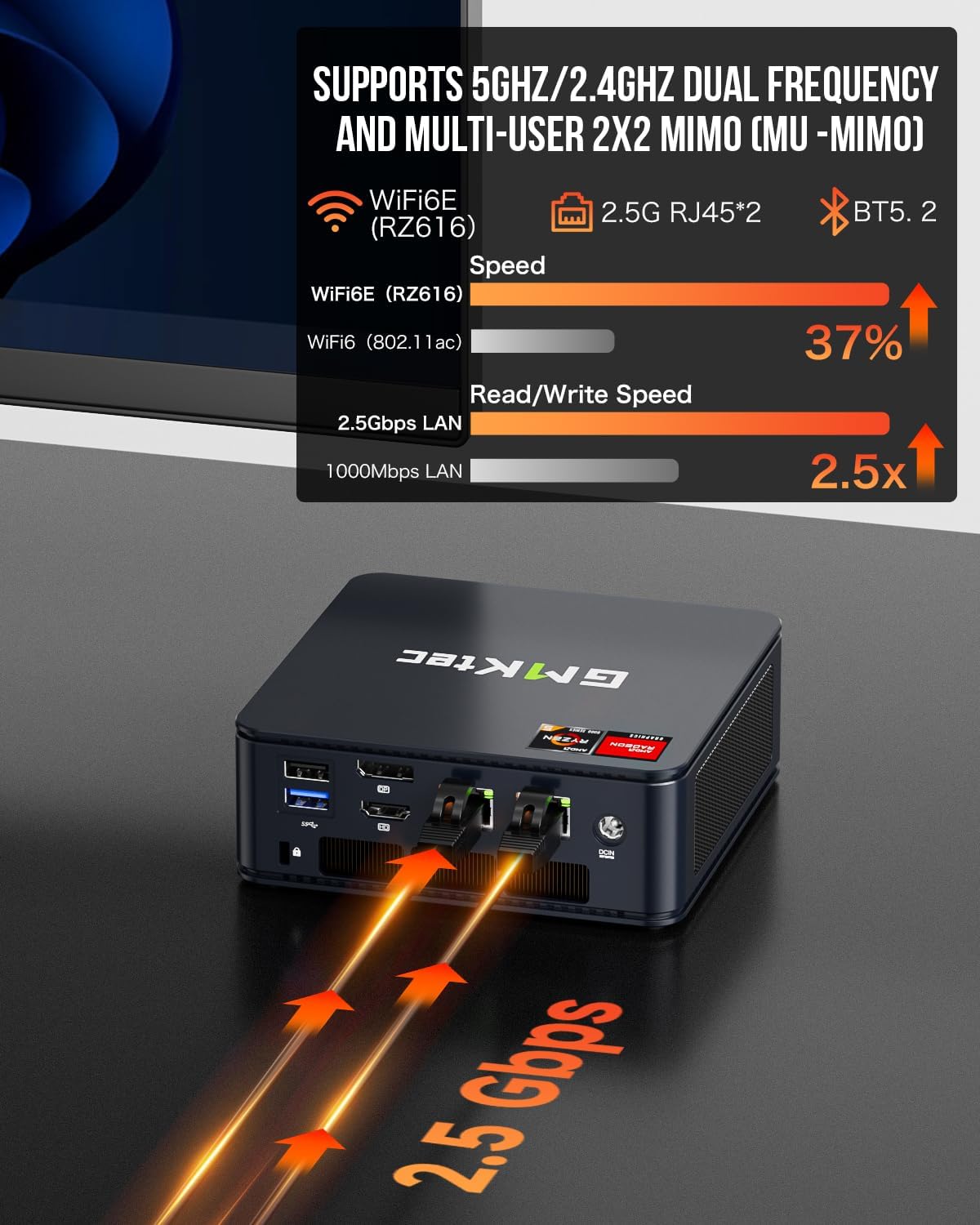
Image: This image demonstrates the advanced wireless and wired networking capabilities of the Mini PC, including WiFi 6E and dual 2.5G LAN ports for fast and stable connections.
Product Videos
Video: An official video from GMKtec showcasing the features and capabilities of the M6 Mini PC, including its gaming performance.
Video: A detailed overview video provided by GMKtec, highlighting the AMD Ryzen 5 6600H processor and various functionalities of the M6 Mini PC.
5. Maintenance
Cleaning
To ensure optimal performance and longevity, regularly clean your Mini PC. Use a soft, dry cloth to wipe down the exterior. For dust accumulation in vents, use compressed air. Ensure the device is powered off and unplugged before cleaning.
Storage
When not in use for extended periods, store the Mini PC in a cool, dry place away from direct sunlight and extreme temperatures.
Upgrades
The GMKtec M6 Mini PC supports RAM and SSD upgrades:
- RAM: The 16GB DDR5 RAM can be expanded up to 64GB (2x32GB) using the dual channel SO-DIMM slots.
- SSD: The 512GB M.2 2280 PCIe 3.0 SSD can be upgraded, and the device supports dual slot expansion to PCIe 4.0 SSDs up to 4TB.
Note: Upgrades are not included. Refer to the detailed internal diagram for component locations.
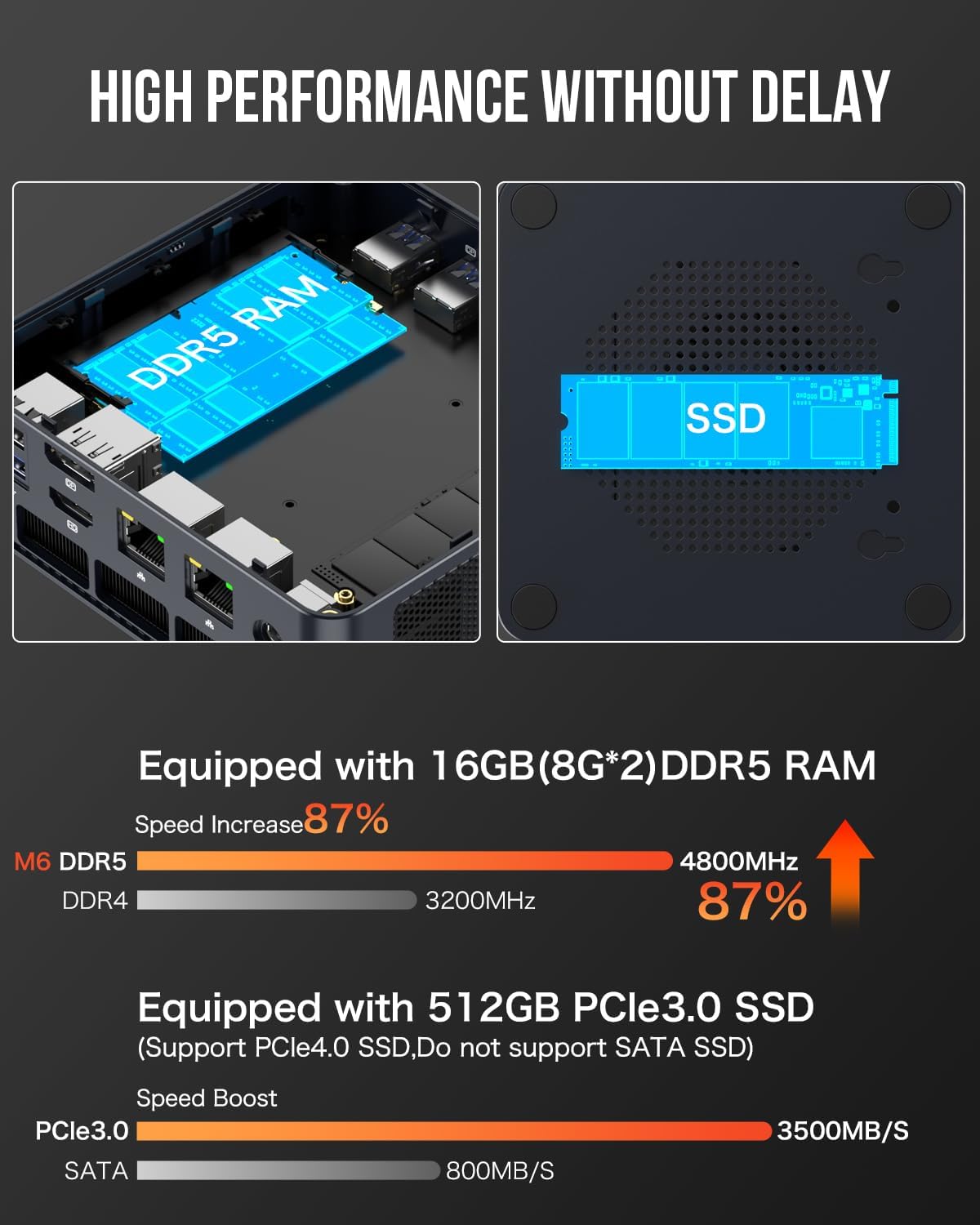
Image: An illustration of the internal components, specifically the DDR5 RAM modules and the PCIe SSD, emphasizing their high-speed performance.
6. Troubleshooting
This section provides solutions to common issues you might encounter with your GMKtec M6 Mini PC.
| Problem | Possible Cause | Solution |
|---|---|---|
| No display on monitor | Loose cable connection, incorrect input source, monitor off. | Check HDMI/DP/USB-C cable connections. Ensure monitor is on and set to the correct input source. Try a different cable or port. |
| Mini PC does not power on | Power adapter not connected, power outlet issue. | Verify the power adapter is securely connected to the Mini PC and a working power outlet. Try a different outlet. |
| No internet connection (wired) | Ethernet cable disconnected, router issue, driver problem. | Check if the Ethernet cable is securely plugged into both the Mini PC and the router/modem. Restart your router. Check network adapter drivers in Device Manager. |
| No internet connection (wireless) | WiFi disabled, incorrect password, signal interference. | Ensure WiFi is enabled in Windows settings. Re-enter WiFi password. Move closer to the router or reduce interference. Update WiFi drivers. |
| Fan noise is loud | High CPU/GPU load, dust accumulation. | This is normal under heavy load (e.g., gaming). Ensure proper ventilation. Clean dust from vents periodically. |
| Bluetooth device not connecting | Bluetooth off, device not in pairing mode, driver issue. | Ensure Bluetooth is enabled in Windows settings. Put the Bluetooth device into pairing mode. Update Bluetooth drivers. |
7. Technical Specifications
| Feature | Specification |
|---|---|
| Brand | GMKtec |
| Series | M6 |
| Model Number | M6 |
| Processor | AMD Ryzen 5 6600H (6 Cores/12 Threads, Max 4.5GHz) |
| Graphics Coprocessor | AMD Radeon™ 660M (Integrated) |
| RAM | 16 GB DDR5 (4800 MHz), expandable to 64GB |
| Hard Drive | 512 GB SSD (M.2 2280 PCIe 3.0), dual slot expansion to PCIe 4.0 4TB SSD |
| Operating System | Windows 11 Pro |
| Max Screen Resolution | 3840 x 2160 pixels (4K) |
| Wireless Type | WiFi 6E (802.11ax), Bluetooth 5.2 |
| LAN | Dual 2.5G RJ45 |
| USB Ports | 2x USB 3.2, 2x USB 2.0 |
| Video Output Ports | 1x HDMI 2.0 (4K@60Hz), 1x DisplayPort (DP), 1x USB 4.0 (Type-C, PD/DP/DATA) |
| Audio Port | 1x Audio 3.5mm (HP&MIC) |
| Item Weight | 3.61 pounds |
| Product Dimensions | 5 x 2 x 5 inches |
8. Warranty and Support
GMKtec is committed to providing reliable, high-quality products and professional after-sales service.
Warranty Information
GMKtec offers a 1-year limited warranty for each mini PC, starting from the date of purchase. This warranty covers all defects due to design and workmanship.
Technical Support
For any technical assistance or inquiries, please contact GMKtec's professional after-sales team. You can reach them through the following methods:
- Amazon: Log in to your Amazon account, navigate to 'Your Orders', and select 'Ask Product Question' for your GMKtec M6 Mini PC.
- Email: support@gmktec.com
GMKtec aims to provide lifetime technical support to ensure you can relax and fully enjoy your mini PC.
Related documentsM6


Ask a question about this manual
Ask about setup, troubleshooting, compatibility, parts, safety, or missing instructions. Manuals+ will review the question and use this page’s manual context to help answer it.