
1. Introduction
This manual provides detailed instructions for the setup, operation, and maintenance of your AMIR Projection Alarm Clock (Model WA146-AMUS). This digital alarm clock features a 7.9-inch LED display, a 180° rotatable projector, adjustable brightness, multiple alarm modes, and temperature display. Please read this manual thoroughly before use to ensure proper functionality and to maximize your product experience.

Image 1.1: Front view of the AMIR Projection Alarm Clock showing its 7.9-inch display and key features like time, alarm, 12/24H, snooze, projection, 4-level brightness, temperature, and night mode.
2. Package Contents
Verify that all items are present in the package:
- AMIR Projection Alarm Clock (WA146-AMUS)
- USB Charging Cable (1.5 meters)
- User Manual
3. Product Features
- 7.9-inch LED Display: Large, clear digital display for easy viewing.
- 180° Rotatable Projector: Projects time onto walls or ceilings, adjustable for optimal viewing.
- Adjustable Brightness: Four levels of display brightness (Bright, Medium, Low, Off) to suit different environments.
- Multiple Alarm Modes: Set alarms for Monday-Friday, Monday-Saturday, or Everyday.
- Snooze Function: Customizable snooze interval from 1 to 60 minutes.
- Multi-function Display: Shows time, date, and indoor temperature.
- 12/24 Hour Format: Easily switch between 12-hour and 24-hour time formats.
- Night Mode: Automatically dims the display between 18:00 and 6:00 (adjustable time range).
- Dual Power Supply: Operates via USB cable (for constant display) or 3 AAA batteries (for memory function during power outages).
4. Controls and Display
Familiarize yourself with the clock's buttons and display elements.

Image 4.1: Rear view of the alarm clock, indicating the power port, battery compartment, projection lamp, and control buttons (SWAP, +, -, ALARM, MODE, PROJECT/SNOOZE).
- Display Screen: Shows time, date, temperature, and alarm status.
- Projection Lamp: Located on the side, projects time onto a surface.
- Power Port (DC 5V): For connecting the USB power cable.
- Battery Compartment: Holds 3 AAA batteries for backup power.
- SWAP Button: Used for various settings adjustments.
- '+' / '-' Buttons: Adjust values during settings, or change display brightness.
- ALARM Button: Used to set and activate alarms.
- MODE Button: Cycles through display modes and enters setting modes.
- PROJECT/SNOOZE Button: Activates/deactivates projection, or triggers snooze during an alarm.
5. Setup
5.1 Powering the Clock
The alarm clock can be powered in two ways:
- USB Cable Power (Recommended): Connect the provided USB cable to the DC 5V power port on the back of the clock and plug the other end into a USB power adapter (not included) or a USB port. The LED screen will remain constantly on.
- Battery Power: Insert 3 AAA batteries (not included) into the battery compartment. When powered by batteries, the display will turn off after a short period to conserve power. Press any button to activate the display. Batteries also provide a memory feature, retaining time settings during power outages when using USB power.
5.2 Initial Preparation
Before first use, ensure you remove the protective film from the display screen.
6. Operating Instructions
6.1 Setting the Time and 12/24 Hour Format
- Press and hold the MODE button for 3 seconds. The 12/24H format will flash. Use the '+' or '-' buttons to select your preferred format.
- Press MODE again. The hour digits will flash. Use '+' or '-' to adjust the hour.
- Press MODE again. The minute digits will flash. Use '+' or '-' to adjust the minutes.
- Press MODE again to confirm and exit time setting.

Image 6.1: Visual guide for setting the time and selecting 12-hour or 24-hour format using the MODE, '+' and '-' buttons.
6.2 Setting the Alarm
- Press and hold the ALARM button for 3 seconds. The alarm hour digits will flash. Use '+' or '-' to adjust the alarm hour.
- Press ALARM again. The alarm minute digits will flash. Use '+' or '-' to adjust the alarm minutes.
- Press ALARM again. The snooze time (default 5 minutes) will flash. Use '+' or '-' to set the snooze interval from 1 to 60 minutes.
- Press ALARM again. The alarm mode (1-5, 1-6, or 1-7) will flash. Use '+' or '-' to select:
- 1-5: Monday to Friday
- 1-6: Monday to Saturday
- 1-7: Everyday
- Press ALARM again to confirm and exit alarm setting.

Image 6.2: Visual guide for setting the alarm time, snooze duration, and selecting one of the three alarm modes.
6.3 Activating/Deactivating Alarm
After setting the alarm, a small alarm icon will appear on the display, indicating the alarm is active. To deactivate the alarm, short press the ALARM button until the alarm icon disappears.
6.4 Using the Snooze Function
When the alarm sounds, press the large PROJECT/SNOOZE button to activate snooze. The alarm will pause for the set snooze interval and then sound again. To turn off the alarm completely, press any other button.

Image 6.3: Illustration of the snooze function, showing a person pressing the large PROJECT/SNOOZE button for extra sleep time.
6.5 Adjusting Display Brightness
Short press the '+' or '-' buttons to cycle through the four display brightness levels: Bright, Medium, Low, and Off.

Image 6.4: Demonstrates the four adjustable brightness levels of the clock's display: Bright, Medium, Dim, and Off.
6.6 Using the Projection Feature
The clock can project the time onto a wall or ceiling. The projection distance ranges from 1.6ft to 16ft.
- Activate/Deactivate Projection: Short press the PROJECT/SNOOZE button to turn the projection on or off.
- Adjust Projection Angle: Manually rotate the projection lamp on the side of the clock to adjust the projection angle.
- 180° Flip Projection: If the projected time appears upside down, press and hold the SWAP button to flip the projection 180 degrees.
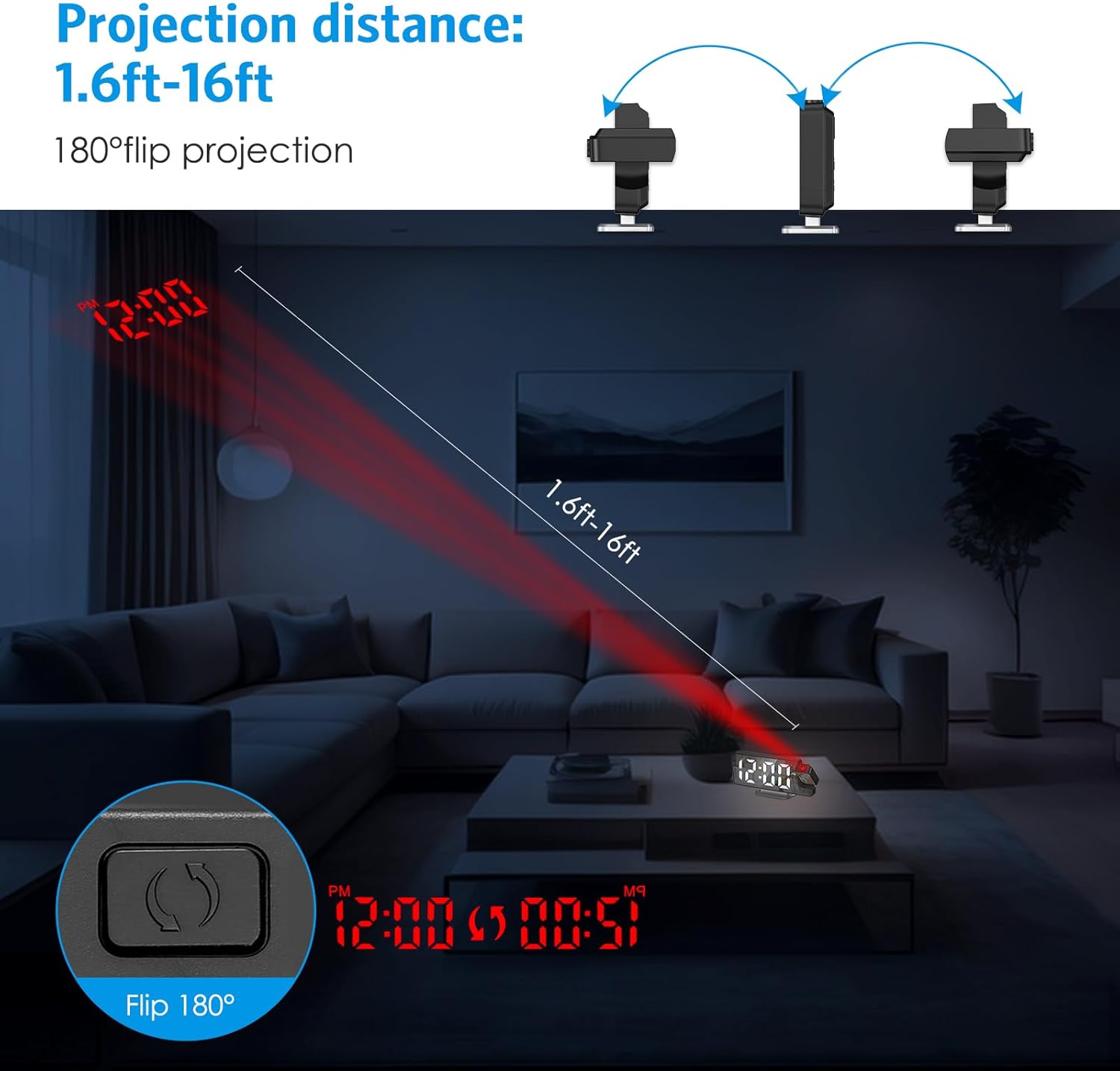
Image 6.5: Illustrates the projection distance range (1.6ft-16ft) and the 180° flip projection capability.
Video 6.1: This video demonstrates the AMIR Projection Alarm Clock's features, including 3 levels of brightness adjustment, time/date/temperature rotation on the main display, manual adjustment of projection angle, one-touch on/off projection, and 180-degree projection rotation.
6.7 Night Mode
Night mode automatically dims the display during a specified period to reduce light disturbance. The default night mode period is from 18:00 to 6:00.
- Activate/Deactivate Night Mode: Press the MODE button repeatedly until 'ON' or 'OFF' appears next to the night mode icon. Use '+' or '-' to toggle.
- Adjust Night Mode Time Range: When night mode is active, press and hold the MODE button until the start hour flashes. Use '+' or '-' to adjust. Press MODE to move to the start minute, then end hour, and end minute, adjusting each with '+' or '-'. Press MODE to save.

Image 6.6: The alarm clock operating in Night Mode, showing the display dimmed and time projected onto the wall.
7. Maintenance
To ensure the longevity and optimal performance of your AMIR Projection Alarm Clock, follow these maintenance guidelines:
- Cleaning: Use a soft, dry cloth to wipe the display and exterior surfaces. Avoid abrasive cleaners or solvents, which can damage the finish.
- Placement: Place the clock on a stable, flat surface away from direct sunlight, extreme temperatures, and high humidity.
- Power: If not using the clock for an extended period, remove the AAA batteries to prevent leakage.
8. Troubleshooting
If you encounter issues with your alarm clock, refer to the following common problems and solutions:
| Problem | Possible Cause | Solution |
|---|---|---|
| Display is off or intermittent (on battery power) | Battery saving mode activated. | Press any button to activate the display. For continuous display, use USB power. |
| Time changes randomly or is incorrect. | Power interruption or incorrect setting. | Ensure AAA batteries are installed for memory backup. Re-set the time following Section 6.1. Avoid placing near strong electromagnetic fields. |
| Projection is blurry or unclear. | Incorrect focus or distance. | Adjust the projection lamp's focus ring (if available) or move the clock closer/further from the projection surface. Ensure the surface is flat and clear. |
| Alarm does not sound. | Alarm is not activated or volume is too low. | Verify the alarm icon is visible on the display. Check alarm settings (Section 6.2). Ensure alarm volume is not set to minimum (if adjustable). |
| Projection is upside down. | Projection orientation needs adjustment. | Press and hold the SWAP button to flip the projection 180 degrees (Section 6.6). |
9. Specifications
| Feature | Detail |
|---|---|
| Brand | AMIR |
| Model Number | WA146-AMUS |
| Display Type | Digital LED |
| Screen Size | 7.9 Inches |
| Product Dimensions (W x H) | 4.13"W x 1.25"H (Note: This seems to be a partial dimension, likely referring to height/depth. The main image shows 7.5in width.) |
| Power Source | USB Cable Power (DC 5V) or 3 AAA Batteries |
| Material Type | Acrylonitrile Butadiene Styrene (ABS) |
| Special Features | 2 Alarms + 3 Levels Volume, Adjustable Brightness, Large Display, Snooze, USB/Battery Powered, 180° Rotatable Projector, Temperature Display, Night Mode |
10. Warranty and Support
The AMIR Projection Alarm Clock (WA146-AMUS) comes with a Lifetime Warranty, ensuring long-term reliability. For any questions, technical assistance, or support needs, please contact AMIR customer service. Refer to the product packaging or the official AMIR website for contact information.