
Redragon M916
Redragon M916 Wireless Gaming Mouse User Manual
Model: M916
1. Introduction
Thank you for choosing the Redragon M916 Wireless Gaming Mouse. This ultra-lightweight gaming mouse is designed for precision and comfort, offering both 2.4GHz wireless and USB-C wired connectivity. With its high DPI sensor and programmable buttons, it provides a versatile and responsive experience for both gaming and professional use. This manual will guide you through the setup, operation, and maintenance of your new mouse.
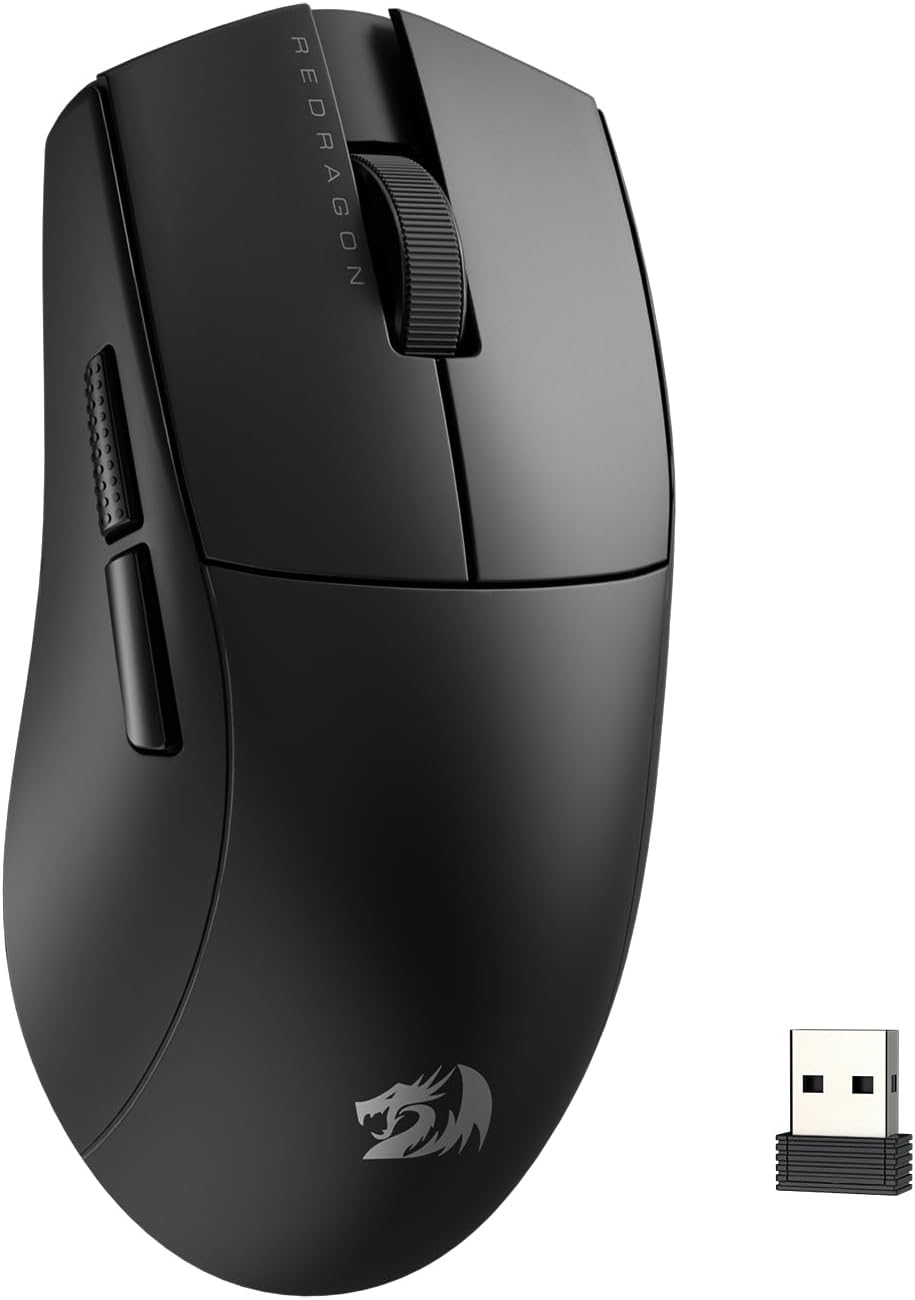
Figure 1: Redragon M916 Wireless Gaming Mouse with its USB receiver.
2. Package Contents
Please check the package contents to ensure all items are present:
- Redragon M916 Wireless Gaming Mouse
- 2.4GHz USB Receiver
- USB-C to USB-A Cable (for charging and wired mode)
- User Manual (this document)

Figure 2: Key features of the Redragon M916, including its lightweight design and dual-mode connectivity.
3. Product Overview
Familiarize yourself with the various components and buttons of your Redragon M916 mouse:
- Left Click Button: Standard mouse click.
- Right Click Button: Standard mouse click.
- Scroll Wheel: For scrolling and middle-click function.
- DPI Cycle Button: Cycles through preset DPI levels.
- Forward Button: Default function for navigating forward in browsers/applications.
- Backward Button: Default function for navigating backward in browsers/applications.
- USB-C Port: For wired connection and charging.
- Power Switch: On/Off switch located on the bottom of the mouse.
- USB Receiver Storage: Compartment on the bottom for storing the 2.4GHz USB receiver.

Figure 3: Top and side view highlighting the scroll wheel and programmable side buttons.
4. Setup
4.1 Charging the Mouse
Before first use, it is recommended to fully charge the mouse. Connect the supplied USB-C cable to the mouse's USB-C port and the other end to a USB-A port on your computer or a USB wall adapter. The mouse's indicator light will show charging status and turn off when fully charged.
4.2 Connecting via 2.4GHz Wireless Mode
- Locate the 2.4GHz USB receiver stored in the compartment on the bottom of the mouse.
- Plug the USB receiver into an available USB-A port on your computer.
- Turn on the mouse using the power switch located on the bottom.
- The mouse should automatically connect to your computer. If not, try moving the mouse closer to the receiver or re-plugging the receiver.
4.3 Connecting via USB-C Wired Mode
You can use the mouse in wired mode while charging or as a primary connection method:
- Connect the supplied USB-C cable to the mouse's USB-C port.
- Connect the USB-A end of the cable to an available USB-A port on your computer.
- The mouse will automatically switch to wired mode.

Figure 4: The M916 supports both 2.4GHz wireless and USB-C wired modes for flexible connectivity.
4.4 Software Installation (Optional)
For advanced customization, including button remapping, macro settings, and precise DPI adjustments, download the dedicated Redragon software from the official Redragon website. Search for "K1NG M916 (2.4GHz Wireless)" software. Ensure you download from the official Redragon shop website.

Figure 5: The Redragon M916 supports professional software for advanced customization.
5. Operating Instructions
5.1 DPI Adjustment
The M916 features 5 redefinable DPI levels. By default, these are set to 1200/2400/3500/5500/8000 DPI. Press the DPI Cycle Button (usually located behind the scroll wheel) to switch between these levels. Each level may be indicated by a different LED color on the mouse (refer to software for specific color assignments).
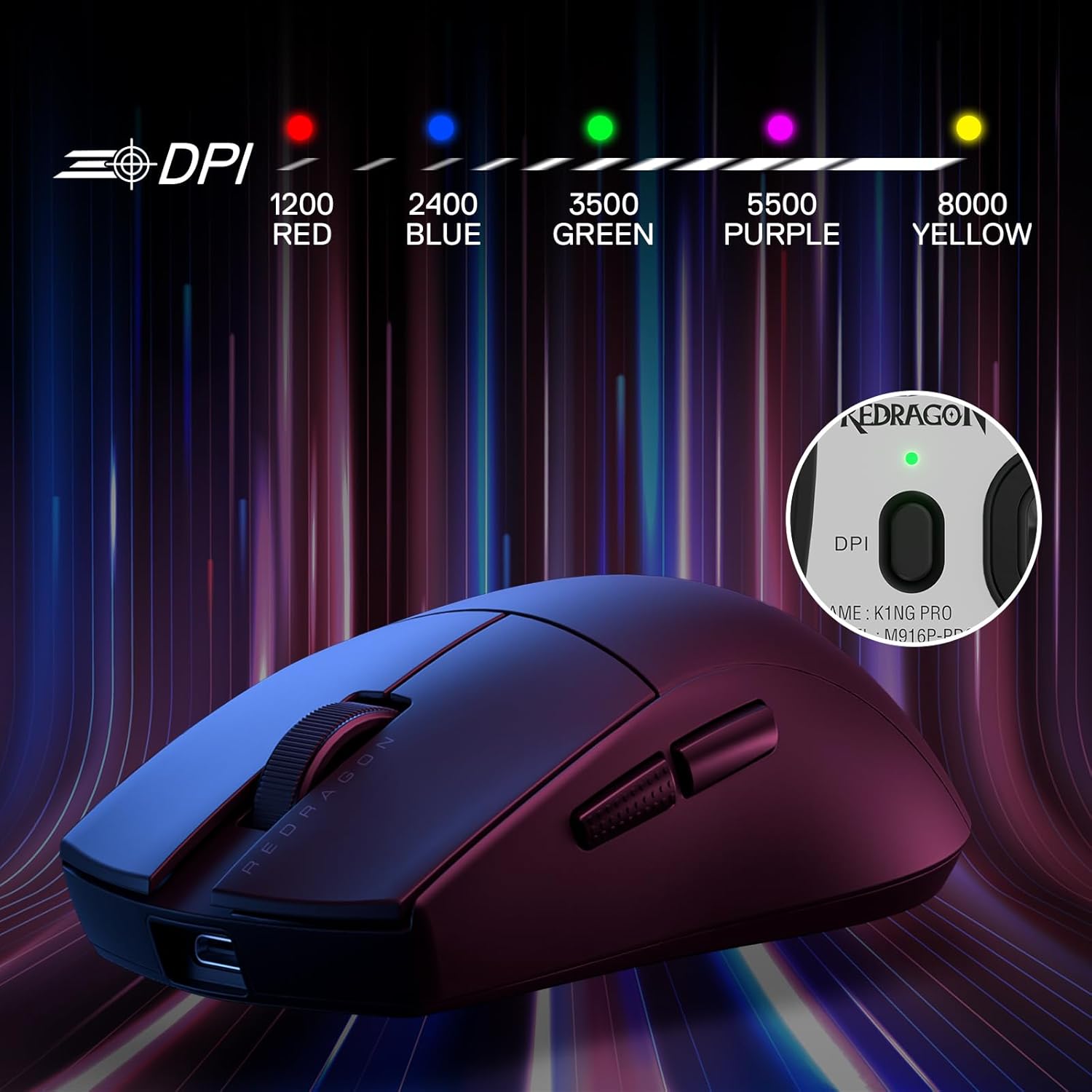
Figure 6: Visual representation of DPI levels and their corresponding indicator colors.
5.2 Programmable Buttons
The M916 is equipped with 5 programmable buttons. These buttons can be customized using the Redragon software to perform various functions, including macros, media controls, or specific keybinds for games. Refer to the software's user interface for detailed instructions on button programming.
5.3 Ergonomic Design and Lightweight Feel
The M916 is designed with an ergonomic natural grip, ensuring comfort during extended use. Its ultra-lightweight design (approximately 49 grams) reduces fatigue and allows for swift, precise movements, enhancing your gaming or work efficiency.

Figure 7: The M916's internal structure contributes to its remarkable 49-gram ultra-lightweight design.
6. Maintenance
6.1 Cleaning
To maintain optimal performance and appearance, clean your mouse regularly. Use a soft, lint-free cloth slightly dampened with water or a mild cleaning solution. Avoid using harsh chemicals, abrasive cleaners, or excessive moisture. For optical sensor, use a cotton swab to gently clean the lens.
6.2 Battery Care
The M916 uses a Lithium Polymer battery. To prolong battery life:
- Avoid fully discharging the battery frequently.
- Store the mouse in a cool, dry place when not in use for extended periods.
- Do not expose the mouse to extreme temperatures.
7. Troubleshooting
| Problem | Possible Cause | Solution |
|---|---|---|
| Mouse not responding (Wireless) | Low battery; USB receiver not connected; Out of range; Driver issue. | Charge the mouse; Ensure USB receiver is securely plugged in; Move mouse closer to receiver; Try a different USB port; Reinstall mouse drivers. |
| Mouse not responding (Wired) | Cable not connected properly; Faulty cable/port. | Ensure USB-C cable is securely connected to both mouse and computer; Try a different USB port; Try a different USB-C cable. |
| Cursor movement is erratic or jumpy | Dirty optical sensor; Unsuitable surface; Interference (wireless). | Clean the optical sensor; Use a mouse pad or a uniform, non-reflective surface; Reduce wireless interference by moving other wireless devices. |
| Buttons not working or programmable features not active | Software not installed/configured; Software conflict. | Ensure Redragon software is installed and running; Check button assignments in software; Restart computer; Update software/firmware. |
8. Specifications
| Feature | Detail |
|---|---|
| Model | M916 |
| Connectivity | 2.4GHz Wireless, USB-C Wired |
| DPI Levels | 5 redefinable levels (Default: 1200/2400/3500/5500/8000 DPI) |
| Sensor | Optical (PAW3104) |
| Polling Rate | 1000Hz (1ms response) |
| Buttons | 5 Programmable Buttons |
| Switch Type | HUANO (10 Million Clicks) |
| Weight | Approx. 49 grams |
| Battery | 1 Lithium Polymer battery (included) |
| Dimensions | 9.21 x 5.98 x 2.01 inches (Package Dimensions) |

Figure 8: The M916 features a high-performance PixArt PAW3104 gaming-grade sensor.
9. Warranty & Support
Redragon products come with a standard warranty. For specific warranty terms and conditions, please refer to the warranty card included with your product or visit the official Redragon website. If you encounter any issues not covered in this manual or require further assistance, please contact Redragon customer support through their official website or the contact information provided in your product packaging.
You can also find the official User Manual (PDF) at: Redragon M916 User Manual PDF
Related documentsM916


Ask a question about this manual
Ask about setup, troubleshooting, compatibility, parts, safety, or missing instructions. Manuals+ will review the question and use this page’s manual context to help answer it.