
1. Introduction
Thank you for purchasing the Dohaeris External CD/DVD Drive (Model: LTEE803Hub). This portable optical drive offers versatile functionality, including CD/DVD reading and burning capabilities, along with integrated USB 3.0 ports and an SD/TF card reader. Designed for compatibility with a wide range of devices and operating systems, this manual provides essential information for setup, operation, maintenance, and troubleshooting to ensure optimal performance.
2. Product Overview
2.1 Package Contents
- 1 x External CD/DVD Burner
- 1 x USB 3.0 & Type-C Cable (integrated)
- 1 x User Manual

Image: The external CD/DVD drive, its retail box, and the included user manual.
2.2 Key Features
- Input Interface: USB 3.0 & Type-C for broad compatibility.
- Reading Speed: DVD maximum 8X, CD maximum 24X.
- Writing Speed: DVD maximum 8X, CD maximum 24X.
- System Compatibility: Supports WIN98/XP/WIN7/WIN8/, WIN10/XP/VISTA/Macos8.6 or above.
- Disc Format Support: DVD-ROM, DVD-R, DVD+R, DVD-RW, DVD-RDLCDA, CD-ROM, CD-R, VCD, SVCD, CD-RW.
- Disc Size Support: 8CM, 12CM series discs.
- Plug & Play: No external drivers required for most operating systems.
- Multi-functional Hub: Includes additional USB 3.0 expansion ports and SD/TF card slots.
2.3 Specifications
| Brand | Dohaeris |
| Model Number | LTEE803Hub |
| Hardware Platform | Laptop, PC |
| Operating System | WIN98/XP/WIN7/WIN8/, WIN10/XP/VISTA/Macos8.6 or above |
| Product Dimensions | 15.4cm x 16cm x 2cm (6.3 x 6.06 x 0.79 inches) |
| Input Interface | USB 3.0, USB 3.0 Type C |
| Optical Storage Read Speed | DVD 8X, CD 24X |
| Optical Storage Write Speed | DVD 8X, CD 24X |
| Special Feature | Plug & Play |
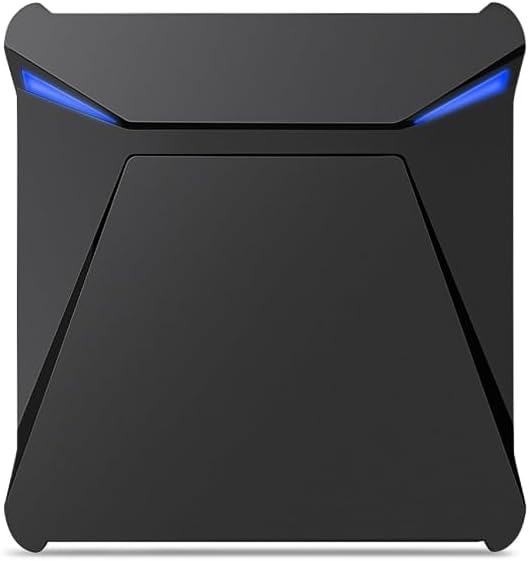

Image: Top and bottom views of the external CD/DVD drive, highlighting its compact design and identification label.
3. Setup and Connection
3.1 Connecting the Drive to Your Device
- Ensure your computer or laptop is powered on.
- Locate an available USB 3.0 or USB Type-C port on your device.
- Connect the integrated USB 3.0/Type-C cable from the external CD/DVD drive directly to the corresponding port on your computer.
- The drive is Plug & Play, meaning it should be automatically recognized by your operating system without the need for additional driver installation. A notification may appear indicating that the device is ready for use.
- For optimal performance and stability, especially when burning discs or using multiple connected devices, ensure the drive is connected to a high-power USB port (typically USB 3.0 or higher).
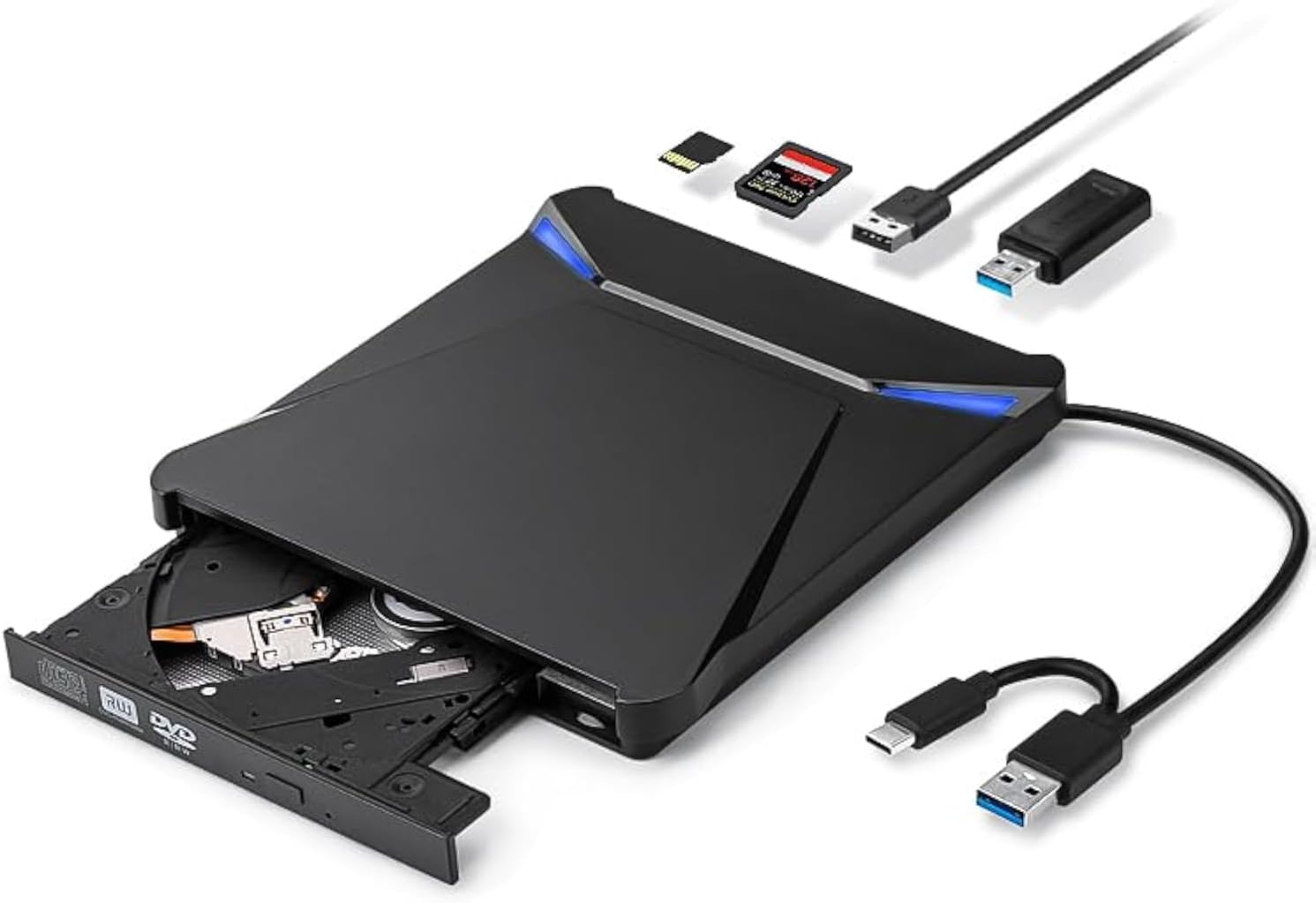
Image: The external CD/DVD drive showing its integrated cable and various connectivity options.

Image: A close-up of the drive's front panel, displaying the USB 3.0 ports, micro USB power input, and SD/TF card slots.
4. Operating Instructions
4.1 Reading Discs (CD/DVD Playback)
- Connect the external CD/DVD drive to your computer as described in Section 3.1.
- Press the eject button on the front of the drive to open the disc tray.
- Carefully place a CD or DVD onto the disc tray, ensuring it is centered on the spindle with the label side facing up.
- Gently push the disc tray back into the drive until it clicks shut.
- Your operating system should automatically detect the disc. You may be prompted to choose an action (e.g., open folder to view files, play movie, play music). If not, navigate to 'This PC' or 'My Computer' (Windows) or 'Finder' (macOS) and locate the drive icon to access the disc content.
4.2 Burning Discs (CD/DVD Writing)
To burn data, music, or video to a blank CD-R/RW or DVD-R/RW disc, you will need compatible burning software installed on your computer. This drive supports writing speeds of up to 8X for DVDs and 24X for CDs.
- Connect the external CD/DVD drive to your computer.
- Insert a blank, writable CD or DVD into the drive.
- Open your preferred disc burning software (e.g., Windows Media Player, Nero, Roxio, or built-in macOS utilities).
- Follow the software's instructions to select the files you wish to burn and initiate the burning process.
- Do not disconnect the drive or interrupt the burning process until it is complete to prevent data corruption or disc damage.
4.3 Using the USB Hub and Card Reader
The drive features two additional USB 3.0 ports and slots for SD and TF (MicroSD) cards, allowing for expanded connectivity.
- Connect the external CD/DVD drive to your computer.
- To use the USB hub, simply plug your USB devices (e.g., flash drives, mouse, keyboard) into the available USB 3.0 ports on the front of the drive.
- To use the card reader, insert your SD or TF card into the corresponding slot until it clicks into place.
- Your operating system will recognize the connected devices or memory cards as removable storage.

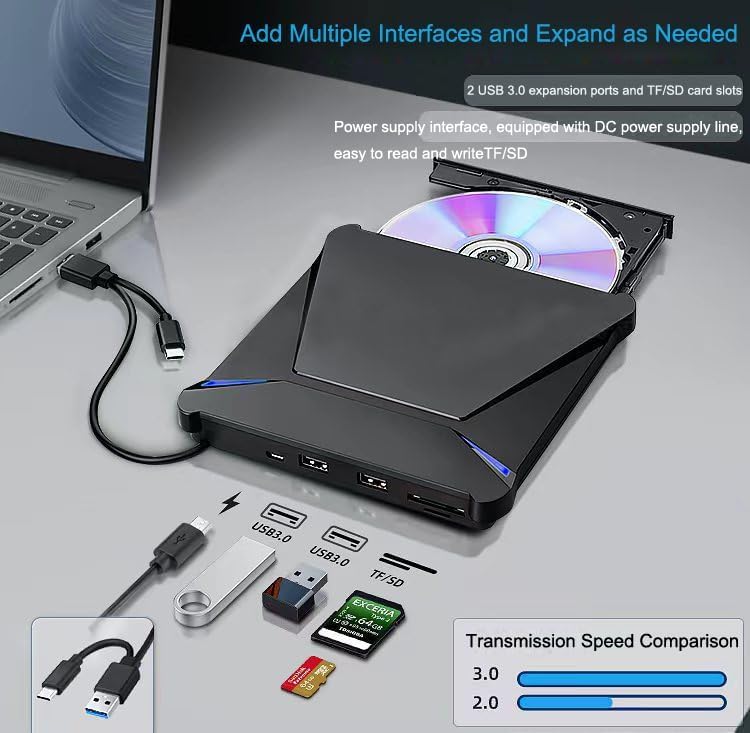
Image: The drive connected to a laptop, illustrating its use as a multi-functional hub with USB devices and memory cards inserted.
5. Compatibility
5.1 Supported Operating Systems
- Windows 98/XP/Vista/7/8/10/11
- macOS 8.6 or above
- Linux OS
5.2 Supported Disc Formats and Specifications
- Disc Formats: DVD-ROM, DVD-R, DVD+R, DVD-RW, DVD-RDLCDA, CD-ROM, CD-R, VCD, SVCD, CD-RW
- Disc Specifications: 8CM, 12CM series discs
6. Maintenance and Care
- Cleaning: Use a soft, dry, lint-free cloth to clean the exterior of the drive. Do not use liquid cleaners or abrasive materials. For the optical lens, use a specialized CD/DVD lens cleaning kit if necessary, following its instructions carefully.
- Storage: Store the drive in a cool, dry place away from direct sunlight and extreme temperatures. When not in use, keep the disc tray closed to prevent dust accumulation.
- Handling: Avoid dropping or subjecting the drive to strong impacts. Do not force the disc tray open or closed.
- Power: Always ensure the drive receives adequate power, especially during read/write operations. Avoid connecting it through unpowered USB hubs if experiencing issues.
7. Troubleshooting
- Drive Not Recognized:
- Ensure the USB cable is securely connected to both the drive and your computer.
- Try connecting to a different USB port on your computer.
- Restart your computer.
- Check Device Manager (Windows) or System Information (macOS) to see if the drive is listed. If there's a yellow exclamation mark, try updating or reinstalling the driver (though typically not needed for Plug & Play).
- Disc Not Reading/Playing:
- Ensure the disc is clean and free of scratches or smudges. Clean with a soft cloth from the center outwards.
- Verify the disc format is supported by the drive (see Section 5.2).
- Try a different disc to rule out a faulty disc.
- Ensure the disc is inserted correctly, label side up.
- Burning Errors/Slow Burning Speed:
- Ensure you are using high-quality, compatible blank discs.
- Close other applications running in the background to free up system resources.
- Ensure the drive is connected to a USB 3.0 port for optimal speed.
- Avoid moving or bumping the drive during the burning process.
- Check your burning software settings for optimal speed and error correction.
- USB Hub/Card Reader Not Working:
- Ensure the main drive is properly connected and recognized.
- Try connecting the USB device or memory card directly to your computer's ports to confirm they are functional.
- Some high-power USB devices may require direct connection to a computer's port or an external power source if the drive's USB hub cannot provide sufficient power.
8. Warranty and Support
This product is covered by a standard manufacturer's warranty. Specific warranty terms and duration are typically provided with your purchase documentation or can be found on the manufacturer's official website. Please retain your proof of purchase for warranty claims.
For technical support, troubleshooting assistance beyond this manual, or warranty inquiries, please contact Dohaeris customer service through the contact information provided with your product or on their official website. Do not attempt to disassemble or repair the device yourself, as this may void the warranty and cause further damage.


