1. Introduction
Thank you for choosing the Gofunly D60 Kids Waterproof Camera. This durable and feature-rich digital camera is designed for children aged 3-12, allowing them to capture their adventures both on land and underwater. With its robust waterproof design, high-resolution photo and video capabilities, and fun creative features, the D60 camera is perfect for recording memorable moments during swimming, skating, biking, and everyday play.
2. What's in the Box
- Gofunly D60 Kids Waterproof Camera (Pink)
- 32GB Micro SD Card (pre-installed or separate)
- USB Charging Cable
- Lanyard
- Helmet Mount
- Bicycle Mount
- Mounting Accessories (screws, adapters)

Image: The Gofunly D60 Kids Waterproof Camera in pink, displayed with its full set of accessories including the 32GB SD card, USB charging cable, and various mounting options for helmets and bicycles.
3. Setup
3.1 Initial Charge
Before first use, fully charge the camera using the provided USB charging cable. Connect the cable to the camera's charging port (located under the silicone plug on top) and to a standard USB power adapter or computer. The charging indicator light will show the charging status.
3.2 SD Card Installation
The camera comes with a 32GB Micro SD card. Ensure it is properly inserted into the SD card slot, located next to the charging port under the silicone plug. Gently push the card until it clicks into place. To remove, push again until it springs out.
3.3 Waterproof Seal Verification
Important: Before any water exposure, ensure the silicone plug covering the charging port and SD card slot is securely and tightly closed. Failure to do so will compromise the camera's waterproof integrity and may cause damage.
3.4 Attaching Accessories
The camera includes versatile mounting kits for various activities. To attach a mount, screw the appropriate adapter into the camera's tripod mount at the bottom. Then, connect the helmet or bicycle mount as needed. The lanyard can be attached to the designated loop for easy carrying around the neck.

Image: Examples of the Gofunly D60 camera being used in different scenarios, demonstrating its versatility with helmet, underwater, skateboard, and bicycle mounts.

Image: A visual guide illustrating the assembly process for attaching the camera to a helmet and a bicycle using the provided mounting components.
4. Operating Instructions
4.1 Power On/Off
To power on the camera, press and hold the power button (usually located on the side or top) until the screen illuminates. To power off, press and hold the same button until the screen turns off.
4.2 Menu Navigation
Use the directional buttons (up/down) and the 'M' (Mode) button to navigate through the camera's menu options displayed on the 2.4-inch LCD screen. The main menu typically includes Camera, Video, Photo Library, Settings, Games, and Music.
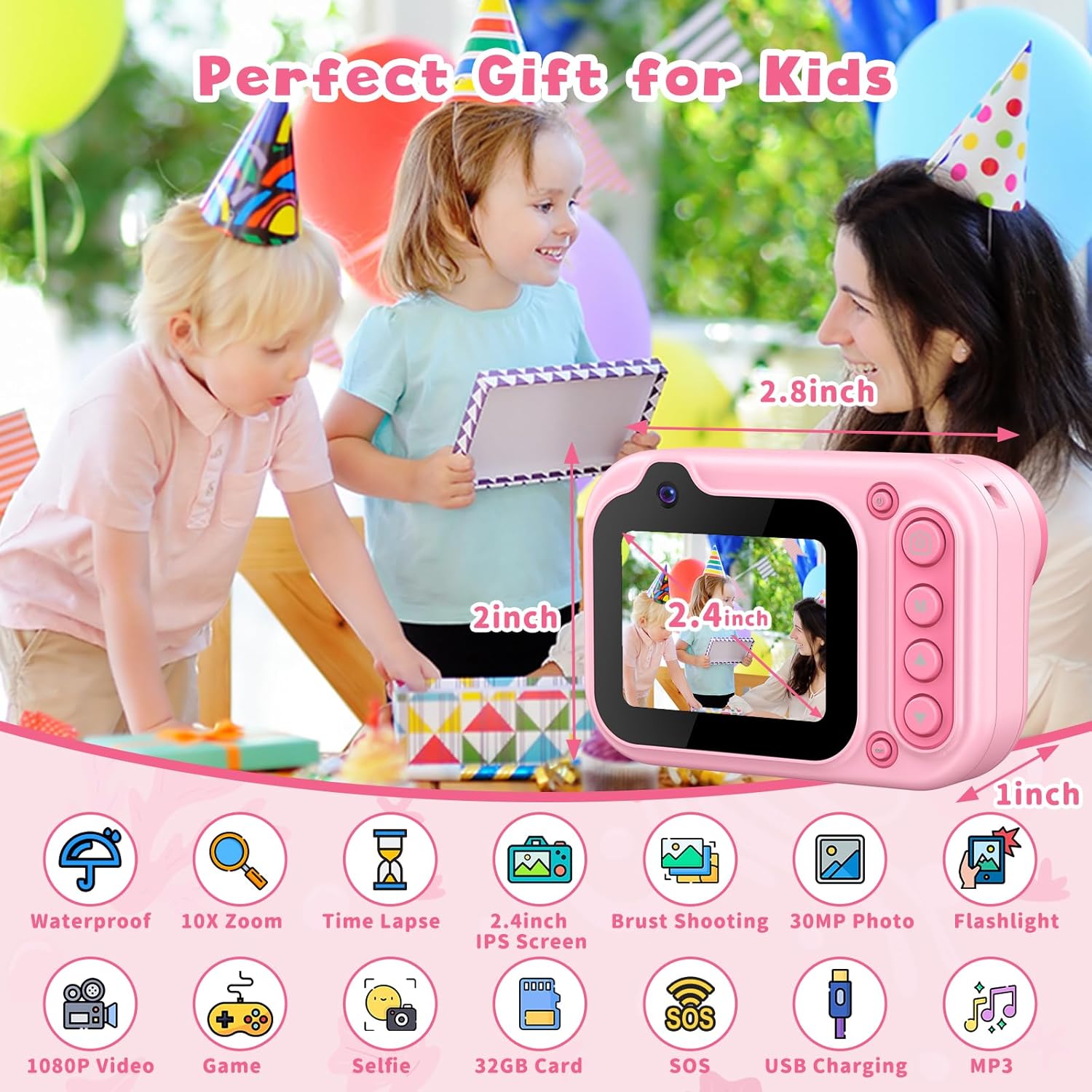
Image: An overview of the Gofunly D60 camera's key features, including its waterproof capability, digital zoom, time-lapse function, screen size, photo and video resolution, and entertainment options.
4.3 Taking Photos and Videos
Select the Camera icon for photos or Video icon for recording. Press the shutter button to capture a photo or start/stop video recording. The camera supports 30MP photos and HD 1080P videos at 30 FPS. Experiment with features like 40 photo frames, 7 color video modes, 10X digital zoom, burst shooting, time-lapse photo, and face recognition to enhance creativity.

Image: Visual representation of the camera's continuous shooting mode, time-lapse intervals (3s, 5s, 10s), and digital zoom levels (2x, 4x, 6x, 8x, 10x).
4.4 Selfie Mode
The camera features a front-facing lens for selfies. To activate selfie mode, navigate to the camera function and look for an option to switch between front and rear cameras (often by holding down a specific button like 'M' or a dedicated selfie button). This allows children to easily take self-portraits or group photos with friends.
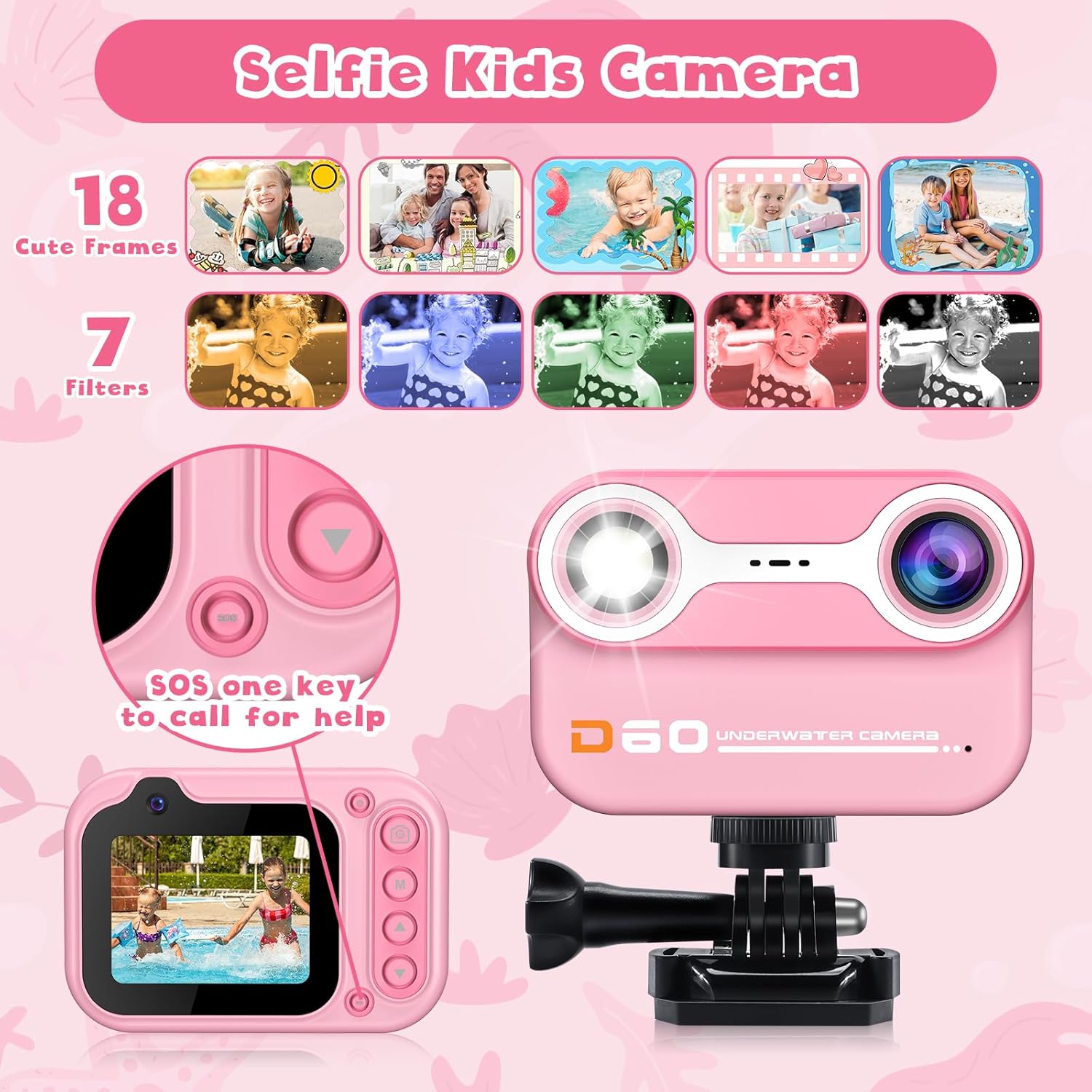
Image: The camera's selfie capabilities, highlighting the availability of 18 decorative frames and 7 artistic filters to personalize photos.
4.5 SOS Function
The camera includes an SOS feature, typically activated by a dedicated button (refer to the camera's physical layout for exact location). This function can be used in emergency situations to emit a signal or light, providing an added layer of safety for children.
5. Maintenance
5.1 Cleaning
After using the camera, especially after water activities, rinse it with fresh water to remove any chlorine or salt residue. Wipe the camera body and lens gently with a soft, dry cloth. Do not use abrasive cleaners or solvents.
5.2 Battery Care
To prolong battery life, avoid fully discharging the battery frequently. Recharge the camera when the battery indicator is low. If storing the camera for an extended period, charge it to about 50% and store it in a cool, dry place.
5.3 Storage
Store the camera in a dry, cool environment away from direct sunlight and extreme temperatures. Ensure the silicone plug is securely closed to prevent dust or moisture from entering the ports.
6. Troubleshooting
6.1 Camera Not Turning On
- Ensure the battery is charged. Connect to a charger and wait a few minutes before attempting to power on.
- Press and hold the power button for several seconds.
6.2 Poor Image/Video Quality
- Check if the lens is clean and free from smudges or water droplets.
- Ensure adequate lighting, especially for underwater shots.
- Verify that the correct resolution settings are selected in the camera menu.
6.3 Water Leakage
If water enters the camera, immediately power it off and open the silicone plug to allow it to dry. Do NOT attempt to use it until completely dry. This indicates the silicone plug was not properly sealed. Always double-check the seal before water exposure.
6.4 SD Card Errors
- Ensure the SD card is correctly inserted.
- Try reformatting the SD card through the camera's settings menu (this will erase all data).
- Test with a different compatible Micro SD card if issues persist.
7. Specifications
| Feature | Specification |
|---|---|
| Brand | Gofunly |
| Model Name | D60 |
| Photo Sensor Technology | CMOS |
| Supported File Format | JPEG |
| Image Stabilization | Digital |
| Maximum Image Resolution | 30 MP |
| Photo Sensor Size | 1/2.3-inch |
| Minimum Shutter Speed | 0.001 seconds |
| Exposure Control Type | Automatic |
| Screen Size | 2.4 Centimeters |
| Display Type | LCD |
| Display Resolution Maximum | 1080p |
| Memory Storage Capacity | 32 GB |
| Recording Capacity | 150 minutes |
| Flash Memory Supported Size Maximum | 32 GB |
| Flash Memory Installed Size | 32 GB |
| Special Feature | Time-lapse, Face Recognition |
| Color | Pink |
| Video Resolution | 1080p |
| Frame Rate | 30 FPS |
| Battery Capacity | 600 Milliamp Hours |
| Battery Average Life | 2.5 Hours |
| Water Resistance Level | Waterproof |
8. Warranty and Support
Gofunly is committed to providing high-quality products and excellent customer service. We offer hassle-free replacement or return options for our products. For any inquiries, technical assistance, or support, please contact our 7*24H Professional Customer Support team. Your satisfaction is our constant belief.
For more information or to contact support, please visit the official Gofunly Store: Gofunly Store on Amazon


