
Introduction
Thank you for choosing the Dripex Mobile Standing Desk. This versatile workstation is designed to enhance your productivity and comfort by allowing seamless transitions between sitting and standing positions. It features integrated power outlets, USB ports, and LED strip lights for a modern and functional workspace. Please read this manual thoroughly before assembly and use to ensure proper operation and safety.
Safety Information
Important: Please adhere to all safety guidelines to prevent injury or damage to the product.
- This product has a maximum weight capacity of 25 kilograms (55 pounds). Do not exceed this limit.
- Assembly is required. Follow all instructions carefully during assembly.
- Due to the presence of caster wheels, the desk may require additional anchoring or careful placement to prevent unintended movement, especially on uneven surfaces.
- Ensure all electrical connections for the power outlets and strip lights are secure and properly plugged into a suitable power source.
- Keep children and pets away from the desk during height adjustments.
- Avoid placing liquids directly on the desk surface, especially near power outlets.
Package Contents
Before beginning assembly, verify that all components are present and undamaged. If any parts are missing or damaged, please contact customer support.
- Desk frame components
- Two-tier desktop panels
- Caster wheels (4x)
- Power outlet unit with USB ports
- USB LED strip lights
- Assembly hardware (screws, bolts, Allen wrench)
- Instruction manual
Setup and Assembly
Follow these steps to assemble your Dripex Mobile Standing Desk. It is recommended to assemble the desk on a soft, clean surface to prevent scratches.
- Unpack Components: Carefully remove all parts from the packaging and lay them out. Check against the package contents list.
- Assemble the Base Frame: Connect the horizontal support bars to the vertical frame components using the provided hardware. Ensure all connections are secure.
- Attach Caster Wheels: Insert and secure the four caster wheels into the designated holes at the bottom of the base frame. Ensure they are firmly in place.
- Install Desktop Panels: Attach the lower and upper desktop panels to the vertical frame. The lower panel is typically fixed, while the upper panel allows for height adjustment.
- Mount Power Outlet Unit: Secure the power outlet unit to the designated area on the upper desktop panel. Connect its power cord.
- Install LED Strip Lights: Adhere the USB LED strip lights to the underside of the upper desktop panel or desired location. Connect the USB cable to the power outlet unit's USB port or another suitable USB power source.
- Final Checks: Ensure all screws and bolts are tightened. Test the height adjustment mechanism and the functionality of the power outlets and LED lights.
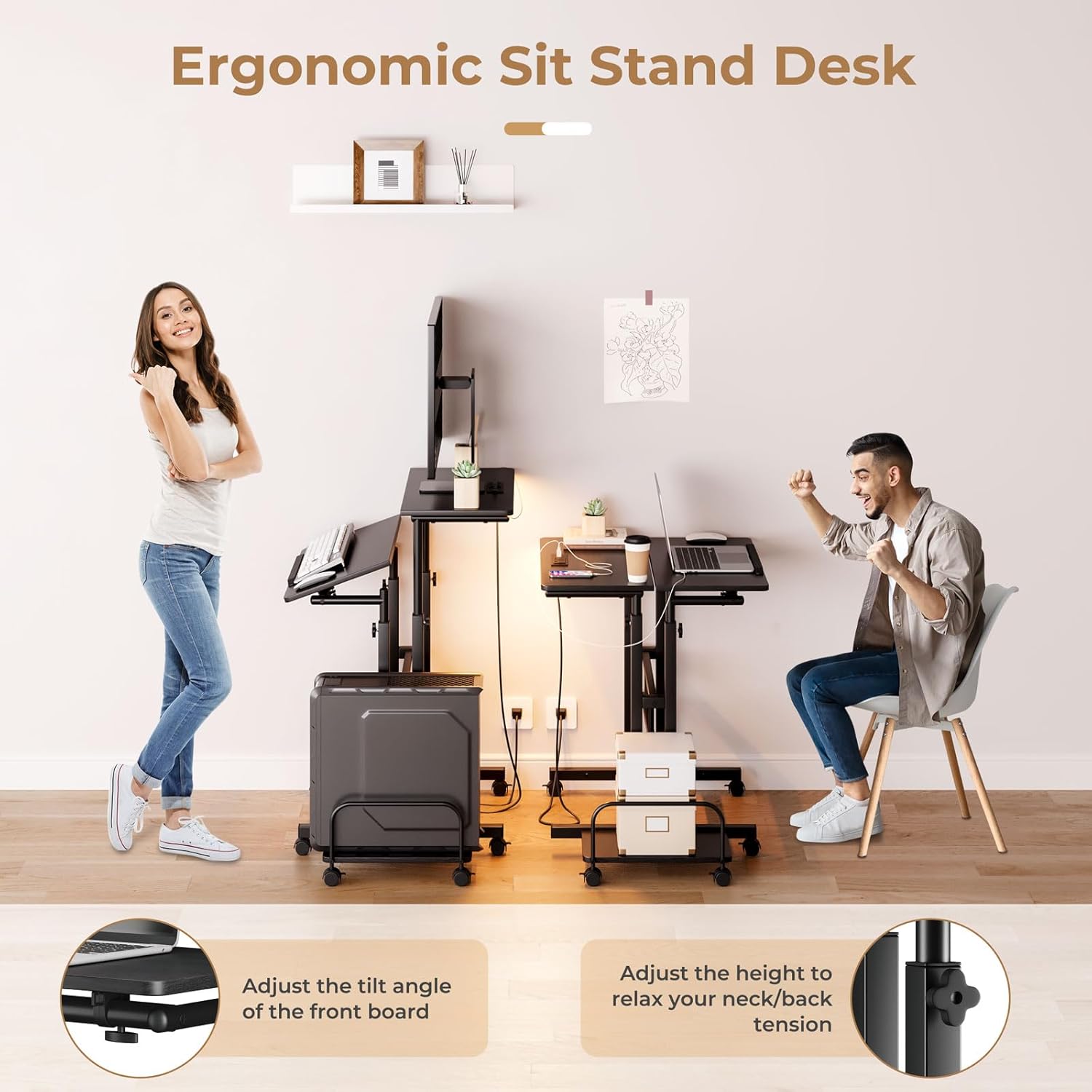
Image: Desk dimensions and components for assembly. The image shows the overall dimensions of the desk, including the two-tier design, adjustable height range (68-115cm), and the base structure with wheels.
Operating Instructions
Adjusting Desk Height
The desk features an adjustable height mechanism, allowing you to switch between sitting and standing positions. Locate the adjustment knobs or levers on the vertical frame. Loosen them, adjust the upper desktop to your desired height (between 26.4" and 45" or 68cm and 115cm), and then securely tighten the knobs/levers to lock the desk in place.

Image: Two individuals demonstrating the ergonomic sit-stand functionality of the desk. One person is standing, and another is sitting, highlighting the adjustable height feature and the tiltable front board.
Using Power Outlets and USB Ports
The integrated power strip provides convenient access to power for your devices.
- AC Outlets: Plug your laptop, monitor, or other AC-powered devices into the two standard 120V/12A outlets.
- USB Ports: Use the two 5V/2A USB ports to charge your smartphone, tablet, or other USB-powered accessories.
- Ensure the desk's main power cord (5ft) is securely plugged into a wall outlet.
Operating LED Strip Lights
The USB LED strip lights offer customizable lighting effects.
- Connect the USB cable of the LED strip to a USB port on the desk's power unit or another USB power source.
- Use the inline controller buttons to change lighting effects, colors (RGB), and brightness.

Image: A detailed view of the desk's power outlets (two AC, two USB) and the controller for the RGB LED light strip, demonstrating the integrated charging and lighting features.
Tilting the Front Board
The front section of the upper desktop can be tilted to provide an ergonomic angle for typing or drawing. Locate the tilt adjustment mechanism, adjust to your preferred angle, and secure it. An edge baffle is present to prevent items from sliding off.
Moving the Desk
The desk is equipped with 360-degree rotation wheels for easy mobility. Unlock the wheel brakes before moving the desk. Once in the desired position, engage the wheel brakes to secure the desk.

Image: An infographic illustrating various features of the desk, including the edge baffle, safety arc design, height adjustment mechanism, board angle adjustment, and 360-degree rotation wheels.
Maintenance
Regular maintenance helps prolong the life of your desk.
- Cleaning: Wipe surfaces with a soft, damp cloth. Avoid harsh chemicals or abrasive cleaners.
- Check Connections: Periodically check all screws and bolts to ensure they remain tight. Retighten if necessary.
- Electrical Components: Ensure the power cord and LED light connections are free from damage. Do not attempt to repair electrical components yourself.
Troubleshooting
If you encounter issues with your desk, refer to the following common problems and solutions.
- Desk is unstable or wobbly:
Ensure all assembly screws and bolts are fully tightened. Check that the desk is on a flat, even surface. Engage wheel brakes if the desk is moving unintentionally. - Wheels do not fit or roll smoothly:
Verify that the correct wheels are being installed in the designated slots. Ensure no debris is obstructing the wheel mechanism. If a wheel is defective, contact customer support for a replacement. - Height adjustment is difficult or stuck:
Loosen the adjustment knobs/levers sufficiently before attempting to change height. Ensure no objects are obstructing the adjustment mechanism. Do not force the adjustment. - Power outlets or USB ports are not working:
Check if the desk's main power cord is securely plugged into a functional wall outlet. Ensure the power outlet unit is properly connected to the desk. Test with a different device. - LED strip lights are not turning on:
Verify the USB connection of the LED strip to a working USB port. Check the inline controller for power and mode settings.
If the issue persists after attempting these solutions, please contact Dripex customer support for further assistance.
Specifications
| Brand | Dripex |
| Model Number | XBD-WP324-P |
| Color | Black |
| Material | Engineered Wood, Metal (Iron) |
| Product Dimensions | 59.94 x 59.94 x 67.82 cm (23.6 x 23.6 x 26.7 inches) |
| Adjustable Height Range | 68 - 115 cm (26.4 - 45.3 inches) |
| Item Weight | 11.7 kg (25.8 lbs) |
| Maximum Load Capacity | 25 kg (55 lbs) |
| Power Outlets | 2 Standard AC Outlets (120V/12A) |
| USB Ports | 2 USB Ports (5V/2A) |
| Power Cord Length | 5 ft |
| Special Features | Adjustable Height, Built-In Power Outlet & USB Outlet, Ergonomic, Wheels, with Strip Lights |
Customer Support
For any questions, concerns, or assistance with your Dripex Mobile Standing Desk, please do not hesitate to contact our customer support team. Refer to your purchase documentation or the Dripex official website for contact information.