
Introduction
This instruction manual provides comprehensive guidance for the proper installation, usage, and maintenance of your BoxWave ClearTouch Crystal Screen Protector for the Tera P160 device. Please read these instructions carefully before proceeding with the installation to ensure optimal performance and longevity of your screen protector.
Package Contents
Verify that all items are present in your package:
- Two (2) BoxWave ClearTouch Crystal Screen Protectors
- One (1) Applicator Card
- One (1) Microfiber Cleaning Cloth
- One (1) Dust Removing Sticker (often integrated with the screen protector packaging)
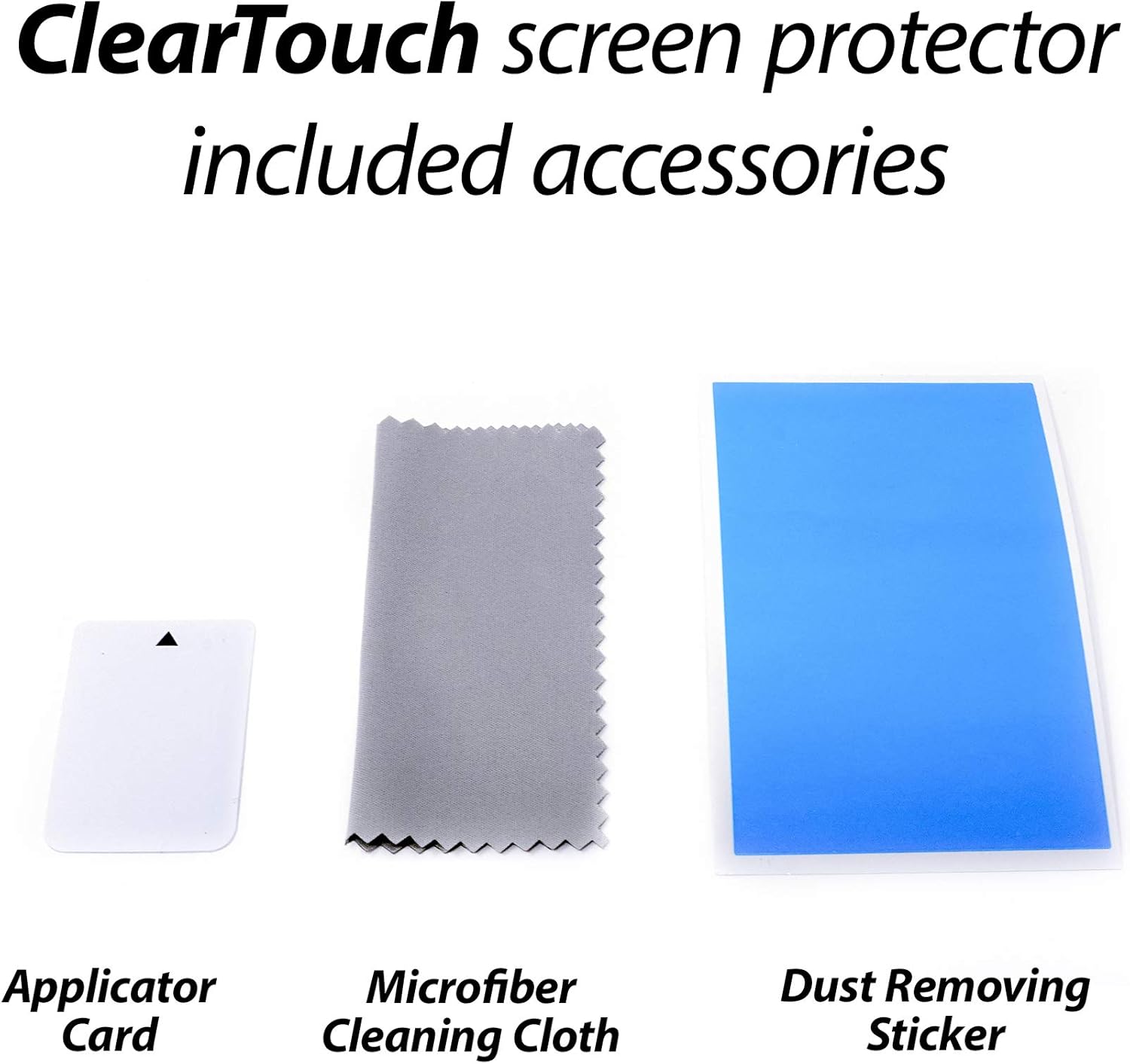
Figure 1: Included accessories for screen protector installation.

Figure 2: Two ClearTouch Crystal screen protectors and cleaning cloth.
Setup: Installation Instructions
Follow these steps carefully for a bubble-free installation:
- Prepare Your Workspace: Choose a clean, dust-free environment. Wash your hands thoroughly to avoid transferring oils or dirt to the screen or protector.
- Clean the Device Screen:
- Use the provided microfiber cleaning cloth to gently wipe the Tera P160 screen, removing any smudges or fingerprints.
- If necessary, use a screen cleaner (not included) designed for electronics, then wipe dry with the microfiber cloth.
- Use the dust removing sticker (if provided separately, or the tab on the protector itself) to lift any remaining dust particles from the screen. Ensure the screen is completely free of dust.
- Align the Screen Protector:
- Carefully peel back a small portion of the protective film labeled "Step 1" or similar, exposing the adhesive side. Avoid touching the adhesive.
- Align the exposed edge of the screen protector with one edge of your Tera P160 screen. Pay close attention to cutouts for speakers, cameras, or sensors to ensure proper alignment.
- Apply the Protector:
- Once aligned, slowly and steadily peel off the rest of the "Step 1" protective film while simultaneously using the applicator card to smooth the screen protector onto the device screen.
- Work from the aligned edge outwards, pushing out any air bubbles as you go.
- Remove Top Film: Once the screen protector is fully applied, carefully peel off the top protective film, often labeled "Step 2" or similar.
- Final Adjustments: Use the microfiber cloth to gently wipe down the newly installed screen protector. Small air bubbles may disappear over 24-48 hours as the low-tack adhesive fully settles.

Figure 3: Tera P160 device, compatible with this screen protector.

Figure 4: Precision design ensures a perfect fit for your device.
Operating: Using Your Screen Protector
The BoxWave ClearTouch Crystal Screen Protector is designed to provide clear, unobtrusive protection for your Tera P160 screen.
- Enhanced Clarity: The protector offers up to 99% visual clarity, ensuring your device's display remains vibrant and responsive.
- Scratch Resistance: It shields your screen from daily scratches, dust, and minor impacts, preserving the original screen condition.
- Touch Sensitivity: The thin film maintains the original touch sensitivity of your Tera P160 screen.

Figure 5: High definition clarity for an optimal viewing experience.
Maintenance
To keep your screen protector in optimal condition:
- Cleaning: Use the provided microfiber cloth to gently wipe away fingerprints and smudges. For stubborn marks, lightly dampen the cloth with water or a screen cleaner designed for electronics. Avoid harsh chemicals.
- Reusability: The ClearTouch Crystal screen protector features a glueless adhesive, allowing for clean removal and reinstallation if needed. Ensure the adhesive side remains clean during removal to facilitate reapplication.
Troubleshooting
Common issues and their solutions:
- Air Bubbles:
- Small Bubbles: Many small air bubbles will naturally dissipate within 24-48 hours as the adhesive fully cures.
- Large Bubbles: Gently lift the nearest edge of the screen protector and reapply, using the applicator card to push the air out as you smooth it back down.
- Dust Particles Under Protector:
- Carefully lift the edge of the screen protector closest to the dust particle.
- Use a dust removing sticker or a piece of tape to gently lift the dust particle from the screen or the adhesive side of the protector.
- Reapply the protector, smoothing it down with the applicator card.
- Misalignment: If the protector is significantly misaligned, carefully peel it off entirely, clean the screen again, and attempt reinstallation. The glueless adhesive allows for this.
Specifications
| Product Name | ClearTouch Crystal Screen Protector |
| Compatibility | Tera P160 |
| Material | High-quality Thermoplastics |
| Transparency | Up to 99% Visual Clarity |
| Adhesive Type | Glueless (Residue-Free) |
| Package Quantity | 2-Pack |
| Item Weight | 0.7 ounces |
Warranty and Support
Information regarding specific warranty terms for the BoxWave ClearTouch Crystal Screen Protector is not available in this manual. For detailed warranty information or technical support, please refer to the official BoxWave website or contact their customer service directly.
You may also find additional support resources by visiting the product page on the retailer's website where you purchased this item.